
When you go to the server and put QuickBooks in multi-user mode, you see that “QBDBMgrN not running on this computer.” Your stomach sinks a bit. Nearly all QuickBooks users have experienced it.
One of the most frequent issues individuals have when attempting to share a QuickBooks Desktop company file over a network is the QBDBMgrN Not Running Error. The good news is that you usually don’t need to pay someone to fix it, and it can be done in less than an hour.
This article will describe QBDBMgrN, explain why the QBDBMgrN not running error appears, and walk you through 11 remedies in a logical order, starting with the simplest. Additionally, we double-checked the instructions with Intuit’s most recent support documentation, so nothing is out of date.
What is QBDBMgrN, and Why Does It Matter?
The program that powers QuickBooks Database Server Manager is called QBDBMgrN.exe. The simplest way to visualize it is as your company file’s receptionist. The receptionist sits on the computer that contains the file, monitors who is connected, and directs everyone to the appropriate location when three people request the same file at the same time.
It uses a small Network Data file (.nd) that resides next to your company file to do this. QuickBooks reads the file to determine which server to communicate with when a workstation launches the program. Your workstations are left standing in the lobby with nowhere to go and no receptionist.
QuickBooksDBXX, which varies depending on your version, is the name of the service that this receptionist uses on Windows. QuickBooksDB28, QuickBooksDB29, QuickBooksDB30, and QuickBooksDB31 are used in QuickBooks 2018, 2019, 2020, and 2021, respectively. Open your Services list and compare the number to your year, as newer releases follow the same pattern. Now, you get the QBDBMgrN Not Running Error if the service is blocked, halted, or missing.
What Does the QBDBMgrN Not Running Error Mean?
To put it simply, the notification indicates that QuickBooks cannot share your company file with anyone else because QuickBooks Database Server Manager is not running on the computer hosting it.
“QBDBMgrN Not Running On This Computer,” a File Doctor result stating that QBDBMgrN isn’t running on the server, or a general QBDBMgrN not running on server issue during a network scan are some examples of how you could see it. The lengthy “QBDBMgrN Not Running On This Computer Server Issue,” which some users also look for, is actually the same issue.
What will surprise most people is that the single user mode still works. Only multi-user access is broken. Therefore, if you are the sole user of the file, you can keep working as you troubleshoot, but no one can join you until the QBDBMgrN not running error is fixed.
Common Signs of the QBDBMgrN Not Running Error
Not sure if this is the problem you are experiencing? Watch for these signs on the server and your workstations.
- QuickBooks will not switch to multi-user mode
- You will not be able to open or view the company file from workstations on the server.
- QuickBooks Tool Hub or File Doctor reports a network or Database Server Manager error
- Windows Services – QuickBooksDBXX service is Stopped or Disabled
- There are multi user errors like H202 or H505 along with the main message
If two or more of these match what you have set up, then this is almost certainly the cause. Confirm it below quickly before you start changing settings.
Why Does the QBDBMgrN Not Running Error Happen?
There’s usually one of these culprits behind every QBDBMgrN Not Running Error:
- Database Server Manager is not installed on the server: If QuickBooks was only installed on workstations, then no one is hosting the file.
- Disabled Service: It can be turned off by a Windows update, a crash or someone “tidying up” services.
- Firewall or Antivirus: You will need to open QBDBMgrN.exe and its ports on the server and the workstations.
- Outdated QuickBooks or Windows: Expert suggestions say that Database Server Manager updates automatically when you update QuickBooks Desktop, so if you skip updates, things can get out of step.
- Wrong Hosting: The company file should be hosted only on the server.
- Incomplete Installation: The service fails to start correctly because of missing or corrupt program files.
- Unsupported Operating System: According to our experts, QuickBooks 2021 Database Server Manager is not compatible with Windows Server 2025. You may see this problem if you have recently upgraded your server.
- Permissions are Blocked: QuickBooks makes a Windows user for each version (for example, QBDataServiceUser33 for the 2023 version). That user needs access to the folder containing your company file.
Below are the main reasons for appearing QBDBMgrN Not Running Error on your system.
Quick Checklist Before You Fix the QBDBMgrN Not Running Error
A little preparation goes a long way to making every fix below safer:
- Log in to the server with the Windows Administrator account.
- Create a backup of your company file.
- State your QuickBooks year and tell me which computer is the server.
- Install any available Windows updates.
- Have your licence number and installer available for the later fixes.
Now go through the 11 fixes below in order. Test multi-user mode after each one so you don’t do more than you need to and you’ll clear the QBDBMgrN Not Running Error with the least amount of effort.
11 DIY Fixes to Get Rid of QBDBMgrN Not Running Error
Now, go through the below 11 fixes, one by one. Try multi-user mode after each one and you will solve it using the least amount of effort, without doing more than you need to.
Fix 1: Restart the Server
It is surprising how many issues, including QBDBMgrN Not Running Error can be fixed by restarting your computer as it restarts all its services from scratch. Do it in the following order:
- Save your work on each workstation and close QuickBooks.
- Restart the server.
- When it comes back up, open QuickBooks and switch to multi-user mode.
We also recommend that you restart the server if the Database Server Manager does not restart by itself.
Fix 2: Open and Close the Company File on the Server
If QuickBooks Desktop is installed on your server, this simple trick often wakes Database Server Manager up and clears the QBDBMgrN not running error without any further effort:
- Open QuickBooks Desktop on the server.
- Go to File > Open or Restore Company.
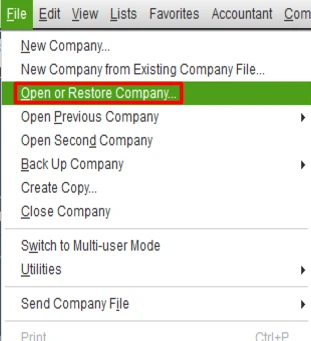
- Choose Open a company file and click Next.
- Select your company file and open it in multi-user mode.
- Log in with your usual username and password.
- Go to File > Close Company/Log Off.
Now, check whether the issue is resolved. If you are still seeing the same error, try the next method to resolve it.
Fix 3: Check the QuickBooksDBXX Service
If you installed only Database Server Manager on the server, restart the service directly to clear the QBDBMgrN Not Running Error:
- Press Windows + R and type in services.msc and press Enter.
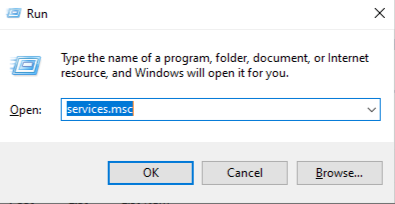
- Find the QuickBooksDBXX service that matches your version.
- Right click and choose Restart (or Start if it is stopped).
- Double click on the service and set the Startup type to Automatic. Make sure the status is Running.
- Go to the Recovery tab and set First, Second and Subsequent failures to Restart the service. So you won’t be stranded again by a random crash.
If Windows tells you the service “started and then stopped”, go straight to Fix 8.
Fix 4: Run Database Server Manager from QuickBooks Tool Hub
If you manage several workstations, Tool Hub is the fastest way to find out whether the QBDBMgrN Not Running Error is network-related.
- Download and open the latest version of QuickBooks Tool Hub.
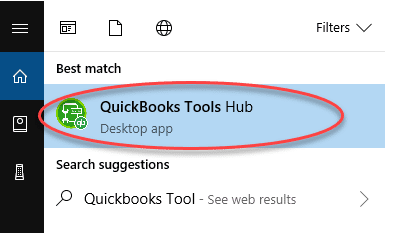
- Choose Network Issues.
- Select QuickBooks Database Server Manager.
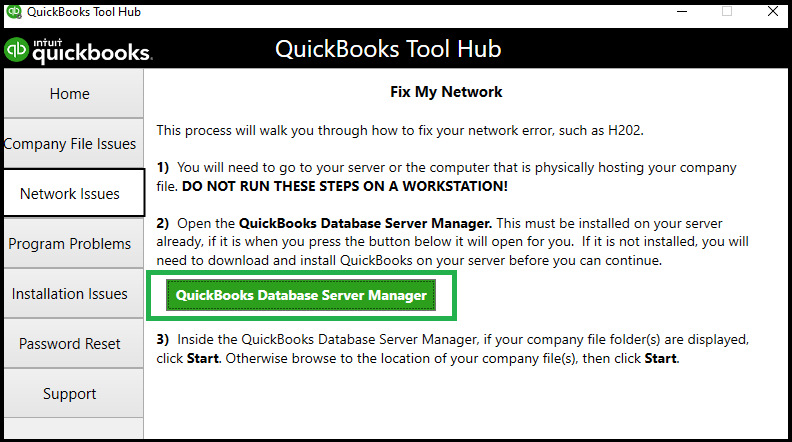
- Go to the Scan Folders tab and browse to the folder where your company file is located.
- Click on Start Scan.
The scan creates firewall permissions for the file and exposes it to other computers.
Fix 5: Sort Out Hosting Settings (QBDBMgrN Not Running While Running Multi-User Mode)
When the QBDBMgrN Not Running Error only appears when someone goes to multi-user mode, then hosting is a prime suspect. The company file should reside only on the server. Workstations should not .
- Open QuickBooks on each computer and choose File > Utilities.
- If you see Stop Hosting Multi-User Access, click on it. If Host Multi-User Access is present, leave it
- On the server, click File > Utilities > Host Multi-User Access, and then click Yes.
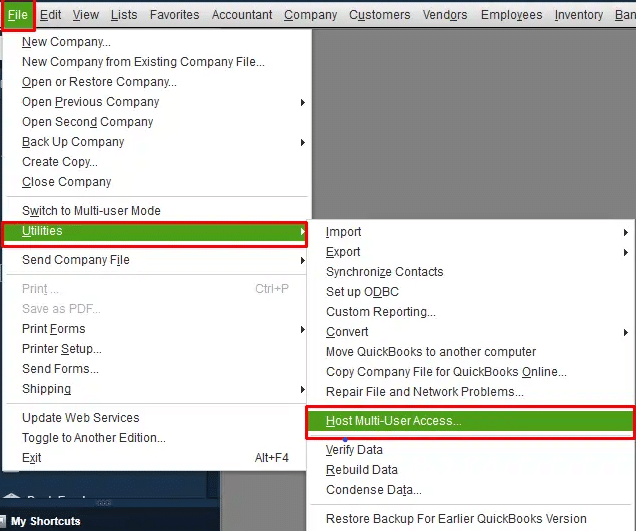
Two machines both trying to host is a classic recipe for confusing error messages, so this fix alone solves many cases of QBDBMgrN not running while running Multi-User mode.
Fix 6: Allow QBDBMgrN Through Your Firewall
The QBDBMgrN Not Running Error is not resolved by the easy fixes as the biggest culprit is a blocked firewall. QuickBooks Desktop 2019 and later versions use dynamic ports, meaning that each version will use a different port when installed. Here’s how to locate and open yours:
- On the server, open the Windows Start Menu, then open QuickBooks Database Server Manager.
- In the Port Monitor tab, note the port number next to your QuickBooks version.
- Open Windows Defender Firewall with Advanced Security and click Inbound Rules > New Rule.
- Select Port, then TCP, and type in 8019 and the port number you wrote down.
- Select Allow the connection, leave all profiles checked and name the rule something like “QBPorts(year)”.
- Repeat the same steps under Outbound Rules .
Then, add program exceptions for the QuickBooks Executables which are QBDBMgrN.exe, QBW32.exe, DBManagerExe.exe, FileManagement.exe, and QBCFMonitorService.exe. If you have a 3rd party antivirus, add the same exclusions there. If you run more than one QuickBooks year, repeat all of the above for each year. When done, restart the server.
Fix 7: Update QuickBooks Desktop and Windows
Outdated software silently triggers the QBDBMgrN Not Running Error.
- Select Help > Update QuickBooks Desktop.
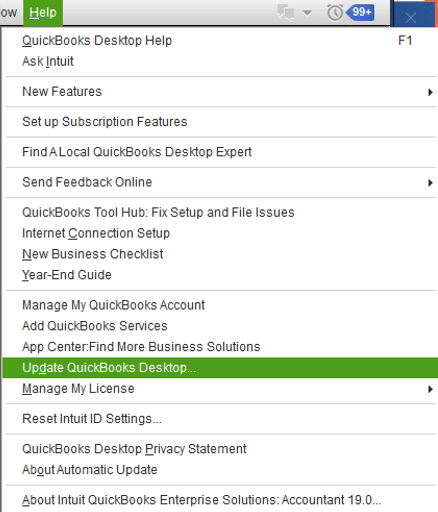
- Click Update Now and allow the update to complete.
- Run Windows Update on the server.
- Restart the server and re-open your company file.
Database Server Manager updates with QuickBooks Desktop, so this updates it too.
Fix 8: Fix a Service That Starts and Then Stops
This is the version of the QBDBMgrN Not Running Error that fools people, because the service appears to be fine until you actually try to start it. Windows will tell you that it started and stopped because nothing was using it. Here’s a thought:
- Open services.msc and double-click your QuickBooksDBXX service.
- Check the Log On tab. If the service is struggling on the Local System account, our experts suggest running it under a specific account instead, so test that.
- Make sure the QBDataServiceUser for your version has full control of the folder holding your company file.
- Open Database Server Manager and scan the folder again. This recreates the QBDataServiceUser if it’s missing.
- Confirm QuickBooks lives in its default folder, not on a mapped drive.
After following all these steps, check again whether the issue is resolved. Still seeing the same error? Try the next method.
Fix 9: Repair QuickBooks
If the first eight fixes didn’t kill the QBDBMgrN Not Running Error, the program files themselves may be damaged. Close all programs, restart the server, back up your company file, and then:
- Open Control Panel > Programs and Features.
- Select QuickBooks and click on Uninstall/Change.
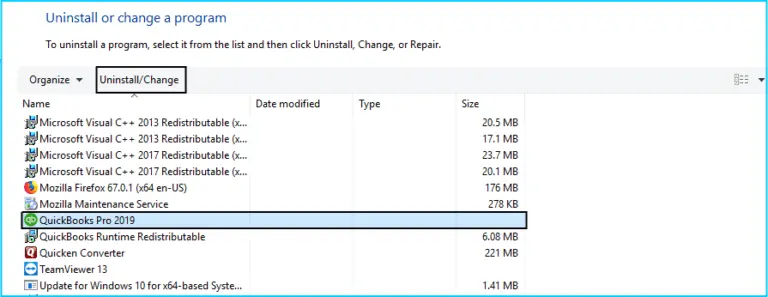
- Choose Repair, click Next and wait for the process to complete.
- Restart the server .
If you get a “File in Use” message during the repair, click Ignore (you may have to reboot), then OK. If Ignore is not available, click Close and allow the repair to complete.
Fix 10: Clean Install Your QuickBooks Application
A clean install is the heavy-duty option for the QBDBMgrN Not Running Error, so make sure your backup is safe first. Your company file isn’t removed by uninstalling the program, but a backup costs you nothing.
- Uninstall QuickBooks from Programs and Features.
- Download and run the QuickBooks Clean Install Tool, pick your version, and let it rename the old installation folders.
- If Windows says “Access Denied,” open Task Manager and end QBDBMgrN.exe, QBDBMgr.exe, QBCFMonitorService.exe, and QBW32.exe, then try again.
- Reinstall QuickBooks using your license number and the default installation path.
- When asked for the install type, choose Custom or Network options, not Express. On the server, pick the option to use QuickBooks on this computer and store the company file here, which Intuit strongly recommends.
- Scan your company folder in Database Server Manager again.
After that, check again whether the issue is resolved or not. If you are still facing the same issue, check your Network Basics and Compatibility by performing the steps listed in the next method.
Fix 11: Check Network Basics and Compatibility
Sometimes the QBDBMgrN Not Running Error is actually a network problem in QuickBooks. Kindly do these checks:
- Ping the server from a workstation: If the issue doesn’t resolve, try the IP address, and consider giving the server a static IP.
- Check the operating system: Confirm your server’s Windows version is supported for your QuickBooks year in Intuit’s system requirements.
If you host several QuickBooks years, install the oldest first and the newest last. These are all the methods to resolve the QBDBMgrN .exe Not Running Error. It is recommended to implement these steps as per the given instructions.
Do this If You are Still Seeing the QBDBMgrN .exe Not Running Error
In its purest form, the QBDBMgrN .exe Not Running Error is when the QuickBooksDBXX service says Running and QBDBMgrN.exe is nowhere to be found. Here’s how to do it:
- Hit Ctrl + Shift + Esc to open the Task Manager.
- Open the Details tab and search for QBDBMgrN.exe.
- If the QuickBooksDBXX service is missing, restart it.
- Look through the antivirus quarantine for any QuickBooks files being blocked.
- If the process disappears again, refer to Fixes 6, 9, and 10.
Missing processes typically mean that some service is broken, or some security tool is killing it silently.
How to Prevent the QBDBMgrN Not Running Error
The best way to deal with the QBDBMgrN Not Running Error is to never have it happen to you again. A few habits help a lot:
- Regularly update QuickBooks Desktop and Windows, beginning with the server, to keep them current.
- Set the QuickBooksDBXX service to Automatic and set recovery actions to restart.
- Add the QuickBooks ports and executables to your firewall and antivirus exceptions and re-check them after installing a new QuickBooks year.
- Enable hosting on the server only.
- Re-scan your folders in Database Server Manager after moving or renaming any company file.
- Back up your company file on a schedule, ideally to a location off the server.
These are some healthy practices you must do to run your QuickBooks Desktop application without any disturbance.
Conclusion
The QBDBMgrN Not Running error stops users from sharing their company file. Thankfully, there are some quick and easy step-by-step processes to get multi-user access running again. In most cases, the reason is a service that has stopped, a blocked port or an incorrect hosting configuration. Try the simple solutions first, like restarting the server, checking the QuickBooksDBXX service, checking the hosting settings and opening the required ports on the firewall.
If the problem persists, proceed to a repair or clean installation. Check whether the issue remains unresolved. If yes, contact Accounting Assist Pro at +1-888-892-5727 to resolve this issue with expert help.
FAQs
What is QBDBMgrN in QuickBooks?
This is the executable for QuickBooks Database Server Manager, the standard program that enables multiple users to work in one company file over a network.
How long does it take to fix the QBDBMgrN Not Running Error?
Fixes 1-7 take about 10-30 minutes to do in general. Repair and clean install jobs take longer, so schedule them for off-hours.
Do I need Database Server Manager on every computer?
No. Install it on the server where you store your company files. Workstations need only QuickBooks Desktop.
Will a clean install delete my company file?
When you uninstall QuickBooks, your company file won’t be removed, but you should always back up before you try Fix 10.
How do I find the right port for my firewall?
Access the Open Database Server Manager, select the Port Monitor tab, and read the port number for your QuickBooks version.
