
QuickBooks Error 6094 occurs when QuickBooks Desktop cannot start its database server or access the company file. Antivirus restrictions, firewall settings, damaged program files, and incorrect hosting settings can cause this problem. It can also prevent users from opening company files in multi-user mode. You can fix QuickBooks Error 6094 by checking antivirus settings, restoring blocked files, and repairing QuickBooks.
What Is QuickBooks Error 6094?
QuickBooks Error 6094 appears when QuickBooks Desktop cannot start its database server. This server manages company file access and sharing across a network.
- An antivirus program may block or change an important QuickBooks file
- Firewall restrictions can interrupt database communication
- A damaged company file can prevent database access
- The error may appear when opening QuickBooks or accessing a shared company file
- Related error codes include -6094, 0 and -6010, 2
- Both codes can indicate database access problems, but their causes may differ
What Is the QuickBooks Error 6094 Message?
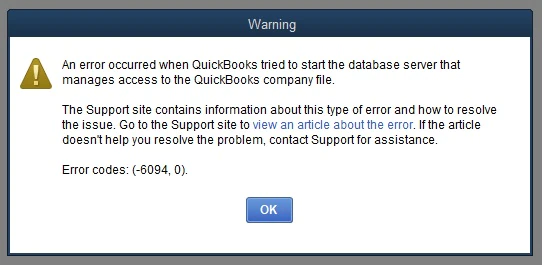
QuickBooks displays the following warning when its database server fails to start:
“An error occurred when QuickBooks tried to start the database server that manages access to the QuickBooks company file. Error (-6094,0).”
The message indicates that QuickBooks cannot establish the required connection with its database server. The exact warning may appear as QuickBooks company file. Error (-6094,0) on the screen.
What Causes QuickBooks Desktop Error Code 6094?
Several security and system problems can trigger this error. The most common causes include:
- Antivirus software blocking QuickBooks executable files
- AVG Antivirus moving important QuickBooks files into quarantine
- SpyHunter marking QuickBooks files as unwanted programs
- PC Tools Internet Security restricting database processes
- Windows Firewall blocking communication between computers
- Missing or damaged QBDBMgrN.exe files
- QBCFMonitorService failing to run correctly
- Incorrect Windows administrator permissions
- Wrong hosting settings on the server computer
- Outdated QuickBooks Desktop software
- Corrupted company files or network descriptor files
- Damaged QuickBooks installation files
What Are the Signs and Symptoms of QuickBooks Error 6094?
Recognizing the warning signs helps you find the cause quickly.
- QuickBooks Desktop fails to open the company file
- The database server stops responding
- QuickBooks displays repeated connection errors
- The application freezes or runs slowly
- Users cannot access shared files in multi-user mode
- QuickBooks closes unexpectedly
- Database services stop running
- Windows displays repeated error messages
- QuickBooks updates fail to complete
- The server cannot connect with workstations
Read More:- Fix QuickBooks Update Errors
How to Identify QuickBooks Error 6094?
Check these areas to identify the source of the problem.
- Notice when the error appears during startup or company file access
- Check whether the problem affects one computer or several workstations
- Open the antivirus quarantine list and review blocked files
- Check whether QBDBMgrN.exe is present in the installation folder
- Review the status of QBCFMonitorService
- Check whether Windows Firewall blocks QuickBooks applications
- Identify whether the error started after an antivirus update
- Try opening the company file directly on the server
- Check whether other users can access the same company file
Prerequisites Before Fixing QuickBooks Error 6094
Complete these preparations before changing system or security settings.
- Create a backup of your QuickBooks company file
- Close QuickBooks Desktop on all connected computers
- Sign in to Windows with administrator permissions
- Update QuickBooks Desktop and antivirus definitions
- Check the antivirus quarantine folder
- Locate the QuickBooks installation directory
- Note the company file location
- Keep the Windows administrator password available
- Verify quarantined files before restoring them
- Avoid deleting important QuickBooks files manually
Solution 1: Update QuickBooks Desktop and Antivirus Software
Outdated software can cause security and database communication problems.
Update QuickBooks Desktop
- Open QuickBooks Desktop
- Select Help from the top menu
- Choose Update QuickBooks Desktop
- Open the Update Now tab
- Select Get Updates
- Wait for the available updates to download
- Close QuickBooks Desktop
- Reopen the application
- Select Yes when the installation prompt appears
- Follow the on-screen instructions
- Restart your computer after installation
Update Antivirus Software
- Open your antivirus application
- Navigate to its update section
- Check for the latest virus definitions
- Download available updates
- Install the updates
- Restart your computer
- Open QuickBooks and check whether the error remains
Solution 2: Add QuickBooks Folders to Antivirus Exceptions
Antivirus exclusions can prevent trusted QuickBooks files from being blocked.
Add the QuickBooks Installation Folder
- Close QuickBooks Desktop
- Open your antivirus application
- Navigate to Settings
- Find the Exceptions or Exclusions section
- Select the option to add a folder
- Browse to the QuickBooks installation directory
- Enter C:\Program Files\Intuit if you use the default location
- Add the relevant QuickBooks program folder
- Add the database server folder when required
- Save the changes
- Restart QuickBooks Desktop
- Check whether the company file opens
Solution 3: Restore QuickBooks Files from Antivirus Quarantine
Antivirus software may quarantine important QuickBooks executable files.
Restore the Quarantined Files
- Open your antivirus application
- Navigate to History or Quarantine
- Open the list of blocked files
- Search for qbdmgr.exe
- Look for qbdbmgrn.exe and other QuickBooks files
- Check each file’s location and digital signature when available
- Confirm that the files belong to your genuine QuickBooks installation
- Select the verified files
- Choose Restore
- Confirm the restoration
- Add the restored files to the antivirus exception list
- Restart QuickBooks Desktop
- Check whether the database server starts
Solution 4: Fix AVG Antivirus Restrictions
AVG may block QuickBooks files through its security shields.
Add QuickBooks to AVG Exceptions
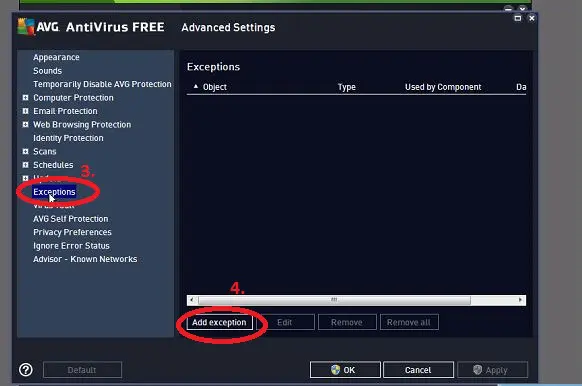
- Close QuickBooks Desktop
- Open AVG Antivirus
- Select Menu
- Open Settings
- Navigate to General
- Select Exceptions
- Click Add Exception
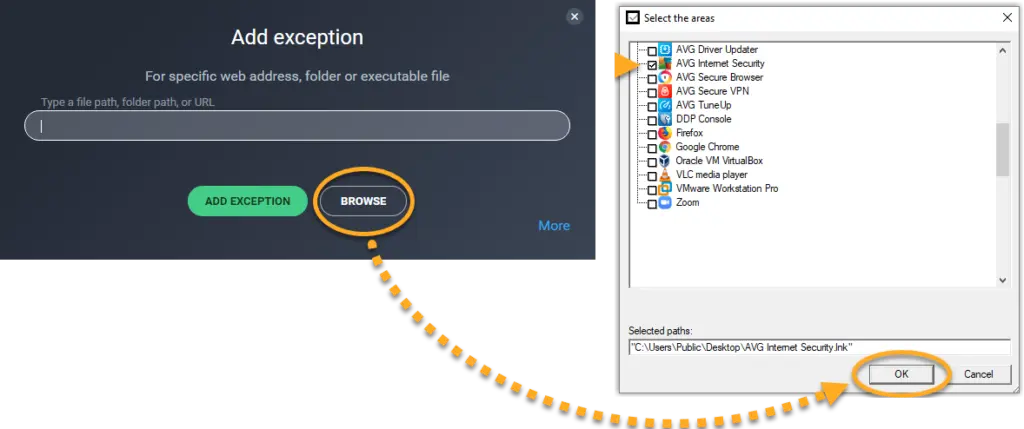
- Enter the QuickBooks installation folder path
- Browse to C:\Program Files\Intuit
- Confirm the selected folder
- Save the exception
- Restart your computer
Restore Files from AVG Quarantine
- Open AVG Antivirus
- Select Menu
- Choose Quarantine
- Search for QuickBooks executable files
- Verify the identity and location of each file
- Select the trusted files
- Click the three-dot menu
- Choose Restore and Add Exception
- Confirm your selection
- Restart QuickBooks Desktop
Rename Files Modified by AVG
- Close QuickBooks Desktop
- Open C:\Program Files\Intuit\QuickBooks
- Look for files with modified names
- Check for names such as QBW32_AVG_RESTORED
- Confirm the correct original filename
- Rename the verified file to its original name
- Press Enter to save the change
- Restart QuickBooks Desktop
- Check whether the error disappears
Solution 5: Allow QuickBooks Files in SpyHunter
SpyHunter may restrict QuickBooks files through its System Guard settings.
Change QuickBooks File Permissions
- Open SpyHunter
- Select System Guard
- Open the User-Added tab
- Search for QuickBooks-related files
- Check whether any files have restricted status
- Select the verified QuickBooks files
- Change their status to Allowed
- Save the changes
- Return to the previous section if no files appear
- Open the PUP section
- Search for blocked QuickBooks files
- Select verified QuickBooks files
- Change their status to Allowed
- Save the settings
- Restart QuickBooks Desktop
This process can help resolve QuickBooks error code 6094 in SpyHunter when security restrictions cause the problem.
Solution 6: Restore QuickBooks Files in PC Tools Internet Security
PC Tools Internet Security may place QuickBooks files in quarantine.
Restore Blocked QuickBooks Files
- Open PC Tools Internet Security
- Navigate to Settings
- Select Quarantine
- Search for QuickBooks executable files
- Verify the files before restoring them
- Select the required files
- Click Restore
- Select Yes to confirm
- Click OK
- Return to the main settings dashboard
- Open Global Action List
- Select Add
- Add the verified QuickBooks installation folder
- Include the required executable files
- Save the changes
- Restart QuickBooks Desktop
- Check whether the database server starts correctly
Solution 7: Check QuickBooks Services and Multi-User Hosting Settings
Database services and hosting settings control shared company file access.
Check QuickBooks Database Services
- Close QuickBooks Desktop
- Press Windows + R
- Type services.msc
- Press Enter
- Find the QuickBooksDBXX service
- Check its status
- Confirm that its startup type is correct for your setup
- Right-click the service if it has stopped
- Select Start
- Find QBCFMonitorService
- Check its status
- Start the service if required
- Close the Services window
Verify Multi-User Hosting Settings
- Open QuickBooks Desktop on the server computer
- Sign in using an administrator account
- Open the File menu
- Select Utilities
- Choose Host Multi-User Access if hosting is not enabled
- Confirm the hosting change
- Open QuickBooks on each workstation
- Select File
- Open Utilities
- Confirm that Host Multi-User Access is not enabled on workstations
- Restart QuickBooks Desktop
- Test access to the shared company file
Solution 8: Configure Windows Firewall Settings
Windows Firewall may block QuickBooks database communication.
Allow QuickBooks Applications Through Firewall
- Close QuickBooks Desktop
- Open the Windows Start menu
- Search for Control Panel
- Open Windows Defender Firewall
- Select Advanced Settings
- Open Inbound Rules
- Select New Rule
- Choose Program
- Browse to the QuickBooks installation directory
- Select QBW32.exe
- Choose Allow the connection
- Apply the rule to the appropriate private network profile
- Enter a clear rule name
- Repeat the process for QBDBMgr.exe
- Add QBDBMgrN.exe
- Add QBUpdate.exe when required
- Review the Outbound Rules section
- Create matching rules where necessary
- Save the changes
- Restart your computer
- Open QuickBooks and test company file access
Solution 9: Repair the Company File Using File Doctor
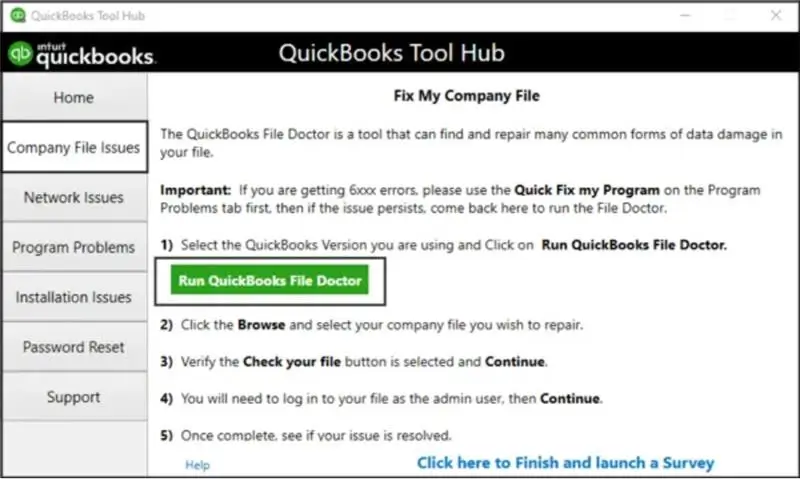
A damaged company file can prevent the database server from opening it.
Run the Company File Repair Tool
- Close QuickBooks Desktop
- Open QuickBooks Tool Hub
- Select Company File Issues
- Choose Run QuickBooks File Doctor
- Wait for the tool to open
- Select the affected company file from the list
- Browse to its location if the file does not appear
- Select Check Your File
- Click Continue
- Enter the QuickBooks administrator password
- Select Next
- Allow the scan and repair process to finish
- Close the repair window
- Open QuickBooks Desktop
- Open the repaired company file
- Check the account records and balances
Always keep a separate backup before repairing a damaged company file.
Solution 10: Repair QuickBooks Desktop and Perform a Clean Installation
Damaged installation files can prevent QuickBooks from starting its database server.
Run Quick Fix My Program
- Close QuickBooks Desktop
- Open QuickBooks Tool Hub
- Select Program Problems
- Choose Quick Fix My Program
- Wait for the repair process to finish
- Open QuickBooks Desktop
- Check whether the error remains
Run QuickBooks Install Diagnostic Tool
- Open QuickBooks Tool Hub
- Select Installation Issues
- Choose QuickBooks Install Diagnostic Tool
- Allow the tool to scan the installation
- Wait for the repair process to finish
- Restart your computer
- Open QuickBooks Desktop
- Check whether the problem is resolved
Rename the ND and TLG Files
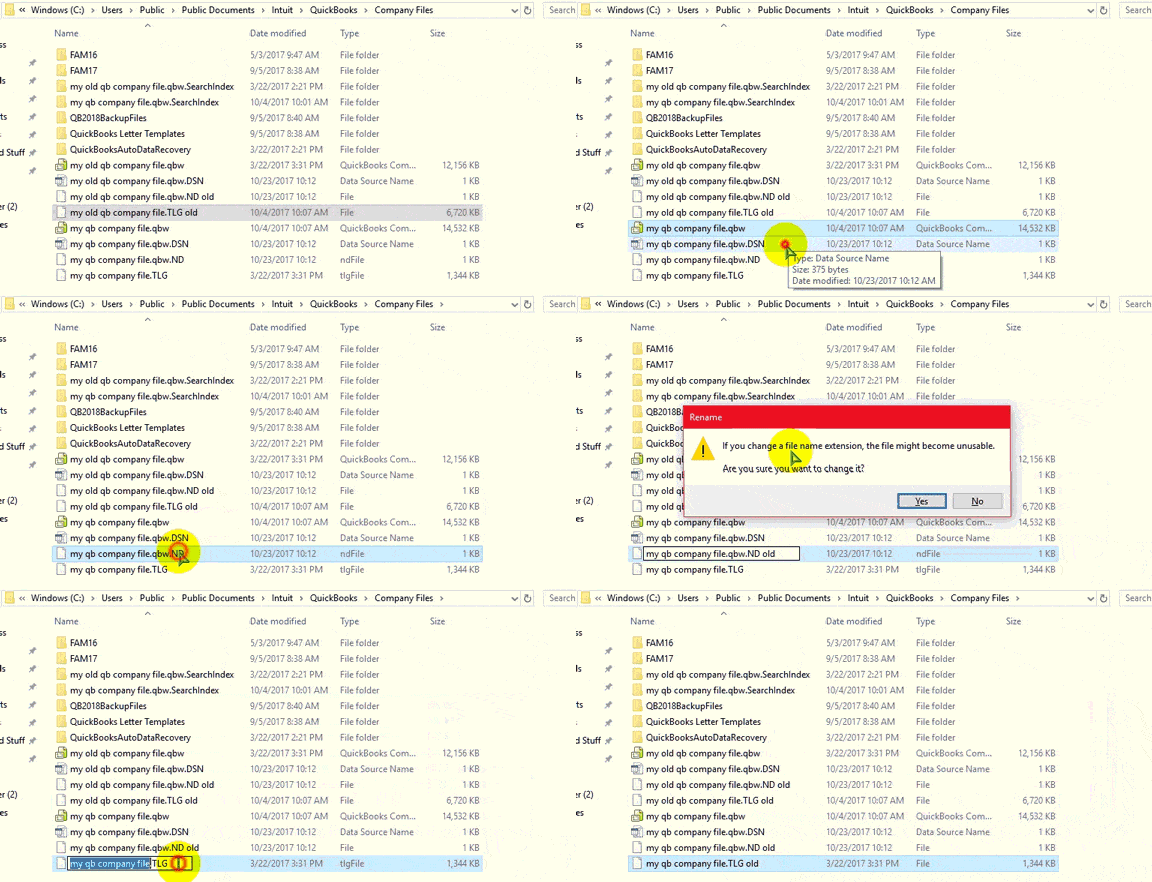
- Close QuickBooks Desktop on all computers
- Open the folder containing your company file
- Find the matching .ND file
- Locate the matching .TLG file
- Right-click the .ND file
- Select Rename
- Add .old to the existing filename
- Rename company_file_name.qbw.nd to company_file_name.qbw.nd.old
- Right-click the .TLG file
- Select Rename
- Add .old to its filename
- Rename company_file_name.qbw.tlg to company_file_name.qbw.tlg.old
- Press Enter after each change
- Reopen QuickBooks Desktop
- Open your company file
- Allow QuickBooks to create new network descriptor and transaction log files
- Check whether the error remains
Uninstall QuickBooks Desktop
- Close QuickBooks Desktop
- Open the Windows Start menu
- Search for Control Panel
- Select Programs and Features
- Choose Uninstall a Program
- Find QuickBooks Desktop in the program list
- Select the application
- Click Uninstall or Change
- Follow the removal instructions
- Restart your computer
Read More:- Install QuickBooks Desktop
Run the Clean Install Tool
- Open QuickBooks Tool Hub
- Select Program Installation Issues
- Choose QuickBooks Clean Install Tool
- Follow the on-screen instructions
- Select your QuickBooks version when prompted
- Allow the tool to rename the required installation folders
- Wait for the process to finish
- Restart your computer
Reinstall QuickBooks Desktop
- Locate your saved QuickBooks installation file
- Find the QuickBooks.exe file
- Double-click the executable file
- Follow the installation instructions
- Enter your product information
- Enter your license information
- Accept the license agreement
- Choose the required installation type
- Complete the installation
- Restart your computer
- Open QuickBooks Desktop
- Open your company file
- Check whether the error has disappeared
Important Technical Details About QuickBooks Error 6094
Understanding these files and services helps you troubleshoot database problems safely.
| File or service | Purpose |
| QBDBMgr.exe | Supports QuickBooks database management |
| QBDBMgrN.exe | Runs the QuickBooks database server process |
| QBCFMonitorService | Helps monitor QuickBooks company file connections |
| QuickBooksDBXX | Runs the version-specific database server service |
| .ND file | Stores network connection information for the company file |
| .TLG file | Stores transaction log information |
| QBW32.exe | Runs the QuickBooks Desktop application |
| QBUpdate.exe | Handles QuickBooks update operations |
Understanding Related Error Codes
- -6094, 0: Usually indicates that QuickBooks cannot start its database server
- -6010, 2: Can indicate a database or company file access problem
- Both errors can involve antivirus restrictions or network communication problems
- QuickBooks Enterprise Error 6094 can also affect shared company file access
Important File and Security Details
- The .ND file helps QuickBooks locate the database server
- The .TLG file records transaction changes
- QuickBooksDBXX represents a database service linked to a specific version
- QBCFMonitorService supports company file communication
- Antivirus exclusions should cover only verified files and folders
- Firewall rules should allow only the required QuickBooks programs
- Server hosting should remain correctly configured for multi-user access
How to Prevent QuickBooks Error 6094 in the Future?
Follow these practices to reduce database and security problems.
- Keep QuickBooks Desktop updated
- Install antivirus definition updates regularly
- Exclude verified QuickBooks folders from unnecessary scans
- Review antivirus quarantine alerts
- Never delete essential QuickBooks executable files
- Maintain the correct Windows Firewall rules
- Monitor QuickBooks database services
- Configure hosting correctly on the server
- Use proper Windows account permissions
- Create regular company file backups
- Check company file health periodically
- Shut down computers properly after closing QuickBooks
- Keep company files in secure, accessible folders
Conclusion
QuickBooks Error 6094 can interrupt company file access and stop important accounting tasks. Antivirus restrictions, firewall problems, damaged files, and incorrect hosting settings are common causes. Start by checking security settings and restoring verified QuickBooks files. Then review database services, repair the company file, and fix installation problems when necessary. Regular backups and software updates also help prevent future errors.
If you need QuickBooks services, Accounting Assist Pro can help you get the best service in the USA.
Frequently Asked Questions About QuickBooks Error 6094
1. What does QuickBooks Error 6094 mean?
QuickBooks Error 6094 means QuickBooks cannot start its database server or access the company file. Antivirus restrictions, firewall problems, and damaged files commonly trigger this warning.
2. What causes QuickBooks Error Code 6094?
Antivirus software, incorrect firewall settings, outdated software, and damaged company files can cause this error. Incorrect hosting settings and stopped database services can also contribute.
3. Can antivirus software trigger QuickBooks Error 6094?
Yes. Antivirus software can block or quarantine essential QuickBooks files. Restoring verified files and adding safe exceptions can help resolve the problem.
4. How do I restore QuickBooks files from antivirus quarantine?
Open your antivirus application and visit its quarantine section. Find verified QuickBooks files, select Restore, and add suitable exceptions. Restart QuickBooks after completing these changes.
5. How do I fix QuickBooks Error 6094 in SpyHunter?
Open SpyHunter and navigate to System Guard. Check the User-Added and PUP sections. Change restricted, verified QuickBooks files to Allowed and restart the application.
6. Can a damaged company file cause Error 6094 in QuickBooks?
Yes. A damaged company file can prevent the database server from reading accounting data. Back up the file and run the company file repair tool.
7. How do I fix QuickBooks Error 6094 in multi-user mode?
Check QuickBooks database services, server hosting settings, and Windows Firewall permissions. Make sure the server hosts the company file and workstations connect correctly.
8. What should I do if QuickBooks Error 6094 continues after troubleshooting?
Review the database services, antivirus settings, and company file condition again. Restore a verified backup if the company file remains damaged. Avoid making further changes without a safe backup.
9. Can Antivirus Software Cause QuickBooks Error 6094?
Yes. Antivirus software may block QuickBooks database files and stop the database server. Add exceptions only for verified QuickBooks files.
10. Does QuickBooks Error 6094 Affect Multi-User Access?
Yes. This error can prevent users from opening shared company files. Check the database server, hosting settings, and network permissions.