
QuickBooks running slow can delay invoices, reports, payroll tasks, and everyday accounting work. The problem may come from an oversized company file, low computer memory, network delays, or outdated software. QuickBooks Online can also slow down because of browser settings, extensions, or internet problems. The right fix depends on where the delay starts. This guide explains how to identify the cause and improve performance across QuickBooks Desktop and Online.
What Does QuickBooks Running Slow Mean?
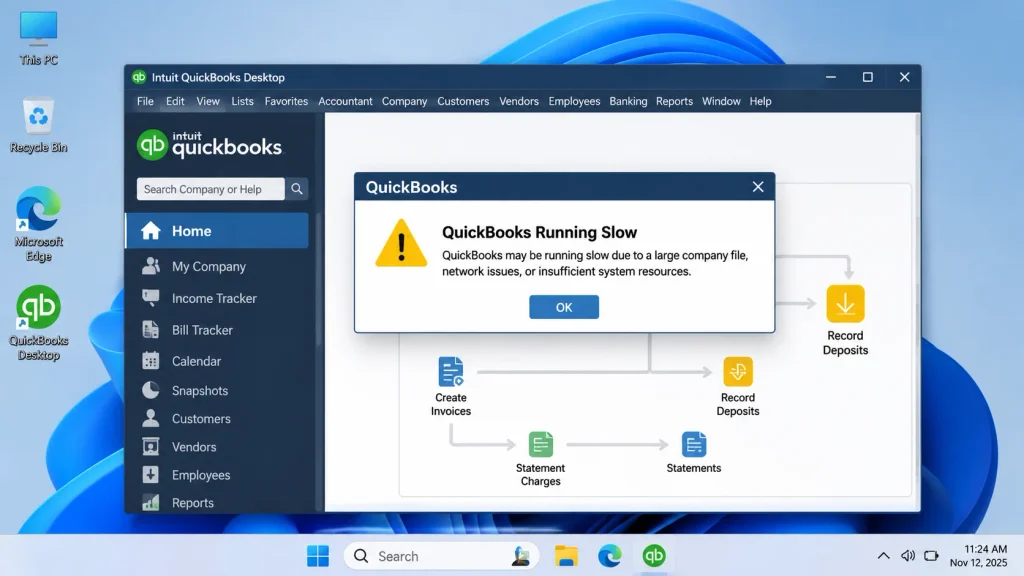
QuickBooks running slow means the software takes longer than expected to complete regular accounting tasks. Users may notice delays when opening company files, saving transactions, or running reports. QuickBooks Desktop depends on computer resources, company file health, and network settings. QuickBooks Online depends more on browser performance, internet stability, and its cloud service. Slow performance does not always mean your company file is damaged.
What Messages or Codes Appear When QuickBooks Runs Slowly?
Slow performance does not have one specific error code. QuickBooks may display different messages when a program, file, or network problem occurs.
- “QuickBooks is not responding”
- Company files take too long to open
- Reports freeze while processing information
- Invoices and customer records load slowly
- Multi-user access becomes delayed
- QuickBooks Online pages time out or stop loading
These signs help narrow down the cause. Record the exact message before changing settings or repairing files.
What Are the Common Causes of QuickBooks Running Slow?
Several issues can reduce QuickBooks speed, from limited computer resources to damaged company data.
Large or Damaged Company File
- A large transaction history can increase processing time
- A damaged .QBW company file may cause delays or freezing
- Unnecessary records can make daily searches and reports harder to manage
Read More:- Fix Company File Errors
Insufficient RAM or Outdated Hardware
- Low memory limits how many tasks your computer can handle
- Older hard drives may load company files more slowly than SSDs
- Older processors may struggle with large files and several open applications
Network and Multi-User Problems
- Weak Wi-Fi can interrupt access to shared company files
- Incorrect hosting settings can affect connected workstations
- Firewall restrictions may block communication between computers
Outdated QuickBooks or Damaged Program Files
- Older software may lack important fixes
- Incomplete updates can affect program files
- Damaged installation files may cause freezing or slow startup
Large Transaction Log Files
- The .TLG file records changes made since the last company file backup
- QuickBooks resets this log during the next backup
- A large log file may need review during performance troubleshooting
- Never delete or rename this file without a verified backup and a clear reason
Incorrect Configuration Files
- The .ND file helps QuickBooks manage network access in multi-user mode
- A damaged .ND file may prevent workstations from connecting properly
- QBWUSER.INI stores user preferences and recently opened company file details
- A damaged settings file may affect program startup
Browser, Cache, and Internet Problems
- An outdated browser may affect QuickBooks Online
- Old cache files can interfere with page loading
- Some browser extensions may conflict with accounting pages
- Unstable internet can interrupt cloud-based work
What Are the Signs of QuickBooks Running Slow?
Look for these signs before choosing a repair method.
- QuickBooks takes too long to start
- Company files need extra time to open
- Invoices and customer records load slowly
- Reports freeze while processing information
- QuickBooks stops responding during regular tasks
- Several users experience delays at the same time
- Payroll and bank feed tasks take longer
- QuickBooks Online pages load slowly or time out
How to Identify the Cause of QuickBooks Performance Problems
Use these checks to find where the delay begins before changing settings.
Check Whether QuickBooks or the Company File Is Slow
- Close QuickBooks Desktop
- Reopen the program without opening your regular company file
- Open a sample company file
- Compare its loading time with your regular file
- Note whether the delay happens before or after selecting the company file
Check Whether the Problem Affects One or All Users
- Ask other users to open the same company file
- Compare loading times across workstations
- Check whether the server also experiences delays
- Identify whether one computer or the entire network is affected
Test the Company File Location
- Find the company file’s current server location
- Open the file from its local server folder
- Compare access through a mapped drive and UNC path
- Check whether network access adds extra delays
Check Browser and Internet Performance
- Open QuickBooks Online in an updated, supported browser
- Check whether other websites load normally
- Disable extensions temporarily to test their effect
- Check the internet connection for interruptions
- Try another supported browser and compare the results
| Symptom | Possible cause | What to check |
| Slow on one workstation | Low RAM or hardware problems | Computer resources |
| Slow for all users | Network or database server issue | Hosting and network |
| Slow after an update | Damaged installation or incomplete update | Program files |
| Slow when opening a company file | Large or damaged company file | File size and data |
| Reports freeze | Large datasets or limited RAM | Report filters and memory |
| Online pages load slowly | Browser or internet problem | Cache, extensions, connection |
| Slow after computer migration | Damaged configuration file | QBWUSER.INI |
What Are the Prerequisites Before Fixing QuickBooks Running Slow?
Prepare your computer and company file before attempting major changes.
- Create a verified company file backup
- Confirm the installed QuickBooks Desktop version and release
- Check Windows and browser updates
- Sign in with administrator access when required
- Close unnecessary applications
- Confirm that the computer has enough free disk space
- Record the current company file location
- Check hosting settings before changing network configurations
- Ask all users to save their work and close the company file
Quick Fixes to Try Before Advanced Troubleshooting
Try these basic checks first. They can resolve temporary performance problems.
Restart the Computer
- Save all open work
- Close QuickBooks and other applications
- Open the Windows Start menu
- Select Power, then Restart
- Reopen QuickBooks and test its performance
Close Unnecessary Background Applications
- Press Ctrl + Shift + Esc
- Open Task Manager
- Select the Processes tab
- Review applications using high CPU or memory
- Select an unnecessary application
- Click End Task
- Reopen QuickBooks and check its speed
Run QuickBooks as Administrator
- Close QuickBooks Desktop
- Find the QuickBooks shortcut
- Right-click the shortcut
- Select Run as administrator
- Open the company file
- Check whether performance improves
Check Available Storage
- Open File Explorer
- Select the drive containing QuickBooks and its company file
- Check the available storage
- Remove unnecessary files after confirming they are not needed
- Keep enough free space for Windows and QuickBooks operations
How to Fix QuickBooks Running Slow on Windows 11
Windows settings, hardware limits, and damaged program files can affect QuickBooks performance.
Install Available Windows and QuickBooks Updates
- Open Windows Settings
- Select Windows Update
- Click Check for updates
- Install available updates
- Restart the computer
- Open QuickBooks and test its performance
Check Background Applications and Memory Usage
- Open Task Manager
- Select the Performance tab
- Review CPU, memory, and disk usage
- Identify applications using excessive resources
- Close unnecessary applications
- Check whether QuickBooks responds faster
Repair QuickBooks Installation
- Close QuickBooks Desktop
- Open Control Panel
- Select Programs and Features
- Find QuickBooks in the installed programs list
- Select QuickBooks
- Choose Uninstall/Change
- Select Repair
- Follow the on-screen instructions
- Restart the computer and test QuickBooks
Check Windows Security and Antivirus Settings
- Open Windows Security or your installed security application
- Review blocked applications and files
- Check QuickBooks folder permissions
- Add appropriate exclusions only when necessary
- Keep essential security protection enabled
- Test QuickBooks again
Check Network Adapter Settings
- Right-click the Windows Start button
- Select Device Manager
- Expand Network adapters
- Find the active network adapter
- Check its driver status
- Update the driver when necessary
- Restart the computer and test the connection
How to Fix QuickBooks Running Slow After Update
Incomplete updates, damaged files, and compatibility problems may affect performance.
Install the Latest QuickBooks Maintenance Release
- Open QuickBooks Desktop
- Select Help
- Choose Update QuickBooks Desktop
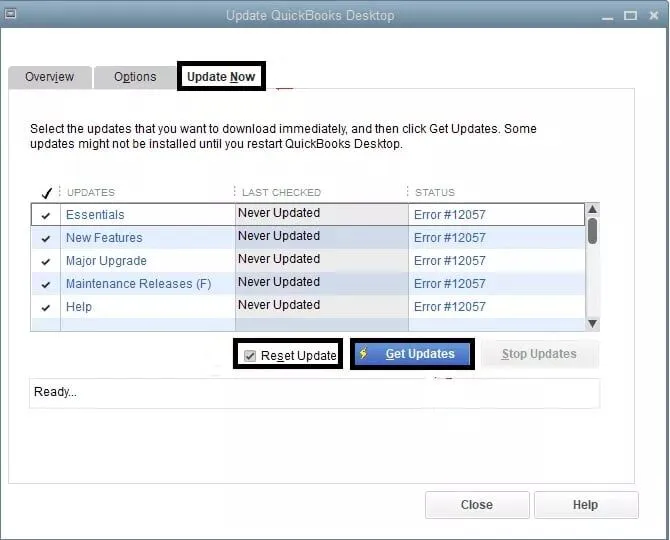
- Open the Update Now tab
- Select Get Updates
- Close and reopen QuickBooks
- Install the available update when prompted
- Test the company file again
Run Quick Fix My Program
- Close QuickBooks Desktop
- Open QuickBooks Tool Hub
- Select Program Problems
- Choose Quick Fix My Program
- Wait for the repair to finish
- Reopen QuickBooks
- Check whether the problem continues
Repair Damaged Program Files
- Close QuickBooks
- Open Control Panel
- Go to Programs and Features
- Select QuickBooks
- Choose Uninstall/Change
- Select Repair
- Complete the repair process
- Restart Windows
- Open QuickBooks and test the software
Check the QuickBooks Search Index
- Close QuickBooks Desktop
- Locate the company file folder
- Find the related .QBW.SearchIndex file
- Open QuickBooks preferences
- Select Edit, then Preferences
- Choose Search, then Company Preferences
- Review the automatic search index update setting
- Rename the search index file only after confirming the correct file
- Reopen QuickBooks and allow the index to rebuild
Check Antivirus Restrictions
- Open your security application
- Review blocked-file alerts
- Check whether QuickBooks program files are restricted
- Confirm whether security settings caused the problem
- Add required exclusions only when appropriate
- Test QuickBooks without weakening essential security settings
12 Solutions to Fix QuickBooks Desktop Running Slow
Follow these solutions in order. Test QuickBooks after each major change.
1. Update QuickBooks Desktop
- Open QuickBooks Desktop
- Select Help
- Choose Update QuickBooks Desktop
- Select Update Now
- Click Get Updates
- Restart QuickBooks after installation
- Test the company file again
2. Rename the QBWUSER.INI File
- Close QuickBooks Desktop
- Press Windows + R
- Enter %localappdata% and press Enter
- Open the Intuit folder
- Open the folder for your installed QuickBooks version
- Find QBWUSER.INI
- Right-click the file and select Rename
- Change its name to QBWUSER.OLD
- Reopen QuickBooks
- Open your company file manually and test performance
3. Verify and Rebuild Company File Data
- Open QuickBooks Desktop
- Close all open windows
- Select File
- Choose Utilities
- Select Verify Data
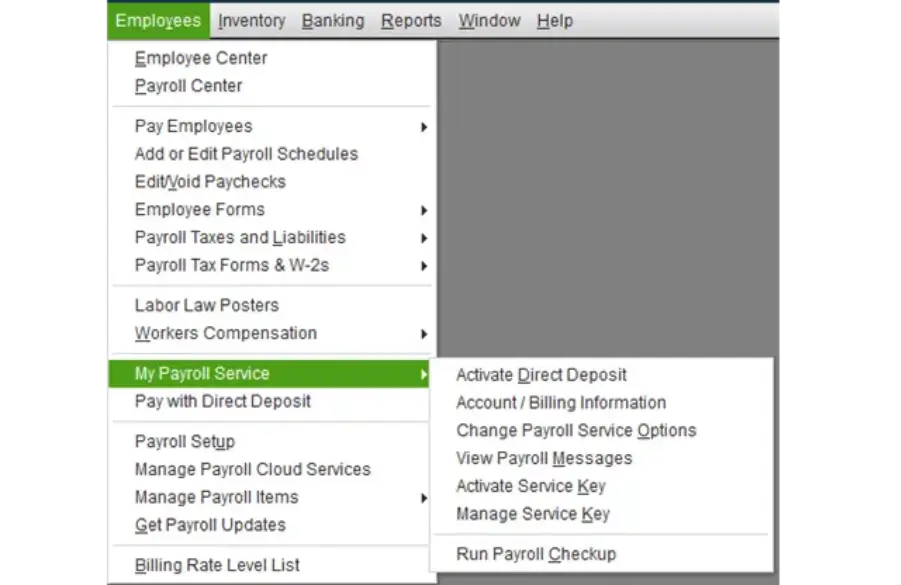
- Allow the verification to finish
- Review any reported data problems
- If QuickBooks finds damage, select File, then Utilities
- Choose Rebuild Data
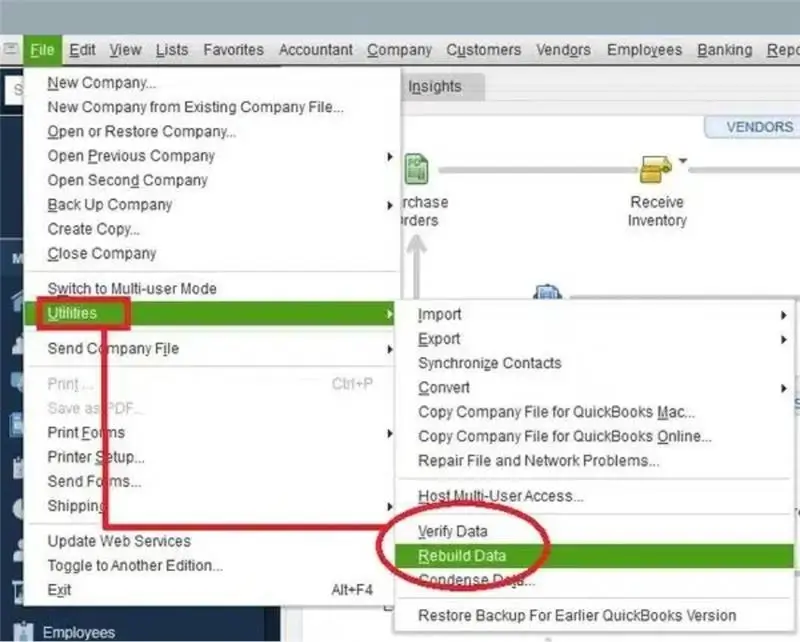
- Create a new backup when prompted
- Follow the on-screen instructions
- Run Verify Data again after rebuilding
4. Check Company File Size and Clean Old Data
- Open your company file
- Press F2 to view Product Information
- Check the company file size and location
- Review old and unnecessary transactions
- Identify duplicate or unused accounts
- Create a verified backup
- Use Condense Data only when other options are unsuitable
- Review financial reports after cleanup
5. Perform a Clean Installation of QuickBooks
- Close QuickBooks Desktop
- Record your product version and license details
- Open QuickBooks Tool Hub
- Select Installation Issues
- Choose Clean Install Tool
- Follow the instructions to remove the existing installation
- Restart the computer if prompted
- Reinstall the correct QuickBooks version
- Open the company file and test performance
6. Upgrade Computer Hardware
- Check the computer’s installed RAM
- Review processor performance
- Check available storage
- Consider an SSD if the computer uses an older hard drive
- Confirm hardware compatibility with your QuickBooks version
- Upgrade memory when the computer does not meet requirements
- Restart QuickBooks and compare performance
7. Run the Install Diagnostic Tool
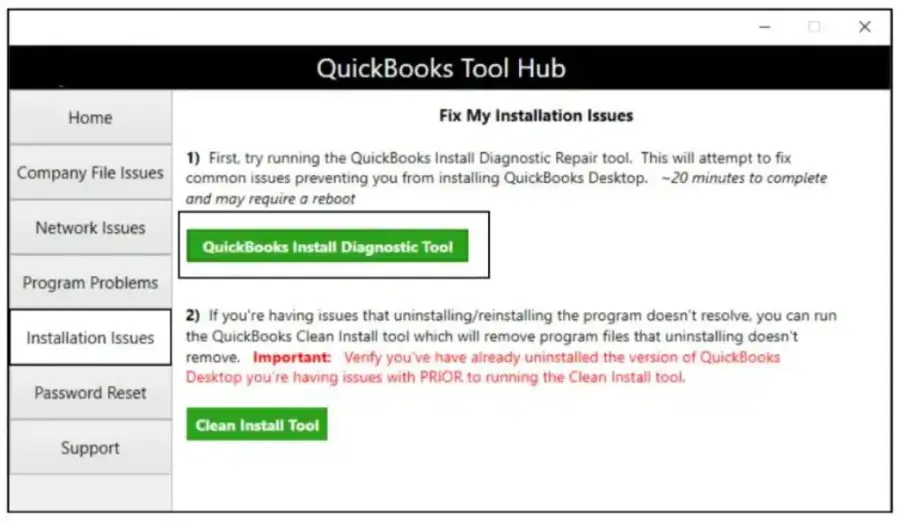
- Close QuickBooks Desktop
- Open QuickBooks Tool Hub
- Select Installation Issues
- Choose QuickBooks Install Diagnostic Tool
- Allow the scan to finish
- Restart Windows
- Open QuickBooks
- Test the company file again
8. Review Antivirus Exclusions
- Open the installed antivirus settings
- Review blocked files and applications
- Check the QuickBooks installation folder
- Check the company file location
- Confirm whether antivirus restrictions cause the delay
- Add necessary exclusions only when safe
- Restart QuickBooks and test performance
9. Check the Transaction Log File (.TLG)
- Open the company file folder
- Locate the matching .TLG file
- Compare its size with the .QBW file
- Check whether the company file has data problems
- Run Verify Data
- Run Rebuild Data when verification finds damage
- Create and verify a complete backup
- Avoid manually deleting or renaming the .TLG file
10. Check Hard Drive Performance
- Press Ctrl + Shift + Esc
- Open Task Manager
- Select the Performance tab
- Review disk usage
- Check whether the computer uses an HDD or SSD
- Check the drive for errors
- Consider defragmentation only for a traditional HDD
- Use Windows drive optimization for SSD maintenance
- Do not manually defragment an SSD
11. Compare the Mapped Drive and UNC Path
- Locate the company file on the server
- Record the shared folder path
- Open the company file through its UNC path
- Compare loading time with the mapped drive
- Check shared folder permissions
- Confirm that the server remains accessible
- Use the path that provides reliable network access
12. Optimize QuickBooks Network Settings
- Confirm that the company file is stored on the server
- Use a stable wired Ethernet connection
- Check the server’s network connection
- Confirm Database Server Manager is installed on the server
- Make sure hosting is enabled only on the server
- Check firewall permissions for QuickBooks programs
- Confirm that workstations access the same shared company file
- Test performance from each workstation
7 Solutions for QuickBooks Running Slow in Multi-User Mode
Network settings, hosting, permissions, and server resources affect connected users.
1. Enable Hosting Only on the Server
- Open QuickBooks on the server
- Select File
- Choose Utilities
- Review the hosting option
- Select Stop Hosting Multi-User Access if the server is not hosting
- Confirm that the server hosts the company file
- Check that workstations do not host the same file
Read More:- Fix Quickbooks Multi-User Mode Not Working
2. Scan the Company File Folder
- Open QuickBooks Tool Hub on the server
- Select Network Issues
- Open Database Server Manager
- Browse to the company file folder
- Select Start Scan
- Wait for the scan to finish
- Recheck the company file from a workstation
3. Store the Company File in a Shared Server Folder
- Locate the company file
- Create a verified backup
- Select a dedicated shared folder on the server
- Move the company file during a planned maintenance period
- Check that authorized users can access the folder
- Confirm that the company file opens from the shared location
- Avoid storing the active file on a workstation or external drive
4. Use a Stable Wired Network
- Connect the server and workstations through Ethernet
- Avoid relying on weak Wi-Fi connections
- Check network speed and interruptions
- Review cable and adapter condition
- Test company file access from each workstation
5. Check Firewall and Antivirus Permissions
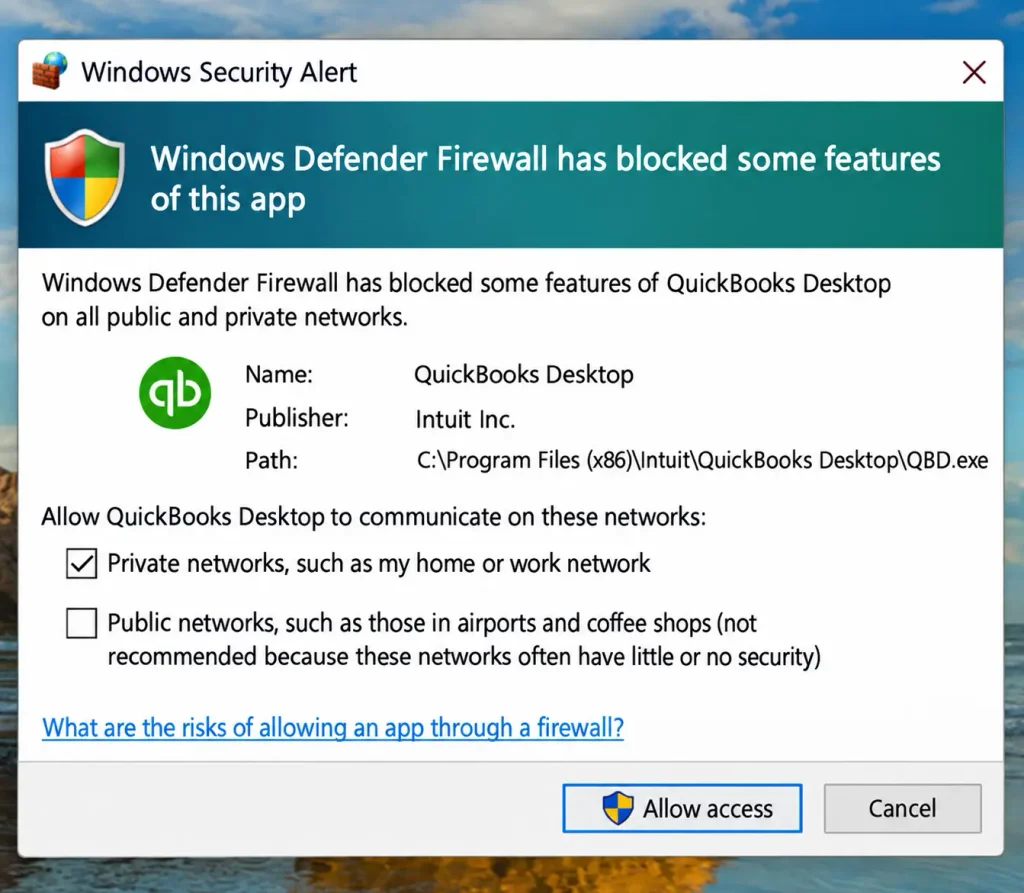
- Review firewall application permissions
- Confirm that required QuickBooks programs can communicate
- Check QBW32.exe and QBDBMgrN.exe
- Review the required ports for your installed QuickBooks version
- Add appropriate exceptions when needed
- Test multi-user access again
6. Check Shared Folder Permissions
- Find the company file folder
- Right-click the folder and select Properties
- Open the Sharing tab
- Review shared folder permissions
- Confirm authorized users have required read and write access
- Check modify permissions where needed
- Apply changes carefully
- Test access from a workstation
7. Maintain the Server and Database Service
- Check that the server has enough RAM and storage
- Review the QuickBooks Database Server Manager service
- Confirm that the correct database service is running
- Update network drivers when needed
- Close unnecessary server applications
- Restart the server during a suitable maintenance period
- Test multi-user performance again
6 Solutions for QuickBooks Online Running Slow
Browser, internet, computer, and cloud-service factors can affect Online performance.
1. Clear Browser Cache and Cookies
- Save any open work
- Open the browser settings
- Find privacy and browsing data options
- Select cached files and cookies
- Clear the selected data
- Close and reopen the browser
- Sign in to QuickBooks Online
- Check page loading speed
2. Update Your Browser
- Open browser settings
- Find the browser’s About section
- Check for available updates
- Install the latest version
- Restart the browser
- Open QuickBooks Online
- Test page loading speed
3. Disable Unnecessary Browser Extensions
- Open the browser extensions page
- Review installed extensions
- Disable unnecessary extensions
- Restart the browser
- Sign in to QuickBooks Online
- Check whether pages load faster
4. Check Internet Connection Speed
- Run an internet speed test
- Check download speed and connection stability
- Pause large downloads and streaming
- Restart the router if the connection is unstable
- Use Ethernet where possible
- Open QuickBooks Online again
5. Reduce Browser and Computer Workload
- Close unused browser tabs
- Close unnecessary applications
- Avoid opening several QuickBooks Online sessions
- Restart the computer if memory usage remains high
- Sign in again
- Test performance
6. Reduce Report and List Data
- Open the report that loads slowly
- Select a shorter date range
- Remove unnecessary columns
- Apply relevant filters
- Reduce the number of displayed list rows
- Run the report again
- Check whether the smaller data range improves loading time
QuickBooks System Requirements for Better Performance
Suitable hardware helps QuickBooks handle company files, reports, and multiple users.
QuickBooks Desktop System Requirements
Requirements vary by product year and edition. The following figures apply to the published QuickBooks Desktop 2024 requirements.
| Component | QuickBooks Desktop 2024 requirement |
| Operating system | Windows 11, 64-bit, natively installed |
| Processor | 2.4 GHz minimum |
| Workstation RAM | 8 GB minimum; 16 GB recommended |
| Server RAM | 8 GB for 1–5 users; 12 GB for 10 users; 16 GB for 15 users |
| Disk space | 2.5 GB for the program, plus space for company files |
| Storage | SSD recommended for company data |
| Display | 1280 × 1024 resolution or higher |
QuickBooks Online System Requirements
- Use a supported, updated browser
- Keep your browser within its current two supported versions
- Use a stable internet connection
- Provide enough RAM for the browser and other open applications
- Keep your operating system updated
- Limit unnecessary background applications and browser extensions
How to Clean Up a QuickBooks Company File for Better Performance
Company file cleanup can reduce clutter and make accounting records easier to manage.
Remove Duplicate and Unused Accounts
- Review the chart of accounts
- Identify duplicate entries
- Check transaction history before merging accounts
- Make unused accounts inactive when appropriate
- Verify the company file after cleanup
Review Old Transactions
- Identify older transactions that are no longer needed for daily work
- Review financial reports before making changes
- Create a complete backup
- Confirm the correct cleanup date
- Check the company file after cleanup
Run Verify and Rebuild Data
- Close all open QuickBooks windows
- Select File, then Utilities
- Choose Verify Data
- Review the verification results
- If QuickBooks finds damage, select File, then Utilities
- Choose Rebuild Data
- Create a new backup when prompted
- Wait for the rebuild to finish
- Run Verify Data again
- Review the final results
Keep Regular Backups
- Schedule regular company file backups
- Store a separate backup copy securely
- Label backup files with their dates
- Confirm that backup files can be restored
- Create another backup before major cleanup
How to Use the Condense Data Utility in QuickBooks Desktop
Condense Data can summarize or remove selected historical details. Use it only after reviewing other cleanup options.
Steps to Run the Condense Data Utility
- Open QuickBooks Desktop
- Close open transaction windows
- Switch to single-user mode
- Select File
- Choose Utilities
- Select Condense Data
- Review the available cleanup options
- Choose whether to keep transactions or remove selected transactions
- Follow the prompts to select the records and date range
- Review how QuickBooks will summarize removed transactions
- Check the list entries selected for removal
- Create a complete backup
- Select Begin Condense when ready
- Wait for the process to finish
- Review the company file and financial reports
Recommended Company File Size Guide
There is no universal MB limit that guarantees good QuickBooks performance. File size alone cannot confirm whether a company file needs cleanup.
| QuickBooks edition | What to review |
| Pro | Transaction volume, file health, and list limits |
| Premier | Transaction volume, file health, and list limits |
| Enterprise | Company file complexity, server resources, and list limits |
| QuickBooks Online | Browser performance, internet connection, and plan limits |
- Check the file size through the Product Information window
- Review the transaction history and data condition
- Compare performance before and after cleanup
- Do not condense a file only because it crosses an assumed MB limit
- Keep a verified backup before removing historical information
QuickBooks Online vs. Hosted QuickBooks Desktop: What Is the Difference?
QuickBooks Online runs through a browser, while hosted Desktop runs in a remote Windows environment.
| Feature | QuickBooks Online | Hosted QuickBooks Desktop |
| Software location | Cloud-based platform | Hosted Windows server |
| Access | Web browser | Remote desktop connection |
| Interface | Online interface | Desktop interface |
| Performance factors | Browser, internet, and cloud service | Server resources, network, and company file |
| Resource control | Managed cloud environment | Depends on hosting setup |
| Features | Online feature set | Supported Desktop features |
| Remote access | Browser-based | Remote server access |
| Maintenance | Managed cloud platform | Depends on the hosting arrangement |
| Scaling | Depends on subscription plan | Depends on available server resources |
When Should a Growing Business Consider Switching from QuickBooks Online?
A plan or product change should solve a business need, not just a temporary speed problem.
Understand QuickBooks Online Plan Limitations
- Review the number of users supported by the current plan
- Check class and location tracking needs
- Review reporting and customization requirements
- Identify whether current features support daily workflows
- Check whether your business has reached a plan limit
- Remember that a higher plan does not guarantee faster page loading
When Hosted QuickBooks Desktop May Be Worth Considering
- The business needs specific Desktop features
- The company relies on an established Desktop workflow
- Several employees need remote access to one company file
- The business needs more control over server resources
- The Online feature set no longer meets its accounting needs
When Switching May Not Solve the Problem
- The actual issue is an unstable internet connection
- The company file contains damaged data
- The computer lacks enough memory
- The business has incorrect network settings
- The problem comes from browser configuration
What Are the Benefits of Hosted QuickBooks Desktop?
Hosting can support remote Desktop workflows when the setup meets business needs.
Better Resource Allocation
- Server resources can be assigned based on workload
- Suitable RAM and storage can support larger company files
- SSD storage can improve file access
- Server capacity can be reviewed as workloads change
Multi-User Access
- Authorized users can access the same hosted environment
- Employees can work from different locations
- User permissions help control access
- The hosting setup must support the required number of users
Scalability
- Server resources can be adjusted as business needs change
- Growing teams can review their hosting capacity
- Resource planning can support changing workloads
- Businesses can assess capacity before adding users
Reduced IT Work
- Hosting arrangements may include server maintenance
- Backup and update responsibilities depend on the service agreement
- Businesses may reduce the need to maintain an office server
- Staff can spend less time managing local server equipment
Remote Access
- Users can access the hosted Desktop environment remotely
- Employees can work outside the office
- Access depends on internet quality and server availability
- Permissions can help control who accesses company information
What Are the Limitations of QuickBooks Hosting?
Hosting does not automatically solve every QuickBooks performance problem.
- Damaged company files may remain slow after migration
- Slow internet can affect remote access
- Insufficient server resources can cause delays
- Incorrect user permissions can prevent file access
- Application compatibility must be checked
- Backup and security responsibilities depend on the hosting agreement
- Hosting does not guarantee faster performance for every business
- Businesses should test their actual accounting workflows before committing
How to Move from QuickBooks Online to Hosted QuickBooks Desktop
Migration requires product, data, hosting, and workflow checks.
1. Select the Suitable QuickBooks Desktop Product
- Identify the Desktop features the business needs
- Review available editions and subscription options
- Check compatibility with existing accounting workflows
- Confirm the product supports the required users
- Check the current product’s availability before planning migration
2. Review Data Conversion Requirements
- Review the current QuickBooks Online company file
- Check which information can transfer
- Identify reports, settings, attachments, and features that may change
- Create a separate backup of important records
- Keep access to the original Online company during the review
3. Convert the Company Data
- Install and update the selected Desktop edition
- Sign in to QuickBooks Online with administrator access
- Open the export or migration area
- Download the migration tool when available
- Run the tool on the computer with Desktop installed
- Follow the conversion prompts
- Save the converted company file
4. Verify the Converted Company File
- Open the converted company file
- Review the Profit and Loss report
- Review the Balance Sheet
- Compare important account balances
- Check customers, vendors, and transactions
- Confirm that essential records are present
- Resolve differences before continuing
5. Set Up the Hosted Environment
- Confirm the selected Desktop edition is supported
- Prepare the hosted Windows environment
- Install the required QuickBooks Desktop version
- Move the verified company file into the hosted environment
- Set up authorized user accounts
- Check access permissions
- Confirm that users can open the company file
6. Test Real Accounting Workflows
- Open the company file
- Create and edit invoices
- Run financial reports
- Test multi-user access
- Export information to Excel
- Test printing and PDF creation
- Check connected applications
- Test remote logins
- Confirm that daily accounting tasks work correctly
7. Keep the Original Data Until Migration Is Confirmed
- Keep the original QuickBooks Online records available
- Confirm that important financial information matches
- Review missing or converted data
- Check opening balances and key reports
- Continue only after the business approves the migrated records
How to Prevent QuickBooks Running Slow Issues in the Future
Regular maintenance helps prevent many common performance problems.
- Keep QuickBooks Desktop and Windows updated
- Use a computer that meets the installed version’s requirements
- Maintain enough RAM and available storage
- Use an SSD when your computer supports it
- Keep company files in the correct shared location
- Use a stable wired network for multi-user access
- Enable hosting only on the server
- Review company file size and transaction history regularly
- Verify company data when unusual behavior appears
- Maintain regular backups
- Keep browsers updated for QuickBooks Online
- Clear browser cache when page problems appear
- Remove unnecessary browser extensions
- Avoid running too many applications at once
How Accounting Assist Pro Can Help With QuickBooks Performance Problems
Accounting Assist Pro helps businesses organize accounting records and improve daily bookkeeping workflows.
- Review company file organization and accounting records
- Identify bookkeeping processes that create unnecessary work
- Help organize financial data for clearer reporting
- Support bookkeeping, reconciliation, and financial reporting needs
- Help businesses maintain accurate and organized accounting records
If your accounting work faces recurring delays, contact Accounting Assist Pro to discuss your bookkeeping needs.
Conclusion
QuickBooks running slow can disrupt accounting work and delay important business tasks. The cause may involve hardware, company data, network settings, or browser performance. Start with basic checks before applying advanced repairs. Maintain backups, review company files, and keep software updated. Businesses should also check their hosting and accounting needs as they grow. Accounting Assist Pro can help organize bookkeeping records and support smoother accounting workflows.
Frequently Asked Questions About QuickBooks Running Slow
1. Why Is QuickBooks Running Slow on My Computer?
QuickBooks running slow can result from low RAM, an older hard drive, damaged company data, or outdated software. Check computer resources and test a sample company file first.
2. How Do I Fix QuickBooks Running Slow on Windows 11?
If you notice QuickBooks running slow on Windows 11, install available updates, close unnecessary applications, and check memory usage. Repair the installation if basic checks do not help.
3. Why Is QuickBooks Running Slow After an Update?
QuickBooks running slow after update problems may involve incomplete installation, damaged program files, or search index issues. Run Quick Fix My Program and check the installation.
4. How Can I Fix QuickBooks Running Slow in Multi-User Mode?
QuickBooks Running Slow in Multi-User Mode often involves hosting settings, network delays, server resources, or folder permissions. Confirm that hosting runs only on the server and scan the shared company file folder.
5. Does a Large QuickBooks Company File Cause Slow Performance?
A large company file can take longer to process transactions and reports. However, file size alone does not prove a problem. Review data health, transaction volume, and computer resources before condensing.
6. Can Low RAM Make QuickBooks Run Slowly?
Yes. Limited RAM can slow company file access and reporting, especially when several applications run together. QuickBooks Desktop 2024 lists 8 GB as the workstation minimum and 16 GB as recommended.
7. Why Is QuickBooks Online Running Slow Even With Fast Internet?
Quickbooks online running slow problems can come from browser cache, extensions, outdated software, or service interruptions. Test another supported browser and disable unnecessary extensions.
8. Does Hosting QuickBooks Desktop Make It Run Faster?
Hosting can provide suitable server resources and remote access. However, it cannot guarantee faster performance. Company file health, server capacity, and internet quality still matter.
9. What Is the Best Way to Troubleshoot QuickBooks Running Slow Issues?
Start by checking whether the delay affects one computer or every user. Then test a sample company file, review network access, and check computer resources. This quickbooks performance issues troubleshooting slow running approach helps narrow down the cause.
10. Can I Fix QuickBooks Running Slow Without Removing Company Data?
Yes. Start with updates, browser cleanup, hardware checks, and network troubleshooting. Use Verify Data before considering Rebuild Data. Avoid Condense Data until you understand which historical details it may remove.