
QuickBooks Error 15103 pops up when Desktop can’t finish downloading a payroll or product update. Nine times out of ten the culprit is a bad Shared Download path, a damaged update file, or Windows blocking the digital signature. None of that takes an IT degree to fix, either. Reset the update settings, run QuickBooks as administrator, or repair the file through Tool Hub, and the error usually clears within a few minutes.
You’ve probably had this happen on a Friday morning, right when you’re trying to run payroll. The pop up reads “the update program is damaged or the update program cannot be opened,” and suddenly your whole schedule for the day is off. It doesn’t just delay an update either. It can hold up tax table changes your business actually needs to file correctly.
What Causes QuickBooks Error 15103
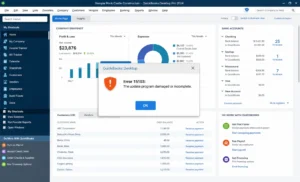
Error 15103 belongs to the QuickBooks 15000 error series, the bucket Intuit uses for update and download failures. It feels random the first time it hits you, but it isn’t. A few specific things cause it, and once you know which one you’re dealing with, you stop guessing and start actually fixing it.
Here’s what tends to be behind it:
- A Shared Download folder path that’s missing, deleted, or pointing somewhere QuickBooks can’t reach anymore
- A payroll or product update file downloaded incorrectly and is now damaged
- QuickBooks can’t verify its own digital signature, often after a Windows update changed security settings
- The File Copy Service, a background Windows service QuickBooks depends on, got disabled somewhere along the way
- Antivirus software or a firewall is quietly blocking the update connection
- The user account running QuickBooks doesn’t have full permission to write to the install folder
Bookkeepers managing books for three or four small clients on one machine tend to hit this more than a solo owner does. More company files and more update cycles just means more chances for one of these settings to drift.
Intuit pushes payroll tax table updates several times a year, and QuickBooks Desktop checks for maintenance releases on a regular schedule in the background. Every one of those checks is another chance for a stale Shared Download path or a flagged digital signature to surface as Error 15103. That’s a big part of why this error loves to show up at the worst possible moment, right before a payroll run or a quarterly filing deadline.
Where This Usually Shows Up
Picture a five person landscaping company running payroll every other Friday through QuickBooks Desktop on a shared office computer. The bookkeeper opens QuickBooks that morning, clicks Update Payroll like always, and gets the 15103 pop up instead of the confirmation screen she’s expecting. Payroll is due to process in an hour.
In a case like that, the Shared Download path is almost always the culprit, especially if someone recently reorganized folders on the network drive or IT changed a permission setting. The error rarely shows up out of nowhere. Nine times out of ten it follows some kind of system change, even one that had nothing to do with QuickBooks at the time.
Quick Checks Before You Troubleshoot
Run through these two things first. They take under two minutes and clear the error in a surprising number of cases without any deeper repair work.
- Confirm you’re connected to the internet and QuickBooks isn’t blocked by a VPN
- Check that your QuickBooks subscription is active, since an expired subscription can throw an error that looks identical to 15103
It’s worth reading the exact wording of your error message before you go further. QuickBooks reuses similar codes for related but distinct problems, and the 15000 series alone covers everything from network timeouts to file corruption. A specific file path or a second error number mentioned alongside 15103 usually points you toward which fix below will work fastest.
Nothing there fixed it? Move on to the steps below, and go through them in order. Each one addresses a different root cause, and starting simple means you’re not reinstalling QuickBooks over what might turn out to be a one click permissions issue.
How to Fix QuickBooks Error 15103
Run QuickBooks as an Administrator
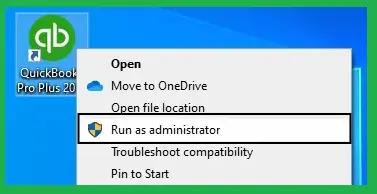
Start here. This clears the error more often than anything else on this list, mostly because 15103 is frequently a permissions problem wearing a different costume.
Close QuickBooks completely, along with your company file. Right click the QuickBooks Desktop icon and choose Run as Administrator. Click Yes if Windows asks for permission. Once QuickBooks opens, go to Help, then Update QuickBooks Desktop, and try the payroll update again.
Worked? Great, you’re done. Still failing? Keep reading.
Reset Your Update Settings
A corrupted update configuration is another frequent cause. Resetting it forces QuickBooks to rebuild the update from scratch instead of limping along with a broken one.
Open QuickBooks and go to Help, then Update QuickBooks Desktop. Click the Update Now tab. Check the box marked Reset Update, which clears out any previously downloaded files that may be damaged. Select Get Updates and let it run all the way through before you close the window.
Wait until the update finishes before restarting QuickBooks, not before. Closing it mid update is actually one of the ways this whole error gets triggered in the first place, so patience matters here more than it seems like it should.
Map the Shared Download Folder Correctly
If your office runs QuickBooks on a shared network setup, this is usually the fix that ends up mattering most.
Go to Help, then Update QuickBooks Desktop, then the Options tab. Under Shared Download, select Yes if your team uses a shared drive for updates. In the Local Download field, point it to a folder you know exists and that your account has full write access to. Something like C:\QBSharedDownload works fine as a dedicated folder. Click Save and Close, then run Get Updates again.
A path pointing to a deleted folder, a mapped drive that disconnected, or a network location with restricted permissions will produce this exact error without any other warning sign at all.
Repair the Digital Signature
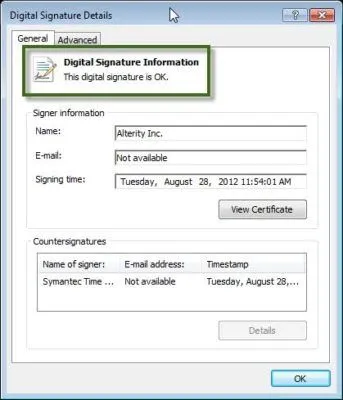
Before any update installs, QuickBooks checks a digital signature to confirm the files actually came from Intuit. A Windows security update can knock that signature loose, flag it, or corrupt it outright, and the update just stops in its tracks.
Go to C:\Program Files\Intuit\QuickBooks (the year in the folder name depends on which version you’re running). Right click QBW32.exe, open Properties, then the Digital Signatures tab, and check that Intuit shows up as the signer. Click Details, then View Certificate, then Install Certificate, and follow the wizard through to install it in your Trusted Root Certification Authorities store.
Then restart the computer. Skip that part and you’ll swear the fix didn’t work, when really the certificate change just hasn’t kicked in yet.
Use Quick Fix My Program in QuickBooks Tool Hub

Intuit built Tool Hub for exactly this kind of thing, and it’s genuinely worth having installed before you ever run into a problem, not just after.
Download QuickBooks Tool Hub from Intuit’s official support site if you don’t already have it, then install it on the same computer running QuickBooks. Open Tool Hub, click Program Problems, and select Quick Fix My Program. Let it run. It usually takes a couple of minutes. Reopen QuickBooks once it’s finished and try the update again.
It also checks for background processes that could be interfering with QuickBooks, the kind of thing manual troubleshooting tends to miss completely.
Check Your Firewall and Internet Settings
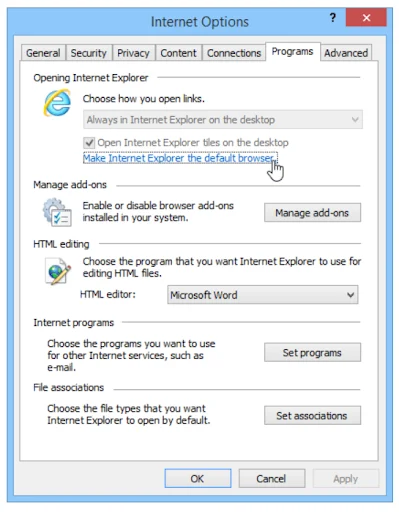
QuickBooks leans on Internet Explorer settings in the background for some of its online services, even if you’ve never opened IE in your life. A misconfigured setting here, or an overprotective firewall rule, will quietly block the exact connection QuickBooks needs to complete the update.
Open Internet Options through Windows search. On the Advanced tab, scroll to Security and confirm TLS 1.2 is checked. Then check your antivirus or firewall settings and temporarily allow QuickBooks.exe and QBUpdate.exe through, or add them as trusted programs. Try the update again with those changes in place.
Only worked after loosening firewall rules? Loop in whoever manages your network and set up a permanent exception rather than leaving your protection turned down indefinitely.
Clean Reinstall as a Last Resort
Nothing above worked? The update files or the installation itself may be too damaged to patch in place. This one takes longer, so save it for after everything else.
Use the Clean Install Tool inside QuickBooks Tool Hub, under Installation Issues. It uninstalls QuickBooks while keeping your company file untouched, since the company file lives separately from the program installation itself. Once the clean install finishes, reinstall QuickBooks fresh and run the update one more time.
Your company file is safe either way, but back it up first anyway. No harm in being careful before any reinstall.
When It’s Worth Bringing in Help
Some of these fixes involve editing Windows settings, certificates, and firewall rules, and that’s territory that makes plenty of small business owners nervous, reasonably so. If 15103 is holding up a payroll run with a deadline attached, or you’ve worked through every step here and it’s still not resolved, that’s usually the point where handing it off makes more sense than pushing through alone.
Someone who works inside QuickBooks daily can usually spot which of these six causes applies within a few minutes, because they’ve already seen the pattern on someone else’s setup. That familiarity matters more than it sounds like it should. What eats up an hour of trial and error for a first timer is often a two minute fix for someone who’s already troubleshot the same error a dozen times.
How to Keep Error 15103 From Coming Back
Fixing it once doesn’t guarantee it stays gone, especially on shared office setups where a setting can drift again without anyone noticing until payroll day rolls around.
A few habits cut the odds of a repeat by a lot:
- Keep QuickBooks Desktop on the latest release instead of skipping several updates at once, since a big jump between versions is more likely to hit a snag
- Assign one dedicated, permanent folder for Shared Downloads and leave it alone once it’s set
- Add QuickBooks.exe and QBUpdate.exe as trusted programs in your antivirus software once, instead of approving them every single time an update runs
- Run Quick Fix My Program every few months as routine maintenance, not just when something’s already broken
- Confirm your Windows account still has full permissions on the QuickBooks install folder after any IT changes or a new computer setup
Each one takes a few minutes at most, and together they handle most of the conditions behind 15103 in the first place. Teams who put this on a quarterly checklist tend to run into the error far less often than teams who only think about it once payroll is already stuck.
Get Your Payroll Back on Track Today
Don’t let a stalled update push your tax filings or your team’s paychecks past deadline. Accounting Assist Pro handles QuickBooks and Sage troubleshooting for small businesses every week, and we can usually get your update running and payroll back on schedule the same day you reach out.
The Real Fix Is Rarely Complicated
Error 15103 looks intimidating the first time you see it, mostly because the message itself gives you no clue which of six different things actually broke. Once you know it’s almost always a permissions issue, a bad download, or a blocked connection, it stops feeling like guesswork and starts feeling like a checklist.
Work through the steps in order, starting with running QuickBooks as administrator. Most businesses clear this within fifteen minutes flat. Save the clean reinstall for last, since it’s the only option here that eats real time out of your day.
Would rather not mess with Windows settings between client calls? Fair enough. A team that lives inside QuickBooks all day treats this kind of thing as routine maintenance, not a five alarm fire.
Frequently Asked Questions
What does QuickBooks Error 15103 actually mean?
QuickBooks Desktop tried to grab a product or payroll update and the update program itself wouldn’t open or finish the job. You’ll usually see it phrased as “the update program is damaged or the update program cannot be opened.”
What’s the fastest way to fix Error 15103?
Right click the QuickBooks Desktop icon, hit Run as Administrator, then try the update again. That one step clears it more than anything else on this list, since underneath it’s usually just a Windows permissions issue.
Can Error 15103 stop me from running payroll?
Yes. If the error blocks a payroll tax table update, you won’t have current tax rates to process payroll accurately until the update actually completes.
Is Error 15103 the same as Error 15106 or 15270?
Not quite, though they’re related. All three sit in the same 15000 update error series, but each one points to a different specific cause, so a fix for one won’t necessarily clear another.
Do I need administrator rights on my computer to fix this?
For most of these fixes, yes. Running QuickBooks as administrator and repairing the digital signature both need admin level access to your Windows account.
What is the Shared Download folder in QuickBooks?
It’s the local or network location QuickBooks uses to store update files when several computers share one installation. An incorrect or disconnected path here is one of the most common causes of Error 15103.
Will a clean reinstall delete my company file?
No. Your company file lives separately from the QuickBooks program, so uninstalling and reinstalling doesn’t touch it. Back it up anyway before any reinstall, just as standard practice.
Can antivirus software really cause this error?
Yes. Some antivirus and firewall tools block the exact connection QuickBooks needs to reach Intuit’s update servers, and that produces the same error message you’d see with a damaged file.
