
A business owner can quickly build financial forecasts based on the company’s business assumptions and previous financial information with the QuickBooks Online forecasting tool. Owners can use these forecasts to set and achieve their company’s financial goals. Business owners can avoid cash flow issues by having a strong financial plan for their business.
What Does the QuickBooks Online Forecasting Tool Mean?
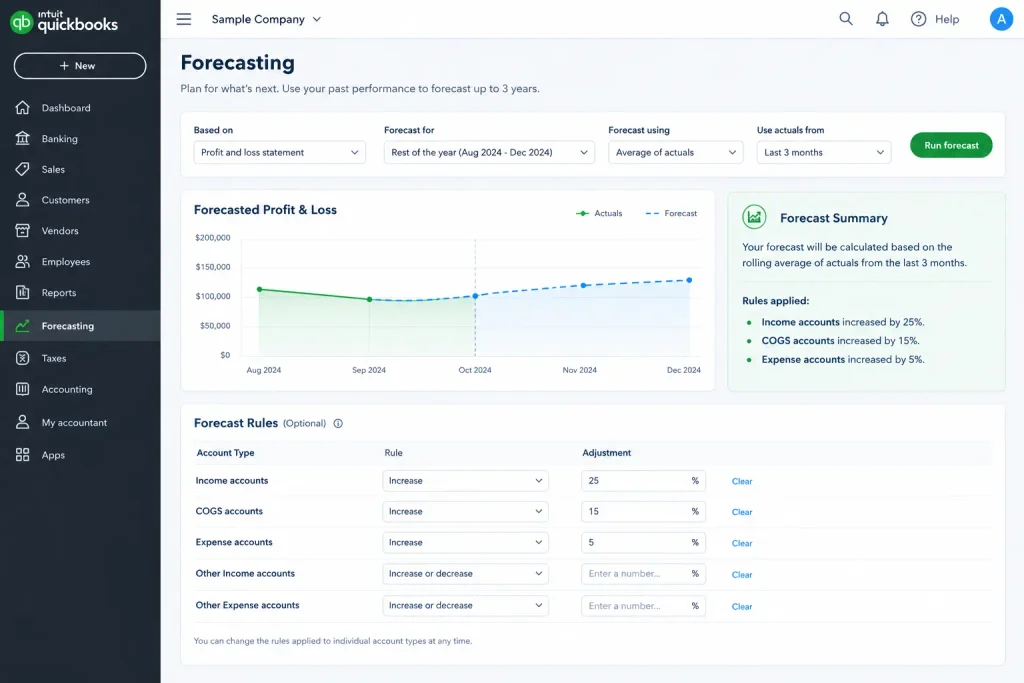
The QuickBooks Online forecasting tool uses financial information to estimate future business performance.
- Uses past financial records to estimate future income and expenses
- Helps identify possible changes in business performance
- Supports planning for upcoming costs and business growth
- Provides estimates rather than guaranteed financial results
- Separates profit-and-loss forecasting from cash flow planning
- The QuickBooks cash flow forecasting tool may refer to a cash planning feature
What Are the Benefits of the QuickBooks Online Forecasting Tool?
The QuickBooks Online forecasting tool helps businesses plan ahead using available financial information.
- Estimate future income, costs, and operating expenses
- Spot possible cash shortages before bills become due
- Prepare budgets based on expected business activity
- Set realistic financial targets for upcoming months
- Compare projected figures with actual results
- Review different growth assumptions before making decisions
- Save time by using existing accounting records
- Use QuickBooks Online’s cash flow forecasting tool to review expected receipts, payments, and ending cash balances
What Are the Types of Cash Flow Forecasts?
Different forecast types help businesses plan cash needs across different periods.
- Short-term forecasts: Estimate daily or weekly cash needs over the coming weeks
- Medium-term forecasts: Often cover 13 weeks to help manage upcoming receipts and payments
- Long-term forecasts: Commonly cover 12 months or longer for broader planning
- Mixed-period forecasts: Combine daily, weekly, and monthly estimates
- Fixed forecasts: Cover a set period with a fixed end date
- Rolling forecasts: Extend the forecast period as time passes
- QuickBooks cash flow forecasting tool: Can help review expected cash movement across a 13-week period
- Online cash flow forcasting tool: May offer different schedules, depending on the provider
What Forecasting Methods Are Available in QuickBooks Online?
The QuickBooks Online forecasting tool in QuickBooks Online Advanced provides methods that use past results or budget figures.
- Average of actuals: Uses actual figures from the previous 3, 6, 9, or 12 months
- Actuals from last fiscal year: Uses monthly figures from the previous fiscal year
- Budget: Uses an existing budget as the basis for forecasting
- Direct cash flow method: Estimates future cash receipts and payments
- Indirect cash flow method: Uses financial statements to support financial planning
- Choose average actuals when monthly income and expenses remain fairly stable
- Use last fiscal year’s figures when your business has seasonal changes
- Use QBO’s forecasting tool to adjust assumptions and review projected results
- A third-party Online cash flow forcasting tool may provide additional cash planning options
Read More:- Year-end tax planning
Is the QuickBooks Online Forecasting Tool Available in Every Plan?
Forecasting options vary by QuickBooks product and subscription.
- The built-in Profit and Loss forecasting workflow is available in QuickBooks Online Advanced
- Advanced forecasts can cover the rest of the fiscal year, through the end of next year, or up to three years
- The separate QuickBooks cash flow forecast grid is available in Simple Start, Essentials, Plus, and Advanced
- The cash flow grid shows expected activity across 13 weeks
- Intuit Enterprise Suite provides automatic profit-and-loss forecasts with specific access and accounting requirements
- Enterprise Suite automatic forecasts currently support accrual-based accounting
Read More:- Cash vs. Accrual Accounting for Small Business
What Should You Check Before Creating a Forecast?
Accurate records help produce more useful forecasts.
Check Your Fiscal Year
- Open Settings
- Select Account and settings
- Choose Advanced
- Find the Accounting section
- Review the first month of your fiscal year
- Correct the setting if needed, then save your changes
Review Your Financial Data
- Open the Profit and Loss Detail report
- Check income, expenses, and recorded transactions
- Select the correct reporting period
- Customize the report for prior-year or current-year-to-date figures
- Correct missing or inaccurate entries before forecasting
Check Your Chart of Accounts
- Review the accounts available for forecasting
- Add any required accounts before creating a new forecast
- Confirm that the necessary financial categories are included
Choose Your Forecast Format
- Select Consolidated or Subdivided
- Choose a class or dimension when needed
- Check your selection carefully because an added class or dimension cannot be removed from that forecast
How to Create a Forecast in QuickBooks Online Advanced
Follow these steps to create a forecast using your accounting data.
Step 1: Open the Forecasting Section
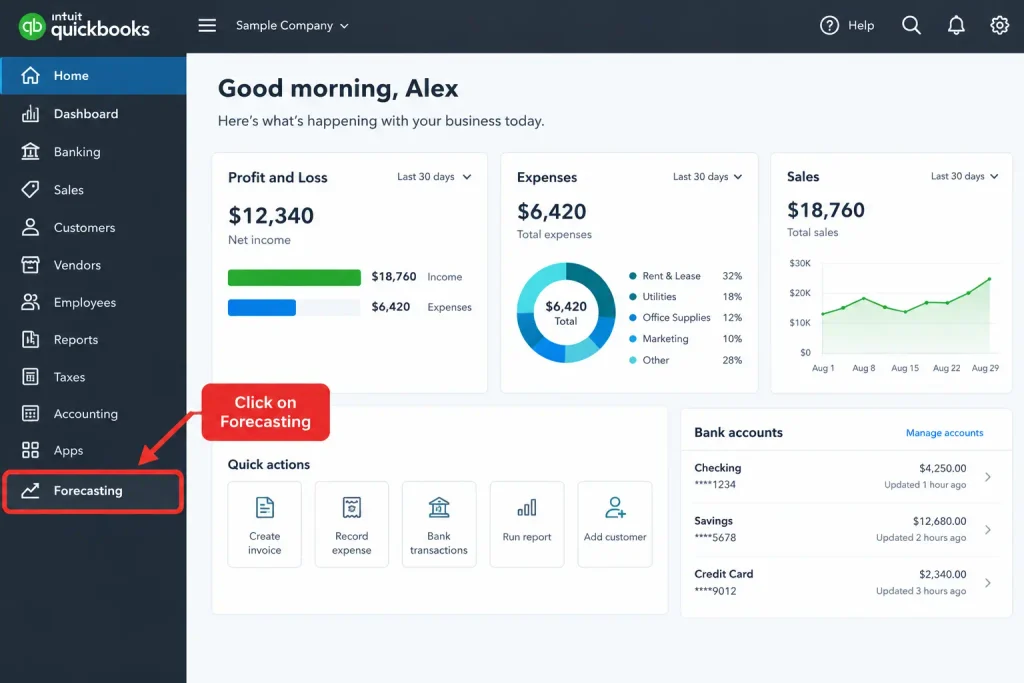
- Sign in to QuickBooks Online Advanced
- Select Reports
- Choose Financial planning
- Select Forecasts
Step 2: Start a New Forecast
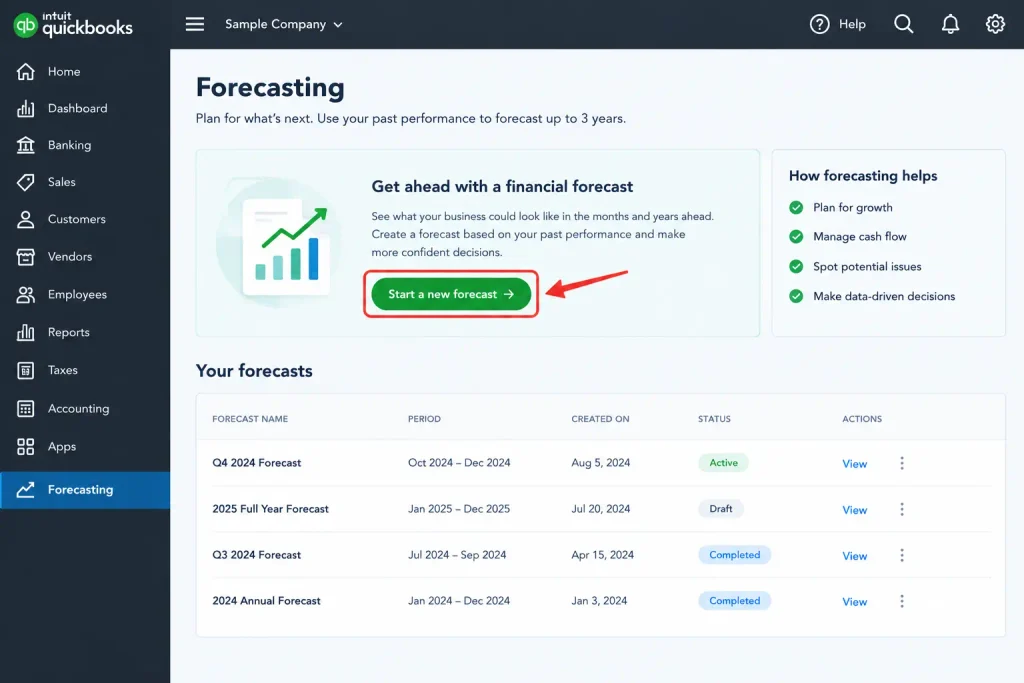
- Select Create forecast
- Confirm that you are creating a forecast rather than a budget
Step 3: Choose the Forecast Format
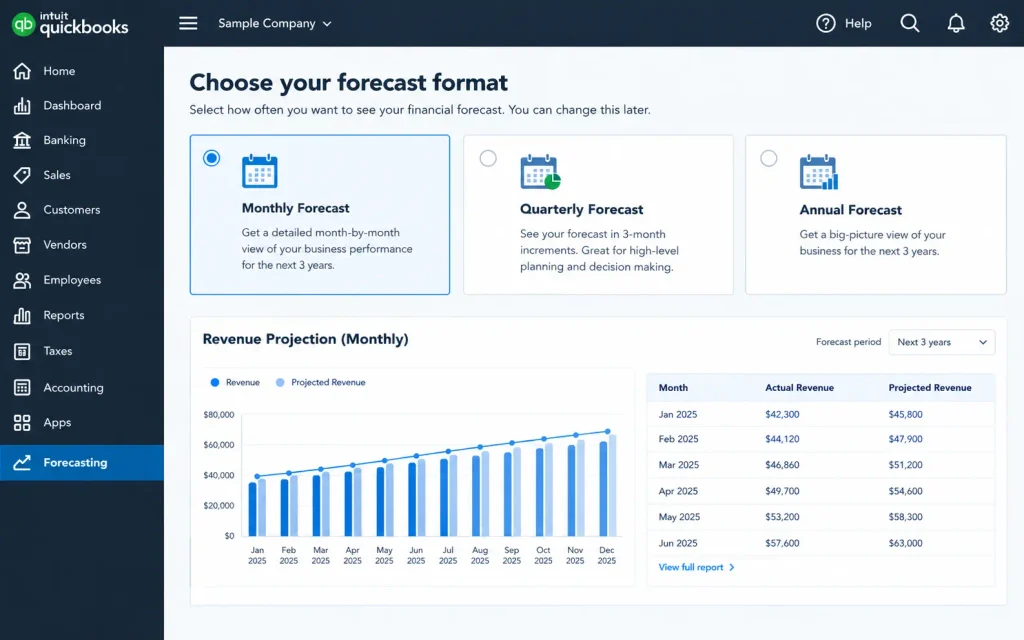
- Select Consolidated for a combined view
- Select Subdivided to organize results by class or dimension
- Choose the required class or dimension when applicable
Step 4: Select the Forecast Period
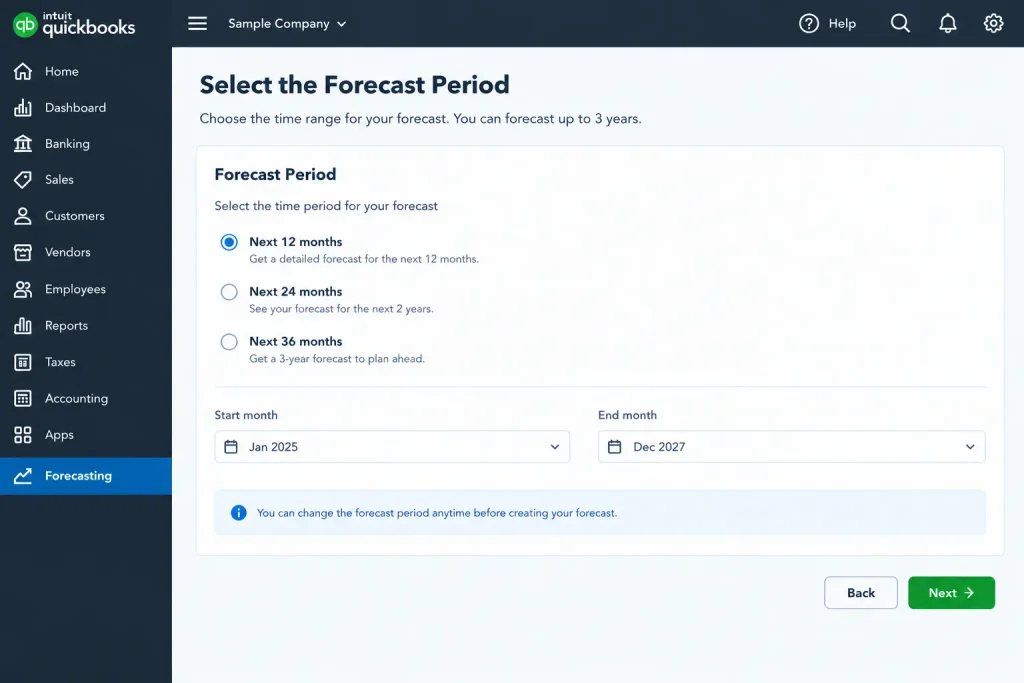
- Choose the rest of the current fiscal year
- Select the period through the end of next year
- Choose a forecast period of up to three years
Step 5: Choose a Forecasting Method
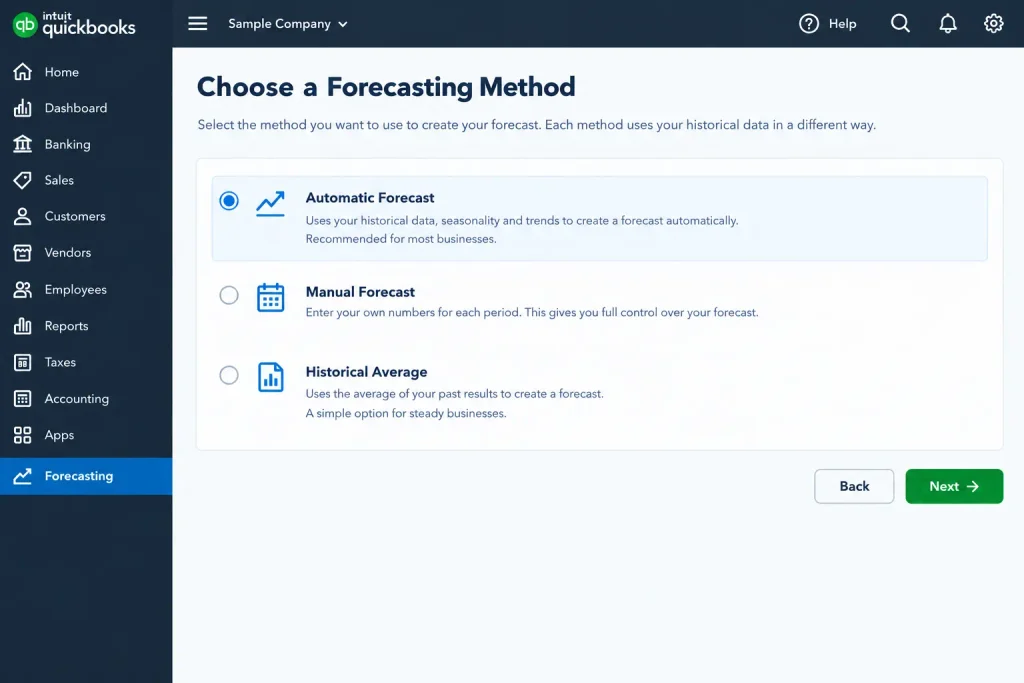
- Select Average of actuals, Actuals from last fiscal year, or Budget
- Choose the historical period when using average actuals
- Select a method that matches your business activity
Step 6: Set Forecast Rules
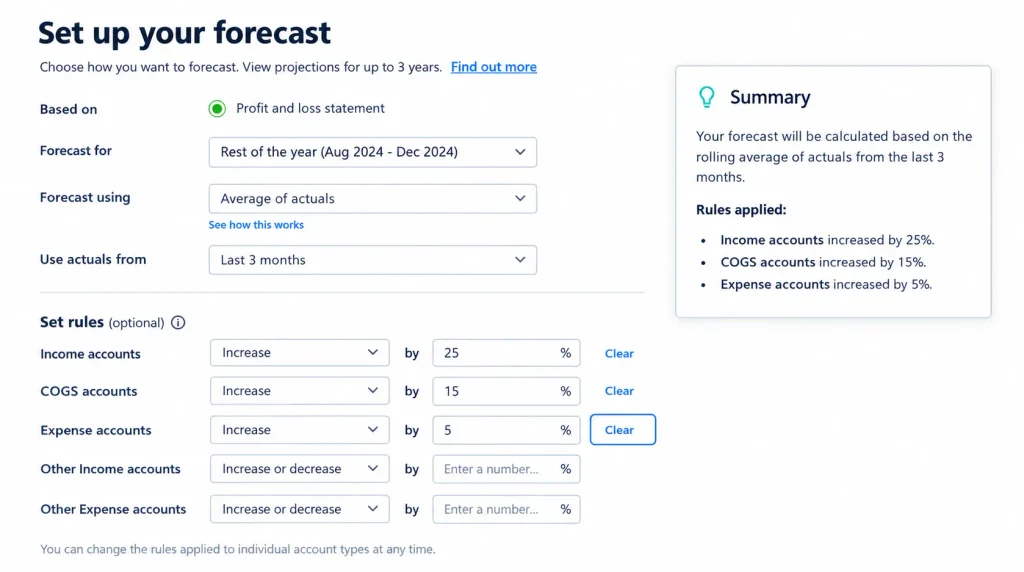
- Enter an expected increase or decrease for account types
- Example: Increase income by 25%
- Example: Increase cost of goods sold by 15%
- Example: Increase operating expenses by 5%
- Alternatively, test a 10% increase across all accounts
Step 7: Review the Projections
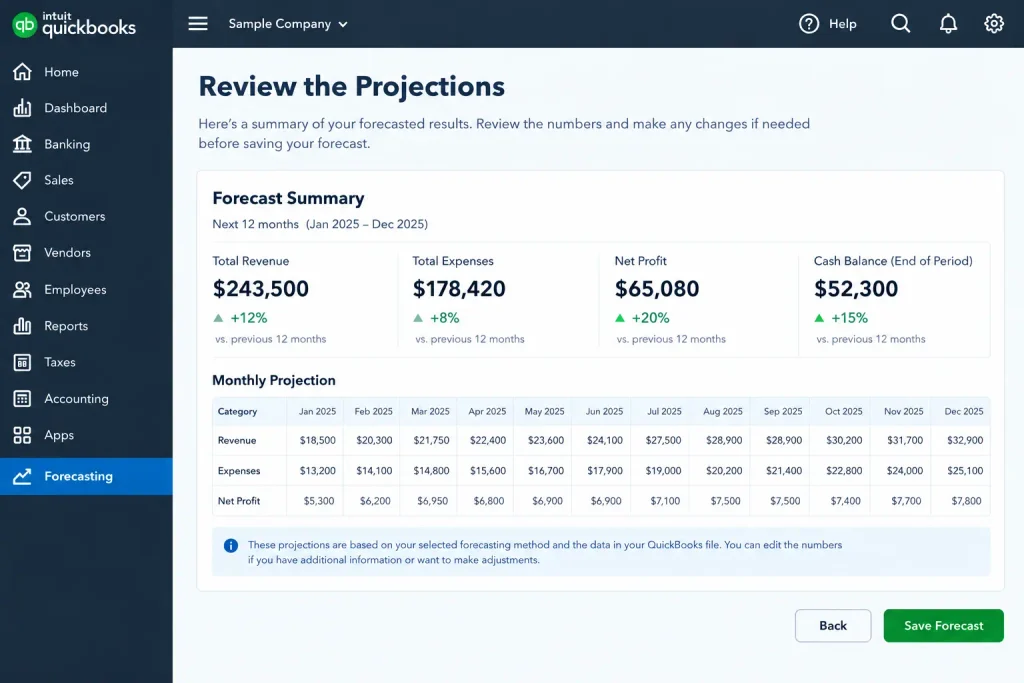
- Select Next
- Review the monthly forecast figures
- Check projected income, cost of sales, and expenses
- Adjust assumptions when necessary
Step 8: Save the Forecast
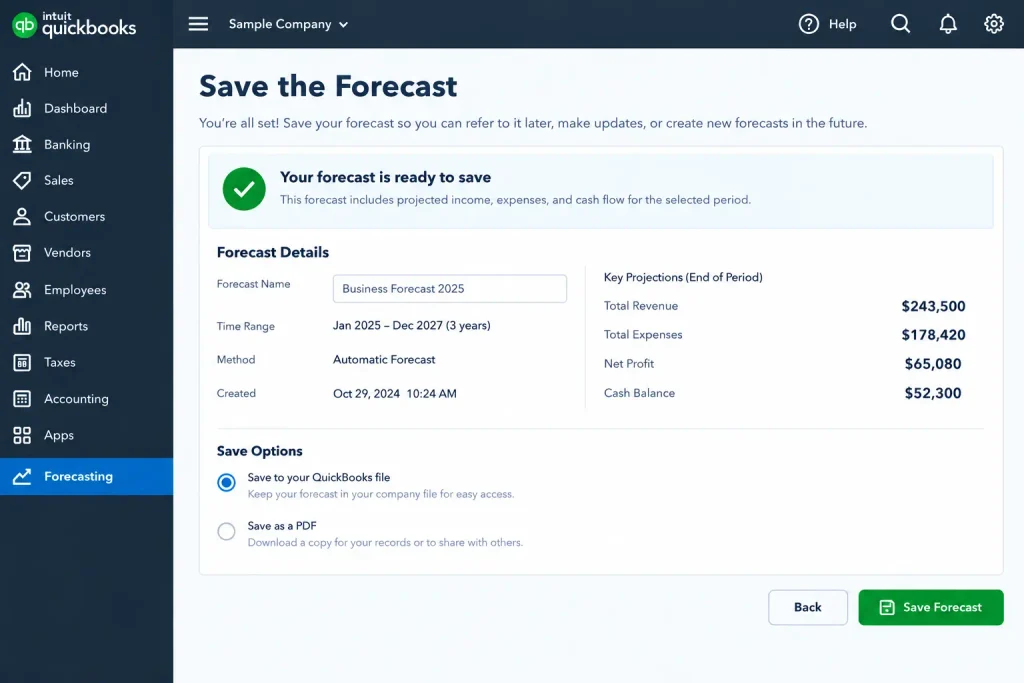
- Edit the forecast name if needed
- Select Save and close
- Confirm that the forecast appears in the forecast list
How to Edit and Update QuickBooks Online Forecasting Tool Results
Updating projections helps businesses respond to changing financial conditions.
Edit an Existing Forecast
- Open Reports
- Select Financial Planning
- Choose Forecasts
- Find the required forecast
- Select View/Edit
- Change the settings or account values
- Select Save or Save and close
Refresh Actual Financial Data
- Open the saved forecast
- Select Refresh actuals, if available
- Review the updated financial figures
- Compare the forecast with the latest business results
Change Forecast Assumptions
- Review current income and expense expectations
- Adjust percentage increases or decreases
- Compare different scenarios before finalizing the forecast
- Save the updated projections
How to Convert a Forecast into a Budget
A completed forecast can become a budget for tracking business performance.
- Open Reports
- Select Financial planning
- Choose Forecasts
- Find the required forecast
- Select View/Edit
- Choose Make this a budget
- Select the fiscal year
- Confirm Make this a budget again
- Run budget-versus-actual reports to review performance
How to Export and Run Forecast Reports
Reports help businesses compare projected results with actual financial performance.
Export a Forecast
- Open Reports
- Select Financial planning
- Choose Forecasts
- Select View/Edit for the required forecast
- Select the export option
- Choose Export to Excel or Print/Save as PDF
Run a Forecast Overview Report
- Open the forecast list
- Select the relevant actions menu
- Choose Forecast Overview
- Review the forecast summary by account
Run a Forecast vs. Actuals Report
- Find the required forecast
- Open the actions menu
- Select Forecast vs. Actuals
- Compare forecast figures with actual results
- Review differences between projected and actual amounts
What Are the Limitations of QuickBooks Online Forecasting Tool?
Understanding forecasting limits helps businesses avoid incorrect financial expectations.
- The built-in forecasting feature requires QuickBooks Online Advanced
- Forecasts depend on the quality of historical accounting data
- Seasonal changes can make simple averages less reliable
- Unexpected income or expenses may affect projections
- Forecasts are estimates rather than guaranteed results
- Some advanced cash planning features may require third-party applications
- QuickBooks Online’s cash flow forecasting tool may differ from the profit-and-loss forecasting feature
How to Fix Common QuickBooks Online Forecasting Tool Problems
Forecasting problems often relate to missing data, incorrect settings, or access restrictions.
Problem 1: The Forecasting Option Is Missing
- Confirm that your subscription includes QuickBooks Online Advanced
- Check whether your user account has the required permissions
- Open Reports
- Select Financial planning
- Choose Forecasts
- Contact your QuickBooks Software administrator if access remains unavailable
Problem 2: Forecast Figures Look Incorrect
- Review the selected forecasting method
- Check the historical period used for calculations
- Verify the Profit and Loss Detail report
- Review income, cost of sales, and expense figures
- Check percentage increases or decreases
- Refresh actuals and review the updated projections
Problem 3: Seasonal Changes Affect Forecast Accuracy
- Avoid relying only on recent monthly averages
- Select actuals from the last fiscal year when appropriate
- Review seasonal sales and expense patterns
- Adjust assumptions to reflect expected business changes
Problem 4: Required Accounts Are Missing
- Open the chart of accounts
- Check whether the required accounts exist
- Add missing accounts before creating a new forecast
- Review the forecast after making the changes
Problem 5: The Forecast Cannot Be Edited or Saved
- Confirm that you have the necessary user permissions
- Open the forecast through Reports
- Select Financial planning
- Choose Forecasts
- Select View/Edit
- Review your changes
- Select Save or Save and close
- Contact an administrator if access restrictions remain
What Safety Tips Should You Follow When Using QuickBooks Online Forecasting Tool?
Safe forecasting practices protect accounting data and improve financial planning.
- Review financial records before creating a forecast
- Verify the fiscal year and reporting period
- Use suitable historical data for seasonal businesses
- Apply realistic income and expense assumptions
- Refresh actual figures before reviewing projections
- Give forecasts clear names for easier tracking
- Export important forecasts for additional review when needed
- Restrict access to authorized users
- Review changes before converting a forecast into a budget
- Remember that deleted forecasts cannot be recovered
- Keep regular accounting backups according to your data protection procedures
How to Prevent Forecasting Problems in QuickBooks Online
Regular reviews help maintain accurate forecasts and dependable financial records.
- Keep income and expense transactions updated
- Review the chart of accounts regularly
- Check the fiscal year settings
- Use a forecasting method suited to business seasonality
- Refresh actuals when reviewing existing forecasts
- Review projections against actual results
- Update assumptions when business conditions change
- Save or export important forecasts when appropriate
- Review forecast reports regularly
- Avoid treating estimates as guaranteed financial results
Conclusion
The QuickBooks Online forecasting tool allows businesses to understand future financial performance. The business should choose the correct approach, look into its accounting statements, and apply practical assumptions. Comparing the projections with facts and revising projections on time is advisable for the organization. The Accounting Assist Pro helps organizations that need proper bookkeeping and accounting records.
Frequently Asked Questions
1. What Is the QuickBooks Online Forecasting Tool?
The QuickBooks Online forecasting tool helps estimate future income, costs, and expenses using financial data and business assumptions.
2. Is QuickBooks Online Forecasting Available in Every Plan?
No. QuickBooks Online Advanced includes the built-in profit-and-loss forecasting feature. Other plans offer different cash flow planning features.
3. Which Forecasting Methods Does QuickBooks Online Offer?
QuickBooks Online Advanced offers Average of actuals, Actuals from last fiscal year, and Budget methods for creating forecasts.
4. Can the QuickBooks Online Forecasting Tool Predict Cash Flow?
The profit-and-loss forecast projects income and expenses. A cash flow forecast estimates when money enters and leaves your business.
5. How Far Ahead Can I Create a Forecast?
You can forecast for the rest of your fiscal year, through the end of next year, or up to three years.
6. How Can I Improve Forecast Accuracy?
Use correct accounting records, select a suitable forecasting method, consider seasonal changes, and update assumptions when business conditions change.
7. Can I Convert a Forecast into a Budget?
Yes. Open the forecast, select Make this a budget, choose the fiscal year, and confirm your selection.
8. Can I Export a QuickBooks Forecast?
Yes. You can export supported forecasts to Excel or print and save them as PDF files.
9. Why Does My Forecast Show Incorrect Figures?
Incorrect figures may result from inaccurate records, unsuitable historical periods, missing accounts, seasonal changes, or unrealistic assumptions.
10. Can I Recover a Deleted Forecast?
No. Deleted forecasts cannot be recovered, so review your selection carefully before deleting any forecast.
11. Is QBO’s forecasting tool Suitable for Seasonal Businesses?
Yes. Use actual figures from the previous fiscal year to account for seasonal sales and expenses. Review your assumptions before saving the forecast.
