
QuickBooks Error 1618 can show up while another app is being set up or updated on your PC. When that happens, QuickBooks Desktop may fail to install, not finish the update, or not open as expected. Sometimes the message appears because Windows Installer is already working on something else. First, check whether any installs are still running, next restart your computer and try again at last, run the QuickBooks Install Diagnostic Tool.
What Is Error 1618?
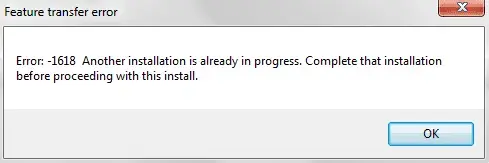
This error is an installation issue that stops QuickBooks Desktop from being installed or upgraded. QB installation error 1618 usually involves Windows Installer activity rather than your company file. Windows stops some installation tasks from running at the same time. That’s why another installer can block QuickBooks from completing its task.
QuickBooks Install Error 1618 common situations include:
Another installation is running
- Windows Update may still be installing components
- Another software setup may remain active
- A previous installation may not have finished properly
Windows Installer remains active
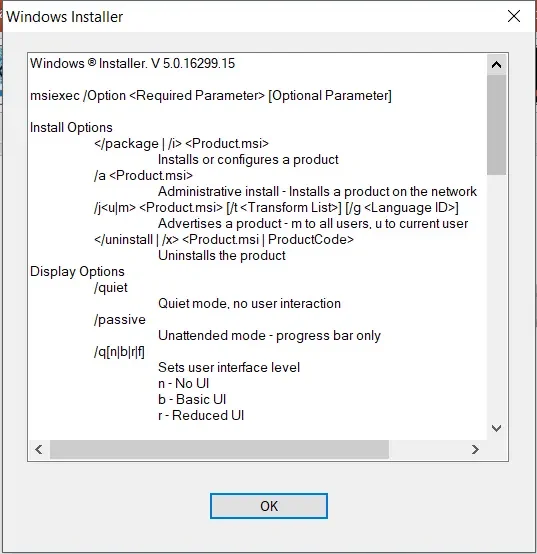
- MSIEXEC.EXE may still run in the background
- A previous setup process may remain stuck
- QuickBooks may detect an existing installer session
QuickBooks components need repair
- Runtime libraries may require reinstallation
- QuickBooks program components may need repair
- Installation files may require refreshing
How to Identify Error 1618
You can identify QuickBooks Error code 1618 when installation or updating stops unexpectedly. Windows may show an installation-related message during the process.
Look for these common signs:
- Installation stops before QuickBooks finishes
- Microsoft Runtime Library installation displays error 1618
- Windows reports another installation is already running
- QuickBooks cannot complete an update
- The setup process repeatedly fails after restarting
The exact Windows meaning is straightforward: another installation must finish before the current setup can continue.
What Error Messages and Codes Appear During QuickBooks Error 1618?
QuickBooks Error Message 1618 may show up during installation, updates, or software removal.
Common error messages include:
- Error 1618: Another installation is already in progress. Complete that installation before proceeding with this one
- QuickBooks Error Code 1618: Windows Installer cannot start another installation while an existing setup is running
- Microsoft Runtime Library Error 1618: Another installation process is preventing the required runtime components from installing
- Uninstall Failed With Exit Code 1618: Windows Installer cannot complete the removal because another installation or uninstallation is active
- QuickBooks Installation Error 1618: QuickBooks Desktop cannot complete its installation or update because another setup process is running
What Should You Do Before Fixing QuickBooks Error 1618?
Prepare your computer before changing installation settings. These simple steps reduce interruptions and protect your QuickBooks data.
Complete these checks first
- Save your work in every open application
- Close QuickBooks Desktop completely
- Finish any visible Windows installation
- Start the computer one more time before trying again
How to Fix QuickBooks Desktop Error 1618
The following methods focus on the main Windows Installer and QuickBooks components involved with this issue. Start with the simplest method and continue only when necessary.
1. Check for Another Installation
- Open Task Manager using Ctrl + Shift + Esc
- Check for active installation processes
- Allow another setup to finish
- Restart Windows before reopening QuickBooks Software
2. Run the QuickBooks Install Diagnostic Tool
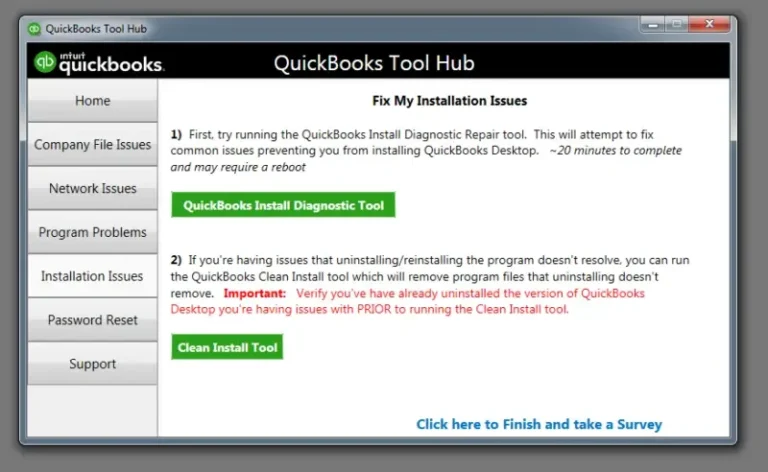
- Close QuickBooks Desktop
- Open the QuickBooks Tools Hub
- Select Installation Issues
- Run QuickBooks Install Diagnostic Tool
- Restart the computer after completion
3. Check MSIEXEC.EXE Processes
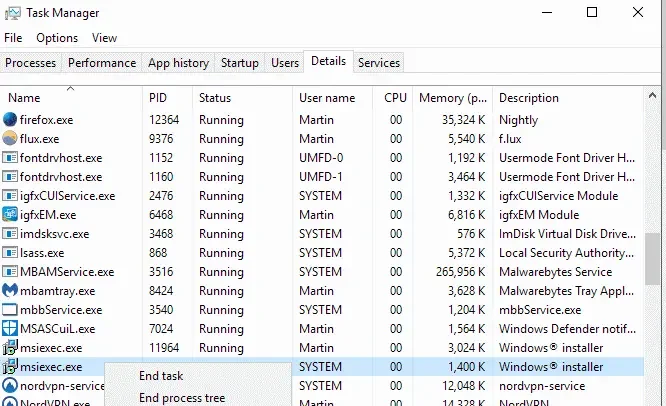
- Open Task Manager
- Search for MSIEXEC.EXE
- Check whether an installation is still active
- Avoid ending a process that belongs to an active installation
- Restart Windows after the installation finishes
4. Reinstall Microsoft Visual C++ Components
- Obtain the supported Microsoft Visual C++ Redistributable package
- Install the required package for your Windows system
- Restart the computer
- Try installing or updating QuickBooks again
Read More:- Install QuickBooks Desktop
5. Run Quick Fix My Program
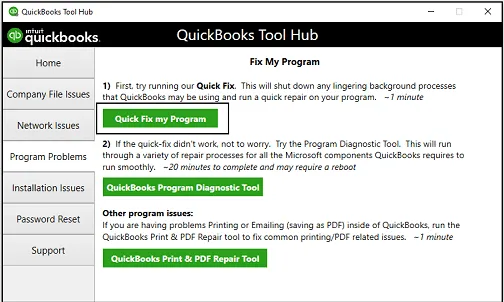
- Open QuickBooks Tools Hub
- Select Program Problems
- Choose Quick Fix My Program
- Reopen QuickBooks after the repair
6. Reinstall QuickBooks Desktop
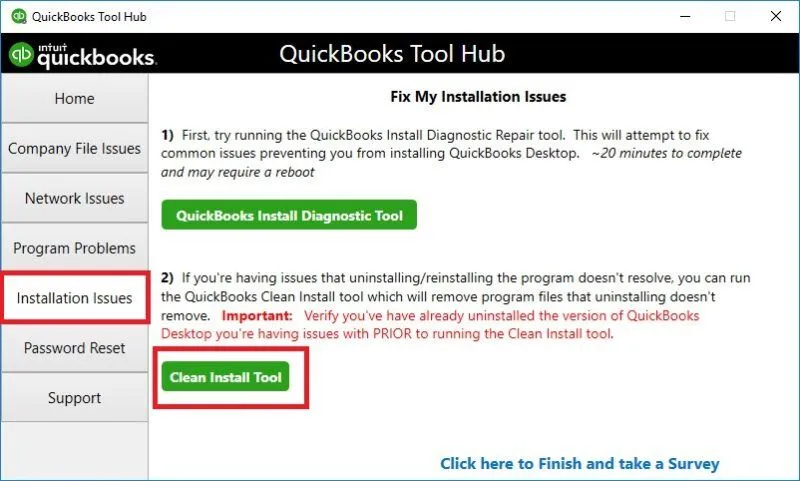
- Back up your company file
- Uninstall QuickBooks Desktop
- Use the QuickBooks Clean Install Tool when necessary
- Reinstall QuickBooks from a trusted source
How to Prevent QuickBooks Update Error 1618
Preventing installation conflicts helps QuickBooks complete updates without interruptions. Avoid starting multiple software installations simultaneously. Allow Windows updates to finish before updating QuickBooks Desktop:
- Close unnecessary setup programs before updating
- Check Task Manager for active installation processes
- Finish Windows updates before opening QuickBooks
- Restart Windows after major software installations
- Keep QuickBooks Desktop updated
- Download QuickBooks components from trusted sources
If many QuickBooks Desktop versions of the same year are installed, update conflicts can also occur. Intuit recommends using manual updates in certain multiple-installation situations.
Conclusion
QuickBooks Error 1618 prevents QuickBooks Desktop from installing or updating when Windows detects another active installation. Start by finishing other setup tasks and restarting your computer. Next, use QuickBooks Tools Hub and check MSIEXEC.EXE processes. Repair Microsoft Visual C++ components if the problem remains. Reinstall QuickBooks only after simpler methods fail. These steps provide a practical path for resolving QuickBooks installation error 1618 conflicts without making risky system changes. For additional troubleshooting guidance and professional assistance, AccountingAssistPro can help you resolve QuickBooks installation issues and get your accounting software running smoothly.
Frequently Asked Questions
1. What causes QuickBooks Error 1618?
QuickBooks Error 1618 occurs when Windows detects another installation already running. A stuck installer can also prevent QuickBooks from starting another setup process.
2. How do I fix QuickBooks Error 1618?
Start by completing other installations and restarting Windows. Then use QuickBooks Tools Hub, check MSIEXEC.EXE, and repair Microsoft Visual C++ components.
3. What does Error 1618 mean in QuickBooks?
QB Error code 1618 means another installation is already in progress. Windows Installer prevents the new installation from proceeding until the existing process finishes.
4. Why does QuickBooks say another installation is running?
Windows may still have an active installation process in the background. MSIEXEC.EXE can also remain active after another setup attempt.
5. How do I check MSIEXEC.EXE?
Open Task Manager and review the running processes. Look for MSIEXEC.EXE and determine whether another installation is currently active.
6. Can restarting Windows fix Error 1618?
Yes, restarting Windows can clear an installation process that has stopped responding. Try this before performing more advanced troubleshooting.
7. Can QuickBooks Tools Hub fix Error 1618?
Yes. Intuit recommends the QuickBooks Tools Hub and Install Diagnostic Tool for QuickBooks installation error 1618 problems.
8. Does Error 1618 damage my QuickBooks company file?
No. Error 1618 QuickBooks usually concerns the installation process. However, create a company file backup before performing major repairs.
9. How do I fix QuickBooks update error 1618?
Finish other installations and restart Windows first. Then run the QuickBooks Install Diagnostic Tool and check MSIEXEC.EXE processes.
10. Can reinstalling QuickBooks resolve Error 1618?
Reinstalling QuickBooks can refresh damaged or incomplete program components. Use this option after simpler troubleshooting methods fail. Intuit also recommends reinstalling QuickBooks for certain installation problems.
11. Is QuickBooks Desktop Error code 1618 a Windows problem?
It is primarily a Windows Installer error that affects QuickBooks installation. Microsoft defines code 1618 as an installation already running.
12. What does the error “uninstall failed with exit code 1618” mean and how can I fix it?
This message means Windows Installer detected another installation or removal process. Finish that process, restart Windows, and try uninstalling again. Check MSIEXEC.EXE if the message continues.
13. What is QuickBooks Desktop Installation Error 1618?
QuickBooks Desktop Installation Error 1618 occurs when Windows detects another installation already running. Finish the active setup and restart your computer before installing QuickBooks again.
14. What does MSI Error Code 1618 mean?
MSI Error Code 1618 means another installation process is already in progress. Windows Installer allows only one installation process at a time. Wait for the current setup to finish before starting another installation.
15. What is QuickBooks Runtime Redistributable?
QuickBooks Runtime Redistributable refers to supporting Microsoft runtime components required by QuickBooks Desktop. These components help QuickBooks run properly. Missing or damaged Visual C++ runtime files can cause installation or program errors. Reinstalling the supported components can help resolve these issues.