
Monday, 8:40 a.m. You open QuickBooks to run payroll, and instead of your dashboard, there is a little gray box with a number written on it. “-6000, -82.” Or maybe it just says it can’t find the file. Doesn’t matter which. Your books are locked, payroll’s on hold, and that report your accountant’s been chasing is going nowhere, because every piece of it sits in one file.
Here’s what most people don’t realize while they’re looking at that box: these errors are usually less horrible than they look. A big chunk clear in ten minutes, no phone call needed. This guide covers what causes them, how to read the codes, what fixes to try and in what order, and when to stop clicking before you make it worse.
What a QuickBooks company file actually is {#what-it-is}
Set up a company in QuickBooks Desktop and you get one file, ending in .qbw. That’s it. It holds invoices, bills, payroll, reconciled transactions, everything, back to day one. Most software runs a database in the background. QuickBooks doesn’t. The .qbw file is the database.
Which is why it’s so easy to use, and why an error hits so hard. A shop with three years of transactions in that single file has its whole financial history in one basket. Corrupt it, lock it, lose it, and there’s no spare copy waiting in the wings. There’s your backup. If you made one.
There are also two small files riding along next to the .qbw, and they punch way above their weight when it comes to causing grief:
- The .ND file (Network Descriptor). A little config file that tells other computers on your network where the company file lives. Server name, path, that’s about it.
- The .TLG file (Transaction Log). A log of every transaction since your last backup. QuickBooks checks it against the .qbw before it lets anybody in. When those two stop agreeing, the file locks.
Nobody gives these two a thought until one of them is why QuickBooks won’t start. The reassuring bit, and I’ll keep coming back to it: renaming them doesn’t touch a single transaction.
What causes QuickBook company file errors?
They feel random. They almost never are. Nearly every one traces back to a short, boring list, and figuring out which item is biting you is most of the job.
- Network and hosting trouble. The heavyweight champ. One machine hosts, the rest connect in, and the moment that connection breaks, nobody reaches anything.
- A damaged .ND or .TLG file. These corrupt more often than the .qbw does, and they take the whole file down with them when they go.
- Where the file is stored. On a mapped drive, external drive, or synced cloud folder (Dropbox, OneDrive)? It breaks far more than one on a plain local drive.
- Corruption inside the .qbw. Hard shutdowns, a power blip mid-save, a bloated file, plain old age. It all adds up.
- File names and paths. A stray space, a weird character, a folder path a mile long. Any of them can do it.
- Windows and permissions. Folder permissions nobody ever set, a Windows update that stalled halfway, antivirus deciding your company file looks shady.
Error code quick reference
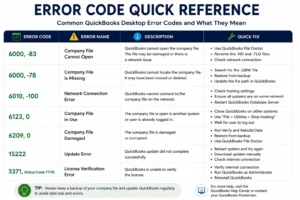
The codes look like gibberish, but they fall into a few families, and the family tells you most of what you need before you change a setting.
| Error code | Family | What it usually means |
| -6000 series (-6000 -82, -6000 -301, -6150, -6130, -6190) | File access | QuickBooks can’t open the file, usually a network, path, or .ND/.TLG issue |
| H202, H505 | Multi-user network | A workstation can’t reach the computer hosting the file |
| 3371 (Status Code -11118, -1) | Licensing | License or registration data is missing or damaged |
| C=51, C=47, C=343, C=184 | Data damage | The file itself has data integrity problems |
| Unrecoverable Error | Crash | QuickBooks fell over while reading or saving the file |
| 6190, 816 | File mismatch | The .qbw and .TLG don’t match, often after multi-user trouble |
The families below are the ones you’ll actually run into, each with a full walkthrough.
The -6000 series: the file won’t open
Everybody meets a –6000 sooner or later. You click to open the file and up pops -6000 with two or three digits stuck on the end. Those digits? Less important than people assume. The message underneath never changes: something between QuickBooks and the file has snapped, either a bad network path or a corrupt .ND/.TLG file next to your .qbw.
Rough translation of the common ones:
- -6000, -82 and -6000, -106: usually a file-name thing. A stray space, a bad character.
- -6000, -301 and -6000, -305: a damaged .ND file, or hosting set up wrong.
- -6150: the .qbw itself is damaged or missing.
- -6190, -816: the .qbw and .TLG have drifted out of sync. Classic sign that two machines are both trying to host.
Try three things, in order. Run QuickBooks File Doctor from the Tool Hub. Rename the .ND and .TLG files. And if the file lives on a network share or synced cloud folder, copy it to a local drive and open it there.
H202 and H505: multi-user headaches
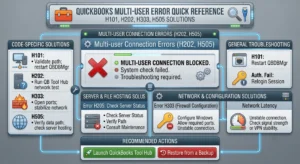
If you run multi-user, one machine hosting, everyone else dialing in, the H-series is the network telling you it can’t find or reach that host.
- H202: the workstation sees the network fine but can’t actually talk to the server with the file. Blame a firewall, a blocked port, or a stopped QuickBooks service most of the time.
- H505: usually the workstation isn’t set up to reach the host at all, or the host isn’t sharing the file the way it should.
Good news, your data’s untouched either way. Bad news, one of these can freeze an entire office. The fix almost always runs through the QuickBooks Database Server Manager (Tool Hub, Network Issues). Confirm only the server is hosting, scan the folder that holds the .qbw, and make sure the QuickBooks services (QuickBooksDBXX and QBCFMonitorService) are running. Stubborn ones give up once you open the right firewall ports and add the server to the Windows hosts file.
Error 3371: license data errors
3371, Status Code -11118 (sometimes -1) plays by different rules. Networks have nothing to do with it. This one’s your license. You’ll see “Could not initialize license properties” or “QuickBooks could not load the license data,” and it loves to crash the party after a Windows update, a reinstall, or a hard crash.
Nine times out of ten it’s one file: EntitlementDataStore.ecml, the place QuickBooks stashes your license info. Corrupt or missing, and QuickBooks can’t prove you’re licensed, so it just won’t load. Delete it, let QuickBooks build a new one:
- Close QuickBooks.
- Hit Windows + R, type %ProgramData%\Intuit\Entitlement Client\v8, press Enter. (Your version folder might say v8, v6, whatever.)
- Delete EntitlementDataStore.ecml and confirm.
- Reopen QuickBooks. It rebuilds the file and asks you to re-register.
Didn’t take? The QuickBooks Install Diagnostic Tool in the Tool Hub (Installation Issues) patches up the Microsoft bits, .NET Framework, MSXML, that QuickBooks needs to read that license data in the first place.
Data damage errors (C=51, C=47, and friends)
The C-series, C=51, C=47, C=343, C=184, and the rest, means the trouble’s inside the .qbw itself. Something’s lost its integrity: a damaged list, a broken link between transactions, a record that won’t read. Not a network problem, so copying the file elsewhere won’t help one bit.
For genuine data damage, QuickBooks hands you two built-in tools under File > Utilities:
- Verify Data scans the file and tells you if it found integrity problems.
- Rebuild Data tries to fix them. It forces a backup first, then chews through the file. Don’t be shocked if you run it twice.
When Verify keeps flagging damage Rebuild can’t clear, you’ve hit the ceiling of the built-in tools. Time to think about Auto Data Recovery, a backup, or a pro, before you dig the hole deeper.
Unrecoverable errors
An Unrecoverable Error is QuickBooks falling flat on its face while it reads or saves the file, trailing a string of code numbers that mean nothing to anyone sane. Sometimes it’s a one-off tied to whatever you just clicked; sometimes it’s a damaged file, a damaged install, or a Windows profile gone sour.
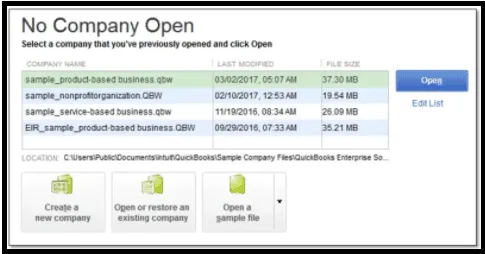
Start dull: reboot, update QuickBooks, then open a sample company file from the “No Company Open” screen. Sample opens clean? Your file’s the problem, not the software. Sample crashes too? It’s the install, and Quick Fix my Program or a repair install is where you head.
The tools that fix most of these
Forget memorizing codes. Learn the tools instead. Four cover the vast majority of company file errors, and Intuit gives them all away free.
QuickBooks Tool Hub
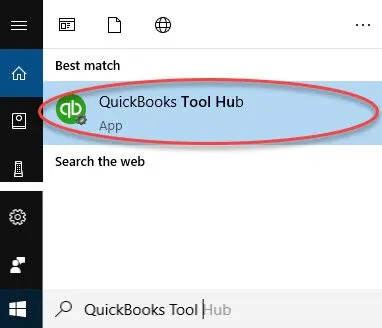
The front door to everything else. Intuit killed the old standalone downloads in 2020, so the Tool Hub is now how you get to File Doctor, the Install Diagnostic Tool, and the rest. Download the latest version, install it, open it. The tabs down the left, Company File Issues, Network Issues, Program Problems, Installation Issues, map almost perfectly onto the error families above.
Quick Fix my File and QuickBooks File Doctor
Inside QuickBook Company File Issues, run these two in order:
- Quick Fix my File closes out any stuck QuickBooks processes and runs a fast repair. Start here. A lot of the time you never need to go further.
- QuickBooks File Doctor is the bigger hammer. Grab your file from the dropdown (or browse to it), pick Check your file (the middle option), type your admin password, and let it churn. It handles both file damage and network problems, which is why it’s the go-to for -6000 and the H-series.
Couple of catches: File Doctor is Windows-only, likes files under about 1.5 GB, and wants you on the current version of QuickBooks.
Verify & Rebuild Data
When the rot’s inside the file and File Doctor can’t get to it, the built-in Verify Data and Rebuild Data tools under File > Utilities are your move. Verify finds it, Rebuild fixes it. Just let Rebuild take that backup before it starts.
QuickBooks Database Server Manager
The engine room for multi-user. When H202, H505, or a hosting-flavored -6000 shows up, open Database Server Manager from the Tool Hub (Network Issues) and scan the folder your file lives in. It rebuilds the .ND file with the right server address.
A general fix sequence
No idea which error you’re looking at? Work this order. It clears the most cases with the least risk:
- Reboot and update. Restart the machine, update QuickBooks. How often that alone fixes it is a little embarrassing.
- Run Quick Fix my File, then File Doctor, from the Tool Hub.
- Rename the .ND and .TLG files. Stick .OLD on the end of each one (Company.qbw.nd.OLD). QuickBooks rebuilds them itself, no data lost.
- Test with a sample file to see whether it’s your file or the program.
- Copy the file to a local drive if it’s on a network share or synced folder, then open it there.
- Run Verify, then Rebuild if you suspect the damage is inside the file.
- Restore a backup or use Auto Data Recovery if the file still won’t budge.
Top to bottom, and stop the instant the file opens. The list climbs from harmless to serious on purpose.
When to restore from a backup
If Rebuild can’t finish, or the file just won’t open, fall back on a copy you trust. Two ways:
- Your backup (.qbb). Restore the most recent one through File > Open or Restore Company. You’ll lose whatever you entered since then, which is the whole argument for backing up often.
- Auto Data Recovery (ADR). Pro, Premier, and Enterprise quietly keep recent recovery copies. ADR can often rebuild a file with just a few hours of lost transactions, a world away from a week-old backup. Most folks don’t know they have it until the day they need it.
Rule of thumb: if you’ve ground on the fixes above for an hour and gotten nowhere, restoring a recent copy beats wrestling a broken file for another hour.
When to call a professional
Most of these you can knock out yourself. A handful you shouldn’t, and knowing the difference is what keeps a rough morning from turning into a lost quarter. Call for help when:
- Verify keeps flagging damage Rebuild can’t clear, two or three passes in.
- The file’s huge (gigabytes) or holds years of history you can’t replace.
- Someone’s telling you to delete or edit system files and your gut says no.
- The error’s wrapped up in payroll or tax data with a deadline looming.
- You’ve no recent, tested backup, which is when one wrong click becomes forever.
Nobody hands out medals for pushing a broken file one step too far. A ProAdvisor or a data-repair shop can often pull back files that looked like toast, usually for less than rebuilding your books by hand.
How to prevent QuickBook company file errors
You won’t wipe these out completely. You can make them rare and cheap instead of frequent and expensive, and that’s most of the battle:
- Back up daily, and actually restore one now and then. A backup you’ve never tested is a wish, not a safety net.
- Keep the file on a local or properly hosted drive. Not Dropbox, not OneDrive, not Google Drive. They sync mid-write and corrupt files.
- Close QuickBooks properly on every machine before you shut down. Sloppy exits are a leading cause of .TLG damage.
- Update QuickBooks and Windows on a schedule, so you’re not patching in a panic mid-crisis.
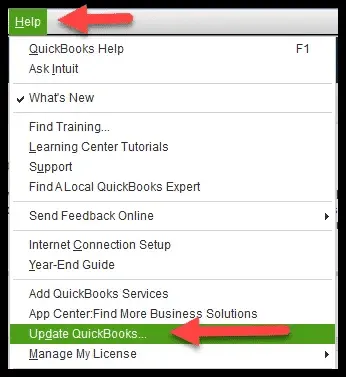
- Watch file size. Big files run slower and break more; condense or archive old data every so often.
- Set hosting up right. In multi-user, only the server hosts the file. Two hosts is an invitation to -6190 and the H-series.
Conclusion
While QuickBooks company file errors may sound serious, most common errors can be fixed by following the correct troubleshooting steps in the right sequence. Easy fixes such as restarting QuickBooks, updating the software, using Quick Fix my File or QuickBooks File Doctor, and checking the .ND & .TLG files are some of the simple solutions. Additional recovery options for data issues are available through Verify Data, Rebuild Data, backups, and Auto Data Recovery.
If the error continues and it involves important financial, payroll or tax information, do not make any unnecessary changes to the company file. When normal repair methods don’t work, AccountingAssistPro is available for QuickBooks troubleshooting and support. Regular backups, a proper multi-user setup and timely QuickBooks updates can also help mitigate the risk of future company file problems.
Frequently asked questions
Will I lose my data if I get a QuickBooks company file error?
Usually, no. The -6000 and H-series are access problems, not damage, so your data’s fine. Most data-damage errors come back with Verify & Rebuild or Auto Data Recovery. What actually loses people their data isn’t the error, it’s having no recent backup when a bad one lands.
Is it safe to rename the .ND and .TLG files?
Yes. Those are support files, not your data. Slap .OLD on the names and QuickBooks builds fresh ones next time you open the file or scan with Database Server Manager. It’s about the safest thing on the list.
What’s the fastest fix for a -6000 error?
Run Quick Fix my File, then File Doctor, from the Tool Hub, and rename the .ND and .TLG files. If the file’s sitting on a network or synced folder, just copying it to a local drive clears a big share of -6000s by itself.
Why does QuickBooks keep throwing errors in multi-user mode?
Multi-user lives or dies on a clean connection between the workstations and the host. H202 and H505 both point there: firewall rules, stopped services, or two machines fighting over who hosts. Database Server Manager plus correct hosting clears most of them.
Do I need to reinstall QuickBooks to fix error 3371?
Almost never. 3371 is nearly always that EntitlementDataStore.ecml license file. Delete it, let QuickBooks rebuild it, update Windows, and most cases are done. Reinstalling is a last resort.
When should I stop troubleshooting and call someone?
When Rebuild can’t clear the damage, when the file’s large or irreplaceable, or when you’ve no solid backup and someone’s asking you to edit system files. That’s when a professional repair beats one more risky click.
