
QuickBooks Payroll not calculating can cause wages, taxes, deductions, overtime, and net pay to not be updated. The reason could include incorrect employee setup, lack of hours, outdated tax tables, payroll items, or problems with the software itself. QuickBooks Payroll not being active can also be a cause for the issue. Checking the employee setup, payroll setup, tax updates, and company information will help determine the cause. QuickBooks calculates the payroll tax based on the information input in the payroll.
What Does “QuickBooks Payroll Not Calculating” Mean?
This means the software fails to produce expected wage, tax, deduction, or net pay amounts. Sometimes only one payroll item fails, while other amounts calculate correctly. QuickBooks uses employee information and payroll settings to calculate paycheck amounts. A wrong pay rate, missing tax setup, or outdated tax table can change the result.
Here are the signs:
- Gross pay remains unchanged after entering hours
- Overtime does not appear in the paycheck
- Federal or state taxes show unexpected amounts
- Deductions remain blank or incorrect
- Net pay does not update
- A payroll item disappears from the calculation
- Different employees show inconsistent tax results
Why Is QuickBooks Payroll Not Calculating?
Several settings control payroll calculations. Checking these areas first can help locate the source of the problem.
- Incorrect hourly or salary pay type
- Wrong employee pay rate
- Missing regular or overtime hours
- Incorrect pay period
- Outdated payroll tax tables
- Incorrect payroll item setup
- Wrong federal or state tax settings
- Incorrect deductions or benefit items
- Inactive payroll subscription
- Outdated QuickBooks Desktop version
- Damaged company or payroll data
How to Fix QuickBooks Payroll Not Calculating
Use these seven fixes in order. Start with employee information before changing software or company data.
1. Review the Employee’s Pay Setup
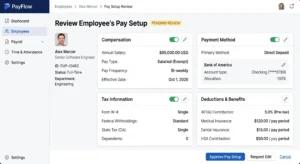
- Open the affected employee’s profile
- Confirm hourly or salary classification
- Verify the current pay rate
- Review assigned payroll items
- Check the employee’s active status
- Confirm compensation details match the current agreement
2. Check Entered Hours and Overtime
- Review regular working hours
- Confirm overtime hours
- Check sick and vacation hours
- Verify the correct pay period
- Remove duplicate time entries
- Confirm the correct employee received the hours
3. Review Payroll Tax and Deduction Settings
- Check federal tax information
- Review state withholding details
- Confirm employee tax settings
- Verify deduction amounts
- Review benefit-related payroll items
- Check inactive or missing payroll items
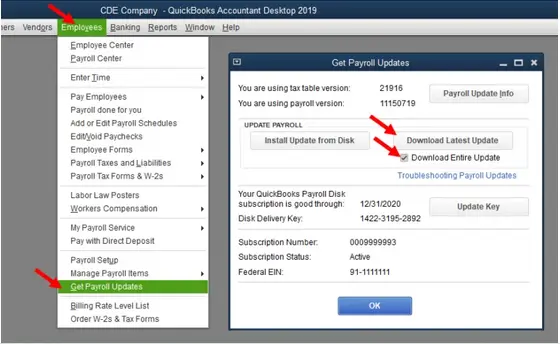
4. Download the Latest Payroll Tax Table
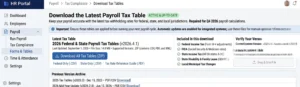
Outdated tax tables can affect federal and state payroll calculations in QuickBooks Desktop Payroll. Intuit requires Desktop users to download payroll tax table updates when available. QuickBooks Online Payroll handles tax table updates automatically.
- Open QuickBooks Desktop
- Select Employees
- Choose Get Payroll Updates
- Review the current tax table version
- Select Download Entire Update
- Select Update
- Reopen payroll after the update finishes
5. Verify Your Payroll Subscription
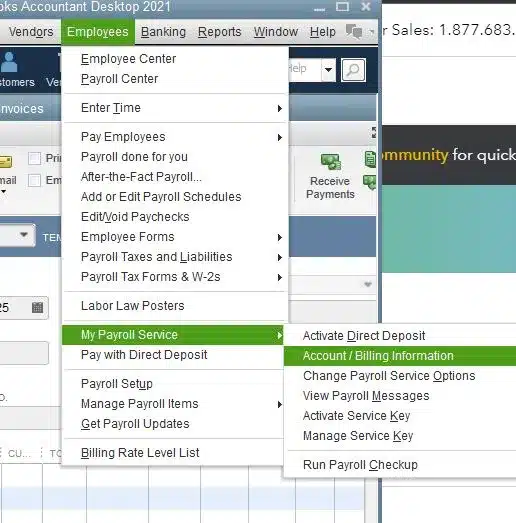
An active payroll subscription is required for payroll tax calculations and tax table updates in supported QuickBooks Desktop Payroll products.
- Open your payroll service settings
- Confirm the payroll subscription is active
- Check the payroll service information
- Review any subscription notifications
- Resolve activation or billing issues
- Reopen QuickBooks after restoring service
6. Update QuickBooks Desktop
An outdated QuickBooks Desktop release can interfere with payroll features and updates. Intuit recommends installing the latest maintenance release for your supported version.
- Open QuickBooks Desktop
- Press F2 or Ctrl+1
- Check your product version
- Review the current release number
- Open Help
- Select Update QuickBooks Desktop
- Download available updates
- Restart QuickBooks after installation
7. Repair Payroll or Company Data
Damaged company data can cause unusual payroll behavior. QuickBooks Desktop includes Verify Data and Rebuild Data tools for identifying and repairing data problems.
- Create a current company file backup
- Close all open company windows
- Select File
- Choose Utilities
- Run Verify Data
- Review any reported problems
- Run Rebuild Data when required
- Verify the company file again
- Recalculate payroll after repairs
Read More: QuickBooks Company File Errors
QuickBooks Payroll Still Not Calculating? Check These Items
A QuickBooks Payroll calculation error may affect only one part of a paycheck. Identify the exact missing amount before changing payroll settings.
- Regular pay calculates but overtime does not: Review overtime hours and assigned overtime payroll items
- Taxes show zero: Check employee tax information, taxable wages, and exemption settings
- Net pay does not update: Review gross pay, deductions, taxes, and paycheck details
- Employee paycheck shows incorrect amounts: Compare the employee’s rate, hours, and payroll items
- Payroll items are missing: Review the employee’s compensation and deduction setup
- One employee is affected: Focus on that employee’s individual settings first
- Several employees are affected: Check payroll updates, tax tables, and company data
How to Prevent QuickBooks Payroll Calculation Problems
Regular payroll reviews can reduce calculation problems and help catch incorrect settings before payday.
- Keep payroll tax tables current
- Review employee information regularly
- Confirm pay rates before each payroll
- Check payroll items after employee changes
- Review deductions and benefits
- Update QuickBooks Desktop regularly
- Run Payroll Checkup when available
- Review payroll reports before submitting tax payments
- Keep a recent company file backup
Conclusion
QuickBooks Payroll not calculating can result from incorrect employee details, missing hours, tax settings, outdated updates, inactive services, or damaged company data. Start with the employee’s payroll setup and entered hours. Then review taxes, deductions, payroll updates, and subscription status. Update QuickBooks Desktop when needed and use Verify Data or Rebuild Data for suspected file problems. These checks can restore accurate calculations and reduce future payroll processing issues. For additional support, Accounting Assist Pro can help with QuickBooks payroll-related issues.
FAQs
1. Why is QuickBooks Payroll not calculating correctly?
Employee setup, payroll items, tax settings, outdated tax tables, wage limits, software updates, and company data can affect payroll calculations. Review these areas first.
2. Why are my QuickBooks Payroll taxes not calculating?
QuickBooks Payroll taxes not calculating can result from incorrect employee tax settings, outdated tax tables, wage limits, or missing payroll information. Review each affected employee carefully.
3. How do I fix a QuickBooks Payroll calculation error?
A QuickBooks Payroll calculation error usually requires checking employee details, hours, payroll items, tax settings, and updates. Repair company data if other fixes fail.
4. Why is QuickBooks not calculating overtime?
QuickBooks may not calculate overtime when hours, pay items, rates, or pay periods are incorrect. Review the employee’s time entries and overtime payroll item settings.
5. Why does QuickBooks show zero payroll tax?
Zero tax can occur when taxable wages are low or an employee claims exemption. Wage limits and employee tax information can also affect withholding.
6. Does QuickBooks automatically update payroll tax tables?
QuickBooks Online Payroll updates tax tables automatically. QuickBooks Desktop Payroll users must download available payroll tax table updates.
7. How often should I update QuickBooks Desktop Payroll?
Install payroll updates whenever QuickBooks makes new tax tables available. Current updates can contain revised withholding tables and state tax changes.
8. Can an inactive payroll subscription stop calculations?
Yes. An active payroll subscription is required for payroll tax calculations and payroll tax table updates in supported Desktop products.
