
QuickBooks Error 2147221164 is a runtime issue, and this can happen when program files are missing, broken, or not registered. People often see the notice “Class not registered” and the code 80040154. This shows up during tasks related to payroll, Excel exports, tax form actions, or sync sessions inside QuickBooks. It may also cause access problems for some Windows user accounts if the install was not done right. This blog covers everything you must know about this error.
What Is QuickBooks Error 2147221164?
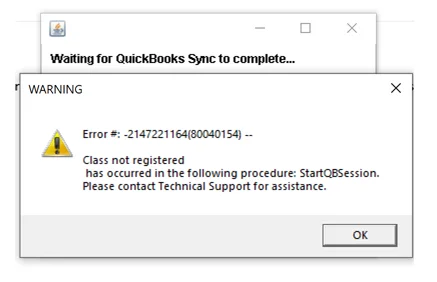
This error shows up as 2147221164(80040154) and includes the text “Class not registered.” Error 2147221164 can occur during the StartQBSession process. You can also get this exact message when required DLL files are not registered in a proper way. A bad install of a sync tool can also cause the same problem for some Windows users. Other reasons can include QuickBooks setup problems, Office issues, or software that is out of date.
The label “QuickBooks Error Code 2147221164” refers to the same underlying “Class not registered” problem. The number usually points to a component registration problem or to an app access issue.
What Are the Signs of QuickBooks Error 2147221164?
You can detect this error by many signs, as the message usually appears suddenly while QuickBooks performs a task.
- QuickBooks displays a Class not registered message
- The error includes 2147221164(80040154)
- The message refers to the StartQBSession procedure
- Payroll reports may fail to open or generate
- Tax forms may stop working correctly
- Excel exports may trigger the runtime problem
- Sync tools may fail to start a QuickBooks session
- One Windows user may experience the issue while others work normally
- The problem may begin after an Office or QuickBooks installation
Read More:- Fix QuickBooks Installation Errors
A Quick Books Runtime Error -2147221164 can affect different functions according to the damaged component.
What Causes QuickBooks Error 2147221164?
Here are the main reasons why this error cause and understanding this will help to avoid needless changes.
QuickBooks Installation Problems
- Damaged program files can prevent required QuickBooks components from loading
- An incomplete installation can leave important components unavailable
- An incorrect installation can restrict access for other Windows users
Unregistered DLL Files
- Required DLL files may not register correctly during installation
- Missing registration can prevent QuickBooks from starting its required session
- System changes can sometimes affect application component registration
Sync Tool Installation Issues
- A sync tool may only be installed for one Windows account
- Other users may lack access to required sync components
- Administrator-level installation can help make the tool available system-wide
Microsoft Office Problems
- Damaged Office components can affect QuickBooks features
- Excel-related tasks may fail when Office cannot process requests correctly
- Bit-version differences can create compatibility problems with older components
Outdated QuickBooks
- Older releases may contain compatibility problems
- Missing updates can prevent important program fixes from being applied
Inactive Payroll Subscription
- Payroll-related functions may behave differently when the subscription is inactive
- Subscription status should be checked when payroll tasks trigger the error
Incompatible System Configuration
- Unsupported Windows settings can interfere with QuickBooks
- Limited system resources can affect application performance
- Security software can sometimes interfere with program components
How to Identify QuickBooks Error 2147221164?
You should confirm the error before doing any major changes to QuickBooks, and the error message gives useful clues about its source.
- Check for the exact 2147221164(80040154) message
- Look for the phrase “Class not registered”
- Confirm whether the message mentions StartQBSession
- Identify whether one Windows account or several accounts experience it
- Note whether payroll, Excel, reporting, or syncing triggers the problem
- Check whether QuickBooks was recently installed or updated
- Check whether Microsoft Office was recently changed
- Confirm whether a sync tool was installed using administrator access
Prerequisites Before Fixing QuickBooks Error 2147221164
We suggest users to prepare their computer before start doing any fixes, as this step lower the risk of losing work or creating additional installation problems.
- Sign in with Windows administrator rights
- Create a current backup of your QuickBooks company file
- Close QuickBooks and related applications
- Check your Windows version and system compatibility
- Confirm that QuickBooks has a valid installation
- Check your Microsoft Office installation
- Keep your QuickBooks account details available
- Restart the computer before advanced troubleshooting
- Maintain a stable internet connection for updates
- Keep installation files available when reinstalling software
A Quick Books Runtime Error -2147221164 may require software changes, so proper preparation matters.
Fix 1: Check QuickBooks System Requirements
First, confirm your computer supports QuickBooks before applying advanced troubleshooting steps.
- Verify Windows meets the requirements for your QuickBooks version
- Check available RAM and hard drive space
- Confirm you have a stable internet connection
- Verify Microsoft Office compatibility
- Review firewall and antivirus settings
- Confirm QuickBooks runs directly on Windows
- Check requirements for your exact QuickBooks year and edition
- Use QuickBooks Tool Hub for common Desktop troubleshooting
Read More:- Download and Install QuickBooks Tool Hub
Fix 2: Update QuickBooks Desktop
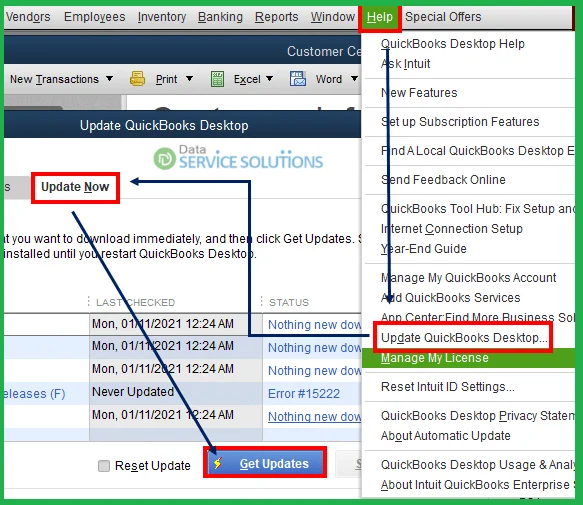
Updating QuickBooks can replace outdated program files and improve compatibility with Windows and connected applications.
- Open QuickBooks Desktop
- Select Help
- Choose Update QuickBooks Desktop
- Open the Update Now tab
- Select Reset Update
- Click Get Updates
- Close QuickBooks after the update finishes
- Reopen QuickBooks
- Install the available update
- Test the affected QuickBooks feature
An update can resolve QuickBooks Error Code 2147221164 when outdated files cause compatibility problems.
Fix 3: Repair Microsoft Office
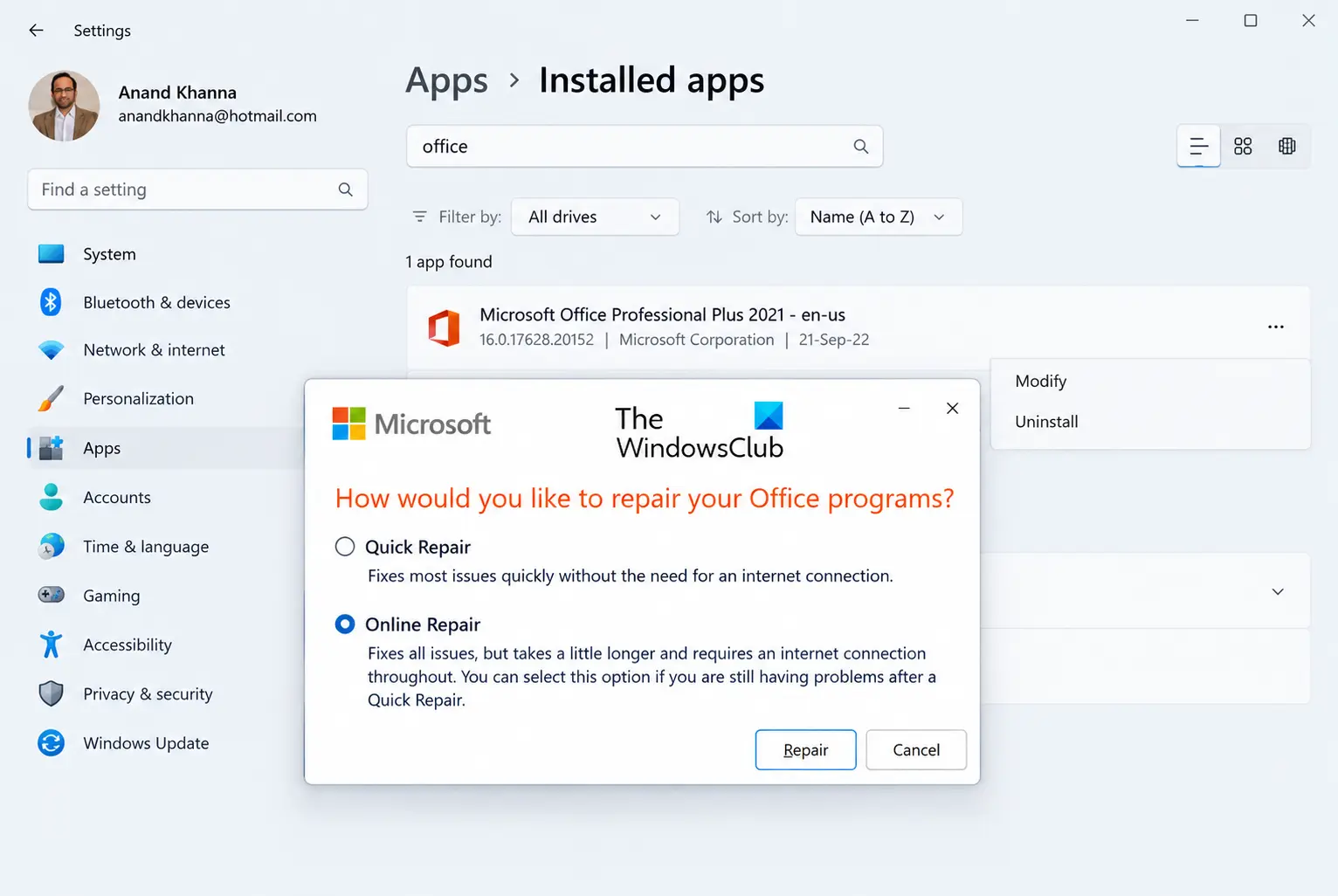
Repair Microsoft Office when the error appears during Excel exports or other Office-related QuickBooks functions.
- Open Installed apps or Apps and Features
- Locate your Microsoft 365 or Office installation
- Select Modify
- Choose Online Repair for Click-to-Run installations
- Choose Repair for MSI-based installations
- Follow the instructions displayed on screen
- Restart your computer
- Open QuickBooks again
- Test the affected Office-related function
Fix 4: Set Internet ETW Collector Service to Automatic
Check this Windows service when basic repairs fail to resolve the QuickBooks problem.
- Press Windows + R
- Enter services.msc
- Press Enter
- Locate Internet ETW Collector Service
- Right-click the service
- Select Properties
- Set Startup type to Automatic
- Select Start
- Click Apply
- Select OK
- Restart QuickBooks
- Test the affected function
If Error 2147221164 in QB remains, continue with the next troubleshooting method.
Fix 5: Check QuickBooks Export Settings
Review report settings when QuickBooks Error 2147221164 appears specifically during Excel exports.
- Open the affected QuickBooks report
- Check whether the report contains more than 256 columns
- Open the report’s advanced settings
- Remove unnecessary spacing between columns
- Save the updated report settings
- Export the report again
- Check whether the error appears again
- Repair Microsoft Office if the export still fails
Fix 6: Reinstall Microsoft Office Using the 32-Bit Version
Consider 32-bit Office only when an older integration specifically requires that environment.
- Uninstall the existing Microsoft Office installation
- Sign in to your Microsoft account
- Open the Office installation options
- Select the required Office version
- Choose the 32-bit edition when compatibility requires it
- Complete the Office installation
- Restart your computer
- Open QuickBooks
- Test the affected integration again
Fix 7: Reinstall the QuickBooks Sync Tool as Administrator
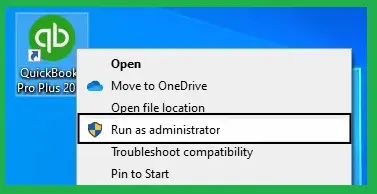
Reinstall the Sync tool with administrator access when installation permissions cause the problem.
- Uninstall the affected QuickBooks Sync tool
- Sign in using the local Windows administrator account
- Install the Sync tool again
- Complete the installation
- Sign out from the administrator account
- Sign in using the affected Windows account
- Open the Sync tool
- Test the QuickBooks connection
- Confirm access for other required Windows users
This method addresses installation access issues that can trigger QuickBooks Error 2147221164.
Fix 8: Reinstall QuickBooks and the Sync Tool
Use a complete reinstallation when individual repairs cannot remove damaged application components.
- Back up your QuickBooks company files
- Uninstall QuickBooks
- Uninstall the affected Sync tool
- Restart the computer
- Sign in as the local administrator
- Install QuickBooks again
- Install the Sync tool again
- Restart the computer
- Sign in using the affected Windows account
- Test the QuickBooks connection
- Confirm required users have application access
A clean installation can replace damaged files that continue causing QuickBooks Error 2147221164.
Fix 9: Follow the Remote Server Installation Process
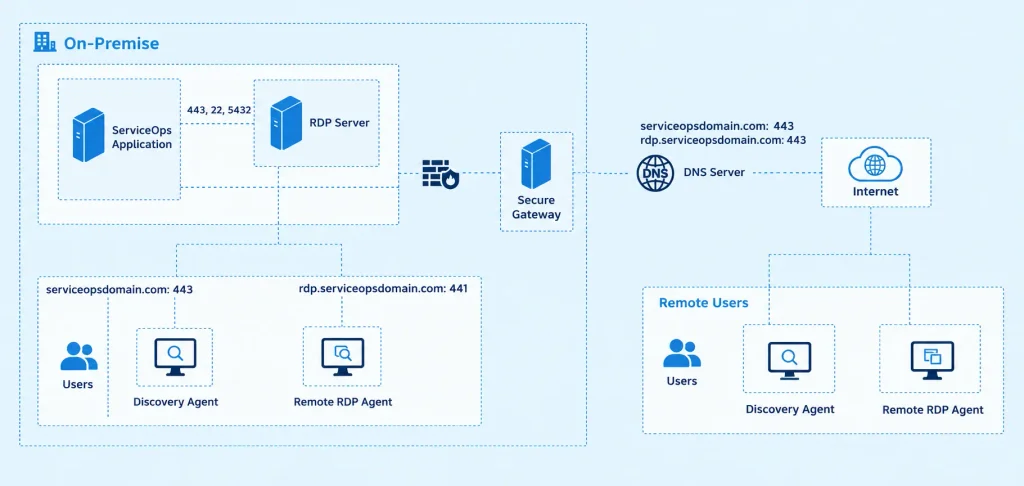
Remote environments require correct application installation and access for every user working with QuickBooks.
- Remove QuickBooks from the remote server
- Remove the affected Sync tool
- Restart the server when appropriate
- Sign in with the local administrator account
- Reinstall QuickBooks correctly
- Reinstall the Sync tool
- Confirm access for every required remote user
- Sign in as a remote server user
- Open QuickBooks
- Test the Sync tool
- Check whether the error affects specific users
If Error 2147221164 in QB affects remote users, review installation permissions before repeating other fixes.
How to Prevent QuickBooks Error 2147221164?
We always suggest to keep QuickBooks, Windows, Office, and related applications properly maintained.
- Keep QuickBooks Desktop updated
- Install applications using appropriate administrator access
- Keep Microsoft Office updated
- Maintain supported Windows configurations
- Check compatibility before adding sync tools
- Give required users access to shared applications
- Maintain regular QuickBooks backups
- Restart the computer after major installations
- Avoid changing QuickBooks program files manually
- Review security software when it blocks QuickBooks components
These practices reduce conditions that can lead to QuickBooks Error 2147221164.
Conclusion
QuickBooks Error 2147221164 usually points to a registration, installation, Office, or compatibility problem. Start by checking system requirements and updating QuickBooks. Repair Microsoft Office when Excel-related tasks fail. Reinstall the Sync tool with administrator access when specific Windows users face the issue. Remote environments require correct installation for every required user.
Contact Accounting Assist Pro, as we give effective QuickBooks guidance when these steps do not solve the problem.
FAQs
1. What is QuickBooks Error 2147221164?
It is a runtime error that usually shows “Class not registered” with code 80040154. Missing DLL registration or incorrect installation can cause it.
2. Why does QuickBooks Error Code 2147221164 appear?
Common causes include damaged installations, unregistered DLL files, Office problems, outdated software, and incorrect user access.
3. How can I identify Error 2147221164 in QB?
Check for 2147221164(80040154) and the “Class not registered” message. The message may also mention the StartQBSession procedure.
4. Can Microsoft Office cause QuickBooks Error 2147221164?
Yes. Damaged Office components can affect QuickBooks functions involving Excel and other Office features. Microsoft recommends repairing Office when its applications malfunction.
5. Can updating QuickBooks fix the error?
Yes, updating can help when outdated program files cause compatibility problems. Intuit recommends keeping QuickBooks updated during troubleshooting.
6. Why does Quick Books Runtime Error -2147221164 occur during Excel exports?
The problem can occur when QuickBooks cannot complete an Excel-related operation. Check report columns and repair Office when Excel functions fail.
7. How do I fix QuickBooks Error 2147221164 on a remote server?
Reinstall QuickBooks and the Sync tool using the administrator account. Then confirm that every required remote user can access both applications.
8. How can I prevent QuickBooks Error 2147221164?
Keep QuickBooks and Office updated, maintain regular backups, and install shared tools correctly. Check compatibility before adding third-party integrations.
9. When should I contact Accounting Assist Pro for help?
Contact Accounting Assist Pro when standard troubleshooting fails or the problem involves complex installations. Professional support can help identify the underlying issue.
10. Can QuickBooks Error 2147221164 affect only one Windows user?
Yes. The error can affect one Windows account when a required component or Sync tool lacks proper access. Other users may continue using QuickBooks normally.
