
A QuickBooks multi currency problem can stop companies from recording foreign transactions, applying payments, or reporting accurate balances. This issue often occurs because of incorrect currency settings, outdated exchange rates, or mismatched customer/vendor records. QuickBooks Online and Desktop require different fixing steps. Most of the issues become easier to solve when you identify the cause and follow the correct procedure.
What Does a QuickBooks Multi Currency Problem Mean?
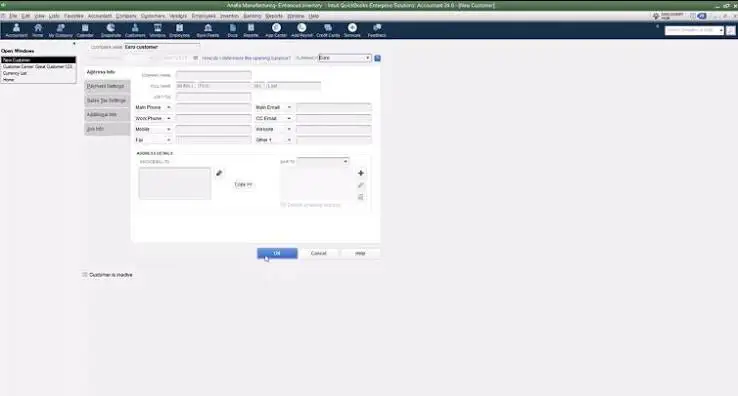
A QuickBooks multi currency error arises where the QuickBooks software is unable to deal with transactions in multiple currencies. Multicurrency is an option which keeps track of foreign transactions and converts their value in the home currency. The QuickBooks Online version offers multicurrency functionality via eligible subscription plans. The QuickBooks Desktop version, on the other hand, offers dedicated options for enabling and managing foreign currencies.
Signs of a QuickBooks Multi Currency Problem
Recognizing the symptoms helps you choose the correct solution without changing unrelated accounting records.
- Foreign currencies do not appear in transaction forms
- Customer or vendor records display incorrect currencies
- Exchange rates produce unexpected converted amounts
- Foreign-currency bank accounts are missing
- A QuickBooks multicurrency error appears during journal entry creation
- Payments do not match outstanding invoices or bills
- Exchange gains or losses appear incorrect
- Multicurrency settings are unavailable
- Financial reports show unexpected balances
- QuickBooks freezes or displays errors during foreign transactions
Common Causes of QuickBooks Multi Currency Problem
The cause may involve company settings, transaction details, or software limitations. Identify the underlying issue before applying a fix.
- Multicurrency is disabled or unavailable under the current subscription
- The home currency was selected incorrectly
- Customer or vendor records use the wrong currency
- Foreign-currency accounts are missing
- Exchange rates are outdated or entered incorrectly
- Journal entries combine incompatible currencies
- Accounts receivable or accounts payable use mismatched currencies
- Payments are recorded against the wrong bank account
- QuickBooks Desktop company files contain damaged data
- Browser or software issues interrupt normal operations
- A feature limitation is mistaken for a technical fault
Prerequisites Before Fixing the Problem
Prepare your company records before making changes. These checks reduce the risk of incorrect balances and unnecessary transaction adjustments.
- Confirm whether you use QuickBooks Online or Desktop
- Check your subscription and software version
- Verify the correct home currency with your accountant
- Back up the Desktop company file
- Review affected invoices, bills, payments, and journal entries
- Check customer, vendor, and bank account currencies
- Record the exchange rates used in disputed transactions
- Save the complete error message
- Confirm administrative access to company settings
- Understand that multicurrency activation is permanent
Conditions to Check Before Choosing a Fix
Different symptoms require different solutions. Match the condition to the relevant procedure instead of applying every fix.
- Multicurrency is disabled: Check eligibility before activating it
- A contact uses the wrong currency: Create a separate customer or vendor record when required
- An exchange rate is incorrect: Review the transaction date and rate
- A foreign account is missing: Add an account with the correct currency
- A journal entry fails: Match the transaction, account, and contact currencies
- A payment does not match: Review the original transaction and payment details
- Desktop reports data damage: Back up the file before running diagnostic tools
- A feature is unavailable: Check subscription and product limitations first
How to Fix QuickBooks Multi Currency Problem in QuickBooks Online
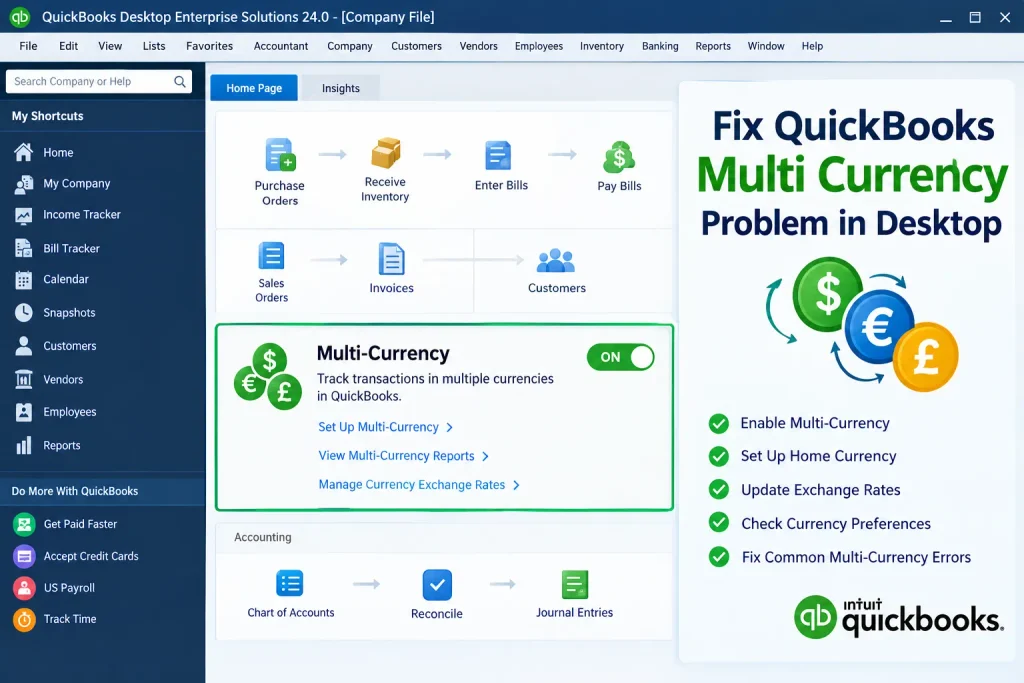
A QuickBooks multi currency problem in Online often involves settings, contact profiles, exchange rates, or journal entries. Follow these fixes in order, beginning with subscription eligibility.
Fix 1: Check Your QuickBooks Online Subscription
- Sign in to QuickBooks Online as an administrator
- Select Settings
- Open Account and settings
- Review your subscription under Billing & subscription
- Confirm that your plan supports multicurrency
- Check whether you use Essentials, Plus, or Advanced
- Upgrade if your subscription does not support the feature
Fix 2: Enable Multicurrency in QuickBooks Online
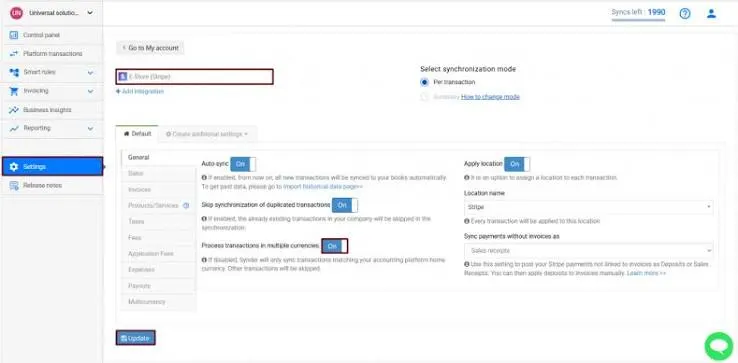
- Select Settings
- Choose Account and settings
- Open the Advanced tab
- Find the Currency section
- Select Edit
- Choose the correct home currency
- Select the Multicurrency checkbox
- Read the confirmation carefully
- Confirm that you understand activation cannot be reversed
- Select Save, then Done
- Reopen the settings to verify the change
Fix 3: Correct Customer and Vendor Currency Assignments
- Open the customer list
- Select the affected customer
- Review the assigned currency
- Check the currency used on existing invoices
- Open the vendor list
- Review the vendor’s assigned currency
- Compare it with the related bills and payments
- Create a separate record if another currency is needed
- Add the currency to the display name for easier identification
- Use the correct profile for future transactions
- Avoid changing existing records without checking transaction restrictions
Fix 4: Add the Missing Foreign-Currency Account
- Select Settings
- Open Chart of accounts
- Select New
- Choose the appropriate account type and detail type
- Enter a clear account name
- Select the required currency
- Save the account
- Verify the currency in the Chart of Accounts
- Check that the account appears in transaction forms
Fix 5: Correct the Exchange Rate
- Open the affected transaction
- Confirm its date and currency
- Review the exchange rate
- Compare it with your documented accounting policy
- Check whether the rate was entered manually
- Enter the correct rate when permitted
- Review the converted home-currency amount
- Save the transaction
- Check the resulting exchange gain or loss
Fix 6: Resolve Journal Entry Currency Mismatches
A QuickBooks multicurrency error may appear when journal entries mix incompatible currencies. Follow these steps to correct the mismatch.
- Open the journal entry showing the error
- Read the complete message
- Check the customer’s or vendor’s assigned currency
- Review the A/R or A/P account currency
- Confirm the transaction currency
- Recreate the entry with compatible currency assignments when necessary
- Preserve the original home-currency value
- Record the actual payment currency in the memo
- Review the resulting balances
- Ask an accountant to review complex adjustments
Fix 7: Correct Invoice and Payment Differences
- Open the affected invoice or bill
- Confirm the customer’s or vendor’s currency
- Review the original amount and exchange rate
- Open the related payment
- Check the payment currency and receiving account
- Verify that the payment applies to the correct transaction
- Compare transaction-date and payment-date exchange rates
- Review realized exchange gains or losses
- Correct the entry only after checking its accounting impact
- Reconcile the affected account
Fix 8: Review Multicurrency Reports
- Open the relevant financial report
- Select the reporting period
- Review the home-currency totals
- Open the report customization options
- Add available foreign-amount columns when needed
- Compare transaction details with the general ledger
- Review exchange gains and losses separately
- Confirm that the totals match supporting transactions
How to Fix QuickBooks Multi Currency Problem in Desktop
A QuickBooks multi currency problem in Desktop may involve preferences, currency lists, exchange rates, or damaged company data. Complete these procedures separately from QuickBooks Online instructions.
Fix 9: Enable Multicurrency in QuickBooks Desktop
- Open QuickBooks Desktop
- Open the company file as an administrator
- Select Edit
- Choose Preferences
- Select Multiple Currencies
- Open Company Preferences
- Select Yes, I use more than one currency
- Confirm the correct home currency
- Accept the activation confirmation
- Save the preferences
- Reopen the settings and verify activation
Fix 10: Review the Currency List
- Open the Lists menu
- Select Currency List
- Check whether the required currency appears
- Add the currency if it is missing
- Save the selection
- Review its exchange rate
- Select Activities
- Choose Download Latest Exchange Rates when available
- Enter a manual rate when your documented policy requires it
- Avoid deleting currencies connected to existing transactions
Fix 11: Check Customer, Vendor, and Account Currencies
- Open the Customer Center
- Select the affected customer
- Review the assigned currency
- Open the Vendor Center
- Check the vendor’s currency
- Review bank and credit card account settings
- Confirm the A/R or A/P account used by the transaction
- Create separate contact records when another currency is needed
- Verify new transactions use the correct records
- Review open balances before changing historical entries
Fix 12: Verify and Rebuild the Company File
Use these steps when Desktop reports data damage or transaction problems persist after checking currency settings.
- Create a current company file backup
- Open the File menu
- Select Utilities
- Choose Verify Data
- Follow the prompts
- Review any reported problems
- Open File again
- Select Utilities
- Choose Rebuild Data if verification identifies data issues
- Create another backup when prompted
- Wait for the rebuild to finish
- Run Verify Data again
- Check whether the original problem remains
- Restore a clean backup if necessary
- Contact qualified support if data damage continues
How to Identify Whether the Problem Is Fixed
After applying a fix, test the affected workflow before resuming regular transaction processing.
- Create a test transaction in the required currency
- Confirm the customer or vendor is correct
- Check the transaction amount and exchange rate
- Verify the home-currency conversion
- Save and reopen the transaction
- Record a test payment when appropriate
- Confirm the payment applies correctly
- Review exchange gains and losses
- Check the account register
- Compare financial report totals with transaction details
- Confirm that the error message no longer appears
- Reconcile affected accounts
If a QuickBooks multicurrency error continues, review the exact message and the steps already completed.
Tips to Prevent Future Multicurrency Problems
Consistent bookkeeping practices reduce currency errors and make reconciliations easier.
- Confirm the home currency before enabling multicurrency
- Maintain separate contact records for different currencies
- Identify currencies in customer and vendor display names
- Follow a consistent exchange-rate policy
- Record transaction dates and rates accurately
- Review realized exchange gains and losses monthly
- Revalue foreign balances when accounting requirements call for it
- Reconcile foreign-currency bank accounts regularly
- Back up Desktop company files before major changes
- Keep QuickBooks software updated
- Review historical transactions before editing them
- Train staff to select the correct contact and account
- Document currency-related adjustments
- Check subscription limitations before troubleshooting unavailable features
Conclusion
A QuickBooks multi currency problem can affect transaction entry, payment applications, exchange rates, and financial reports. Accounting Assist Pro can help users understand potential issues and troubleshoot multi-currency settings.Start by checking subscription eligibility, home currency settings, contact profiles, and foreign-currency accounts. Follow the correct procedures for QuickBooks Online or Desktop, then verify affected transactions and reconcile the accounts. Always back up Desktop company files before repairs.
If the issue affects historical entries or financial reporting, consult our qualified support before making further changes.
Frequently Asked Questions
What causes a QuickBooks multi currency problem?
Common causes include disabled settings, incorrect contact currencies, outdated exchange rates, missing foreign-currency accounts, and journal entries with incompatible currencies. Identify the cause before editing transactions.
Can I turn off multicurrency in QuickBooks Online?
No. Once multicurrency is enabled, you cannot turn it off or change the home currency normally. Confirm your requirements before activation.
How do I fix a QuickBooks Multi Currency Problem in Desktop?
Check multicurrency preferences, review the currency list, confirm customer and vendor currencies, and verify exchange rates. Back up your company file before running diagnostic tools.
How do I fix a QuickBooks Online multicurrency problem?
Check subscription eligibility, multicurrency settings, contact currencies, foreign-currency accounts, and exchange rates. Review journal entries if QuickBooks displays a currency mismatch message.
Why does QuickBooks display a multicurrency error?
QuickBooks may reject a journal entry when its transaction, receivable or payable account, and customer or vendor currencies do not match. Correct the mismatch before saving.
What should I do if QuickBooks multicurrency is not working?
Confirm that the feature is supported and enabled. Check currency assignments, exchange rates, and transaction details. Contact support if the problem continues after these checks.
Can I change a customer’s currency after recording transactions?
QuickBooks generally prevents currency changes on customer records with existing transactions. Create a separate customer record with the required currency and use it for future transactions.
Does QuickBooks automatically convert foreign-currency transactions?
Yes. QuickBooks converts eligible foreign-currency transactions into the company’s home currency using the applicable exchange rate. Rate differences can affect recorded exchange gains or losses.
