
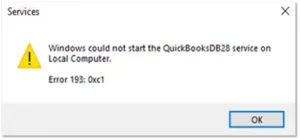
QuickBooks Error 193 occurs when QuickBooks Desktop is unable to start an important Windows service. A frequent instance of this is Error 193: 0xc1, and it may display a message indicating that Windows could not start the QuickBooksDBXX service. This problem is usually observed when QuickBooks Desktop is being used in multi-user mode or when the QuickBooks Database Server Manager is being started.
It can be very frustrating, especially if other users are also unable to access the company file. Fortunately, there are several methods by which the problem can be dealt with.
What causes Error 193 in QuickBooks?
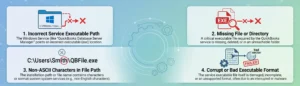
Error 193 is generally related to Windows and the QuickBooks Database Server service, not the company file itself.
This may occur due to a Windows compatibility or update problem, because of an issue with the QuickBooks Database Server Manager, or because a service fails to start properly.
Intuit mentioned troubleshooting for Error 193:0xc1 in the situation where Windows is unable to start the QuickBooksDBXX service; at the moment, the advice given involves checking for the specific Windows updates that affect older versions of Windows and seeking IT assistance if you are not comfortable carrying out system-level changes.
How to Fix QuickBooks Error 193
Apply these methods in sequence and begin with the more straightforward checks before changing the Windows services.
Method 1: Restart Your Computer
Start with a simple restart. Shut down QuickBooks and all the other programs that are currently running. Restart Windows and then attempt to open QuickBooks once more.
Restarting the computer will enable the clearance of temporary Windows processes and allow the QuickBooks database service to start properly. If the error shows up once more, then proceed to the next method.
Method 2: Check the QuickBooks Database Server Manager
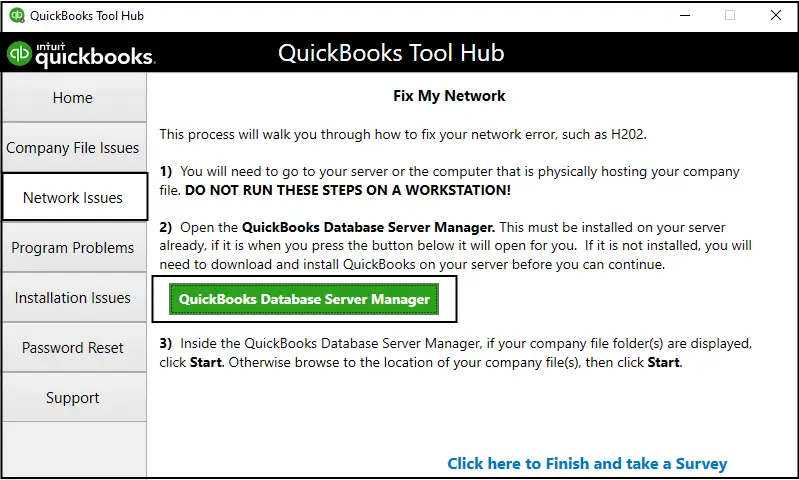
The QuickBooks Database Server Manager is important when QuickBooks is used in multi-user mode because it allows other computers to access the company file over the network.
Go to the Windows Services section and find the QuickBooks database service that corresponds to the version of QuickBooks that you have.
When you start the service and the service is not running, Windows could show Error 193.
Do not make any of the random changes to services or settings; first of all, identify the QuickBooksDBXX service that is mentioned in the error.
Method 3: Check the QuickBooksDBXX Service
To open the Services window, press Windows key + R, type services.msc, and then press Enter.
The QuickBooks Database Server service should be looked for; it may appear as QuickBooksDBXX, where the letters vary according to your QuickBooks Desktop version.
If you are uncomfortable troubleshooting Windows services, then Intuit suggests that you get assistance from an IT professional.
Method 4: Check Your Windows Version and Updates
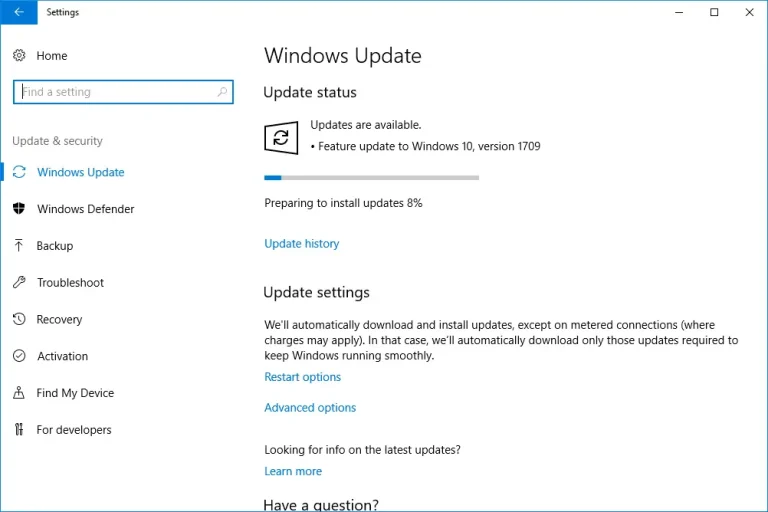
With regard to the particular Error 193:0xc1 problem, Intuit’s present support instructions direct you to the updates for Windows 10 version 1803 and for Windows Server 2016 version 1803, namely Microsoft KB4100403 and KB4338548.
Once the updates have been installed, you should restart the computer and then try to start the QuickBooks database service again.
Method 5: Check Whether QuickBooks Is Installed Correctly
A QuickBooks installation that is damaged or incomplete can also lead to service-related issues.
If QuickBooks was recently installed, updated, or repaired, make sure that the installation was completed successfully.
Read More: QuickBooks Installation Services
Method 6: Check Multi-User Mode
When you encounter Error 193 while using QuickBooks in multi-user mode, make sure that the setup on the computer that is hosting the company file is checked.
The Database Server Manager for QuickBooks must be installed on the computer that is used to store the company file, and the relevant database service has to function properly.
Method 7: Check Windows Security Software
Sometimes security software can also interfere with applications and their services.
If the error began after you had installed or updated your antivirus or security software, verify that QuickBooks or its database service is being blocked.
Method 8: Repair QuickBooks
If the problem with the database service continues on, repairing the QuickBooks installation can be helpful.
Although different versions of Windows and different editions of QuickBooks may have varying procedures, Windows does offer repair options for applications that have been installed.
Make certain that your company file has been backed up before carrying out any major changes.
It would also be a good idea for anyone using a business network to ask all the users to close QuickBooks before carrying out the repairs.
Method 9: Reinstall QuickBooks Database Server Manager
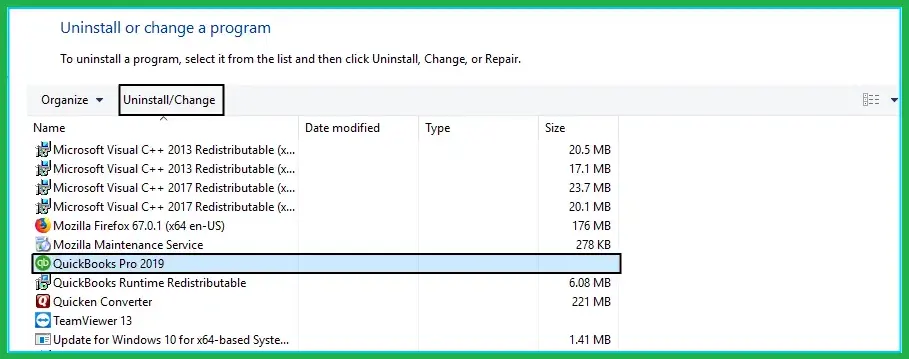
In some cases, if the database service is found to be damaged it may be necessary to reinstall the appropriate QuickBooks Database Server Manager.
This is a more advanced solution than just restarting the service, so be certain that you are using the right QuickBooks installer and know which computer is hosting the company file.
If you’re not sure, get an IT professional or a QuickBooks technician to check the installation before you remove anything.
Method 10: Get Professional Help if the Service Still Won’t Start
If Windows still displays Error 193:0xc1, there is no point in randomly changing system services.
Intuit explicitly states that these troubleshooting steps relate to Windows and suggests that you should seek advice from your computer manufacturer or an IT specialist if you are uncomfortable with making the changes.
It is especially important when the computer is being used as a business server or when it is running other important applications.
What if the QuickBooks Error 193 still shows up?
If all of the methods fail, write down the entire error message, including the 0xc1 if it is there.
That sort of information can be used to decide if the problem you’re encountering is one with a Windows service, one with the QuickBooks installation, or one with the network setup.
Conclusion
QuickBooks Error 193 can stop the QuickBooks database service from starting, thereby causing issues with multi-user access. The best action is to first determine the exact error and then go through the troubleshooting steps carefully.
The first step is to restart Windows and then check the QuickBooksDBXX service; afterwards, check the Windows updates, the QuickBooks installation, and the Database Server Manager.
If the service still won’t start, don’t make any unnecessary changes to Windows; having the system looked at by somebody who is experienced in both Windows and QuickBooks such as AccountingAssistPro can stop a minor service issue from developing into a more serious one.
FAQs
What is error 193 in QuickBooks?
This is an error related to a Windows service and occurs when QuickBooks is unable to start the QuickBooksDBXX service.
What is the meaning of QuickBooks Error 193:0xc1?
This indicates that Windows was unable to start the QuickBooksDBXX service on this computer.
Can Error 193 cause problems in multi-user mode?
That is correct; Intuit has specifically pointed out this error as one that can arise when QuickBooks Desktop is used in multi-user mode.
How do I restart the QuickBooks database service?
Go to Windows Services, locate the QuickBooksDBXX service, and attempt to start it; if Error 193 occurs, then some further troubleshooting might be required.
Might a damaged installation of QuickBooks cause this issue?
It can; should the installation be damaged, the Install Diagnostic Tool available from QuickBooks Tool Hub might assist in identifying the installation issues in question.
Will getting error 193 indicate that my company file is damaged?
It doesn’t have to be the case. This error is mainly linked to the QuickBooks database service and Windows, not necessarily meaning that the company file is damaged.
Is it possible for me to fix QuickBooks Error 193 myself?
It makes sense to carry out simple measures such as restarting Windows and checking the service. More advanced adjustments to Windows should be left to an IT professional.
Why does Error 193 show up in multi-user mode?
The QuickBooks database service might not be starting right on the computer that is hosting the company file, in which case other computers could have difficulties in connecting.
