
QuickBooks Error H303 occurs when QuickBooks Desktop cannot connect to the company file hosted on another computer, in a multi-user network setup. Simply put QuickBooks is indicating that one or more specific actions must be taken on the host computer’s system or network to enable connection, as long as this is unresolved the company file will not be accessible to any other remote computer.
Why QuickBooks Error H303 Happens
- The error code provides little indication of which of a number of potential causes is actually to blame, a rarity for QuickBooks Desktop errors which tend to at least point you in a general direction.
- In addition this error is only seen under a specific scenario, multi-user network setup, making it seem foreign and unfamiliar for users who only run QuickBooks Software on a single computer.
- The resolution is not always on the same machine which is seeing the error, which can be surprising the first time a user runs into it.
What QuickBooks Error H303 Looks Like
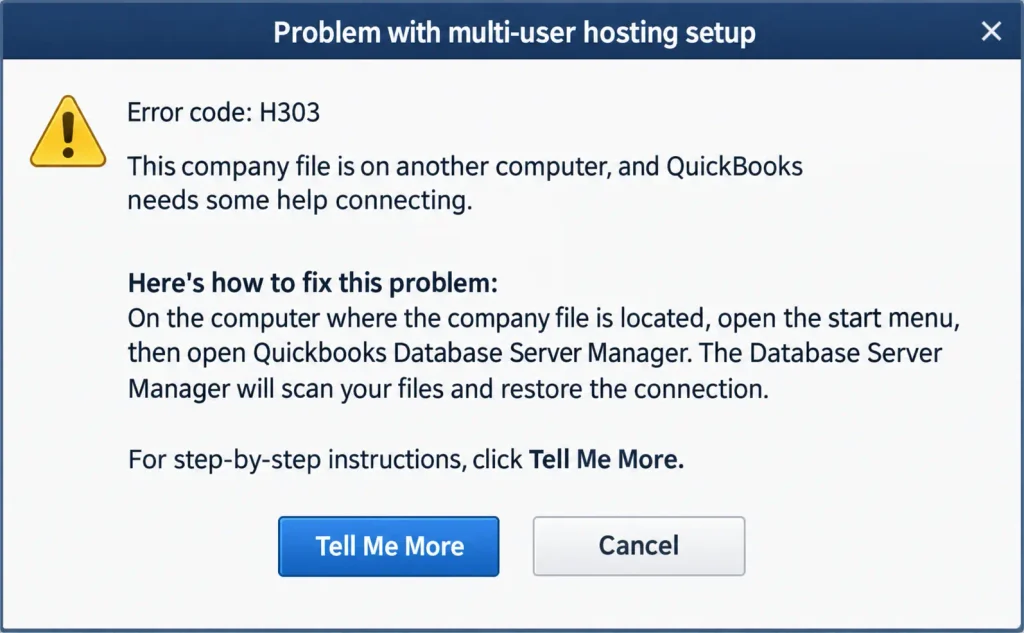
- You attempt to open a company file hosted elsewhere, instead of your books it shows you Error H303.
- One computer, usually the host itself, is able to open the file. Every other computer is not.
- Multi-user mode fails specifically while single user mode on the same computer works just fine.
- Repeats at the same point every time, not sporadically.
- Other computers on the network have no issues, it’s specifically QuickBooks that’s having problems.
The H-Series Family, Briefly Explained
- Error Code H303 falls into a small family of similar codes, H101, H202, H505 among them, all referring to similar issues.
- While this code does not tell us much, the solution often overlaps with similar codes and the specific number is not often important.
- QB Error code H303 tends to occur when QuickBooks Desktop can find the host but not fully connect, as opposed to not finding it at all which is seen with other codes.
- This distinction is important, but overall falls within the same general solution.
Common Causes of QuickBooks Desktop Error H303
- The QuickBooksDBXX and QBCFMonitorService services are not running properly on the host.
- The same two services are running, but without administrator permissions.
- A firewall is blocking the connection.
- The hosting set-up is incorrect or conflicting.
- The .ND file is missing or corrupt.
- The company file itself is corrupt (less common, but still a possibility).
- A poor or unstable network connection between workstations.
- Malware or an over-zealous antivirus is interfering with QuickBooks’ communications.
Fixing QuickBooks Error H303
Check Hosting Settings
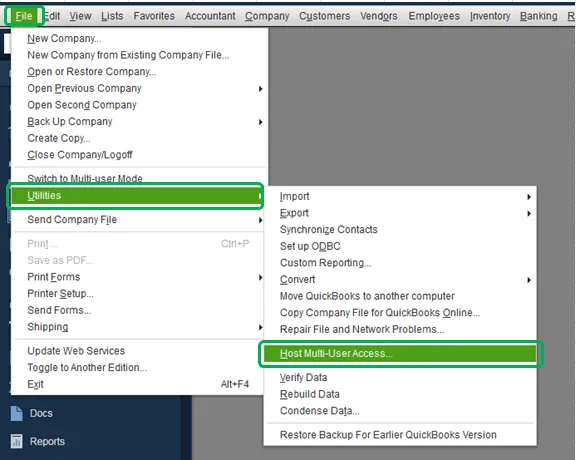
- On every machine in the network open QuickBooks File Utilities.
- On the host, it should show Stop Hosting Multi-User Access.
- On every other workstation, it should show Host Multi-User Access as an option. If any of them show Stop Hosting, this is another possible host that’s claiming to act as one, turn this off to avoid conflicts.
Run the Database Server Manager
- If you don’t have it installed, download Tool Hub from Intuit.
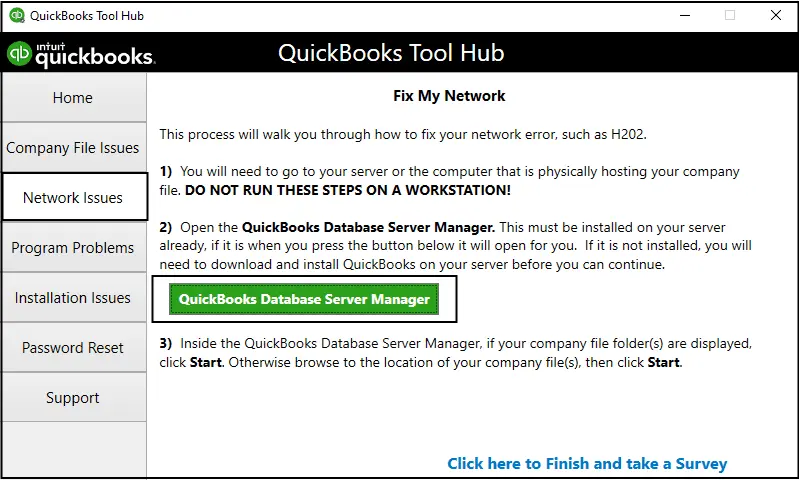
- Open Tool Hub, under Network Issues choose QuickBooks Database Server Manager.
- Hit Scan Folders to ensure your company file is listed, if not add it.
- Hit Start Scan, which will detect and likely fix the network issue that’s triggering H303.
Read More:-Download & Install Intuit QuickBooks Tool Hub Latest Version
Restart Services With Administrator Privileges
- On the host computer, locate Windows Services and open.
- Look for QuickBooksDBXX (XX will match your version) and QBCFMonitorService.
- Confirm Startup Type is set to Automatic.
- On the Log On tab, make sure the account running the service has administrator privileges, if not update this.
- Restart both services, then attempt to reconnect to the company file.
Check the Firewall
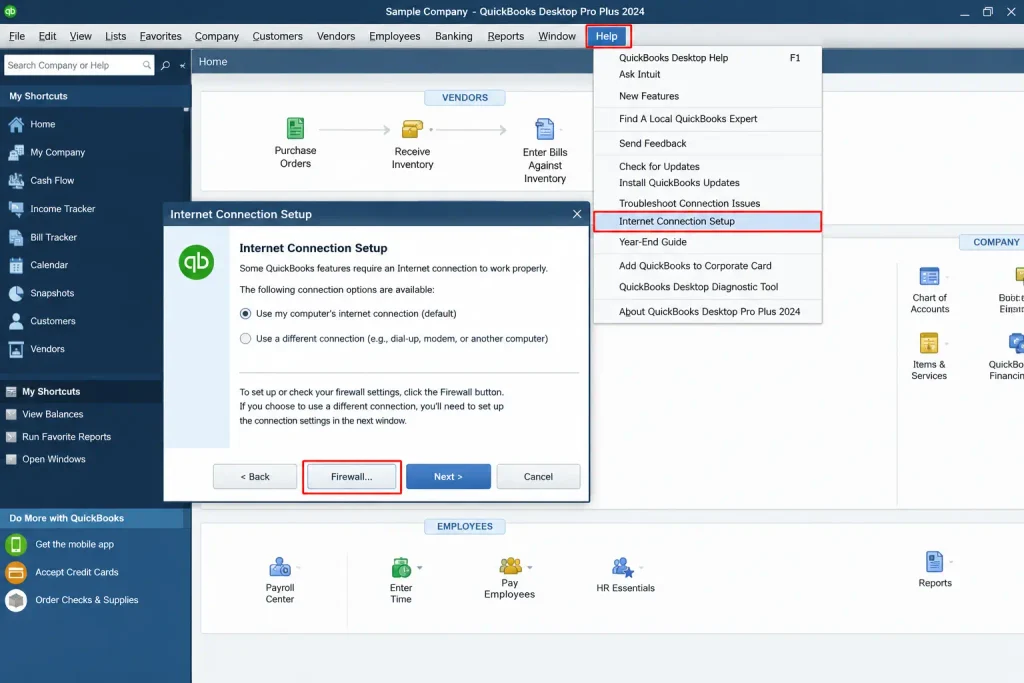
- Add exceptions in Windows Firewall for QuickBooks and QBDBMgrN.exe on all workstations involved in this error.
- QuickBooks Desktop usually requires port 8019 and a range of dynamic ports be opened, often 56726-56728 but this number varies slightly per version.
- Some security software has its own firewall, be sure to add exceptions there as well. Windows Firewall is often not enough to fully stop a determined attacker.
- If you’re unsure of which ports to open, run a network test using Tool Hub, under Network Issues. This will automatically report what it finds, and what it needs to open.
Read More:- Windows Firewall Blocking QuickBooks
Rename the .ND File
- With QuickBooks closed, in the folder holding your company file you should see a file with the same name, except ending in .ND.
- Rename this file by adding .old at the end, this will force QuickBooks to re-generate a new one in its place.
- Open the company file on the host computer in multi-user mode to trigger this repair.
Move the Company File to a New Folder
- Sometimes the issue is not with the file or the network, but rather the folder it’s placed in.
- Create a new, simple folder in a familiar location and move the company file there.
- Re-configure hosting and sharing permissions from this new location.
Verify and Rebuild the Company Data
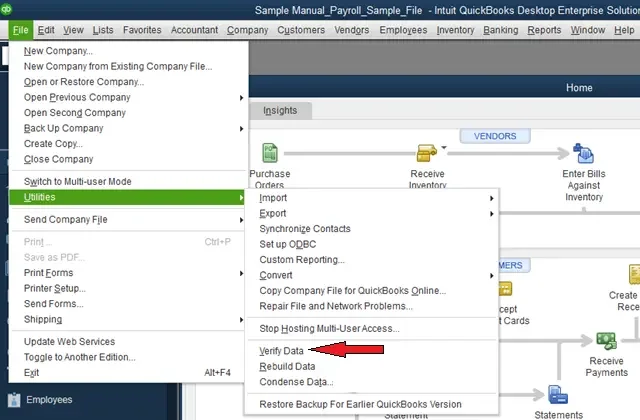
- File Utilities Verify Data first.
- If flags are found, run Rebuild Data afterwards, using the backup it makes along the way.
- Attempt to reconnect to the company file.
Check the Network Connection Itself
- Ensure all workstations are on the same network and can communicate with each other. A simple ping test between them will confirm this.
- If possible, use a wired network connection rather than Wi-Fi, to rule out a faulty wireless signal.
- Restart the router, if a number of workstations are exhibiting this issue at once.
Run File Doctor
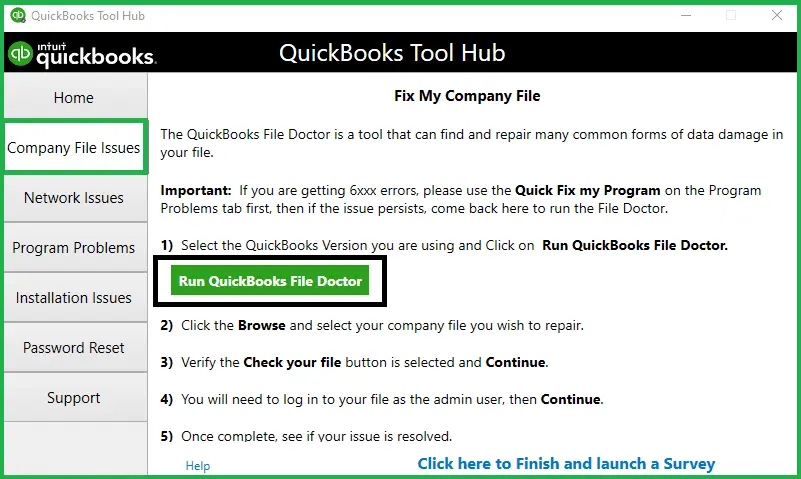
- Inside Tool Hub, under Company File Issues select QuickBooks File Doctor.
- Select your file, the type of scan (we recommend selecting “file and network” option) and let it run.
- Enter the admin password to run the scan.
A Complete Reinstall
- If none of the above resolves the issue, you may need to completely remove QuickBooks Desktop and re-install using Intuit’s Clean Install Tool, to remove any corrupted files that may be causing issues.
- Re-install QuickBooks with the license and product number, and re-install hosting services on the host.
A Note on Cloud-Hosted Setups
- Everything described so far assumes a basic local network, with the host computer physically in the same office as the workstations accessing it.
- Companies which host QuickBooks via an outside provider, or across multiple offices connected by a VPN, may see similar symptoms but the cause and resolution is different due to the nature of the network involved.
- The resolution often falls under the host’s provider rather than anything that can be fixed on a local workstation, as many of the suggested firewall or service tweaks are not relevant in such a case.
- Worth confirming with the external provider before diving too deeply into local troubleshooting, that the network itself isn’t the root cause.
Preventing It In the Future
- Always have only one computer set to host the file, with this set-up it’s easy for workstations to begin to assume that role, even if by accident.
- Keep QuickBooks updated regularly to avoid issues, as several underlying bugs that can cause QuickBooks Error Code H303 have been resolved in newer versions.
- Check exceptions in the firewall regularly, especially after large Windows updates.
- Document which services, ports and exceptions you’ve set up, to streamline future troubleshooting.
- Run Verify Data on a regular schedule rather than waiting for an error.
A Checklist Before You Start
- Confirm which machine is intended to host the file, troubleshooting the wrong machine will waste time and may even hide the real issue.
- Note if this is seen on all workstations or just one.
- Check what changes have been made recently, a Windows update, new router or even the re-installation of QuickBooks can trigger this, most often as a result of recent changes.
- Be sure to have your QuickBooks admin password or Windows admin password handy, several suggested fixes require one or the other.
When to Call in Outside Help
- Most often this error can be resolved by following the suggested steps, which tend to fall into a few categories of hosting, services or firewall issues.
- If you have a larger network, with a dedicated IT staff and centrally-managed firewall policies or Group Policy Object (GPO) in Active Directory, some of these are outside your control.
- A fair point to bring in whoever manages your network, especially if troubleshooting a more complex setup.
- If this error continues despite a complete repair or re-install, it may point to something more specific to your setup, which requires a more detailed diagnosis, contact Accounting Assist Pro for more help.
FAQs – QuickBooks Error H303
1. Does this mean my company file’s damaged?
Usually not. Most often this error points to a hosting conflict, improperly running service or firewall issue rather than actual file corruption.
2. Why does it only happen on some computers and not others?
This points to an issue specific to the workstations that see it, most likely related to your network.
3. Can I continue working while this is unresolved?
Yes, on the host machine this error is seen in single-user mode. Other workstations are unable to connect until the issue is resolved.
4. Will the Database Server Manager fix this automatically?
Often, yes. As it’s designed to detect and resolve a number of network-related issues, it’s a good first step before moving onto more involved steps.
5. What if I’ve tried everything and it’s still happening?
A reasonable point to bring in an external IT professional, especially if this is on a more involved network. The remaining causes may be specific to your situation, rather than a general issue that can be resolved using general troubleshooting steps.
6. Is QuickBooks Error H303 related to multi-user mode?
Yes. Error H303 is associated with QuickBooks Desktop multi-user access and usually indicates that a workstation is unable to establish the required connection to the host computer.
7. Will fixing QuickBooks Error H303 delete my company file?
The standard network troubleshooting steps described in this guide should not require deleting your company file. Nevertheless, create a backup before making changes, and never delete the .QBW company file to resolve a network error.
8. How do I fix QuickBooks Error H303 quickly?
Start by checking the network connection and hosting settings. Then run QuickBooks Database Server Manager, verify the necessary services, and review firewall rules for the relevant QuickBooks version.
9. What is the role of the .ND file in QuickBooks Error H303?
The Network Data (.ND) file helps QuickBooks identify network information needed to access a company file in a multi-user environment. If the file is damaged or incorrectly configured, renaming it and rescanning the company file folder may help resolve the connection problem.
