
QuickBooks Error 3008 is a sync failure — it shows up when QuickBooks tries to exchange data with something outside itself, like a bank feed, a payroll service, or any third-party app connected through the Web Connector, and that exchange doesn’t complete. In plain terms, it’s QuickBooks saying “I reached out to your bank/app and didn’t get a response I could use.”
Bad timing, right? You’re pulling bank transactions, or maybe pushing payroll through some connected app, and QuickBooks just seizes up and throws QuickBooks Desktop Error 3008 at you. It’s not random, though. This one only ever shows up when QuickBooks is trying to have a conversation with something outside itself — your bank’s server, an app hooked in through the Web Connector — and the other end doesn’t answer the way it expected.
The reassuring part: this is almost never your company file being broken. It’s a failed handshake. Nothing more dramatic than that, and most failed handshakes get sorted in fifteen or twenty minutes once you know where to poke.
Why QuickBooks Error 3008 Happens
A few different things can trigger 3008, and they all end up looking the same on your screen even though the actual cause is different each time.
- Your connection dropped or got flaky right when data was moving. QuickBooks doesn’t sit around waiting — it just fails and shows the error.
- QuickBooks or the Web Connector hasn’t been updated in a while. Banks change their data formats more than people realize, and an old build can’t always keep up.
- Firewall or antivirus software is getting in the way. This one shows up constantly right after a Windows update quietly resets permission settings nobody touched on purpose.
- Sometimes it’s genuinely not you. Banks and third-party apps have their own outages, and QuickBooks just labels that as 3008 too, which is a bit misleading if you ask me.
- A Web Connector config file is corrupted — small file, stores your connection settings, and when it goes bad the sync never really gets going.
- Once in a while there’s actual damage in the company file. Check that last though, not first.
One thing worth clearing up: whether you’re on QuickBooks Desktop or QuickBooks Online changes which fixes apply. Desktop users deal with the Web Connector directly, so most of the steps below involving .qwc files and reinstalling that piece are specific to you. Online users don’t have a Web Connector at all — for you, this error is almost always browser cache, a flaky connection, or the third-party app’s own sync settings acting up. Worth knowing before you spend twenty minutes hunting for a Web Connector icon that doesn’t exist on your setup.
Signs It’s This Specific Error
QuickBooks has a whole pile of numbered errors that look nearly identical at 11pm when you just want the sync to finish already. A few things point to 3008 specifically:
- Sync or bank feed stalls, then the 3008 message shows up.
- Bank transactions stop pulling in even though the account’s fine.
- A connected app — payroll, POS, whatever CRM you’re using — flags its own sync failure around the same time.
- QuickBooks gets sluggish or briefly locks up right before the error hits.
- It happens at the same step every single time you retry.
Fixing It
Work through these roughly in order. Most people fix it in the first three or four steps, so resist the urge to jump straight to reinstalling things.
1. Check your internet first
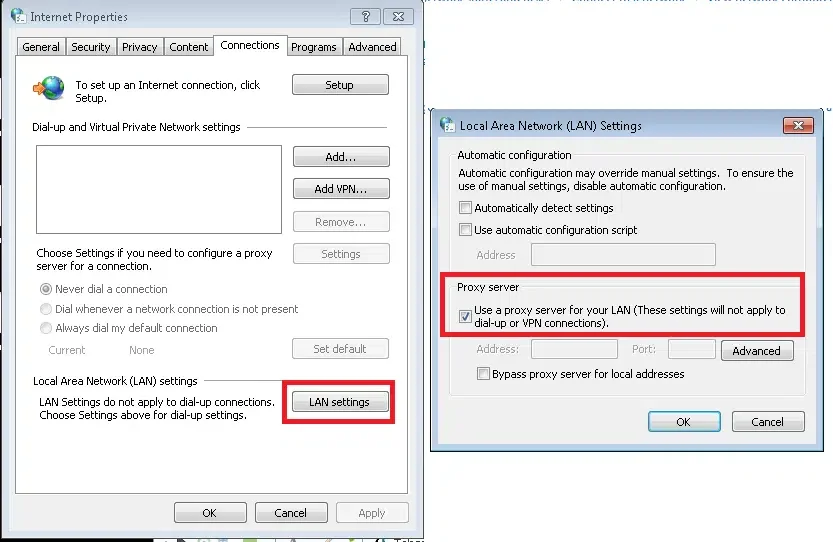
- Load some random webpage, see if it feels slow.
- Restart the router. Feels too basic to matter, works more often than it has any right to.
- Try wired instead of Wi-Fi for a minute, just to rule it out.
2. Update QuickBooks
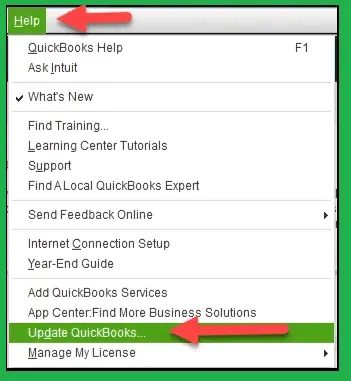
- Help > Update QuickBooks Desktop > Update Now.
- Actually restart QuickBooks after — closing the update window isn’t the same thing.
- On QuickBooks Online, a hard refresh plus clearing the cache does something similar. Old cached data causes this exact symptom.
3. Restart the Web Connector
- Close QuickBooks completely.
- Open Web Connector on its own — search for it in the Start menu.
- Delete the app entry that’s throwing the error, add it back using the original .qwc file from the third-party app.
4. Turn off firewall or antivirus, briefly
- Disable it for a minute and retry.
- If that’s the fix, don’t leave it off — add QuickBooks and QBWebConnector.exe as exceptions instead.
- Windows Defender Firewall > Allow an app through firewall is where you’ll find that setting.
5. Run QuickBooks as administrator
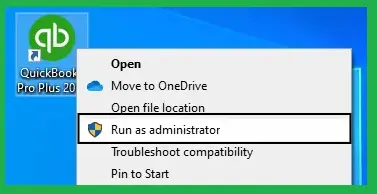
- Right-click, Run as administrator.
- Sorts out permission conflicts that quietly block background sync — happens more than you’d think.
6. Reinstall the Web Connector
- Uninstall from Control Panel.
- Download the current version from Intuit, install fresh.
- Reconnect the app afterward with its original setup file.
7. Rule out an outage on their end
- Bank’s website, or the app’s status page — check for anything reported.
- If there’s a known outage, retrying is pointless. Waiting is the fix here, annoying as that is.
8. Try the QuickBooks Tool Hub if nothing above worked

- It’s on Intuit’s Support Site.
- Program Problems tab, Quick Fix my Program — built specifically for connectivity errors like this.
- Restart your computer afterward, then attempt the sync again.
Read More:- Fix Quickbooks Tool Hub
Still stuck at the same spot after all that? Time to check the company file itself with Verify Data and Rebuild Data, under the File menu. That’s a bigger job than anything above, and it’s covered in more detail in our guide.
Keeping It From Happening Again
Most of this comes down to maintenance nobody wants to think about until it bites them. Update QuickBooks and the Web Connector on some kind of schedule instead of waiting for an error to force the issue. If you’ve got a handful of apps connected, check their status pages once in a while — a lot of “QuickBooks problems” are actually somebody else’s server having a rough week. And when your firewall rules get wiped after a Windows update, which happens more often than makes sense, re-add QuickBooks to the exceptions right away instead of waiting for the next sync to remind you the hard way.
Bottom Line
This error feels worse than it is because it always interrupts something you needed done right then — payroll’s due, the bank feed’s behind, someone’s waiting on a report. But it’s rarely about lost data or a broken file. Nine times out of ten it’s your connection, an outdated Web Connector, or a firewall standing in the way, and none of those take long to sort out once you know that’s where to look.
Worth keeping a short note somewhere — a sticky note on the monitor, a line in your IT documentation, whatever works — of which fix solved it for you this time. QuickBook Error 3008 has a habit of resurfacing months later under slightly different circumstances, and being able to say “oh, it was the firewall exception last time” saves you from repeating the whole troubleshooting process from scratch. Run through the list above, note what actually worked, and you’ll skip the guesswork next time you need Accounting Assist Pro for QuickBooks troubleshooting and support.
FAQs
1. Does QB Error 3008 mean my company file is damaged?
Usually not — it’s almost always a connection or sync problem between QuickBooks and something outside it. File damage is only worth chasing after everything else has already been ruled out.
2. Can I keep working while this is unfixed?
Yeah, mostly. Entering transactions, pulling reports, all of that still works. You just won’t get fresh bank feeds or app data until the sync itself gets fixed.
3. Why does it keep coming back?
Usually a firewall rule resetting after an update, or a Web Connector config that didn’t fully repair the first time. Making QuickBooks a permanent exception in your firewall tends to stop the repeat visits for good.
4. Is this the same as a bank feed error?
Related, but not the same thing exactly. Bank feeds trigger it a lot, sure, but so do payroll services, POS systems, basically anything running through the Web Connector.
5. Tried everything here and it’s still happening — now what?
Run the Tool Hub’s Quick Fix my Program tool first. If that doesn’t clear it, check for an outage on the bank or app’s side. Still stuck after that? Reach out to QuickBooks support directly and bring your error log with you.
