
If you’ve just tried to turn on direct deposit in QuickBooks and got hit with a vague “something’s not right” message instead, you’re dealing with QuickBooks Error 40001. It shows up right when you’re trying to activate direct deposit for payroll, and it doesn’t tell you much about what’s actually wrong. That’s the annoying part. The fix usually isn’t complicated, but you do need to know where to look.
What Exactly Is QuickBooks Error 40001?
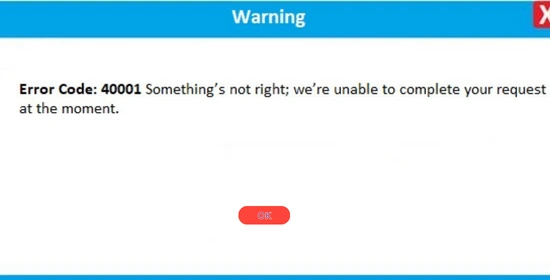
Error 40001 pops up during payroll setup, specifically when you’re trying to activate direct deposit or update your bank account information for payroll. The message you’ll typically see reads something like: “Error code: 40001. We’re unable to complete your request at the moment.”
That’s it. No detail on whether it’s your login, your company file, your internet connection, or something on Intuit’s end. So before you spend an hour clicking through the same steps hoping for a different result, it helps to know what’s usually behind this one.
Common Causes of QuickBooks Error 40001
A few things tend to trigger this error, and they’re worth ruling out in order:
- You’re not logged in as the primary admin. Direct deposit activation requires admin-level access tied to the QuickBooks account, not just any user with elevated permissions inside the company file.
- Your company details don’t match official records. If the legal business name, address, or EIN in QuickBooks doesn’t line up exactly with what’s on file with the IRS, activation gets rejected.
- Payroll setup is incomplete. Skipping a step earlier in setup (an unfilled tax field, a missing bank verification step) can quietly block activation later.
- QuickBooks or your payroll subscription is out of date. An outdated version sometimes can’t communicate properly with Intuit’s servers during activation.
- Your internet connection or firewall is interfering. A dropped connection mid-request, or a firewall blocking QuickBooks from reaching Intuit’s servers, produces the same generic error.
- The company file itself has minor data damage. Less common, but it happens, especially in older files that have been through multiple QuickBooks version upgrades.
None of these are dramatic. That’s actually good news, since it means the fix is almost always something you can do yourself in a few minutes.
How to Fix QuickBooks Error 40001
Go through these in order. Most people find their fix in the first two or three steps.
1. Confirm You’re Logged In as the Primary Admin
Direct deposit activation only works when the primary admin is the one signing in. If someone else set up the QuickBooks account, or if you’re using a secondary user profile, switch to the primary admin login before trying again.
To check: go to Company > Users > Manage Users, and confirm your login matches the one listed as the account owner.
2. Match Your Company Info to Official Records
Open Company Information and compare it line by line against your IRS documentation: legal name, EIN, and business address. Even a small mismatch, like a missing suite number or an abbreviated “Inc.” versus the full spelling, can cause the activation request to fail. Correct anything that’s off, save, and try activating direct deposit again.
3. Update QuickBooks and Your Payroll Subscription
Go to Help > Update QuickBooks Desktop, click Get Updates, and let it finish. Restart QuickBooks afterward. While you’re there, check that your payroll subscription is active and current under Employees > My Payroll Service > Account/Billing Info.
4. Run QuickBooks as Administrator
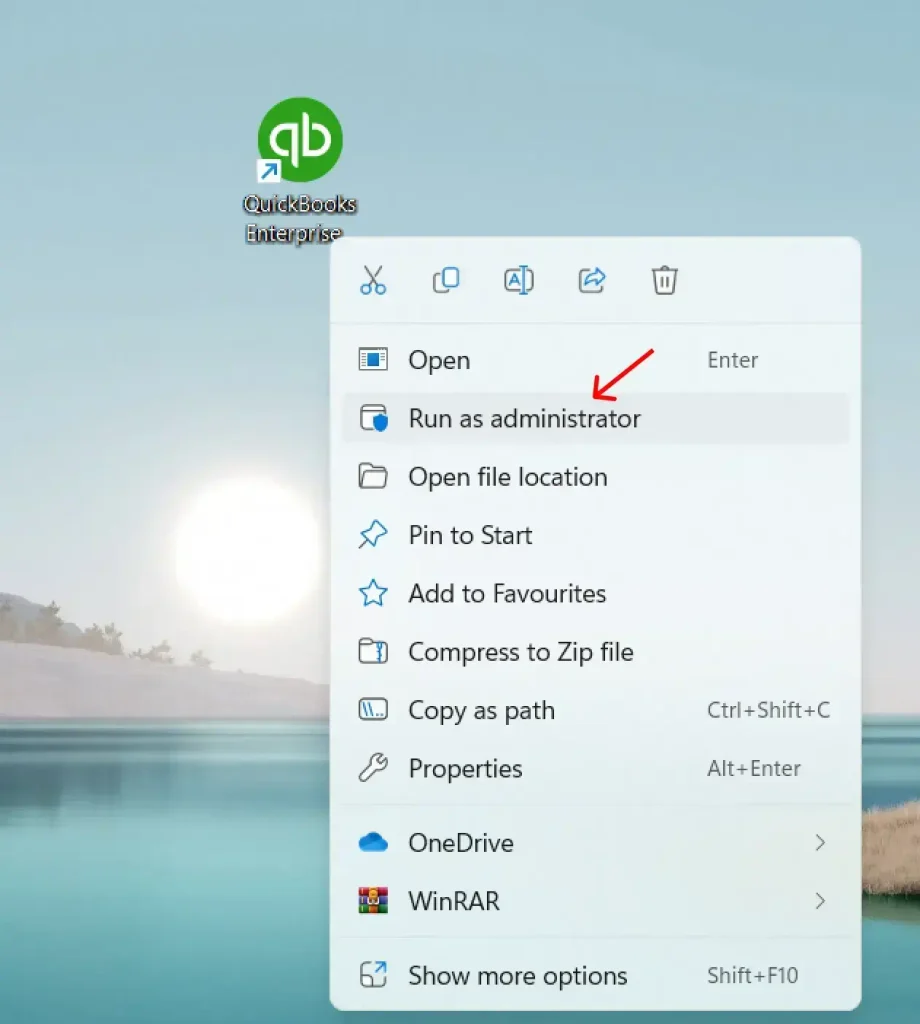
Sometimes it’s a simple Windows permissions issue rather than a QuickBooks one.
- Close QuickBooks completely.
- Right-click the QuickBooks Desktop icon.
- Select Run as Administrator.
- Enter your Windows admin credentials if prompted.
- Once QuickBooks reopens, try activating direct deposit again.
5. Check Your Internet Connection and Firewall
A weak or interrupted connection during activation can trigger 40001 even when everything else is set up correctly. Try switching networks if you’re on Wi-Fi, or temporarily disable third-party firewall software to see if that’s the blocker. If it is, you’ll need to add QuickBooks as an exception in your firewall settings rather than leaving it disabled long-term.
6. Run the QuickBooks Tool Hub
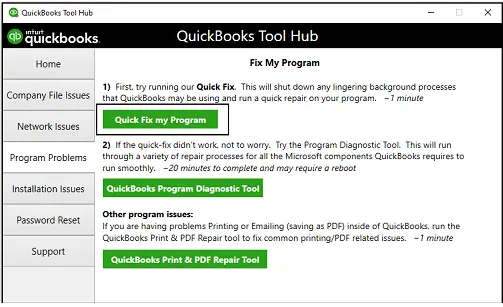
If the steps above haven’t resolved it, download the QuickBooks Tool Hub directly from Intuit and run the Quick Fix my Program option under Program Problems. This clears up background processes and minor installation issues that can interfere with payroll activation.
7. Verify and Rebuild Your Company File
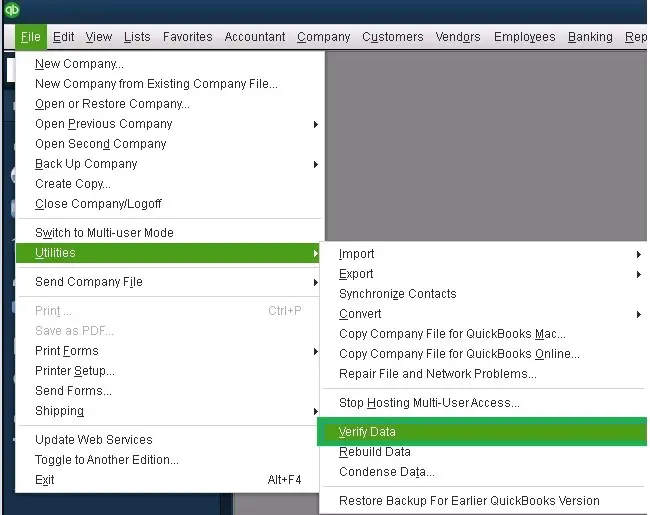
As a last step, use QuickBooks’ built-in data tools:
- Go to File > Utilities > Verify Data.
- If QuickBooks flags an issue, go back to File > Utilities > Rebuild Data.
- Follow the prompts, restart QuickBooks, and try activating direct deposit once more.
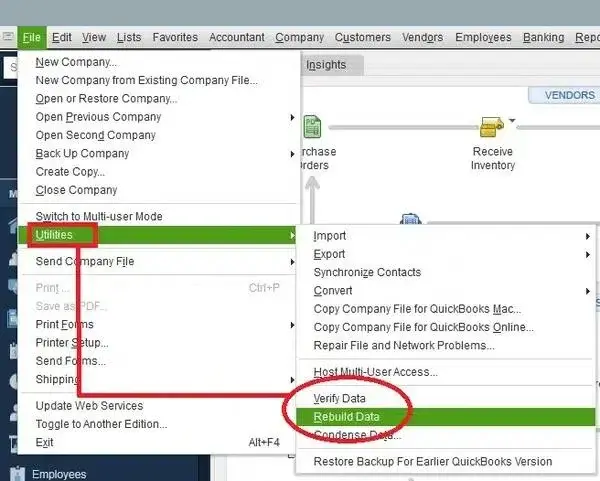
This step fixes underlying file damage that wouldn’t show up anywhere else, which is why it’s worth doing even if nothing seemed obviously wrong.
Also read: QuickBook Company File
Setting Up Payroll Correctly the First Time
A lot of QuickBooks Desktop Error 40001 cases trace back to rushing through payroll setup. Before activating direct deposit, walk through our complete AccountingAssistPro‘s QuickBooks payroll setup guide to make sure every field, bank verification step, and employee record is filled in correctly the first time. It’s a lot faster than troubleshooting after the fact.
If you’re also dealing with bank verification delays separately from this error, our guide to fixing direct deposit bank verification issues covers that process step by step.
When to Get Outside Help
If you’ve gone through all seven steps and still can’t get past Error 40001, it’s worth reaching out to QuickBooks support directly, since at that point the issue may be on Intuit’s account-verification side rather than something fixable locally. Have your company file’s EIN and Realm ID ready when you contact them; it speeds things up considerably.
How to Avoid Running Into This Again
Once you’ve cleared 40001 error in QuickBooks Desktop, it’s worth spending five minutes making sure it doesn’t come back around your next payroll cycle. A few habits help:
- Keep QuickBooks Desktop and your payroll subscription on auto-update, or at least check for updates monthly rather than waiting until something breaks.
- Whenever your business changes its legal name, address, or EIN with the IRS, update that same information in QuickBooks the same week. Letting the two drift apart is one of the more common ways this error resurfaces months later.
- Always finish payroll setup in the order QuickBooks presents it. Jumping ahead to add employees before finishing bank verification is a common shortcut that causes trouble down the line.
- If you’re on a shared office network, ask IT to whitelist QuickBooks and Intuit’s payroll domains in the firewall so activation requests don’t get quietly blocked.
None of this takes long, but it saves you from repeating the same troubleshooting the next time you add an employee or switch bank accounts.
Final Thoughts
QuickBooks Error 40001 is frustrating mostly because the error message gives you nothing to work with. But once you know it almost always comes down to admin access, mismatched company details, an outdated version, or a connection hiccup, it stops being mysterious. Work through the checklist above in order, and payroll should be back on track well before your next pay run.
Frequently Asked Questions
1. Why does QuickBooks Error 40001 only happen during direct deposit setup?
Because that’s the one process where QuickBooks has to verify your identity and business details directly with Intuit’s servers in real time. Any mismatch in admin access, company info, or connectivity shows up right at that verification step, which is why the error is tied so specifically to activation.
2. Can I activate direct deposit if I’m not the primary admin?
No. QuickBooks requires the primary admin login for direct deposit activation specifically, even if your user account has full administrative rights within the company file. You’ll need the primary admin to log in and complete the activation, or have that role reassigned first.
3. Will updating QuickBooks delete any of my existing data?
No, updating QuickBooks Desktop only patches the software itself and doesn’t touch your company file or transaction history. That said, it’s still good practice to back up your company file before any update, just as a general habit.
4. How long does the Verify and Rebuild Data process take?
It depends on the size of your company file. Smaller files finish in a couple of minutes, while larger ones with years of transaction history can take fifteen to twenty minutes. Avoid closing QuickBooks while the rebuild is running.
5. Is Error 40001 the same as a bank verification failure?
Not quite, though they’re related. Bank verification failures usually come with a different, more specific message about micro-deposits or account mismatches. Error 40001 is broader and points to a general activation failure, which could include a verification issue but often stems from something else on this list, like admin access or outdated software.
