
Updates add new functionality, increase security, fix bugs, and make compatibility adjustments. An interrupted download, a firewall blocking the update, an installation problem, or even Windows issues can interrupt the process of updating. QuickBooks Update Errors can hinder users in downloading the update and accessing its features or even performing payroll downloads.
This article will describe the most frequent update codes, the reasons behind them, and the ways to solve them. This article will cover the issues with download, installation, connection, certificate, and Windows-based problems.
What Is QuickBooks Update Errors?
QuickBooks Update Errors happen when application is unable to download, install, verify, or finish the software update. The QuickBooks update not working happen primarily in the case of QuickBooks Desktop because software relies on Windows components. The issues may be accompanied by numbers, codes, or messages like files being missed, connections being blocked, the inability to complete the installation, or the inability to use the service.
The most common categories include:
- Internet connection errors
- Update download failures
- Digital signature problems
- Windows Installer conflicts
- Microsoft .NET Framework issues
- Firewall or antivirus interference
- Damaged QuickBooks installation files
- File Copy Service problems
- Administrator permission restrictions
- Windows component failures
Why Does QuickBooks Fail to Update?
A QuickBooks update problem can start with something as simple as an unstable internet connection. Other failures involve Windows security settings, outdated system components, or damaged program files.
Common causes include:
- Unstable internet access
- Incorrect browser or security settings
- Firewall restrictions
- Antivirus interference
- Disabled QuickBooks File Copy Service
- Missing Windows components
- Damaged installation files
- Outdated security certificates
- Insufficient administrator permissions
- Corrupted QuickBooks program components
- Problems with Microsoft .NET Framework
Intuit specifically identifies internet, firewall, antivirus, security settings, and QuickBooks File Copy Service as causes behind several update codes.
Common QuickBooks Update Error Codes
Understanding the code will lead to identification of the appropriate fix in a shorter period of time. The following codes belong to groups of issues that occur quite often in relation to updates.
QuickBooks Error 12002
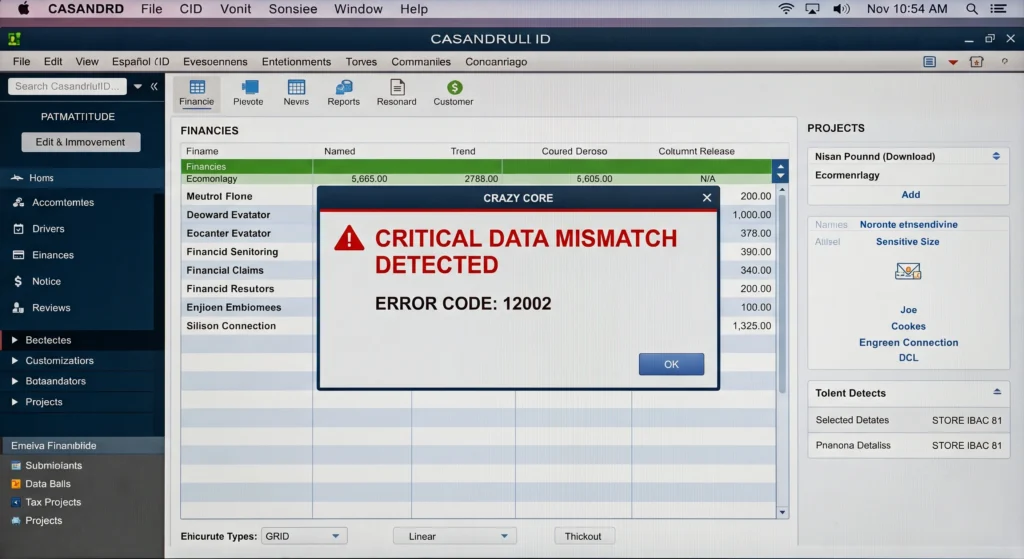
- Occurs when QuickBooks cannot establish an internet connection
- Incorrect browser settings may block the connection
- Firewall or antivirus software can interfere with the update
- Check internet and security settings before retrying
QuickBooks Error 12007
- Indicates a connection failure during an update or payroll download
- Incorrect internet settings can prevent server access
- Firewall restrictions may interrupt the download process
- Check your connection and security settings
QuickBooks Error 12009
- Occurs when QuickBooks cannot complete the required connection
- Incorrect secure website settings may cause the error
- Firewall restrictions can block QuickBooks connections
- Review internet and security settings before updating again
QuickBooks Error 12029
- Appears when QuickBooks cannot establish a secure connection
- Antivirus software may block the required connection
- Firewall restrictions can interrupt the update
- Check network settings and security software
QuickBooks Error 12031
- Occurs when QuickBooks loses its connection during an update
- Unstable internet access can interrupt the download
- Firewall or security settings may block communication
- Test the internet connection before starting another update
QuickBooks Error 15102
- Occurs when QuickBooks cannot access the shared download location
- Incorrect update settings may cause the problem
- Administrator permission issues can interfere
- Check the download location and update configuration
QuickBooks Error 15103
- Belongs to the 15XXX QuickBooks update error group
- Missing or damaged components can interrupt the update
- Windows security settings may block required files
- Repairing QuickBooks components can help resolve the issue
QuickBooks Error 15104
- Appears when QuickBooks encounters problems retrieving an update
- Incorrect update settings may prevent the download
- Administrator permissions can affect the update process
- Run QuickBooks as an administrator and retry the update
QuickBooks Error 15105
- Occurs when security software blocks the QuickBooks update
- Windows security settings may interfere with required files
- Antivirus restrictions can prevent successful installation
- Review security settings before running the update again
QuickBooks Error 15106
- Can involve damaged update files or permission problems
- Background security processes may interrupt the update
- Administrator restrictions can prevent required changes
- Run QuickBooks with administrator privileges and retry
QuickBooks Error 15107
- Represents another 15XXX update failure
- Damaged files can prevent successful installation
- Firewall restrictions may block required connections
- Update service problems can also trigger this error
Intuit lists errors 15102 through 15107 among update-related 15XXX codes.
QuickBooks 15XXX Update Errors
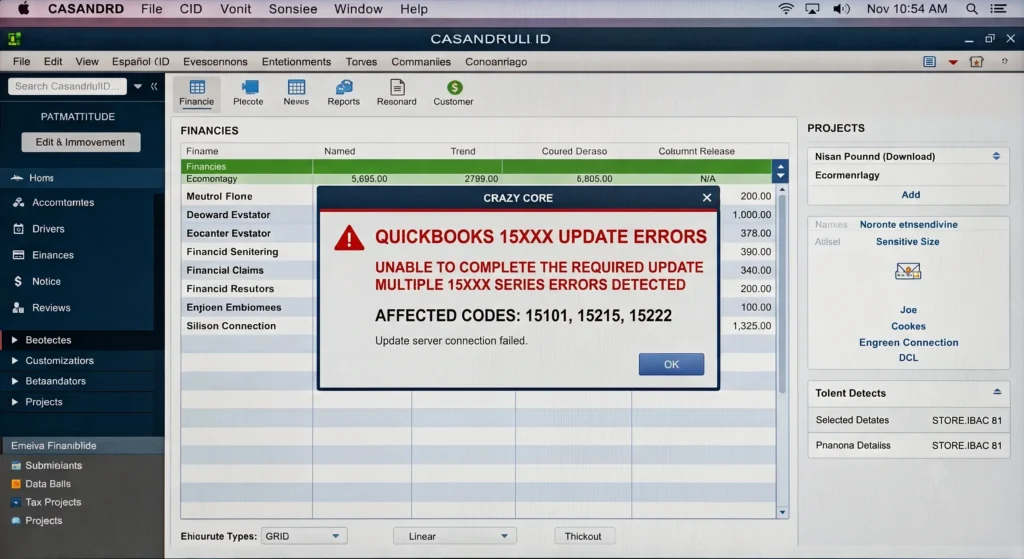
The 15XXX family deserves special attention because it includes several update and payroll-download failures. These codes can involve disabled File Copy Service, missing components, firewall restrictions, damaged Windows files, or digital-signature verification failures. Important codes include:
QuickBooks Error 15215
- Relates to digital signature verification
- QuickBooks verifies downloaded files before accepting them
- Outdated Windows security certificates may cause the error
- Updating Windows can restore required certificate information
QuickBooks Error 15222
- Occurs when QuickBooks cannot verify downloaded update files
- Firewall settings may interfere with file verification
- Security software can block the update process
- Certificate problems may also trigger the error
QuickBooks Error 15240
- Can affect QuickBooks Desktop updates and payroll downloads
- QuickBooks File Copy Service problems may cause the error
- Firewall restrictions can interrupt the update
- Missing components may prevent successful installation
QuickBooks Error 15241
- Occurs when QuickBooks File Copy Service is disabled
- Disabled services can stop update processes
- Enabling the required service can restore update functionality
- Restart QuickBooks after enabling the service
QuickBooks Error 15270
- Commonly affects QuickBooks payroll updates
- Missing update components can prevent installation
- Download problems may stop the latest payroll information
- Check the update process and required components
QuickBooks Error 15271
- Represents a payroll and product update failure
- Administrator permissions can affect the update
- Damaged program components may contribute to the error
- Running QuickBooks as administrator can help resolve the issue
QuickBooks Error 15276
- Can occur during product or payroll updates
- Security settings may block required update files
- Damaged components can interrupt the installation
- Check security settings and repair affected components
QuickBooks Installation and Update Errors
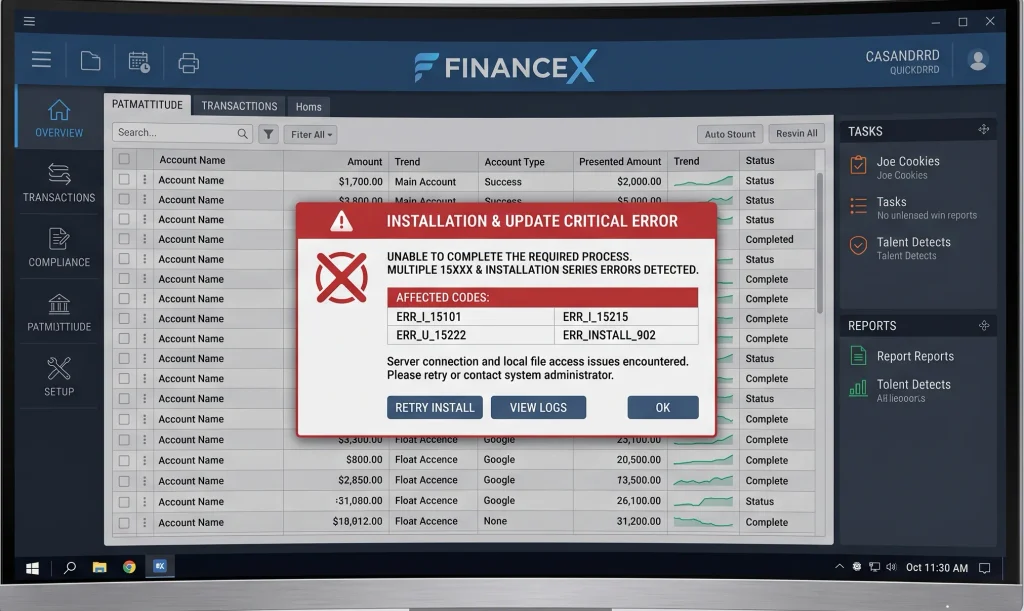
Some QuickBooks update issues occur because the update cannot modify existing program files. These cases often require installation repair rather than connection troubleshooting.
QuickBooks Error 1328
- Can occur during QuickBooks installation, repair, removal, or updating
- May involve a temporary file inside the Windows Config.Msi folder
- Damaged installation files can trigger the error
- Repairing or reinstalling QuickBooks can resolve the problem
QuickBooks Error 1334
- Usually indicates a missing or damaged installation file
- A damaged Microsoft .NET Framework can contribute to the error
- May appear while installing, updating, or repairing QuickBooks
- Reinstalling QuickBooks Desktop can help resolve the issue
QuickBooks Error 1601
- Indicates that Windows Installer cannot be accessed correctly
- Prevents QuickBooks from completing installation or updates
- Windows Installer problems may require system-level troubleshooting
- Repair Windows Installer before attempting another update
QuickBooks Error 1603
- Can indicate an internal update installer problem
- Microsoft .NET Framework issues may also cause the error
- QuickBooks installation files may require repair
- Use installation diagnostic tools and update Windows
QuickBooks Error 1642
- Can involve Microsoft .NET Framework during installation or updating
- Damaged Windows components may interrupt the process
- Missing system components can prevent successful installation
- Repair affected Windows components before retrying
QuickBooks Error 1712
- Indicates that Windows cannot restore required installation files
- Missing Windows components can trigger the error
- QuickBooks installation may remain incomplete
- Quick Fix my Program can help resolve the problem
QuickBooks Error 1402
- Occurs when QuickBooks cannot access required Windows registry information
- Registry-related problems can interrupt installation
- Windows configuration issues may contribute to the error
- Repair installation components before making registry changes
Registry-related problems should be handled carefully. Incorrect manual changes can create additional Windows problems.
QuickBooks Update Installation Error: What Should You Do?
A QuickBooks Desktop update installation error requires a different approach from a simple download failure. Start by identifying whether the problem occurs before downloading, during installation, or after restarting QuickBooks.
Follow this sequence:
1. Restart the Computer
- Restart Windows before beginning troubleshooting
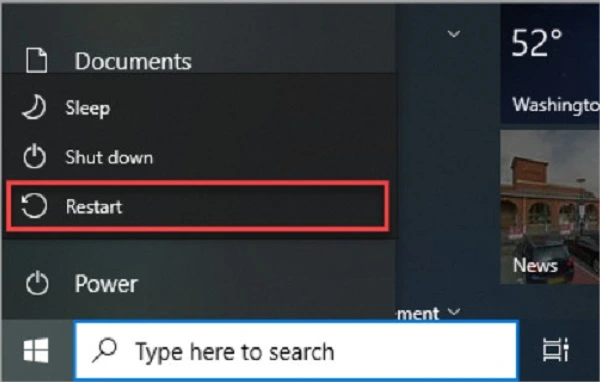
- A reboot can release locked QuickBooks files
- Temporary processes can also clear after restarting
- Try the update again after rebooting
2. Create a Company File Backup
- Back up your company file before making major changes
- Store the backup in a secure location
- Use the backup if repairs affect your data
- Confirm the backup completes successfully
Read More: How to Fix QuickBooks Backup and Restore Problems.
3. Run QuickBooks as Administrator
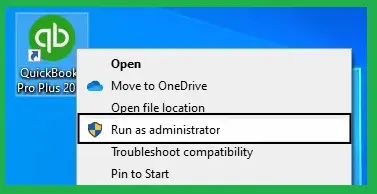
- Close QuickBooks completely
- Right-click the QuickBooks application
- Select Run as administrator
- Try installing the update again
4. Check Your Internet Connection
- Open a secure website outside QuickBooks
- Confirm your internet connection works properly
- Resolve connection problems before updating QuickBooks
- Test secure website access for connection-related errors
5. Review Firewall and Antivirus Settings
- Security software can block QuickBooks update files
- Firewall restrictions may prevent required connections
- Add approved QuickBooks access where necessary
- Avoid permanently disabling security protection
6. Use QuickBooks Tool Hub

- Download the latest Intuit QuickBooks Tool Hub
- Select Installation Issues for installation problems
- Choose Program Problems for application-related issues
- Use the available tools based on the displayed error
7. Run Quick Fix My Program
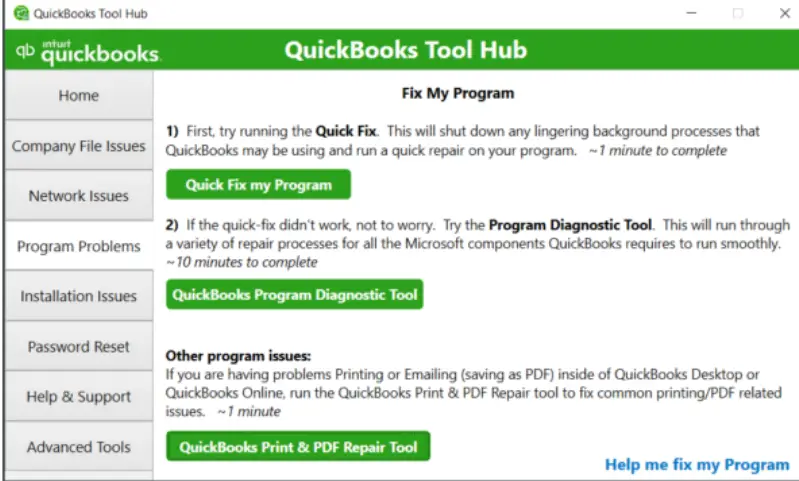
- Quick Fix closes background QuickBooks processes
- It performs a quick program repair
- The tool can resolve processes blocking updates
- Restart QuickBooks after completing the repair
8. Run the Install Diagnostic Tool
- The tool checks common Windows components used by QuickBooks
- It can identify installation-related problems
- The diagnostic process may take up to 20 minutes
- Allow the tool to finish before restarting QuickBooks
9. Update Windows
- Check for available Windows updates
- Install pending system updates
- Restart the computer after installation
- Updated components can resolve certain QuickBooks installation errors
10. Repair or Reinstall QuickBooks
- Repair QuickBooks when program files appear damaged
- Reinstall the application if repairs do not work
- Use a backup before major installation changes
- Reinstalling can resolve several update-related installation failures
QuickBooks Update Troubleshooting by Error Type
QuickBooks update troubleshooting becomes easier when you match the code with its likely cause.
| Error group | Common examples | Likely cause |
| Connection | 12002, 12007, 12009, 12029, 12031 | Internet or security settings |
| 15XXX | 15102, 15106, 15215, 15222 | Update files, certificates, permissions |
| Installation | 1328, 1334 | Damaged or missing files |
| Windows Installer | 1601, 1603, 1642 | Windows components |
| System components | 1712, 1402 | Windows configuration |
| Payroll updates | 15240, 15270, 15271 | Payroll files or update services |
This classification helps users avoid applying unrelated fixes.
Why QuickBooks Updates Can Stop at 20% or 30%
A QuickBooks update may stop between 20% and 30% because security software can interfere with installation files. Checking security settings can help the update complete successfully:
- QuickBooks updates may appear frozen between 20% and 30%
- The screen may display “Writing system registry values”
- Antivirus software can scan QuickBooks files during installation
- Security scanning may slow or interrupt the update
- QuickBooks Tool Hub can help address related security exclusions
- Microsoft Defender exclusions can allow required QuickBooks files
- Avoid disabling antivirus protection without proper configuration
- Use appropriate exclusions instead of removing security protection
How to Prevent Future QuickBooks Update Problems
Preventive maintenance reduces the chance of another failed update.
Follow these practices:
- Keep Windows current.
- Maintain reliable internet access.
- Back up company files regularly.
- Use supported QuickBooks Desktop versions.
- Keep security software updated.
- Avoid interrupting an active installation.
- Run updates with appropriate permissions.
- Check error codes before changing system settings.
- Keep the QuickBooks Tool Hub available.
- Repair damaged installations promptly.
These steps create a more stable environment for future updates.
QuickBooks Desktop Update Errors: When Should You Get Professional Help?
Some update failures involve Windows components, permissions, network settings, or damaged installations. Professional assistance becomes useful when:
- The same code returns after several attempts.
- QuickBooks cannot open after an update.
- Multiple computers experience the same failure.
- A company file becomes inaccessible.
- Windows components require advanced repair.
- The update repeatedly rolls back.
- Security software blocks required files.
- Reinstallation does not resolve the issue.
Avoid changing Windows registry entries without proper knowledge. Incorrect changes can affect other applications and system functions.
QuickBooks Update Errors: Final Takeaway
QuickBooks Update Errors can result from network restrictions, damaged files, Windows components, or security settings. Identifying the error code helps you choose the right solution quickly. Connection errors require network checks, while 15XXX codes may involve update services. Installation failures can require program repair or reinstallation. Timely troubleshooting reduces disruptions and protects productivity for businesses relying on QuickBooks daily.
Frequently Asked Questions About QuickBooks Software Update Problem
What are the most common QuickBooks Update Errors?
Common QuickBooks Update Errors include 12002, 12007, 12009, 12029, 12031, 15215, 15222, 1603, 1328, 1334, and 1712.
Why is QuickBooks not updating?
QuickBooks may fail to update because of internet restrictions, firewall settings, antivirus interference, damaged files, or missing Windows components.
How do I fix a QuickBooks update problem?
Start by checking your internet connection, running QuickBooks as administrator, and using the QuickBooks Tool Hub.
What causes QuickBooks update issues?
QuickBooks update issues can result from security software, Windows components, damaged program files, connection failures, or disabled update services.
How do I troubleshoot QuickBooks update errors?
Use QuickBooks update troubleshooting based on the displayed error code. Connection codes need network checks, while installation codes may require repair.
What is QuickBooks Error 15215?
Error 15215 is commonly associated with digital-signature verification during a QuickBooks Desktop update. Windows security certificates can affect this process.
What is QuickBooks Error 1603?
Error 1603 can indicate an internal update-installer problem or a Microsoft .NET Framework issue.
What causes a QuickBooks software update error?
A QuickBooks software update error can result from damaged files, blocked connections, Windows conflicts, permissions, or security software.
