
A backup is one of the safest ways to protect your QuickBooks company data. It allows you to recover your accounting records if something goes wrong with your computer, company file, or recent changes. However, sometimes QuickBooks makes this process difficult. You may encounter an error while creating a backup, or QuickBooks may not restore a backup when you need it.
QuickBooks backup errors and QuickBooks restore errors can happen for various reasons. The issue might relate to the location of the file, damaged company data, an incorrect file name, network permissions, or a backup created in a different version of QuickBooks.
Understanding the cause of the problem makes troubleshooting simpler.
What Are QuickBooks Backup & Restore Errors?
QuickBooks Desktop uses different types of files for working data and backups. Your active company file typically has a `.QBW` extension, while a full backup file uses `.QBB`. When you restore a `.QBB` file, QuickBooks creates a new `.QBW` company file from that backup.
A backup problem usually occurs when QuickBooks cannot create or save the backup correctly. A restore problem arises when QuickBooks cannot read the backup or cannot create the restored company file.
For example, Intuit documents cases where Error -6000, -83 can show up while creating or restoring a company file. Other restore errors may occur if the backup has any special characters in its name, if it is being restored over an existing file, or if it was created in a newer version of QuickBooks.
How to Fix QuickBooks Backup and Restore Problems
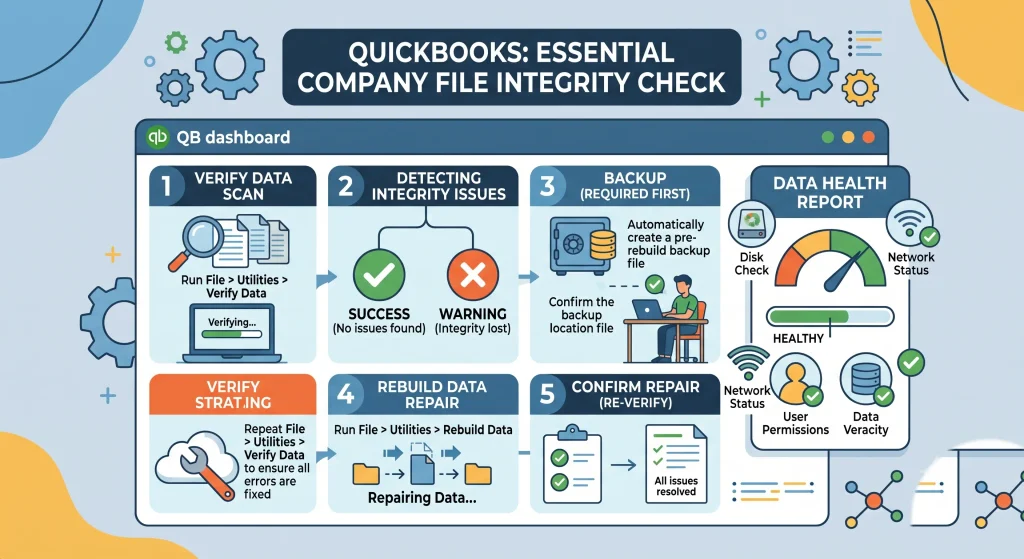
If you are facing **QuickBooks backup issues** or **QuickBooks restore issues**, try these methods one at a time. Start with the simplest solution and avoid changing your original company file until you have a safe copy.
Method 1: Check the Backup File Location
Sometimes the location of your backup can be a cause of the problems. If your backup is on a USB drive, network location, or online hosting service, copy the `.QBB` file to your computer’s local hard drive before trying to restore it. Intuit specifically recommends moving backup files to a local drive before restoring them.
Create a simple folder on your computer, like `C:\QuickBooks Backup`, and copy the backup there. Then open QuickBooks and attempt to restore the file again.
Method 2: Check the Backup File Name
A backup file with unusual characters in its name can sometimes lead to a restore failure. Check the name of your `.QBB` file and remove special characters or symbols. Intuit specifically suggests removing characters such as `/`, `\`, `!`, and `$` when troubleshooting certain restore errors.
For example, instead of: `ABC Business $ Backup!.qbb.` use something simple like: `ABC Business Backup.qbb.` Also, check the name of the folder containing the backup.
Method 3: Make Sure You Are Using the Correct QuickBooks Version
One common reason for QuickBooks restore errors is attempting to restore a backup into an older version of QuickBooks Software. A backup made in a newer version cannot usually be restored in an older version because the file structure may have changed. For instance, a backup created in QuickBooks Desktop 2025 should not be restored using an earlier QuickBooks Desktop release. You can generally restore a backup using the same or a newer version.
If you are unsure which version created the backup, check the computer where the backup was originally made or ask the person who created it.
Method 4: Avoid Overwriting an Existing Company File
Another common QuickBooks restore problem occurs when you try to restore a backup using the same name and location as an existing company file. When restoring, choose a different folder or give the restored company file a different name. Intuit recommends avoiding an overwrite unless you are sure you want to replace the existing file.
This is especially critical if your current company file contains newer transactions. So, before replacing anything, first make a fresh backup of your current company file.
Method 5: Check the Backup File Itself
Sometimes the backup file may be incomplete or damaged. Intuit suggests checking the size of the backup when certain restore errors arise. A file that is unusually small may not be a valid backup.
You can also try restoring another backup from an earlier date. If an older backup works while the newest one does not, the latest backup may have been damaged or incomplete. Do not delete the problematic backup. Keep it until you confirm that another copy contains all the information you need.
Method 6: Try a Portable Company File
If a regular backup is hard to restore, a portable company file may sometimes help.
A portable company file uses the `.QBM` extension and is designed to provide a compact version of your QuickBooks data for moving or troubleshooting. However, it is not a replacement for a full backup because it does not contain everything included in a full `.QBB` backup, such as certain templates, logos, and other supporting files.
If you can still access your original company file, you can create a portable copy and try opening it on the same or another computer. QuickBooks automatically reindexes data when opening a portable company file, which can help with some data-related issues.
Method 7: Use QuickBooks File Doctor
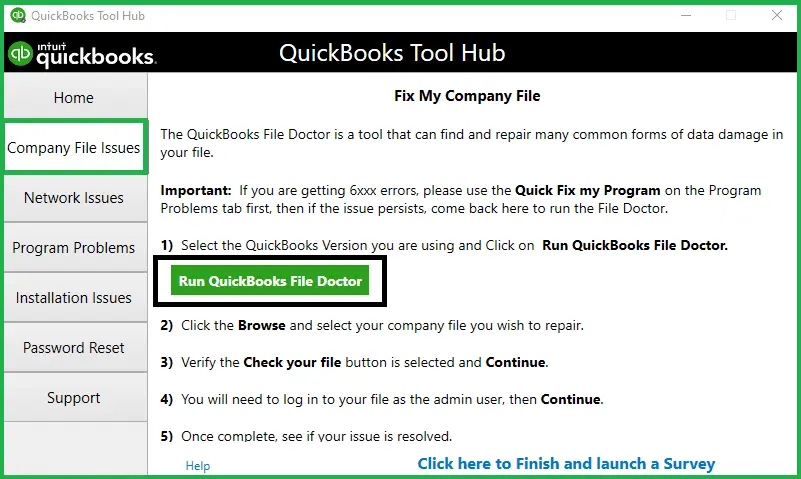
If your problem seems to involve the company file or network connection, QuickBooks File Doctor may be helpful. Intuit recommends File Doctor as one possible fix for certain errors that happen when opening or restoring company files.
You can access the tool through the QuickBooks Tool Hub. Run the appropriate company file troubleshooting tool and let it look for potential problems.
Method 8: Check for Company File Damage
One actual problem could be damage to the company file not the backup process only.
If your original QuickBooks file is showing errors, suddenly closing, or behaving differently before the backup issue appears, the company file may need help. Intuit suggests restoring a known-good backup when a company file is damaged. Auto Data Recovery may also be an option in some cases.
Read More:- Fix QuickBooks Company File Errors
How to Avoid Future QuickBooks Backup Issues
The best way to reduce QuickBooks backup and restore problems is to make backups a regular part of your accounting routine.
QuickBooks Desktop lets you create local backups and adjust backup preferences. A full backup contains your current accounting data along with related items such as templates, logos, and certain supporting files. Keep more than one backup if possible. For example, you might keep one recent copy on your computer and another in a secure location.
Most importantly, test your backups occasionally. Having a file called “backup” is not helpful if you discover that it cannot be restored when you need it.
Conclusion
QuickBooks backup & restore troubleshooting does not always require complicated changes. Many issues can connect to something as simple as file location, file name, QuickBooks version, or an existing company file with the same name.
So the first step is to start by copying your backup to a local drive, checking its file name, and ensuring you are using the correct QuickBooks version. If the problem persists, try a different backup, use QuickBooks Tool Hub, or look into possible company file damage. For additional troubleshooting guidance, Accounting Assist Pro can help you identify and resolve QuickBooks-related issues.
Frequently Asked Questions
Why is QuickBooks not creating a backup?
A QuickBooks backup problem can result from the file location, permissions, network connection, company file issues, or other problems with the QuickBooks environment. Moving the company file or backup process to a local drive can help determine if the location is the issue.
Why does QuickBooks say Restore Failed?
A restore can fail due to special characters in the file name, an existing file with the same name, an invalid or damaged backup, or because the backup was created in a newer QuickBooks version.
Can I restore a QuickBooks backup from a USB drive?
Yes, but Intuit suggests copying the backup file from the USB drive to your local hard drive before restoring it. This can prevent problems related to removable drives or file access.
Will restoring a QuickBooks backup delete my current company file?
Restoring a backup creates a new company file. However, if you restore it using the same name and location as an existing file, it could overwrite the current one.
Can I restore a QuickBooks backup to another computer?
Yes. Copy the .QBB file to the other computer and restore it using the same or a newer compatible QuickBooks version.
What should I do if my QuickBooks backup file is damaged?
You should try restoring an earlier backup. If other backups work normally, the latest backup may be damaged or incomplete.
