
QuickBooks payroll tax payments not showing can make paid taxes appear unpaid or leave payroll records incomplete. The issue often comes from incorrect dates, filters, payment status, account settings, or missing records. QuickBooks lets users review payment history, tax transactions, and payment status. Intuit also recommends checking the payment date and selected payroll bank account before submitting taxes.
Why Are QuickBooks Payroll Tax Payments Not Showing?
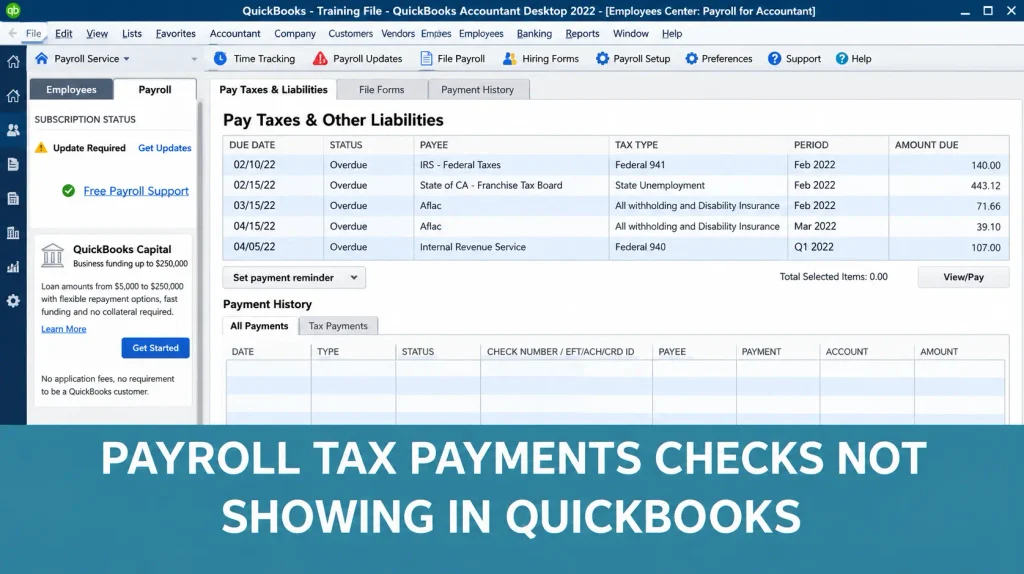
QuickBooks payroll tax payments not showing usually means the transaction needs further review. The payment may have a different date, status, or recording method. A filter can also hide an existing transaction from the payment list. QuickBooks provides payment history and tax transaction reports for reviewing completed payments.
The IRS requires federal employment tax deposits through electronic funds transfers. Therefore, confirming the actual payment status is important before making another payment.
1. Check the Payroll Tax Payment Date
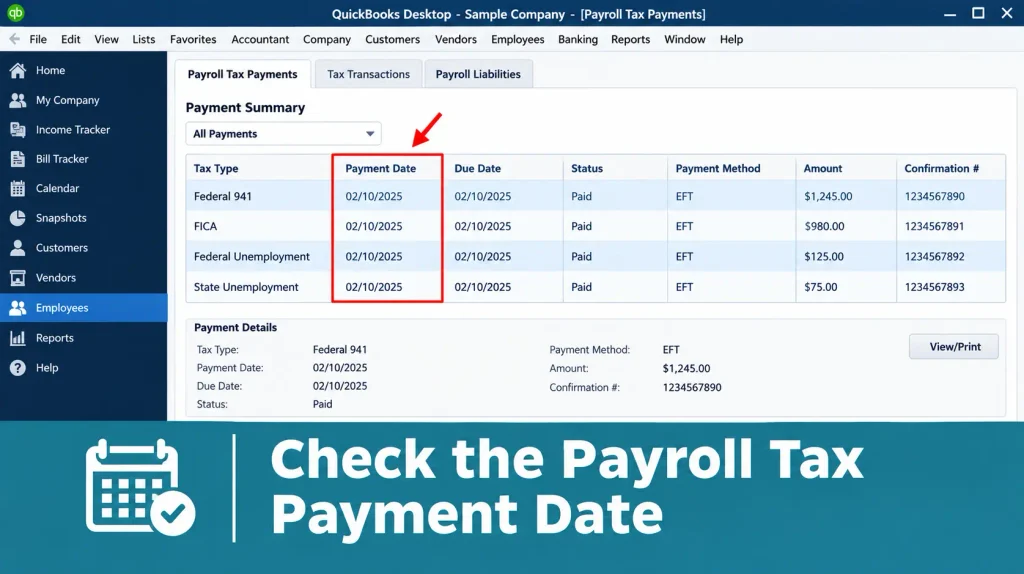
The payment date controls where QuickBooks displays many payroll tax transactions. An incorrect date can place a payment outside your selected reporting period.
- Compare the QuickBooks payment date with your actual bank transaction
- Review the tax period connected with the payment
- Check whether your report covers the correct date range
- Correct an inaccurate date when appropriate
- Remember that processing dates can differ from submission dates
2. Review the Payroll Tax Payment History
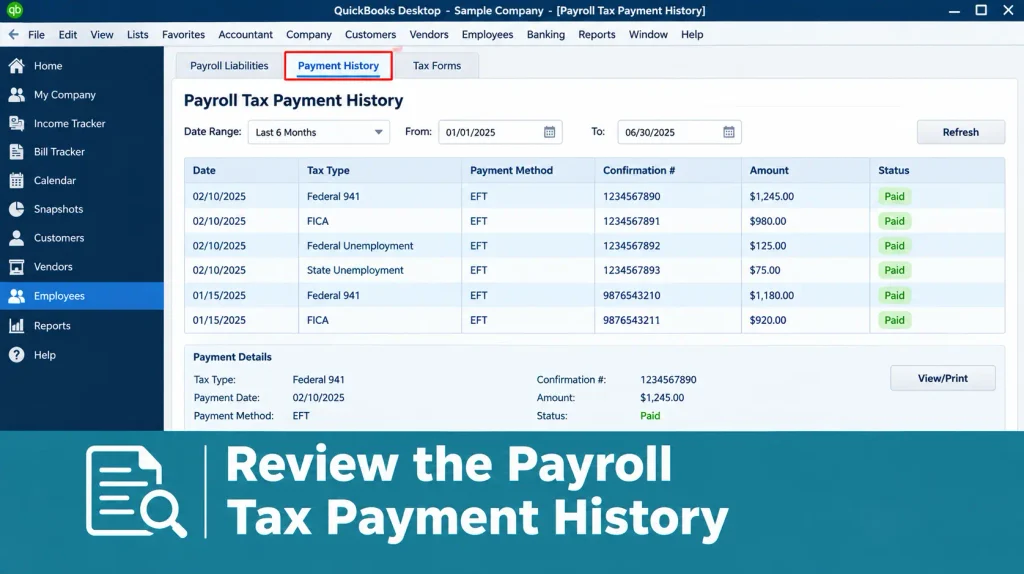
Payment history provides a direct way to locate missing payroll tax transactions. QuickBooks lists completed tax payments made to government agencies in this area.
- Open Payroll Taxes and select the Payments tab
- Select Payment history to review completed transactions
- Search for the specific tax payment
- Remove filters that may limit the displayed results
- Review payment details before changing anything
3. Verify the Tax Payment Was Submitted
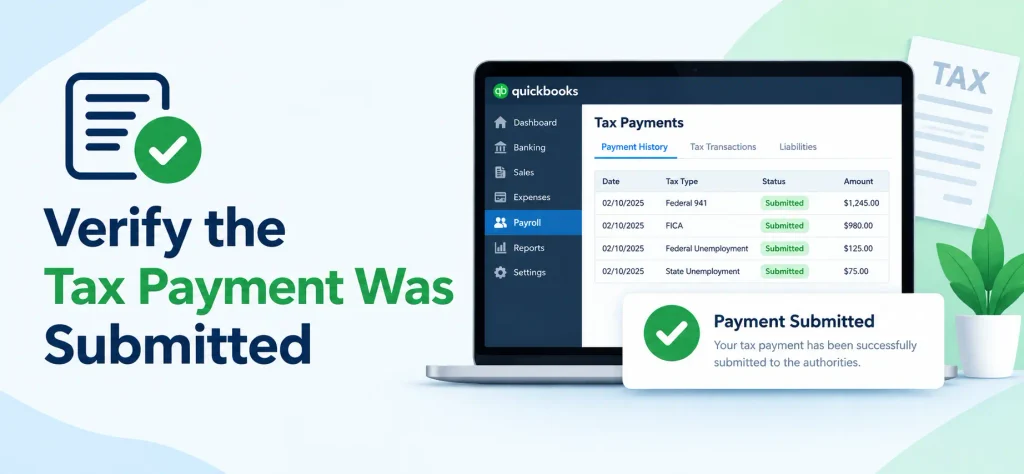
A scheduled payment does not always mean the tax was successfully processed. Check the actual payment status before assuming the transaction went through.
- Look for confirmation emails from QuickBooks
- Check whether the payment shows as pending or completed
- Review rejected or failed payment notices
- Confirm the intended tax agency received the payment
- Check the payment status inside QuickBooks
4. Check the Bank Account and Payroll Records
A wrong account selection can make payroll records difficult to reconcile. QuickBooks separates the payroll account selected in its chart from the actual bank account used for payment processing.
- Confirm the payroll account selected for the transaction
- Compare the payment against your bank statement
- Search for duplicate payroll tax transactions
- Review unpaid payroll liabilities
- Match the payment amount with the recorded liability
- Check recent payroll entries for unusual balances
5. Review QuickBooks Payroll Tax Settings
Incorrect tax settings can create inaccurate liability balances or payment schedules. Review your agency information and payment setup before recording another transaction.
- Confirm federal and state tax agencies
- Review assigned tax payment schedules
- Check payroll tax preferences
- Verify state account information
- Confirm the applicable tax types
- Update incomplete agency details when necessary
6. Fix QuickBooks Payroll Tax Payment Missing Issues
A QuickBooks payroll tax payment missing from history may require a prior payment entry. This situation can occur when taxes were paid outside QuickBooks or before payroll setup was completed.
- Refresh the payment list and review the date range
- Compare payroll liabilities with previous payments
- Check whether the payment was recorded manually
- Look for duplicate or incorrect entries
- Record prior tax payments when applicable
- Review the transaction after saving changes
7. Check for QuickBooks Payroll Service or Update Issues
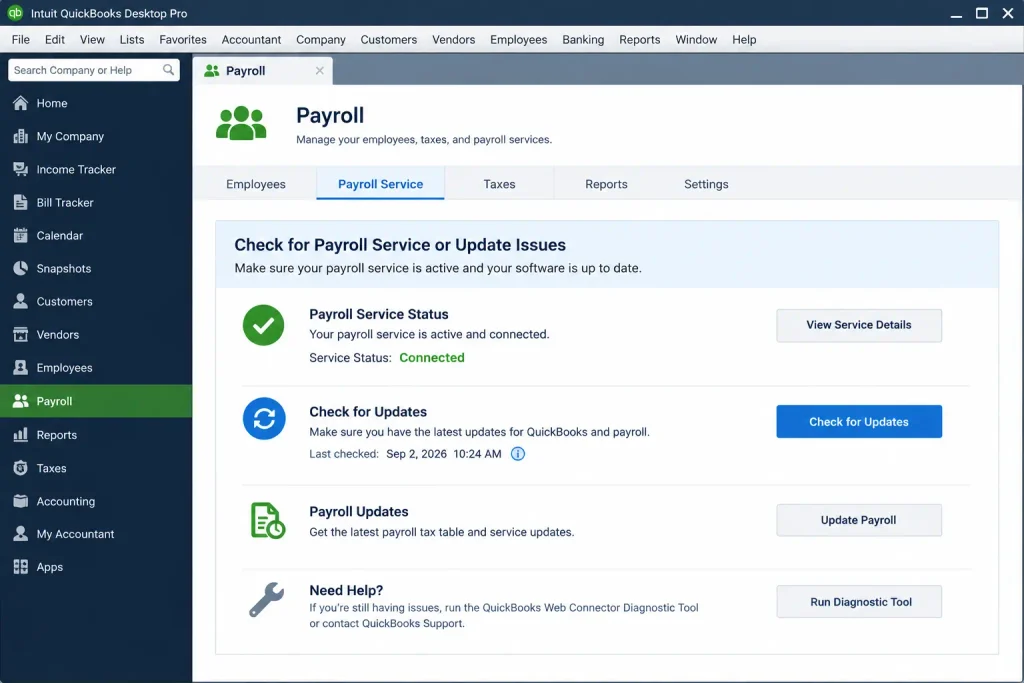
Software or service problems can sometimes prevent payroll information from displaying correctly. A basic review can help separate a display problem from an actual payment issue.
- Update QuickBooks to the latest available version
- Restart QuickBooks before checking payment records again
- Review the payroll service status
- Confirm your payroll subscription remains active
- Check payment history after restarting the application
- Avoid creating another payment before confirming the original status
Read More:- Fix QuickBooks Update Errors
8. Contact QuickBooks Payroll Support When Needed
Some missing payments require account-level review that basic troubleshooting cannot resolve. Support can help when the transaction remains unavailable after checking payment records.
- Contact QuickBooks when a submitted payment remains missing
- Request help with rejected or failed tax payments
- Keep payment confirmation emails available
- Keep bank statements ready for comparison
- Provide payment dates and tax amounts
- Avoid making another payment until the original status is confirmed
How to Prevent Payroll Tax Payments From Going Missing
Regular payroll reviews help you identify missing transactions before filing deadlines. Consistent reconciliation also keeps payroll liabilities aligned with your bank records.
- Review payroll tax payments after every payroll run
- Reconcile payroll liabilities regularly
- Match payments with bank transactions
- Keep tax confirmations organized
- Check payment dates before submission
- Verify tax agencies before paying
- Review payroll reports before filing deadlines
Conclusion
QuickBooks payroll tax payments checks not showing can result from incorrect dates, filters, payment statuses, account records, or missing historical entries. Start by checking Payment History, Tax Transactions, payment dates, and payroll liabilities. Compare those records with your bank statement before making another payment. Accounting Assist Pro can also help you review QuickBooks payroll records and troubleshoot payment-related issues. QuickBooks provides tools for reviewing payment status and recording prior tax payments when necessary.
FAQs About QuickBooks Payroll Tax Payments Not Showing
1. Why are my QuickBooks payroll tax payments not showing?
Your payment may have an incorrect date, filter, status, or recording method. Check Payment History, Tax Transactions, and your bank statement before taking further action.
2. How do I find a missing payroll tax payment in QuickBooks?
Open Payroll Taxes, select Payments, and review Payment History. Remove date filters and check Tax Transactions for additional payment records
3. Why is my QuickBooks payroll tax payment missing after submission?
The payment may still be processing or could have failed. Check your confirmation email and payment status before submitting another transaction.
4. Why are QuickBooks payroll tax payments not showing in history?
An incorrect date range, payment status, or filter can hide transactions. Review Payment History and Tax Transactions using a broader date range.
5. Can I manually record a missing payroll tax payment?
Yes. QuickBooks allows prior tax payments to be recorded when taxes were paid outside QuickBooks or before payroll setup was completed.
6. What should I do if QuickBooks shows payroll taxes as unpaid?
Check the payment history, liability balance, and bank statement first. Confirm whether the original payment succeeded before creating another payment.
7. Why does QuickBooks show a payroll tax payment as pending?
A payment can remain pending while processing continues. Check its status and confirmation details before assuming the payment failed.
8. Can incorrect payment dates hide payroll tax transactions?
Yes. An incorrect payment date can place the transaction outside your selected reporting period. Review the payment date and adjust your search range.
9. Why is my QuickBooks payroll tax payment not recorded?
The payment may have been made outside QuickBooks or entered incorrectly. Review prior payments and record the transaction using the proper payroll option.
10. Should I make another payment if QuickBooks cannot find the first one?
No. First confirm the original payment status with QuickBooks, your bank, or the tax agency. Another payment could create a duplicate.
