
QuickBooks Native Error 00008 can stop users from opening or editing compressed files. Invalid size, checksum issues, unsupported compression format, or a full disk can cause this issue. The reasons are not limited to these, other causes for this error are damaged archives, partial downloads, and conflicts between compression software.
What Does QuickBooks Native Error 00008 Mean?
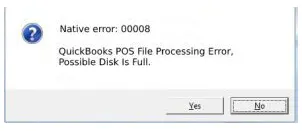
QuickBooks Native Error 00008 occurs when QuickBooks Software cannot process a compressed file because of file damage or format problems.
- It may appear when you open or process compressed files in QuickBooks Point of Sale (POS)
- The error may report an invalid file size or an unsupported format
- The warning that disk is full can appear even when your computer has enough free space
- A damaged file, incomplete download, or compression software conflict can trigger this error
What Error Message and Code Appear?
The error message helps you identify the problem before changing settings or files.
Invalid size or checksum of the file or unsupported compression format – Native error: 00008. File processing error, possibly disk is full (ABORT/RETRY/IGNORE).
The native error 00008 invalid size message may appear even when your drive has enough free space.
- Abort: Stops the current operation
- Retry: Attempts the operation again
- Ignore: Continues past the warning but may cause the application to freeze
Read More:- Fix QuickBooks Abort Error
What Are the Signs of QuickBooks Native Error 00008?
Recognizing the symptoms helps you decide which checks to perform first.
- QuickBooks cannot process an archive file
- A checksum or invalid size warning appears
- The application reports an unsupported compression format
- The message appears despite sufficient free disk space
- The archive cannot be opened or modified
- QuickBooks POS becomes unresponsive after selecting Ignore
- The problem begins after installing or updating compression software
- Archive processing fails during a backup or restore task
The QB POS native error 00008 warning may point to an archive problem rather than a damaged company file.
Read More:- QuickBooks Company File Errors
What Causes QuickBooks Native Error 00008?
Several file and software problems can trigger the native error in 00008 QuickBooks warning
- Damaged archive: The compressed file contains missing or unreadable data
- Checksum failure: The archive fails an integrity check
- Unsupported compression: The installed software cannot read the archive’s compression method
- ZIP Genius conflict: Compression software may interfere with archive processing
- Outdated software: An older version may handle certain archives incorrectly
- Incomplete download: The downloaded file may be missing some data
- Low disk space: Windows may lack room for temporary files or extracted contents
- File access problems: Windows may not allow access to the archive’s folder
How to Identify QuickBooks Native Error 00008
Check the error message, archive, and storage before making changes.
Check the error message
- Record the full warning shown on the screen
- Confirm that the displayed code is 00008
- Note any reference to checksums, file size, compression, or disk space
Check when the error appears
- Identify whether it appears during opening, extracting, backup or restore tasks
- Note any recent compression software installation or update
Check the archive file
- Press Windows + E to open File Explorer
- Browse to the folder containing the affected archive
- Right-click the file and select Properties
- Record its size and file type
- Compare it with another copy if available
- Test a separate, known-good archive to see whether the problem affects multiple files
Check available storage
- Open File Explorer and select This PC
- Review the free space shown for the relevant drive
- Check the drive used for temporary files
- Avoid deleting unfamiliar Windows system files to free space
What Should You Prepare Before Fixing the Error?
Prepare your files and record the software details before troubleshooting.
Protect important files
- Make a separate copy of the affected archive
- Keep the original file unchanged
- Locate a verified backup if available
Close active applications
- Save any open work
- Close QuickBooks Desktop or POS
- Close applications currently using the archive
Check Windows access
- Confirm that you can open the archive’s folder
- Check whether the file is stored locally or on a shared drive
- Verify that your Windows account has the required permissions
Record software details
- Note your QuickBooks product and version
- Identify the installed compression software and version
- Confirm that sufficient disk space remains
How to Fix QuickBooks Native Error 00008: Step-by-Step Methods
Start with simple checks before changing software or restoring files. Test the archive after each method to identify what resolves the problem.
Method 1: Close and Reopen QuickBooks
Restarting the application may clear a temporary processing problem.
Step 1: Save your work
- Save any open work in QuickBooks
- Make sure no active task is processing the archive
Step 2: Close the application
- Exit QuickBooks Desktop or POS
- Close any open archive windows
- Wait until the application has fully closed
Step 3: Reopen QuickBooks
- Launch the application again
- Return to the same task
- Try the operation once more
Step 4: Check the result
- Confirm whether the archive opens correctly
- Record the error if it returns
- Continue to the next method if necessary
Method 2: Check Disk Space and File Access
The disk-full warning can appear even when the drive has free space. Check the storage and file location before changing anything.
Step 1: Open File Explorer
- Press Windows + E
- Select This PC
- Find the drive containing the affected archive
Step 2: Check available storage
- Review the free space displayed for the drive
- Check the drive used for temporary files
- Free up space if the drive is nearly full
Step 3: Check the archive’s location
- Open the folder containing the archive
- Confirm that the file exists
- Check whether Windows allows you to access it
Step 4: Copy the archive for testing
- Create a temporary folder in a location you can access
- Copy the archive into that folder
- Keep the original file unchanged
Step 5: Test the copied file
- Try opening the copied archive
- Check whether the warning appears again
- Investigate the original location if the copy works
Method 3: Uninstall ZIP Genius
ZIP Genius has been reported as a possible cause in the supplied reference articles. Removing it can help test whether the software causes a conflict.
Step 1: Close active programs
- Save open work
- Close QuickBooks Desktop or POS
- Close archive-processing applications
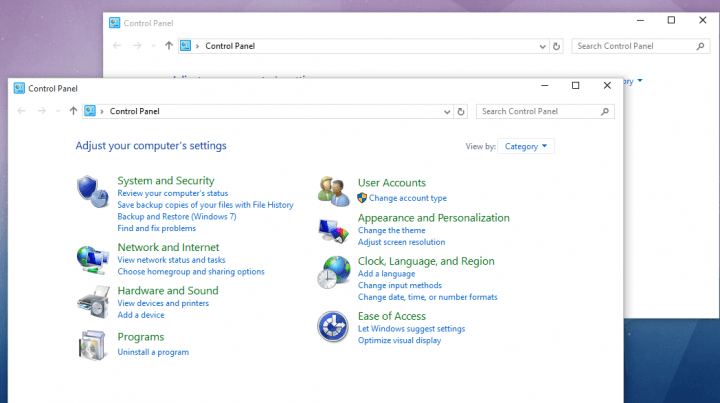
Step 2: Open Control Panel
- Press the Windows key
- Type Control Panel in the search box
- Open Control Panel
Step 3: Open the installed programs list
- Select Programs
- Click Programs and Features
- On older Windows versions, open Add or Remove Programs if available
Step 4: Find ZIP Genius
- Review the installed programs list
- Select ZIP Genius if it appears
Step 5: Uninstall the program
- Click Uninstall
- Follow the on-screen instructions
- Wait for the removal process to finish
Read More:- Fix QuickBooks Installation Errors
Step 6: Restart Windows
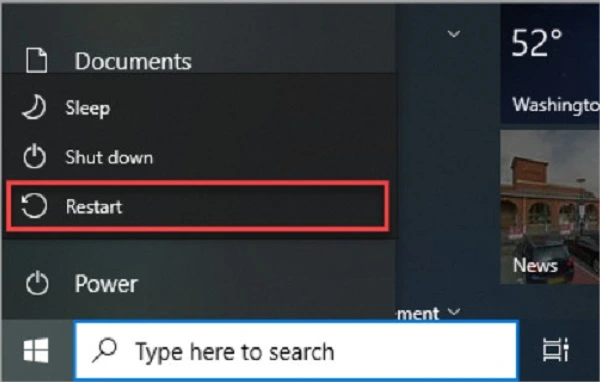
- Save any remaining work
- Restart the computer
- Allow Windows to load fully
Step 7: Test QuickBooks
- Open QuickBooks Desktop or POS
- Repeat the original archive operation
- Check whether the error has disappeared
Method 4: Update or Reinstall ZIP Genius
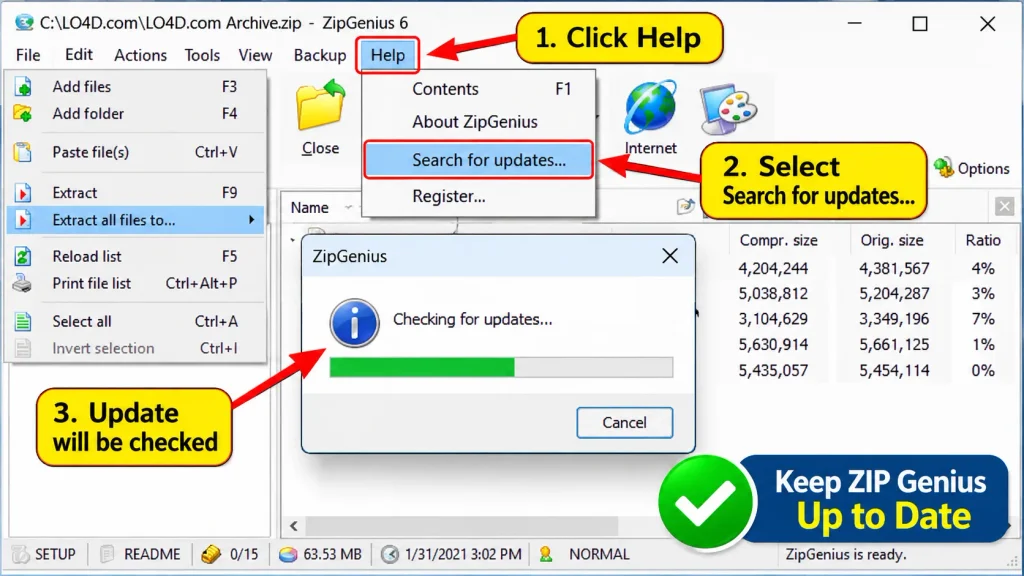
Try this method only if you need ZIP Genius and removing it did not resolve the problem. Reinstalling the same software may not help if the archive itself is damaged.
Step 1: Check the installed version
- Open Control Panel
- Select Programs and Features
- Find ZIP Genius if it remains installed
- Check whether a compatible update is available
Step 2: Remove the older version
- Close QuickBooks and archive-processing applications
- Select ZIP Genius
- Click Uninstall
- Follow the prompts and restart Windows
Step 3: Obtain a suitable installer
- Use a trusted source if you choose to reinstall the software
- Confirm compatibility with your Windows version
- Avoid unfamiliar download files
Step 4: Install the software
- Open the downloaded installer
- Follow the on-screen instructions
- Complete the installation
- Restart Windows if required
Step 5: Test the archive
- Open QuickBooks
- Repeat the affected operation
- Check whether the error returns
Method 5: Obtain a Fresh Copy of the Archive
A damaged or incomplete download can cause an invalid size or checksum warning. Testing another copy helps determine whether the original file is faulty.
Step 1: Locate the original source
- Identify where the archive came from
- Check whether another copy is available
- Keep the affected archive for comparison
Step 2: Obtain another copy
- Download the archive again from its original trusted source
- Request a fresh copy if another computer supplied the file
- Save the new copy to a separate local folder
Step 3: Compare the files
- Right-click each file and select Properties
- Compare their sizes
- Confirm that the new download or transfer finished
- Avoid overwriting the original archive
Step 4: Test the new archive
- Open the new copy
- Repeat the same operation
- Check whether the error message appears again
Method 6: Restore From a Verified Backup
A clean backup may help when the original archive is damaged. Choose the restoration process that matches the file type.
Step 1: Find a suitable backup
- Locate a recent backup of the required data
- Confirm that it belongs to the correct company or task
- Preserve the original file
Step 2: Check the backup
- Confirm that the backup exists
- Check its size and location
- Verify that you can access it
Step 3: Restore the data
- Follow the restoration steps for the relevant QuickBooks product
- Select the correct backup file
- Choose a safe destination
- Avoid overwriting existing data unnecessarily
Step 4: Verify the restored data
- Open the restored file or data
- Check that the required information is available
- Confirm that the restoration completed correctly
Step 5: Protect the restored data
- Keep the original archive until you verify the restored data
- Create a new backup after confirming the data is usable
How to Prevent QuickBooks Native Error 00008 in the Future
Good file-handling habits can reduce archive problems and protect important business records.
- Keep enough free space on your drives
- Download archive files completely before opening them
- Avoid interrupting file transfers or compression tasks
- Keep separate copies of important archives
- Check archive integrity before deleting the original
- Use compression software compatible with your system
- Remove conflicting software when testing confirms a conflict
- Store backups in a safe location
- Verify restored data before resuming work
- Avoid repeatedly selecting Ignore when an archive-processing error appears
Conclusion
QuickBooks Native Error 00008 can interrupt archive processing because of damaged files, checksum failures, unsupported compression, or software conflicts. Start by checking disk space, file access, and archive integrity. Then test compression software and obtain a fresh copy. Accounting Assist Pro provides accounting and bookkeeping services that help businesses maintain organized financial records and manage routine accounting tasks.
Frequently Asked Questions
1. What does QuickBooks Native Error 00008 mean?
QuickBooks Native Error 00008 indicates an archive-processing problem involving file size, checksum, or compression compatibility. The disk-full message does not always mean your drive lacks space.
2. What causes native error 00008 invalid size?
The native error 00008 invalid size message may result from damaged archives, incomplete downloads, unsupported compression methods, or software conflicts. Check the affected file before attempting repairs.
3. Can a full disk cause QuickBooks Native Error 00008?
Yes, insufficient disk space can interrupt file processing. However, the warning may appear even when storage remains available, so check both disk space and archive integrity.
4. How do I fix QB POS native error 00008?
To fix QB POS native error 00008, check storage, copy the archive for testing, and review compression software. Obtain a fresh archive if the original appears damaged.
5. Is Native error in 00008 QuickBooks always caused by a damaged file?
No. Native error in 00008 QuickBooks may involve a damaged archive, unsupported compression, or a software conflict. Compare another copy before deciding that the original file is corrupted.
6. How can I fix Error 00008 On QuickBooks Desktop?
For Error 00008 On QuickBooks Desktop, check available storage, test file access, and review installed compression software. Try a fresh archive before attempting a backup restoration.
7. Can quickbooks pos native error 00008 freeze my computer?
Yes, QuickBooks POS may become unresponsive after you select Ignore. Avoid repeating that choice, close the affected task safely, and test the archive again after restarting the application.
8. Can I fix QuickBooks Native Error 00008 without reinstalling QuickBooks?
Yes. QuickBooks Native Error 00008 may involve the archive rather than the main application. Check storage, test another copy, and review compression software before considering an application repair.
9. What should I do if native error 00008 invalid size keeps appearing?
If native error 00008 invalid size continues, obtain a fresh archive from its original source. Compare file sizes and test the new copy without deleting the original.
10. How can I troubleshoot Native error in 00008 QuickBooks safely?
For Native error in 00008 QuickBooks, preserve the original file, record the message, and test one change at a time. Confirm that the file works before resuming normal tasks.
11. Can I prevent Error 00008 On QuickBooks Desktop from returning?
To reduce Error 00008 On QuickBooks Desktop, keep backups, maintain free storage, and avoid interrupted downloads. Use compatible compression software and check files before opening them.
12. What if quickbooks pos native error 00008 continues after restarting?
If quickbooks pos native error 00008 continues, test a fresh archive and check for software conflicts. If the archive remains unreadable, preserve it before attempting further recovery.
