
When QuickBooks first loads, a red banner appears on the screen, notifying the user of an error they’ve never seen before, or simply that the connection has been lost for no apparent reason despite nothing seemingly going wrong on their end
QuickBooks bank feed errors are, unfortunately, one of the more common issues for users of QuickBooks Online or QuickBooks Desktop. While they rarely happen at the most inconvenient times, they are usually easy to fix and require no more effort than a refresh. That said, there is more than one reason for such a disturbance in your otherwise seamless accounting experience.
Why Are My Bank Feeds in QuickBooks Not Working?
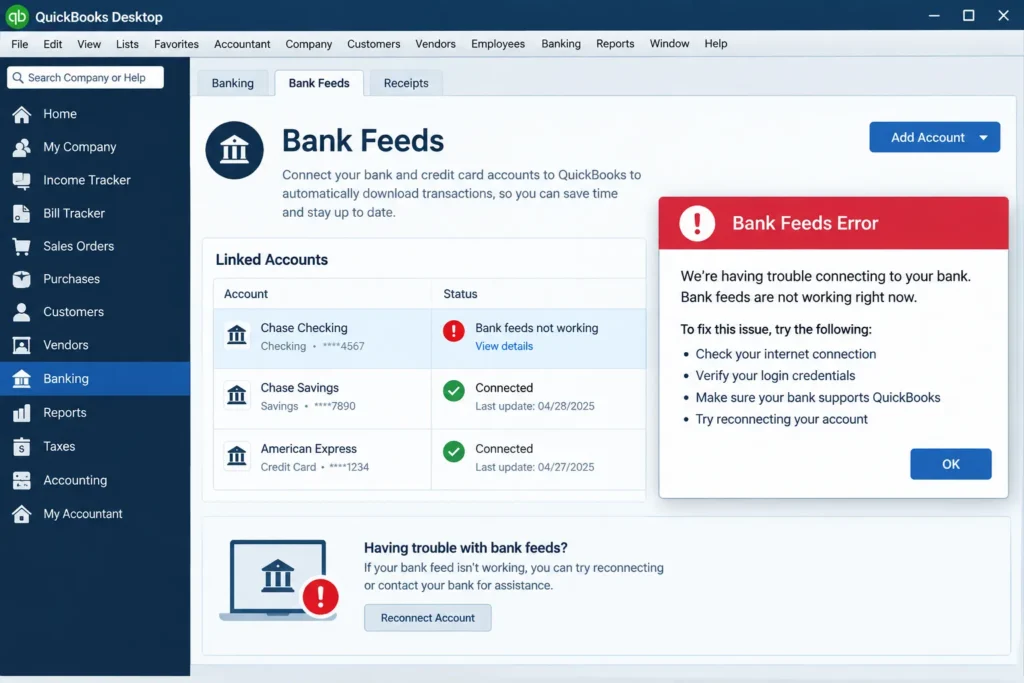
Below, we’ve discussed the most common causes of bank feed errors, how to fix them, and most importantly, how to avoid them in the future.
A bank feed is a connection to your financial institution’s server, which allows you to sync your financial data with QuickBooks Software. When you manually refresh an account, QuickBooks logs in as you and queries your bank about recent payments.
These are then parsed for processing as invoices, bills, deposits, and any other financial instrument depending on your accounting preferences. This connection can be disrupted by a number of different factors, most of which originate on the banks’ side rather than in QuickBooks itself.
Most common reasons for QuickBooks bank feed errors are:
- The bank updated its login system or added additional layers of security
- Your bank account password changed and QuickBooks doesn’t have the updated credentials
- Your bank’s servers are down
- Your account details at the bank have changed
- QuickBooks’ connection to your banking institution is down/disconnected
- Your browser’s cache is corrupt and needs to be cleared
Some of these can be fixed within a few minutes, while others involve waiting for the bank to fix its end of the connection.
Now, let’s look at some of the most common errors that occur in connection with your bank feeds in QuickBooks and learn how to fix them.
The Most Common Bank Feed Errors in QuickBooks
The majority of bank feed errors in QuickBooks come with an error code that identifies the issue and helps you fix it. Below are some of the most common error codes and their corresponding solutions.
Error 102 and 105: The Issue Is on the Bank’s End
An error code 102 or 105 usually indicates that something is wrong on the bank’s end and nothing can be done about it right away. This error typically occurs when your bank’s servers are down for maintenance or some other reason. To verify this, try accessing your bank’s portal in a separate browser or tab.
If you also can’t access your bank’s portal right now, it confirms this is an issue beyond your control
While there isn’t much you can do except wait, it’s good to remember that the errors related to the banks’ technical issues, namely errors 102 and 105, typically resolve themselves after 24-48 hours. Therefore, manually updating your feeds at least once every day or two is advised. It’s not necessary to update your feeds more frequently as doing so will not help in the short term.
Error 103 or 310: Your Login Credentials Are Incorrect
This error occurs when your credentials in QuickBooks no longer match your bank login details. This happens when you change your password at the bank but forget to update this information in QuickBooks.
Go to your banking portal in QuickBooks, select the account with the error, and update your sign-in information there, using the credentials you input when trying to log into your bank at qb.com.
Error 106: Your Bank Account Can’t Be Found
An error code 106 indicates that QuickBooks cannot find your account on your bank’s server. In most cases, this is due to a change in the account details that hasn’t been synced yet, for example, closing an account that was previously open
Verify on your bank’s portal whether this account is still open. If it is, updating your feeds should be sufficient to remove this error. If it isn’t, you will have to delete this account and reconnect it to your QuickBooks account.
Error 108: There’s a Message From Your Bank
When you have a message from your bank in your online banking portal, which you still need to read or accept, you may encounter a bank feed error 108. There are multiple different reasons for these types of messages from your bank, but all of them have the same solution.
Log in to your bank’s portal, go to the place where your bank messages appear, and remove or respond to the message. Upon returning to QuickBooks, these errors should be resolved.
Error 109: You Need to Update Your Password
This error is self-explanatory and suggests that you need to update your password at the bank. This is usually triggered by a scheduled update or a security risk, but either way, this error should be resolved by updating your bank credentials.
Error 185 and 187: You May Need to Provide Additional Security Information
Some banks ask for additional layers of security when trying to log in, namely a text code sent to your phone. If you encounter an error code 185 or 187, this is likely due to this additional step not being taken. During the step when QuickBooks asks you for additional security information, provide it so you can resolve the issue.
It’s important to note that these codes are usually only valid for a short time (usually 1-2 minutes), so if they don’t appear at all, you may be able to resolve this issue by closing your browser and opening a new session in QuickBooks.
Error 324: The Connection Is Disconnected
Error code 324 is somewhat similar to error code 106, but in this case, QuickBooks completely loses connection with your bank. This can happen in a variety of situations, for instance, if you received a new debit card with a different PIN. You will need to reconnect your bank feed in your QuickBooks account in order to resolve this issue.
Before you proceed with reconnecting your account, make sure you understand that this action may result in your new feeds only including the most recent transactions, which could result in a data gap.
OL and OLSU Errors: The File Type Isn’t Supported by QuickBooks Desktop
If you’re using QuickBooks Desktop, the bank feed errors that you’re likely to encounter are OL and OLSU errors. There are two main reasons for these errors, but they’re related: your bank doesn’t support the file type that QuickBooks Desktop uses (.qbo).
To verify this, try to download this file from your bank’s portal and try to open it, preferably in a separate browser or computer. If you cannot open this file, it confirms that the issue is on your bank’s end. On the other hand, if you can successfully open the file, chances are, the error is caused by multiple accounts. OL and OLSU errors can appear in multiple accounts at once, particularly if you have several accounts connected to the same bank. To fix this, you can go to your Chart of Accounts, show inactive accounts, and turn off the online banking feature for all accounts until only one account is active.
Fixing Bank Feed Errors: The Step-by-Step Guide
Most bank feed errors can be resolved using a few easy steps. Use this step-by-step guide to try and fix any error you encounter.
- Try manually updating your feeds. Go to the Banking or Transactions tab, select the account, and click the Update button.
- Make sure you can access your online banking portal.
- Make sure that the credentials you use to log in to QuickBooks are up-to-date.
- If you’re using QuickBooks Online, clear your browser’s cache.
- If the error is on the bank’s end, you’ll need to wait for it to resolve itself. Bank-related errors typically take 24-48 hours to resolve.
- As a last resort, try disconnecting and reconnecting your account. This may resolve the error, but it may also affect the entire history of your past transactions, depending on your accounting practices.
Fixing Errors in Multiple Accounts at the Same Bank
You may encounter bank feed errors not only on a single account at your bank but across multiple accounts as well. This usually occurs when one of your accounts is having issues while the rest are completely fine.
There are a variety of potential reasons for this, but the most common one is having to update your banking credentials, for example, after your bank requires you to change your password.
When encountering such an issue, try resolving it step by step and account by account. It’s important to understand that QuickBooks usually treats all your accounts at a given bank as one, so errors in one account can affect the other ones, even if they seem to be unrelated at first.
- Go to your Chart of Accounts and make sure you can see inactive accounts. This way, you’ll be able to see all the accounts you have at this particular bank.
- Go one by one and disable the Online Banking feature for all accounts until only one is enabled. If you can, start with the one that’s displaying the error.
- Once you’ve successfully disabled online banking for the other accounts, try re-enabling the one that was displaying the error. Repeat this step for all other accounts until no errors occur.
- If you encounter an error on a particular account after following the steps above, this account will most likely need to be reconnected to your QuickBooks account. This could occur if one of your accounts has been closed at the bank, for instance, and your other accounts haven’t.
Fixing errors one account at a time may take longer than doing otherwise, but this process helps you determine which one is causing the issue rather than randomly disabling and re-enabling online banking for your accounts at the same bank.
Transactions With a Bad Category Can Make Your Financial Statements Incorrect
The majority of accounting software guide you through the process of setting up your transactions. This means that most of the transactions you see in QuickBooks will be automatically categorized as expenses or income based on the transaction method, the payee, and other accounting practices you’ve set up.
However, not every transaction will be correctly categorized the moment it appears in your software. When a transaction goes through without any errors but ends up in the wrong category, it can adversely affect your financial statements
A software error in categorizing a payment could turn an office expense into a software expense or vice versa, for instance. It could turn a loan payment into an expense, increasing your costs and decreasing your profit, among other issues. This could cause your financial statements to appear incorrect and misleading.
A transaction that has the wrong category assigned to it will not show up as an error. QuickBooks will process it as normal, assuming nothing went wrong. That is why reconciling your transactions is so important; it ensures that none of your income or expense categories in your profit and loss statement is inaccurate and, therefore, misleading.
When reviewing your transactions, look out for any expense or income categories with amounts significantly different from what you’d expect to see on a regular month.
How to Prevent Bank Feed Errors in the Future
Preventing QuickBook bank feed errors from occurring is easier than you might think, and there are only a few things you need to do in order to achieve this.
First of all, make sure to log in to your connected accounts every few weeks, even if you aren’t doing anything else related to your accounting. Some connections have a limited lifespan and will terminate automatically if you don’t log in to them for an extended period of time.
Additionally, make sure to update your credentials as soon as you change them at the bank and never leave such updates until the last minute.
If you’re using QuickBooks Online, always use an updated browser, and make sure to regularly clear your browser’s cache if you’re using one.
Make sure to set a reminder to check if your bank has sent you any messages and never wait for error code 108 in QuickBooks to remind you of this.
Finally, set a reminder to do a reconciliation of all your accounts on a monthly basis in order to ensure that none of your automatically processed transactions has gone through with an incorrect category.
By reviewing your accounting regularly and routinely, you’ll be able to ensure that none of your banking-related processes has gone awry without your knowledge.
Getting Help With Your Bank Feed Error
If you’ve gone through all of the above steps and you still encounter a bank feed error, or you simply don’t have the time and/or expertise to deal with it, you may want to consider getting help from an external source. That is precisely what the bookkeeping team at Accounting Assist Pro is here for. We fix bank feed errors on a regular basis and can help you establish an uninterrupted connection to your bank right away.
Your Books Are Only as Good as Your Bank Connection
A bank feed error can be annoying to deal with, but it is rarely an issue that requires extensive troubleshooting. Most bank feed errors in QuickBooks originate from your bank updating its systems or something similar that doesn’t require you to do anything beyond a few routine steps.
It is important, however, to understand that a bank feed error isn’t always an obvious error that stops you from doing your work.
It can often be a single rogue transaction that was misprocessed by mistake or a whole series of expenses that were incorrectly categorized as income or the other way around. These errors can severely impact your financial statements if they aren’t caught and, therefore, should never be overlooked.
By reconciling your transactions every month rather than every year, you’ll ensure that none of your income and expense categories in your profit and loss statement is misleading or inaccurate.
That is why bank feed errors aren’t something you should worry about much, but they also aren’t something you should become completely accustomed to either.
If bank feed errors start affecting your ability to do your accounting regularly, it’s a sign that it’s time to get some external help with your bookkeeping.
FAQs
Why does QuickBooks keep asking me to reconnect my bank account?
Your QuickBooks bank account may need a higher level of security authentication or your bank details may not match anymore. If you changed your password at the bank, make sure to update your credentials in your accounting software as well.
How long do QuickBooks bank feed errors take to fix themselves?
Bank feed errors that originate from your bank usually take 24-48 hours to resolve themselves, whereas errors originating from your accounting software require manual fixing.
Can a bank feed error cause duplicate transactions in QuickBooks?
Yes, some bank feed errors can cause your transactions to be processed twice in your accounting software. It happens most often when you disconnect and reconnect your bank account, causing QuickBooks to reprocess your old transactions. Always make sure to double-check the “For Review” tab in your accounting software before approving any transactions.
Is it safe to disconnect and reconnect my bank account in QuickBooks?
Yes, it is generally safe to reconnect your bank account in QuickBooks, but this may affect the history of your past transactions. Make sure to export/export relevant documents before you do this, just in case.
Why is my bank feed error different in QuickBooks Desktop than in QuickBooks Online?
QuickBooks Desktop and QuickBooks Online use different programs to establish a connection with your bank. As such, the error codes you see in Desktop are different from the ones you see in Online. Bank feed errors specific to QuickBooks Online are usually related to the connection being lost or disrupted, whereas bank feed errors specific to QuickBooks Desktop usually originate from the file type not being compatible with the accounting software.
