
If you’re getting QuickBooks Error 6000 while trying to open or restore your company file, then you’re not the only one facing the same problem. This is a common issue in QuickBooks Desktop and usually means that the software cannot access your company file (.QBW) or backup file (.QBB).
No matter which type of QuickBooks error you’re dealing with while restoring a backup, the best thing is that the problem is often fixable with a few troubleshooting steps. In this guide, we’ll explain the causes of QuickBooks Error Code 6000, its common symptoms, and the most effective ways to fix it safely.
What Is QuickBooks Error 6000?
QuickBooks Error 6000 is a company file error that appears when QuickBooks Desktop cannot access, open, or restore a company file. Instead of opening your financial records, QuickBooks shows an error message with the 6000 series code, which stops you from moving forward with your work. The error often happens when:
- Opening a company file stored on a local drive or network.
- Restoring a backup (.QBB) file.
- Accessing a company file in multi-user mode.
- Working with a damaged or inaccessible company file.
It depends on the situation;
| ERROR 6000 VARIANT MATRIX | ||
| Error Code | Primary Root Cause | Common Environment |
| 6000, -83 | Multi-user network block | Server hosting / permissions |
| 6000, -80 | Damaged .ND / .TLG files | Local or network drive |
| 6000, -77 | Incorrect folder access | Mapped drive / external storage |
| 6000, -301 | Encryption/security lock | Third-party backup/antivirus |
Common Causes of QuickBooks Error Code 6000
Several factors can cause Error 6000 in QuickBooks Desktop; common reasons for it include:
- A damaged or corrupted QuickBooks company (.QBW) file.
- Incorrect folder permissions that block QuickBooks from accessing the file.
- Network setup issues while in multi-user mode.
- Corrupted Network Data (.ND) or Transaction Log (.TLG) files.
- Antivirus or firewall software blocking QuickBooks services.
- An interrupted or incomplete backup restoration.
- Company files stored on external or unsupported storage devices.
Also, to apply the right solution, it is important to find the underlying cause.
How to Fix QuickBooks Desktop Error 6000
Now comes the part when people start searching for how to fix Error 6000 in QuickBooks Desktop. Below are some effective methods to resolve the issue.
1. Use QuickBooks File Doctor
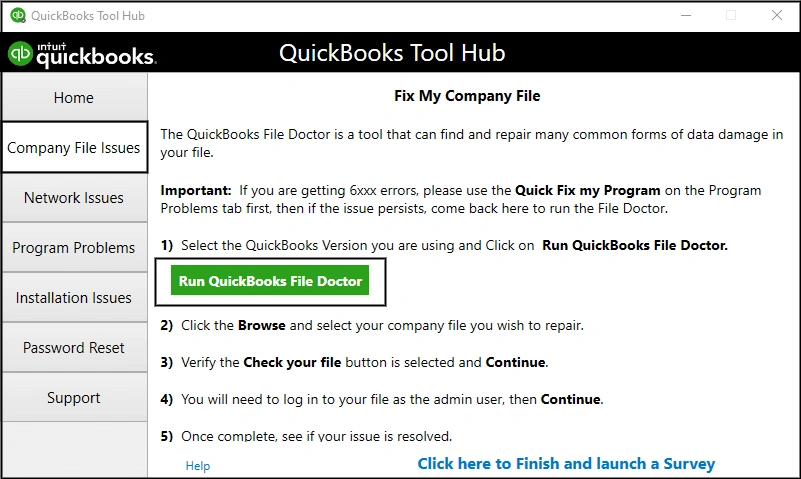
QuickBooks Tool Hub includes QuickBooks File Doctor, a tool that is designed to diagnose and repair company file and network issues.
Steps:
- Download and install the latest QuickBooks Tool Hub.

- Open Tool Hub and select Company File Issues
- Launch QuickBooks File Doctor.
- Select your company file.
- Allow the scan to finish.
- Reopen QuickBooks and check if the error is resolved.
This is often the first troubleshooting step recommended by Intuit for company file errors.
Read More: QuickBooks Tool Hub
2. Rename the .ND and .TLG Files
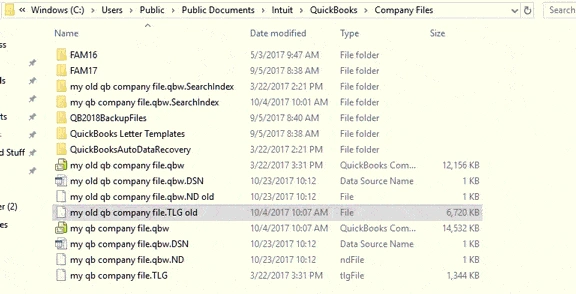
QuickBooks will recreate these support files automatically.
To do this, locate your company file folder and find the files ending with ND and .TLG`
Then rename them by adding`.OLD` at the end.
Example:
CompanyFile.qbw.nd – CompanyFile.qbw.nd.old
CompanyFile.qbw.tlg – CompanyFile.qbw.tlg.old
Restart QuickBooks and try opening the company file again.
3.Copy the Company File to a Local Drive
If the file is stored on a server, network location, or external drive:
- Copy the company file to your desktop or local C: drive.
- Open QuickBooks.
- Browse to the copied file.
- Check if the error goes away.
If the file opens successfully, the issue may be related to network connectivity or permissions.
4. Verify Folder Permissions
QuickBooks needs full read and write permissions for the folder that contains the company file.
Make sure:
- Windows users have Full Control permission.
- The QuickBooks Database Server Manager has access.
- Shared folders are set up correctly in multi-user environments.
Incorrect permissions are a common cause of QB Error 6000 when opening the company file.
5. Restore the Backup Correctly
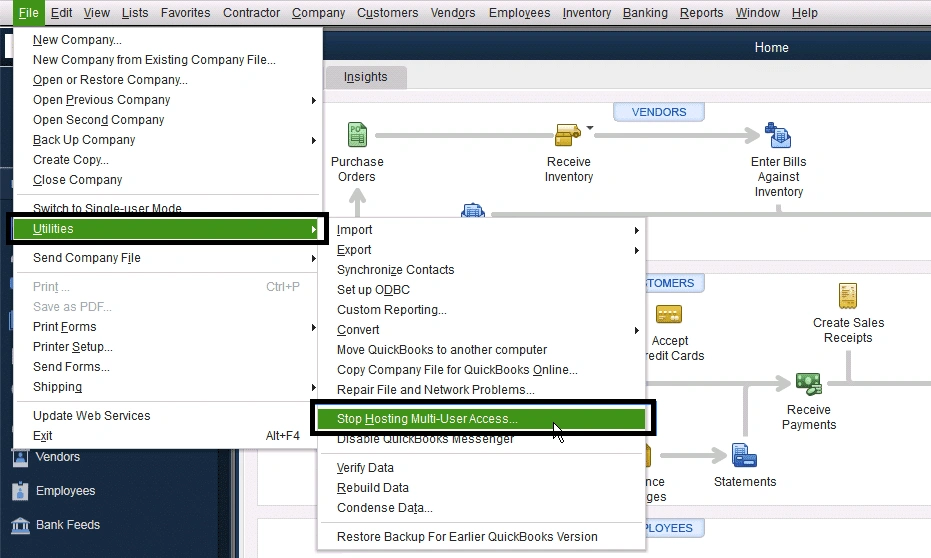
If you’re seeing QuickBooks Error 6000 while restoring a backup, check that:
- The backup file is not stored on removable media.
- The backup file isn’t corrupted.
- You’re restoring the file to a local folder with full permissions.
- The QuickBooks version matches the backup format.
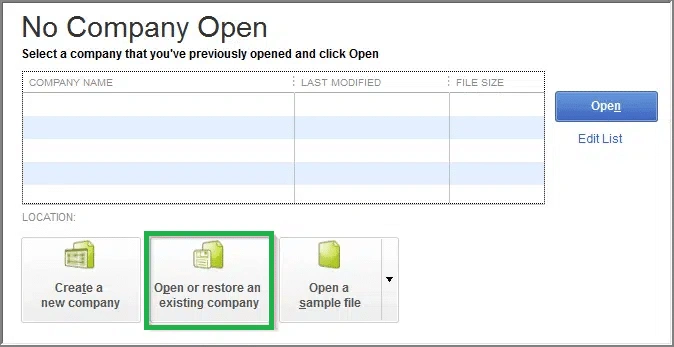
After restoring successfully, move the company file to its preferred location if needed.
6. Temporarily Disable Antivirus or Firewall
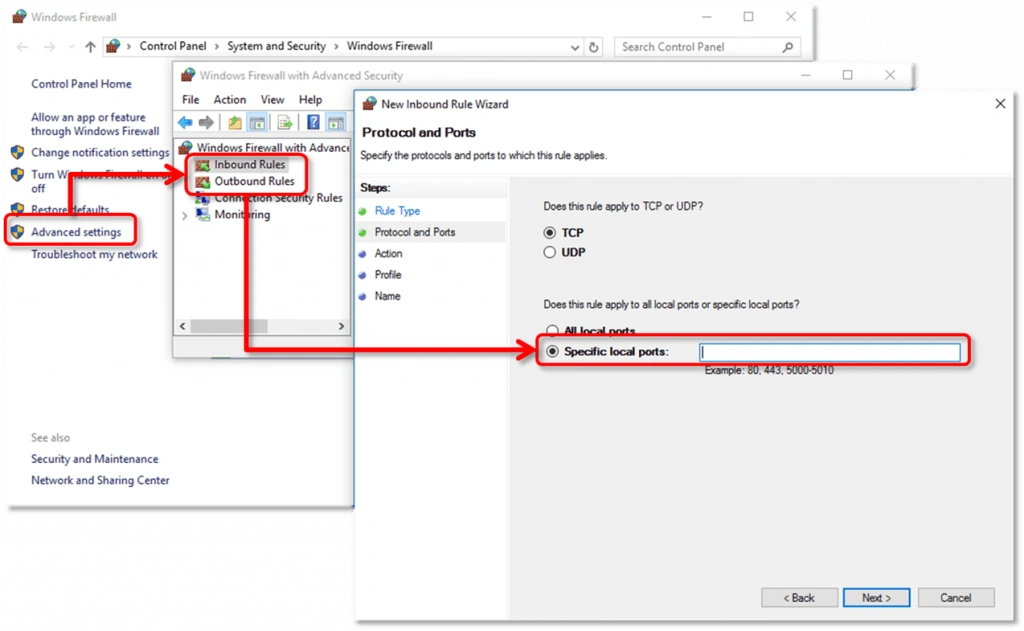
Some security software blocks QuickBooks services or network communication. In this case, temporarily disable your antivirus or firewall and try to open the file again.
If QuickBooks opens normally, adjust your security software to allow QuickBooks Desktop and its related services before turning protection back on.
Note: Always turn your security software back on after testing.
Tips to Prevent QuickBooks Error 6000
Preventing company file issues is much easier than fixing them later. You just need to follow these things:
- Keep QuickBooks Desktop updated.
- Create regular verified backups.
- Store company files on reliable storage devices.
- Avoid force-closing QuickBooks during file operations.
- Run Verify Data and Rebuild Data periodically.
- Maintain stable network connections for multi-user setups.
- Keep Windows and QuickBooks Database Server Manager updated.
These practices can significantly lower the chances of future company file errors.
When Should You Contact QuickBooks Support?
At the end, when you’ve tried all troubleshooting steps and QuickBooks Error Code 6000 still shows up. In this case, most probably the company file may have serious damage that needs professional repair. You must consider reaching out to QuickBooks support if:
Bonus tip: Avoid repeatedly trying to fix a heavily damaged file without making a backup first.
Conclusion
QuickBooks Error 6000 is an issue that can disrupt your accounting workflow, but in most cases, you can solve the issue by identifying the cause of it and following the right troubleshooting steps. However, while restoring a backup, tools like QuickBooks File Doctor, correcting folder permissions, and verifying backups can help you regain access to your financial data.
For the best outcome, keep QuickBooks updated, maintain regular backups, and follow Intuit’s recommended practices for managing company files. If the error keeps coming back after doing all possible steps of fixing it, then getting help from a qualified QuickBooks professional, such as Accounting Assist Pro, can help prevent data loss and minimise downtime.
Frequently Asked Questions
What is QuickBooks Error 6000?
Error 6000 in QuickBooks is a company file access error that occurs when QuickBooks Desktop cannot open, restore, or access a company file.
Why am I getting QuickBooks Error 6000 when opening my company file?
The error can happen due to damaged company files, insufficient folder permissions, corrupted network files, firewall restrictions, or issues with multi-user hosting.
How do I fix QuickBooks Error 6000 while restoring backup?
Restore the backup to a local folder, ensure the backup file is valid, check folder permissions, and use QuickBooks File Doctor if required.
Can QuickBooks File Doctor fix Error 6000?
Yes, QuickBooks File Doctor can repair many company file and network-related issues associated with QuickBooks Desktop Error 6000, though if the file is severely damaged, it may need additional recovery methods.
Can QuickBooks Tool Hub fix Error 6000?
Yes. QuickBooks Tool Hub includes tools that can help diagnose and resolve certain company file and network-related problems.
