
I’ve lost count of how many times I’ve seen this exact error pop up on a client’s screen right when they’re mid-invoice or trying to close out the month. QuickBooks says 6155 0, gives you basically zero context, and just refuses to open the file. Not fun, but also not usually as bad as it looks.
In my experience it’s one of four things almost every time:
- The file wandered off somewhere QuickBooks can’t get to
- The install is old or something in it got half-broken
- The .QBW file itself has some damage
- Permissions got tangled, usually after a move or a backup
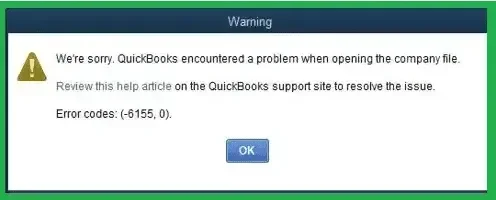
Let’s go through it properly.
Do This One Thing First
Before you touch anything else, make a quick throwaway company file, nothing real, just a test. See if it opens.
- Opens fine → the problem is your actual file, not QuickBooks
- Also fails → your QuickBooks install is the issue, and no amount of fiddling with the real file will fix that
I mention this because I’ve watched people burn forty-five minutes running repair tools on a file that was never broken in the first place. The install was the problem the whole time.
Why This Happens
- File got moved, renamed, or ended up somewhere your Windows account doesn’t have full access to
- QuickBooks Desktop wasn’t fully installed, or hasn’t been updated in a while
- The .QBW file picked up corruption, often from a crash or the computer losing power mid-save
- Drive’s running low on space
- File path is too long, or has characters QuickBooks doesn’t love
- It showed up right after Verify Data or Rebuild Data — this isn’t the tool’s fault, it just found something that was already wrong
- File came from a backup or a different machine and the permissions didn’t come along for the ride
Fix 1: Update QuickBooks
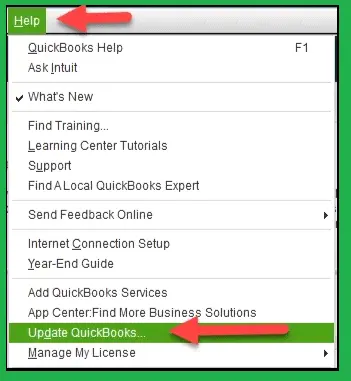
Cheapest, fastest thing to rule out first.
- Open QuickBooks
- Help > Update QuickBooks Desktop
- Click Update Now, then check Reset Update
- Click Get Updates
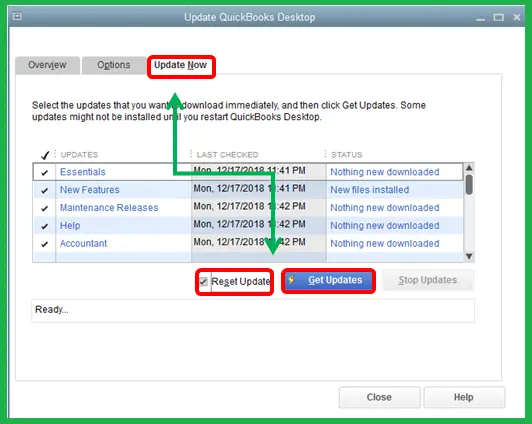
- Let it download, restart, install when it asks
- Try your file again
Didn’t work? Fine, don’t run it twice hoping for a different outcome. Move on.
Fix 2: Run File Doctor
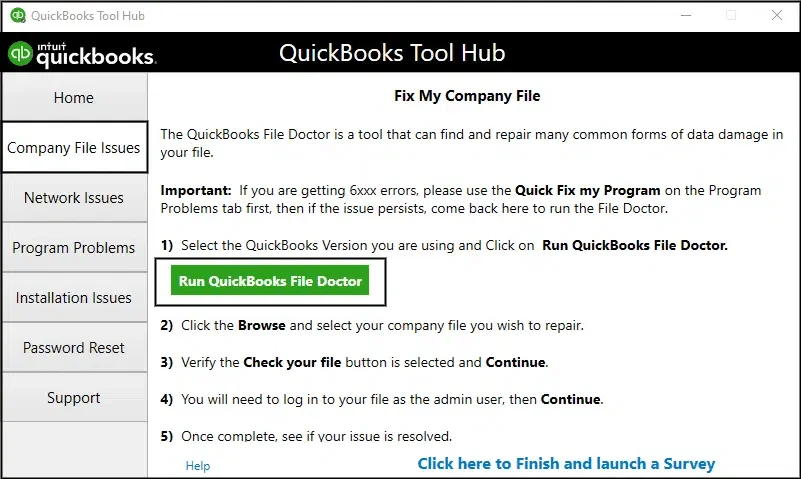
- Close QuickBooks all the way, and check it’s not still sitting in the background somewhere
- Grab the QuickBooks Tool Hub from Intuit if you don’t already have it
- Open it, go to Company File Issues
- Try Quick Fix my File first, it’s quick and won’t touch your data
- Still stuck? Run the full File Doctor scan. It’s slower, sometimes 15-20 minutes, so don’t jump to it unless the quick version failed
Fix 3: Check Who Can Actually Open the File
QuickBooks seeing a file and being allowed to open it aren’t the same thing.
- Right-click the folder holding your company file, go to Properties, then Security
- Make sure your account has Full Control, not just Read
- Right-click the .QBW file itself, open Properties, confirm Read-only isn’t checked
- If the file lives in Dropbox, OneDrive, or something like that, dig into that first. Those services lock files mid-sync sometimes, and QuickBooks just sees a locked file and gives up
Read More:- QuickBooks Company File Errors
Fix 4: Rename the .ND and .TLG Files
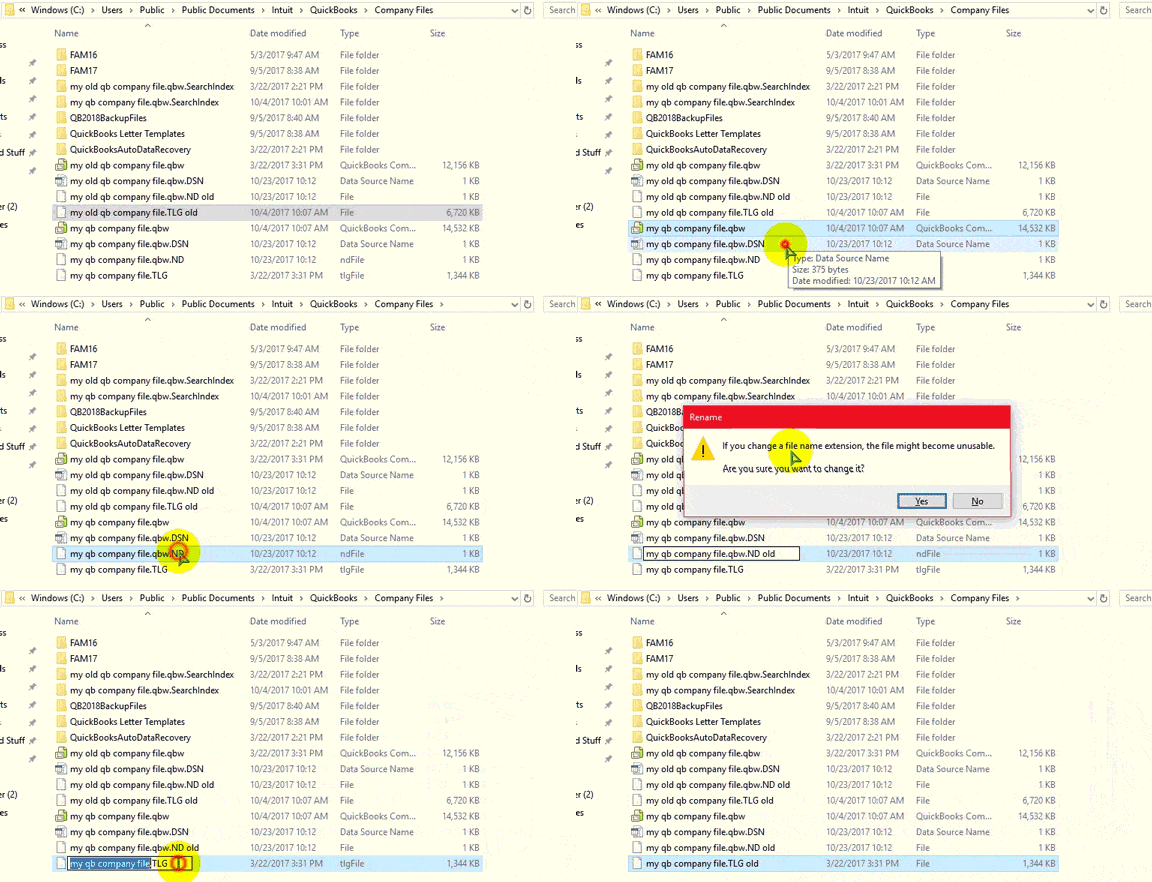
Every company file has two quiet little companion files next to it, same name, different endings: .ND and .TLG. Corrupt one of those and the main file can fail to open even though nothing’s actually wrong with it.
- Find both files in your company file’s folder
- Add .OLD to the end of each name, don’t delete them
- Reopen QuickBooks, try the file again
- It rebuilds fresh copies of both on its own
This alone fixes it more often than you’d expect, especially after a crash.
Fix 5: Restore a Backup
If you’ve been through everything above and nothing’s worked, the file’s probably damaged in a way the repair tools just can’t reach.
- File > Open or Restore Company > Restore a backup copy
- Point it to your most recent .QBB file
- Anything entered after that backup is gone, so treat this as the last resort, not the first move
No recent backup lying around? Set up scheduled ones now, before this happens again and you’ve got nothing to fall back on.
Read More:- QuickBooks Backup & Restore Errors
A Few Habits That Keep This From Coming Back
- Keep company files on a local drive or a proper network share, not a sync folder
- Run Verify Data every so often instead of waiting for something to already be broken
- Close QuickBooks the normal way, not by just shutting the laptop lid
- Don’t let updates pile up. A lot of these errors come from an old QuickBooks version bumping into a file that’s already been touched by a newer one somewhere
QuickBooks Error Code 6155 in Multi-user Mode
If QuickBooks Error Code 6155 in Multi-user Mode appears when several users are trying to access the same company file, check the following:
Check the Host Computer
Check Folder Permissions
Verify QuickBooks Database Server Manager
Check Hosting Settings
Check the Network Connection
Check for File Locking
Check the .ND File
Run QuickBooks Tool Hub
Test Single-user Mode
If You’ve Tried All of It
Most people are back in their file by the second or third fix on this list. If nothing’s working, or the file opens but something about the numbers looks off, that’s usually deeper corruption, and at that point a data recovery service makes more sense than the built-in tools. One quick way to narrow it down: try the same file on a different computer. Opens there? The file was always fine, it was the machine.
Conclusion
Although QuickBooks Error 6155 0 may seem to be a problem for which your company file cannot be saved forever, the problem may stem from other reasons. Most of the time, the cause is an outdated QuickBooks software installation, incorrect file location, permission issues, or the company file itself. The first thing you should do is see if QuickBooks can open up a sample file, and then try the above mentioned solutions in that order. Intuit also recommends recovering a recently backed-up version of your file or using the data recovery process if all the above measures fail.
When you have tried all the possible ways to solve this issue and failed, refrain from changing your company file further, because there is no point anymore without making a backup copy. It is the right time to get some professional help regarding QuickBooks from Accounting Assist Pro.
FAQs
What does QuickBooks Desktop error 6155 0 actually mean?
QuickBooks tried to open your file and couldn’t. Could be location, damage, or a rough install. Has nothing to do with your actual numbers or transactions.
Will I lose data fixing this?
Usually not. Updating QuickBooks or renaming the .ND/.TLG files won’t touch your transactions at all. The real risk only shows up if you end up needing an older backup.
Why did this happen right after I ran Verify Data?
It didn’t cause it. It found something that was probably already wrong. Take it as a sign to run File Doctor, not a reason to stop trusting the tool.
Could my antivirus be behind this?
Sometimes, yeah. Security software occasionally blocks QuickBooks from its own files if the folder isn’t whitelisted. Disable it briefly to test, and whitelist the folder if that turns out to be it, rather than leaving your antivirus off.
Should I just move the file somewhere else?
Only if permissions are genuinely the problem. And don’t pick Dropbox or OneDrive as the new spot, that’s exactly the kind of setup that causes this error to begin with.
