
If QuickBooks File Doctor will not open, check Tool Hub, Windows permissions, updates, and security settings first. Damaged installations, network problems, and blocked connections can prevent the tool from working correctly. Intuit recommends using the latest QuickBooks Tool Hub on Windows and closing QuickBooks before opening it. You can also restart Tool Hub, run the tool manually, check your company file, or repair network settings. This guide explains each method clearly and shows what to do when normal troubleshooting fails.
What Is QuickBooks File Doctor?
QuickBooks File Doctor is a troubleshooting tool for QuickBooks Desktop company file and network problems. It can help diagnose damaged company files and certain connection issues. Intuit lists 6000 errors such as -6150, -6000-82, -6000-305, -6000-301, -6147, and -6130 among the problems it can address. It can also help when customer, vendor, or employee lists appear missing or blank.
The file doctor works through QuickBooks Tool Hub for current supported workflows. Users can select company file or network checks based on the problem they face. The file doctor quickbooks process also requires the correct administrator credentials for many scans.
What Problems Can QuickBooks File Doctor Fix?
The file doctor in quickbooks is designed for several company file and network problems. It does not repair every QuickBooks issue, so identify the problem before starting a scan.
Company File Corruption
- Damaged company files
- Company files that will not open
- Missing customer, vendor, or employee lists
- Certain data-related errors
Read More:- Fix QuickBooks Company File Errors
6000-Series Errors
- Error 6000-83
- Error 6000-77
- Error 6150
- Error 6190
- Error 6123
- Error 6147
H-Series and Multi-User Errors
- H202
- H505
- Multi-user connection problems
- Server and workstation communication issues
Network and Firewall Problems
- Blocked QuickBooks connections
- Firewall interference
- Incorrect folder permissions
- Database Server Manager problems
Other File Problems
- Company file access failures
- Network configuration issues
- Missing company file connections
- Problems requiring data recovery
Intuit specifically recommends File Doctor for several 6000-series errors and certain missing-list problems.
Why Is QuickBooks File Doctor Not Working?
QuickBooks File Doctor may fail when Tool Hub has installation problems or Windows blocks its components. An outdated QuickBooks version can also create compatibility problems.
Common causes include:
- Outdated QuickBooks Tool Hub
- Damaged Tool Hub installation
- Windows permission restrictions
- Firewall blocking QuickBooks
- Antivirus interference
- Network connection problems
- Damaged QuickBooks installation
- Database Server Manager issues
- Pending Windows updates
- Company file corruption
- Incorrect hosting settings
The file doctor can also appear stuck while its supporting component downloads. Intuit says Tool Hub tools may download in the background for several minutes.
What Should You Check Before Fixing QuickBooks File Doctor?
Before using the file doctor in quickbooks, prepare the computer and company file. These checks prevent simple system problems from interrupting the diagnosis.
- Update QuickBooks Desktop
- Install the latest QuickBooks Tool Hub
- Close QuickBooks when required
- Check your internet connection
- Confirm administrator access
- Check available disk space
- Confirm the company file location
- Check whether another user has the file open
- Verify server hosting settings
- Review firewall and antivirus settings
Intuit currently recommends the latest Tool Hub version and Windows 11 64-bit for the best experience.
How to Download QuickBooks File Doctor?
The current quickbooks file doctor download process normally starts with QuickBooks Tool Hub. Intuit provides File Doctor through the Tool Hub rather than requiring users to search for random standalone downloads.
QuickBooks File Doctor Download Through Tool Hub

Get into these easy steps to conduct a QuickBooks file doctor download.
- Get into the download section.
- You can also press Ctrl + J to access the downloaded files.
- Locate and open QuickBooksToolHub.exe.
- Accept the License Agreement.
- Click Next to continue.
- Consequently, pick the Install button.
- After this, click the Finish tab.
- Just access the QuickBooks tool hub.
Tip: Try to search for the tool hub on the search panel of your Windows desktop.
- The tool will be opened now.
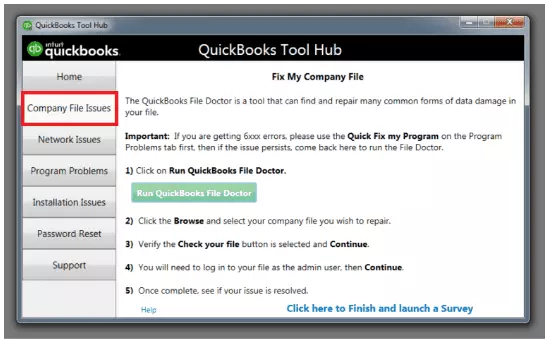
- Go to the Company File tab.
- Select Run QuickBooks File Doctor to begin the troubleshooting process.
Read More:- QuickBooks Tool Hub
How to Run QuickBooks File Doctor?
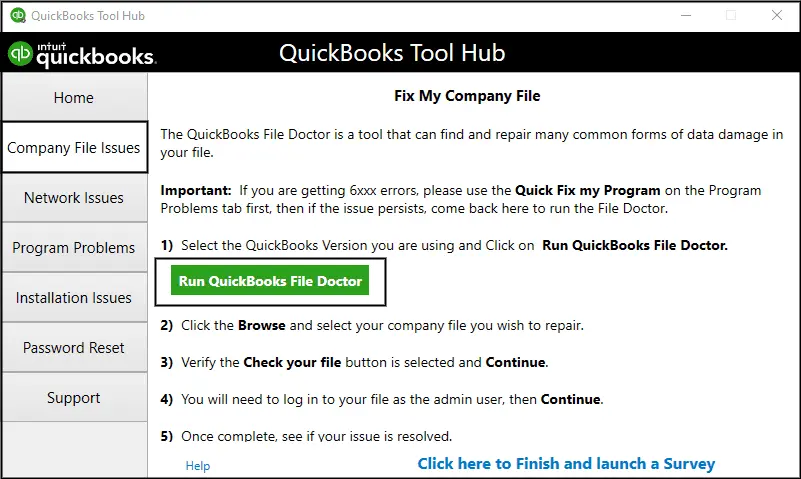
The simplest answer to how to run quickbooks file doctor is through QuickBooks Tool Hub. The process checks your selected company file and returns a diagnostic result.
Step 1: Open QuickBooks Tool Hub
- Close QuickBooks Desktop
- Open QuickBooks Tool Hub
- Select Company File Issues
Step 2: Select File Doctor
- Select Run QuickBooks File Doctor
- Wait for the tool to open
- Search Windows for QuickBooks Desktop File Doc if needed
Step 3: Select the Company File
- Choose the company file from the dropdown
- Select Browse when the file is not listed
Step 4: Choose a Diagnostic Option
- Select Check your file for company file problems
- Select Check your network for network problems
- Select the combined option when appropriate
Step 5: Enter Admin Credentials
- Enter the QuickBooks administrator password
- Select Next
Step 6: Let the Scan Finish
- Do not close the tool during the scan
- Wait for the result
- Open QuickBooks after the scan finishes
Intuit states that File Doctor may take up to one minute to open after selection.
How Do I Run QuickBooks File Doctor in My QuickBooks?
If you are asking how do i run quickbooks file doctor in my quickbooks, use the available File Doctor workflow for your QuickBooks Desktop setup.
Steps to Run File Doctor
- Open QuickBooks Desktop
- Keep the company file closed when instructed
- Open the File Doctor utility
- Select your company file
- Choose the required diagnostic check
- Enter your administrator password
- Start the diagnosis
- Wait for the result
The file doctor quickbooks workflow is useful when the company file will not open or shows supported errors. Intuit recommends running the tool through Tool Hub for current troubleshooting.
QuickBooks Desktop File Doctor Tool: Built-In vs Tool Hub Version
The QuickBooks Desktop File Doctor Tool may be accessed differently depending on your QuickBooks Desktop version and setup. Current Intuit support instructions focus on accessing File Doctor through Tool Hub.
| Feature | Tool Hub Access | Other Supported Access |
| Company file diagnosis | Yes | Depends on version |
| Network diagnosis | Yes | Depends on setup |
| Separate Tool Hub installation | Required | Not always |
| Administrator access | May be required | May be required |
| Best use | Current troubleshooting | Version-specific workflows |
The QuickBooks File Doctor Tool is especially useful when Tool Hub identifies a company file or network problem. Always follow the workflow supported by your installed QuickBooks version.
How to Fix QuickBooks File Doctor Won’t Open?
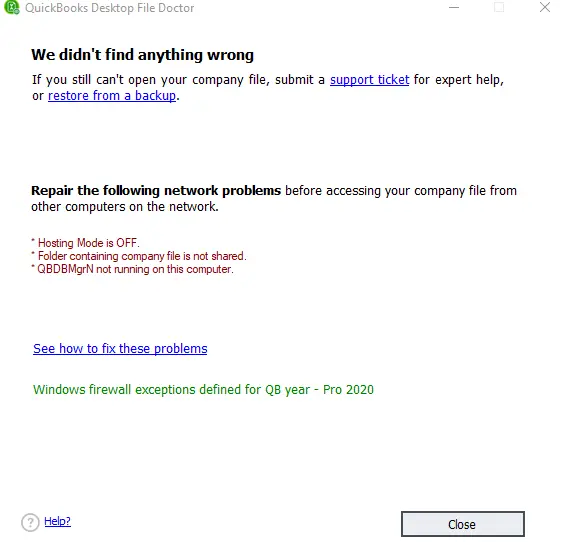
When QuickBooks File Doctor refuses to open, start with Tool Hub instead of repeatedly clicking the same option. Intuit says users can search Windows for QuickBooks Desktop File Doc when File Doctor does not open normally.
1. Restart QuickBooks Tool Hub
- Close Tool Hub
- Reopen it
- Run it with administrator access
- Try File Doctor again
2. Reinstall QuickBooks Tool Hub
- Remove the damaged installation
- Download the latest Tool Hub
- Install it again
- Restart Windows
3. Repair Windows Components
- Check required Windows components
- Install pending system updates
- Restart the computer
4. Update QuickBooks
- Open QuickBooks
- Check for available updates
- Install the latest release
- Restart QuickBooks
5. Check Antivirus and Firewall
- Review security software permissions
- Allow required QuickBooks connections
- Temporarily test security settings when appropriate
- Restore protection after testing
How to Fix QuickBooks File Doctor Freezing During the Scan?
A frozen quickbooks file doctor scan usually shows no progress for an extended period. Start by checking whether the application is still responding before closing it.
- Restart the scan
- Close unnecessary programs
- Check available disk space
- Check security software
- Copy the company file locally
- Run the diagnostic again
- Use data recovery options if corruption remains
Avoid interrupting a scan immediately because the progress display may not change continuously.
How to Fix QuickBooks File Doctor Scan Stopping Midway?
When the scan stops midway, check the company file location, system resources, and network connection. The file doctor in quickbooks may take longer when the file is large or the connection is unstable.
- Check free disk space
- Check network stability
- Use a local company file copy
- Restart the scan
- Check for severe data damage
- Use a recent backup if necessary
How to Fix QuickBooks File Doctor File Not Found Error?
A file doctor quickbooks scan cannot work when the selected company file cannot be accessed. Confirm the file path before starting another scan.
- Verify the company file location
- Select Browse and locate the correct file
- Check Windows permissions
- Avoid problematic network paths
- Test a local copy
- Confirm the file is not locked
- Close QuickBooks on other computers
For network files, Intuit requires appropriate Windows permissions and working server connectivity.
How to Fix QuickBooks File Doctor Network Connectivity Error?
Network problems usually involve hosting, firewall rules, permissions, or Database Server Manager. The QuickBooks File Doctor Tool can help identify the affected area.
Check Database Server Manager
- Open Tool Hub
- Select Network Issues
- Open QuickBooks Database Server Manager
- Scan the company file folder
Check Firewall
- Review firewall permissions
- Allow required QuickBooks connections
- Check inbound rules
- Check outbound rules
Test the Network
- Confirm the server is reachable
- Check shared folder permissions
- Test the host computer
- Try multi-user mode again
Intuit identifies hosting, folder permissions, TCP/IP connectivity, and firewall settings as common network factors.
How to Fix Multi-User Problems With QuickBooks File Doctor?
The QuickBooks Desktop File Doctor Tool can help diagnose certain multi-user connection problems. Errors H202 and H505 can occur when workstations cannot communicate with the host server.
Run File Doctor on the Host
- Open Tool Hub on the server
- Select Company File Issues
- Run File Doctor
- Select Check your network
- Enter administrator credentials
- Complete the scan
- Switch multi-user mode afterward
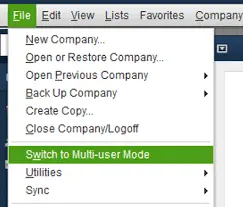
If the problem continues, check Database Server Manager, hosting, folder permissions, and firewall settings.
How Long Does QuickBooks File Doctor Take?
If you ask how long does quickbooks file doctor take, Intuit says the scan can take up to 10–15 minutes depending on file size. Another current Intuit support page says some firewall-related scans can take up to five minutes. Therefore, scan duration varies by task and file.
Factors That Affect Scan Time
Company File Size
Larger company files generally require more time to scan and process.
Network Speed
A network scan can take longer when the server connection is slow or unstable.
Type of Problem
Severe data damage can require more processing than a simple network check.
Do not assume a slow scan has failed. Wait for the process to finish unless the application clearly stops responding.
What Happens After QuickBooks File Doctor Finishes?
After QuickBooks File Doctor finishes, reopen QuickBooks and test the company file. The result may show that the issue was repaired, remains unresolved, or needs additional troubleshooting.
File Doctor Finds No Problem
- Open the company file
- Check important reports
- Run Verify Data
- Test normal QuickBooks functions
File Doctor Finds an Issue but Cannot Fix It
- Restore a recent backup
- Use Auto Data Recovery
- Review the specific error
- Seek professional data recovery when necessary
File Doctor Repairs the Problem
- Open the company file
- Verify important data
- Test customer and vendor lists
- Test multi-user access
What to Do If QuickBooks File Doctor Cannot Repair the Company File?
If QuickBooks File Doctor cannot repair the file, do not repeatedly run the same scan. A recent backup provides a safer recovery option when the company file remains damaged.
Restore a QuickBooks Backup
- Open QuickBooks
- Select File
- Choose Open or Restore Company
- Select Restore a Backup Copy
- Choose Local Backup
- Select the QBB file
- Choose the destination
- Restore the company file
- Test the restored data
Use Auto Data Recovery
Auto Data Recovery can provide another recovery route when the original company file remains damaged. Compare the recovered information with your available backup before continuing.
Seek Professional Assistance
Professional help is appropriate when important financial records remain inaccessible or repeated repairs fail.
What Should You Do After Fixing the QuickBooks File?
After the quickbooks file doctor completes successfully, confirm that the company file works correctly. Do not assume that opening the file alone proves everything is fixed.
- Create a fresh backup
- Run Verify Data
- Open important reports
- Check customer and vendor lists
- Test a sample transaction
- Test multi-user access
- Confirm network connectivity
- Keep the repaired backup secure
How to Prevent QuickBooks File Doctor Problems?
Regular maintenance reduces the need for emergency troubleshooting. Keep QuickBooks updated and maintain reliable backups before problems affect your accounting data.
- Update QuickBooks regularly
- Keep Tool Hub current
- Maintain regular backups
- Verify company data periodically
- Maintain stable network connections
- Keep sufficient disk space
- Configure firewall permissions correctly
- Avoid sudden shutdowns
- Test backups periodically
- Store company files on supported local or server storage
Intuit advises against using external or online file-hosting services for QuickBooks company files in multi-user environments.
QuickBooks File Doctor Limitations
The QuickBooks Desktop File Doctor Tool does not repair every QuickBooks problem. It focuses on supported company file and network issues.
Important limitations include:
- It cannot resolve every data corruption problem
- Severe damage may require data recovery
- Administrator credentials may be necessary
- Network diagnosis depends on correct hosting
- Firewall settings can still require manual changes
- Some problems need Database Server Manager
- Compatibility depends on your QuickBooks environment
- Windows is required for the current Tool Hub workflow
Conclusion
QuickBooks File Doctor provides a practical way to diagnose supported company file and network problems in QuickBooks Desktop. The quickbooks file doctor works through current Tool Hub workflows and can address several common errors. Use the correct diagnostic option, check administrator access, and allow the scan to finish. If the tool cannot repair the file, use a reliable backup or recovery option. Accounting Assist Pro can also provide professional assistance with QuickBooks-related issues when standard troubleshooting does not resolve the problem. Always verify the company file after repair and maintain regular backups to reduce future data problems.
Frequently Asked Questions
What is QuickBooks File Doctor?
QuickBooks File Doctor is a QuickBooks Desktop troubleshooting tool. It checks supported company file and network problems and provides diagnostic results.
Why is QuickBooks File Doctor not working?
The qb file doctor may fail because of Tool Hub problems, permissions, security software, outdated software, or network settings. Restarting or reinstalling Tool Hub can help.
How do I run QuickBooks File Doctor in my QuickBooks?
If you ask how do i run quickbooks file doctor in my quickbooks, open Tool Hub and select Company File Issues. Then choose Run QuickBooks File Doctor.
How long does QuickBooks Desktop File Doctor take?
For how long does quickbooks Desktop file doctor take, Intuit says some scans can take up to 10–15 minutes. File size and the type of diagnosis affect the duration.
How do I download QuickBooks File Doctor?
The quickbooks file doctor download process starts with the latest QuickBooks Tool Hub. Install Tool Hub, open Company File Issues, and select File Doctor.
Does QuickBooks File Doctor fix 6000-series errors?
Yes, File Doctor can help with several supported 6000-series errors. Intuit specifically lists errors including 6150, 6000-82, 6000-305, 6000-301, 6147, and 6130.
Can File Doctor fix H202 and H505?
The QuickBooks File Doctor Tool can help diagnose network problems related to H202 and H505. You should also check hosting, Database Server Manager, permissions, and firewall settings.
Can I use QuickBooks File Doctor on Mac?
The current QuickBooks File Doctor workflow described by Intuit uses QuickBooks Tool Hub for Windows. Check Intuit support for your specific operating system and product version.
What should I do if File Doctor cannot repair my company file?
Restore a recent backup or use Auto Data Recovery when available. Seek professional assistance when critical financial data remains inaccessible.
