
QuickBooks Error 15203 is an update failure, the kind that shows up right when QuickBooks is trying to pull down a payroll or software update from Intuit and can’t finish the job. You’ll get a message saying the update didn’t complete, usually with zero explanation for why, which is half the reason this one’s so annoying to deal with.
Here’s the thing about payroll updates specifically. They’re not some nice-to-have background task. They carry the tax tables and fixes QuickBooks needs to get your numbers right, so when this error blocks one, you’re not just looking at a paused download. You’re looking at software that’s about to fall a step behind on data it actually needs, and that tends to show up later in a completely different-looking problem, like a paycheck that’s suddenly calculating wrong for no apparent reason.
So what’s actually breaking? QuickBooks reaches out to Intuit, starts grabbing update files, and then has to check that what it downloaded is legit before installing it. Break that chain anywhere, a bad connection, a blocked security check, a system clock that’s off, and you land on 15203. It’s got siblings too. Errors like 15106, 15241, and 15270 come from a similar family of causes, mostly connection and verification trouble. But 15203 leans specifically toward the verification part failing, which actually tells you something useful: the download probably worked fine. QuickBooks just doesn’t trust what it got.
What’s Causing QuickBooks Error Code 15203
Connection trouble during the update is the most common one by a wide margin. Drop the connection or slow it way down mid-download, and QuickBooks can’t finish verifying what came through. Right behind that sits digital signature verification failing, which is particularly tied to this exact error. QuickBooks wants to confirm an update genuinely came from Intuit before it’ll install anything, and if your system clock’s wrong, or a local security certificate’s expired, that check fails even when the actual update file is completely fine.
Firewalls and antivirus tools cause their fair share too, especially right after a security update quietly rewrites what’s allowed through without telling you. Internet Explorer settings matter more than they should, honestly, since QuickBooks Desktop still leans on IE’s connection config for updates no matter what browser you actually use. Running QuickBooks without admin rights can block the install step even after a clean download. And sometimes the cause is almost boring: a half-downloaded file left over from a previous crash, or a QuickBooks version old enough that it’s genuinely lost compatibility with how updates work now.
How You’ll Notice It
This one shows up specifically during a payroll or maintenance update, not scattered randomly elsewhere. The update often looks totally normal at first: files moving, progress bar climbing, everything fine, right up until verification stalls and the error just appears. Most people’s first move is retrying the exact same update two or three times, assuming it’ll work if they’re just patient enough. It usually won’t, because retrying does nothing about whatever broke verification the first time around. A sluggish QuickBooks during updates, or an update window that closes itself before finishing, are both smaller signs pointing the same direction.
Read More:- Fix QuickBooks Update Errors
Fixing QuickBooks Error 15203, Step by Step
Go through these in order. Most people find the fix somewhere in the first four.
1. Start with the internet connection
- Check whether your internet is working properly.
- Restart your router if the connection is unstable.
- Try opening a few websites to confirm the connection.
- Reopen QuickBooks and try the update again.
2. Check the system clock next
- Right-click the Windows clock.
- Select Adjust date and time.
- Turn on Set time automatically.
- Select the correct time zone.
- Restart QuickBooks and try updating again.
3. Reset the update process
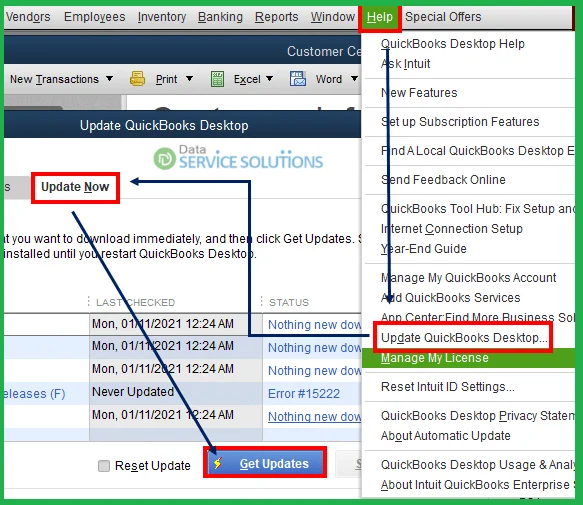
- Open QuickBooks Desktop.
- Go to Help > Update QuickBooks Desktop.
- Select the Update Now tab.
- Check Reset Update.
- Click Get Updates.
- Restart QuickBooks after the update finishes.
4. Run QuickBooks with admin rights
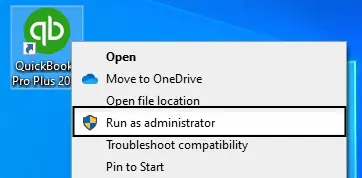
- Close QuickBooks Desktop.
- Right-click the QuickBooks icon.
- Select Run as administrator.
- Click Yes if Windows asks for permission.
- Try downloading the update again.
5. Check Firewall Settings
- Open your Windows Firewall or security software.
- Check whether QuickBooks is being blocked.
- Allow QuickBooks through the firewall if necessary.
- Try running the update again.
6. Use QuickBooks Tool Hub

- Open QuickBooks Tool Hub.
- Select Installation Issues.
- Choose the appropriate diagnostic tool.
- Follow the on-screen instructions.
- Restart your computer after the process is complete.
7. Restart Your Computer
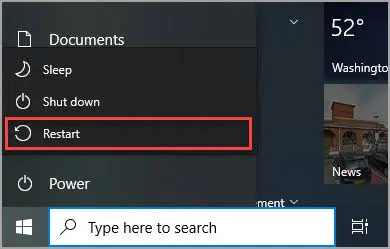
- Close QuickBooks and other running applications.
- Restart your computer.
- Open QuickBooks after Windows loads.
- Try downloading the update again.
8. Try the Tool Hub if you’re still stuck
- Open the QuickBooks Tool Hub.
- Choose the tool that matches your issue.
- Run the tool and follow the steps.
- Restart QuickBooks after it finishes.
- Open QuickBooks and check if the issue is fixed.
If none of that clears it and you’re also noticing QuickBooks acting slow or crashing in general, it might be worth a look at the company file itself. Our guide on QuickBooks File Doctor covers that, since file problems sometimes disguise themselves as update failures.
If You’re Running This Across Multiple Computers
Managing updates centrally across a few workstations? QB error 15203 sometimes traces back to a permissions or network issue on the server itself rather than any one machine acting up. Worth confirming the server updates cleanly before chasing the problem across every workstation individually. Fixing it at the server level often clears the whole thing in one go.
Stopping It From Coming Back
Let the system clock sync automatically instead of setting it manually once and forgetting it exists, since drift is a sneaky, common cause of these verification failures. Run updates over a stable connection when you can, rather than whatever Wi-Fi happens to be available. And check your firewall exceptions after any big Windows update, since those have a habit of quietly resetting rules that used to be fine.
When This Is Genuinely Above Your Pay Grade
Most of this clears up with what’s above. But if you’re on a locked-down company network with IT controlling the firewall, or you just don’t have admin access to your own machine, some of this isn’t a solo job. That’s a reasonable moment to loop in whoever runs your network instead of hitting the same wall repeatedly.
Bottom line, this error almost always comes down to something interrupting the verification chain: bad connection, wrong clock, a firewall being overprotective, missing admin rights. Work the list above in order, and whatever actually fixes it, write it down somewhere you’ll find again. AccountingAssistPro can also help you troubleshoot and resolve these update-related issues when you need additional assistance. These update errors love to resurface after any system change, and knowing exactly where to look first saves real time down the road.
FAQs
1. Why does Error code 15203 in QuickBooks keep coming back after I’ve already fixed it?
Usually something from the original cause didn’t fully resolve — a firewall setting resetting itself, or a connection that’s still unstable. Worth checking that the antivirus exception actually held.
2. Does QuickBooks Online run into the same problem?
No. This is a Desktop-specific issue since Online handles its updates server-side.
3. Is it okay to just skip the update for now?
Briefly, yes. But payroll updates carry current tax tables, so putting off too many leads to calculation errors down the line. Not something to ignore for long.
4. Does reinstalling QuickBooks actually solve it?
Sometimes, mainly when a corrupted install or bad certificate is the real issue. It’s a last resort though, not the first thing to try, and most people never end up needing it.
5. Could this mean malware’s involved?
Unlikely. It’s almost always tied to update files, permissions, or a weak connection rather than malware. If your antivirus is flagging something separately, look into that on its own — the two usually aren’t connected.
6. Does this mean my company file’s damaged?
No. This is about the update process specifically, not the file. Actual file damage is a different issue and wouldn’t produce this error.
7. Can a wrong system clock really cause this?
Yes, and it happens more than you’d think. Signature verification leans hard on accurate system time, so even small drift can set this off.
8. Should I just keep retrying the update?
Not really. If something specific broke verification the first time, retrying without fixing that just gives you the same result again.
