
Windows Firewall blocking QuickBooks usually comes down to Windows stopping the connections QuickBooks needs. This can disrupt a few key things, like opening company files, getting updates, or using online features. This can also happen if the firewall rules were set wrong on the workstation, then the workstation may not be able to reach the company file server.
What Does Windows Firewall Blocking QuickBooks Mean?
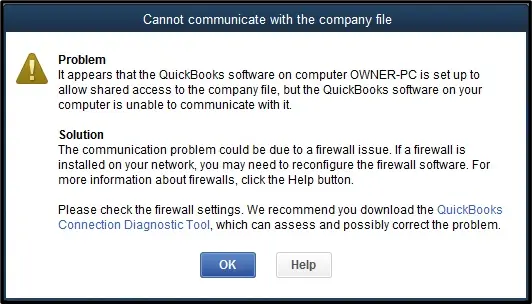
Windows Firewall blocking QuickBooks means Windows is stoping required QuickBooks traffic from passing through approved network paths. Windows Firewall protects computers by controlling incoming and outgoing network traffic.
- Inbound rules control traffic entering your computer
- Outbound rules control traffic leaving your computer
- Port rules allow or restrict traffic through specific network ports
- Program rules allow specific QuickBooks executable files to communicate
- Network profiles determine where a firewall rule applies
- Blocked ports can stop workstations from reaching the host computer
- Blocked programs can prevent QuickBooks services from communicating
A Windows Firewall block QuickBooks problem can therefore affect more than internet access.
What Causes Windows Firewall Blocking QuickBooks?
Many settings can stop QuickBooks from reaching required files, services, or ports even when the application opens normally on Windows.
Common causes include:
- Incorrect Windows Firewall settings
- Required QuickBooks ports blocked by Windows
- QuickBooks executable files missing from allowed programs
- Incorrect inbound firewall rules
- Incorrect outbound firewall rules
- Outdated QuickBooks Desktop software
- Damaged QuickBooks installation files
- Third-party antivirus restrictions
- Third-party firewall restrictions
- Multiple QuickBooks Desktop versions using separate ports
- Incorrect company file network settings
- Incorrect hosting configuration
- Database Server Manager problems
- Folder sharing or permission issues
A Windows Firewall block QuickBooks issue can also appear after system or security changes.
What Are the Signs of Windows Firewall Blocking QuickBooks?
Watch for these signs of firewall blocking QuickBooks:
- QuickBooks cannot open a company file stored on another computer
- Multi-user mode fails to connect
- Workstations cannot communicate with the host computer
- QuickBooks displays network-related errors
- Company file access becomes unavailable over the network
- QuickBooks cannot connect to required services
- QuickBooks updates fail because connections are restricted
- QuickBooks Database Server Manager cannot communicate correctly
- File Doctor reports network or firewall problems
- Messages mention failed network diagnostics
- Error H202 appears when accessing a company file
- Errors H101, H303, or H505 appear during multi-user access
A Windows Firewall block QuickBooks problem is especially likely when local access works but network access fails.
How to Identify Windows Firewall Blocking QuickBooks
Checking rules, ports, programs, and security logs helps confirm whether the firewall is responsible before you change settings on Windows.
Use these checks:
- Open the company file directly on the host computer
- Try opening the same file from a workstation
- Check Windows Firewall inbound rules
- Check Windows Firewall outbound rules
- Review allowed QuickBooks programs
- Check the required QuickBooks ports
- Open QuickBooks Database Server Manager
- Select the Port Monitor tab
- Compare the displayed port with your firewall rule
- Review third-party antivirus logs
- Check third-party firewall application permissions
- Run QuickBooks File Doctor
- Test multi-user mode after each major change
These checks help isolate firewall rules before you make broader changes to QuickBooks network settings or alter unrelated security controls.
Prerequisites Before Fixing Windows Firewall Blocking QuickBooks
Preparation prevents mistakes because firewall changes can affect other applications, network users, and existing Windows security policies during fixing steps.
Before changing firewall settings:
- Sign in with Windows administrator rights
- Close QuickBooks Desktop
- Confirm your QuickBooks Desktop year
- Identify the QuickBooks installation folder
- Locate the company file
- Identify the host computer
- Identify the QuickBooks Database Server Manager version
- Check the assigned QuickBooks port
- Note your existing firewall rules
- Check for third-party antivirus software
- Check for third-party firewall software
- Keep your QuickBooks administrator password available
- Confirm that other network applications are working
Keep a record of existing rules before making changes. This makes it easier to restore previous settings if another application loses network access.
How to Resolve Windows Firewall Blocking QuickBooks
A clear repair order starts with built-in QuickBooks tools before moving toward manual firewall rules and security exceptions when needed.
Follow these methods in order:
- Run QuickBooks File Doctor
- Create inbound firewall port rules
- Find the QuickBooks dynamic port
- Create outbound firewall port rules
- Allow QuickBooks programs through Windows Firewall
- Check third-party antivirus and firewall settings
1. Run QuickBooks File Doctor
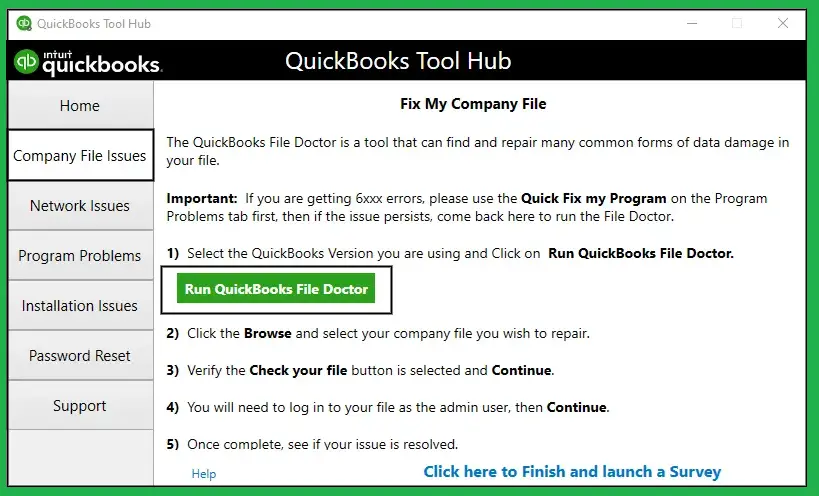
- Close QuickBooks Desktop
- Open QuickBooks Tool Hub
- Select Company File Issues
- Select Run QuickBooks File Doctor
- Select the affected company file
- Choose Check your file and network
- Enter the QuickBooks administrator password
- Select Next
- Allow the scan to finish
- Reopen QuickBooks
- Test the company file connection
- Test multi-user mode again
2. Create Inbound Firewall Port Rules
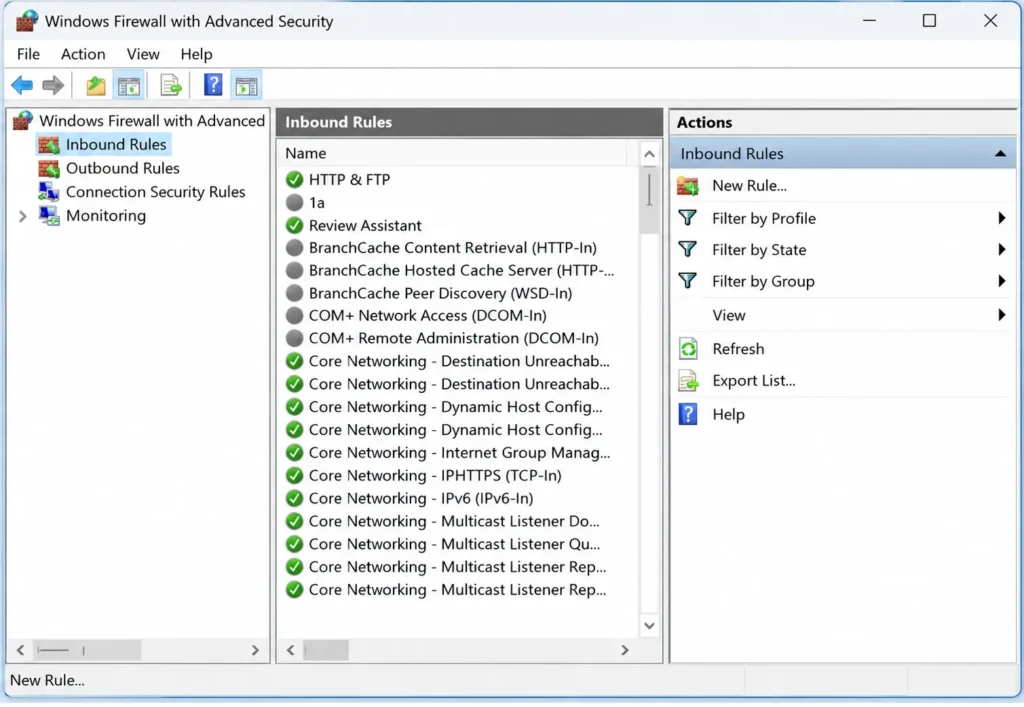
- Open the Windows Start menu
- Search for Windows Firewall
- Open Windows Firewall with Advanced Security
- Select Inbound Rules
- Select New Rule
- Choose Port
- Select TCP
- Enter the required QuickBooks ports
- Select Allow the Connection
- Select the required network profiles
- Give the rule a clear name
- Select Finish
- Test QuickBooks again
Windows Firewall blocking QuickBooks can continue if the rule uses the wrong port or network profile.
3. Find the QuickBooks Dynamic Port
QuickBooks Desktop 2019 and later versions use dynamic ports assigned during installation.
To find your assigned port:
- Open the Windows Start menu
- Search for QuickBooks Database Server Manager
- Open the application
- Select Port Monitor
- Find your QuickBooks Desktop version
- Locate the displayed Port Number
- Record the number
- Use that number in your firewall exception
- Select Scan Folders if you renew the port
- Select Scan Now after renewing the port
4. Create Outbound Firewall Port Rules
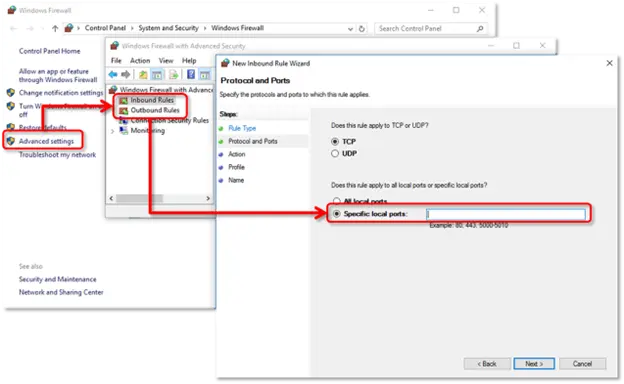
- Open Windows Firewall with Advanced Security
- Select Outbound Rules
- Select New Rule
- Choose Port
- Select TCP
- Enter the required QuickBooks ports
- Select Allow the Connection
- Select the appropriate network profiles
- Enter a clear rule name
- Select Finish
- Reopen QuickBooks
- Test network communication
A Windows Firewall block QuickBooks issue can remain when inbound traffic works but required outgoing traffic stays restricted.
5. Allow QuickBooks Programs Through Windows Firewall
QuickBooks also uses executable files for different tasks. Intuit lists several programs that may require firewall exceptions.
- Open Windows Firewall with Advanced Security
- Select Inbound Rules
- Select New Rule
- Choose Program
- Select This Program Path
- Select Browse
- Locate the required QuickBooks executable
- Select Allow the Connection
- Choose the relevant network profiles
- Name the rule clearly
- Select Finish
- Repeat the process under Outbound Rules
- Repeat for other required QuickBooks programs
Common executable files include:
- QBW32.exe
- QBDBMgrN.exe
- QBServerUtilityMgr.exe
- QBCFMonitorService.exe
- QBLaunch.exe
- QBUpdate.exe
- QuickBooksMessaging.exe
- DBManagerExe.exe
Do not add random executable files. Use the files associated with your installed QuickBooks version and Intuit’s current guidance.
6. Check Third-Party Antivirus and Firewall Settings
Windows Firewall may not be the only security layer controlling QuickBooks network access.
Check these areas:
- Open your antivirus application
- Find Firewall
- Find Network Protection
- Find Application Permissions
- Check blocked applications
- Allow required QuickBooks programs
- Add required QuickBooks ports
- Review recent security events
- Check quarantine records for QuickBooks files
- Avoid permanently disabling security protection
- Restart QuickBooks after making changes
- Test the company file connection
A Windows Firewall block QuickBooks diagnosis can be incomplete when another security program is actually blocking the connection.
How to Prevent Windows Firewall Blocking QuickBooks
Preventive maintenance keeps approved QuickBooks connections available while reducing unnecessary firewall changes and repeated network fixing for users regularly working.
Follow these practices:
- Keep QuickBooks Desktop updated
- Keep Windows updated
- Review firewall rules after major Windows updates
- Keep the correct QuickBooks ports allowed
- Maintain required program exceptions
- Check antivirus permissions regularly
- Keep the host computer properly configured
- Use QuickBooks Database Server Manager for network checks
- Keep company file folders correctly shared
- Document firewall rules for each QuickBooks version
- Remove outdated rules when old QuickBooks versions are removed
- Test multi-user mode after major configuration changes
- Use QuickBooks Tool Hub when network problems appear
Conclusion: Windows Firewall Blocking QuickBooks
Windows Firewall blocking QuickBooks can affect company file access, updates, and network services. Start with QuickBooks Tool Hub and File Doctor before changing firewall rules.If you still face connectivity issues, AccountingAssistPro can help identify QuickBooks firewall and network-related problems. Test QuickBooks after every major change and keep a record of approved firewall rules. This step keeps fixes focused while preserving necessary Windows security.
FAQs
Can Windows Firewall block QuickBooks?
Yes. Windows Firewall can block QuickBooks programs or network ports. These restrictions can prevent company file access, multi-user connections, updates, and communication between QuickBooks and the host computer.
How do I know if Windows Firewall is blocking QuickBooks?
Check whether QuickBooks works on the host but fails from workstations. Then review firewall rules, allowed programs, assigned ports, and security logs for blocked QuickBooks connections.
Which QuickBooks ports should I allow?
Required ports depend on your QuickBooks Desktop version. Use the ports assigned to your installed version instead of opening unnecessary ports that could increase network security risks.
How do I find my QuickBooks port?
Open QuickBooks Database Server Manager and select Port Monitor. Find your QuickBooks Desktop version and record the port number displayed for that installation.
Can antivirus software block QuickBooks?
Yes. Antivirus programs and third-party firewalls can restrict QuickBooks applications or network traffic. Check application permissions, blocked items, firewall settings, and recent security events before changing Windows rules.
Does QuickBooks Tool Hub fix firewall problems?
QuickBooks Tool Hub can diagnose company file and network problems. Its File Doctor tool checks network-related issues before you make manual firewall changes or create security exceptions.
What QuickBooks errors can firewall problems cause?
Firewall restrictions can contribute to H202, H303, H505, and H101 errors. These errors may appear when QuickBooks workstations cannot communicate properly with the company file host.
Should I disable Windows Firewall to fix QuickBooks?
No. Keep Windows Firewall enabled and create specific exceptions for required QuickBooks ports and programs. This approach maintains security while allowing necessary QuickBooks network communication.
Can multiple QuickBooks versions need separate firewall rules?
Yes. Different QuickBooks Desktop versions can use separate assigned ports. Configure firewall rules for each installed version so every required QuickBooks installation can communicate correctly.
Can firewall settings affect QuickBooks multi-user mode?
Yes. Multi-user mode depends on network communication between workstations and the host computer. Blocked ports, programs, or incorrect rules can prevent users from opening shared company files.

3 Comments