
QuickBooks Abort Error occurs when QuickBooks Desktop suddenly closes or loses its connection to a company file. This problem can affect accounting work and leave recent changes unsaved. Damaged settings, network interruptions, firewall restrictions, and company file problems can cause this issue. The good news is that you can fix this problem by checking settings of hosting, installation file repairing, and company file repairing.
What Does QuickBooks Abort Error Mean?
An Abort Error in QuickBooks means the program stops working unexpectedly and may close without saving recent changes. This can happen while opening a company file, entering transactions, or working with other users. QuickBooks may display the following message when it loses its connection to the company file:
“The connection to the company files has been lost. QuickBooks Software must close immediately. Any unsaved data will need to be re-entered”.
This warning means QuickBooks cannot continue working with the affected file.
What Are the Signs of QuickBooks Abort Error?
Recognizing the warning signs helps you find the problem before it interrupts more work.
- QuickBooks Desktop closes without warning
- The program freezes while entering transactions
- The company file disconnects during active work
- QuickBooks displays an unrecoverable error
- The application crashes while saving company data
- Other users lose access to the shared company file
- QuickBooks closes when opening a company file
- The application stops responding after the computer wakes from sleep
Read More:- Fix QuickBooks Company File Errors
How to Identify QuickBooks Abort Error?
Check when the problem occurs and whether it affects one file or several files.
- Note the exact error message displayed on the screen
- Check whether the problem occurs in single-user or multi-user mode
- Open a sample company file to test the QuickBooks program
- Ask another authorized user to access the same company file
- Check whether the company file opens from its original location
- Review recent software updates or security setting changes
- Determine whether the problem affects every company file
- Record whether the application closes while opening, saving, or editing transactions
If QuickBooks Abort Error When Opening Company File appears repeatedly, check the file location, permissions, and network connection first.
What Causes Abort Error QuickBooks?
Several problems can interrupt QuickBooks and cause it to close unexpectedly.
- A damaged or missing QBWUSER.INI file
- Corrupted company file data
- Antivirus software blocking QuickBooks connections
- Windows Firewall restricting required network traffic
- An incomplete or QuickBooks Installation Error
- Insufficient permissions for the company file folder
- Multiple computers hosting the same company file
- Different QuickBooks Desktop versions across computers
- Company files stored on disconnected drives or unreliable networks
- Windows sleep mode interrupting active file operations
- Damaged QuickBooks program components
- Network interruptions between the server and workstations
Prerequisites Before Fixing QuickBooks Abort Error
Prepare your system and protect your financial records before starting any repair.
- Back up your company file: Save a separate copy in a safe location
- Close QuickBooks: Ask other users to finish their work before maintenance
- Check the file location: Confirm where the company file is stored
- Check administrator access: Make sure you can change the required Windows settings
- Confirm software versions: Check the QuickBooks Desktop release installed on each computer
- Review security settings: Identify the antivirus and firewall protecting your system
- Check network stability: Confirm the server and workstations can communicate
- Keep Tool Hub ready: Download it from the official Intuit support page
- Protect existing backups: Do not overwrite your only working backup
- Check power settings: Avoid sleep or shutdown during company file operations
Solution 1: Check Antivirus Restrictions and Windows Security
Security software can block QuickBooks connections. Check the rules first instead of leaving your computer unprotected.
Steps to check antivirus settings
- Save your work and close QuickBooks Desktop
- Open the antivirus program installed on your computer
- Navigate to its Settings, Protection, or Firewall section
- Find application control and real-time protection settings
- Check whether QuickBooks or its related services are blocked
- Review the antivirus provider’s instructions for creating an approved exception
- Temporarily change a setting only when necessary for testing
- Restart the computer if the program requires it
- Open QuickBooks and test the company file
- Restore normal protection immediately after testing
- If the problem disappears, keep a suitable exception instead of disabling protection permanently
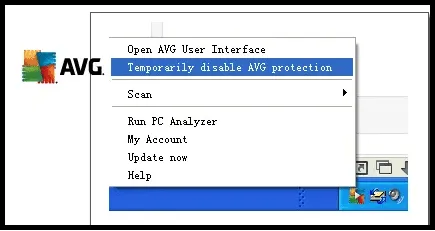
Steps to check Windows Security
- Open the Windows Start menu
- Search for Windows Security and open the application
- Select Firewall & network protection
- Check the active network profile
- Review existing rules for QuickBooks
- Confirm that the required QuickBooks programs have suitable permissions
- Ask your administrator to approve changes if the computer is managed
- Open QuickBooks again and test the connection
Solution 2: Turn Off Hosting Access on Workstations
Incorrect hosting settings can interrupt shared company file access. In a standard setup, only the designated server should host the file.
Steps to correct hosting settings
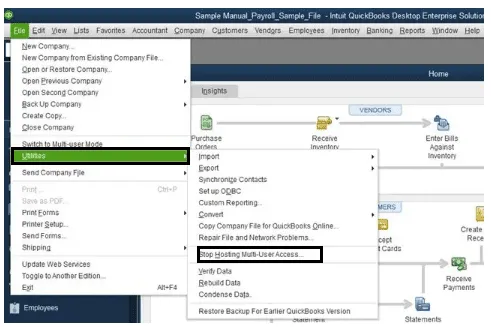
- Open QuickBooks Desktop on a workstation
- Sign in to the company file if required
- Select File from the top menu
- Open Utilities
- Select Stop Hosting Multi-User Access if that option appears
- Confirm the change if QuickBooks requests approval
- Repeat the check on other workstations that should not host the file
- Open QuickBooks on the designated server
- Select File > Utilities
- Confirm that hosting is enabled on the server when required
- Return to the workstation
- Select File > Switch to Multi-user Mode if needed
- Ask another authorized user to test access
Solution 3: Run QuickBooks Install Diagnostic Tool
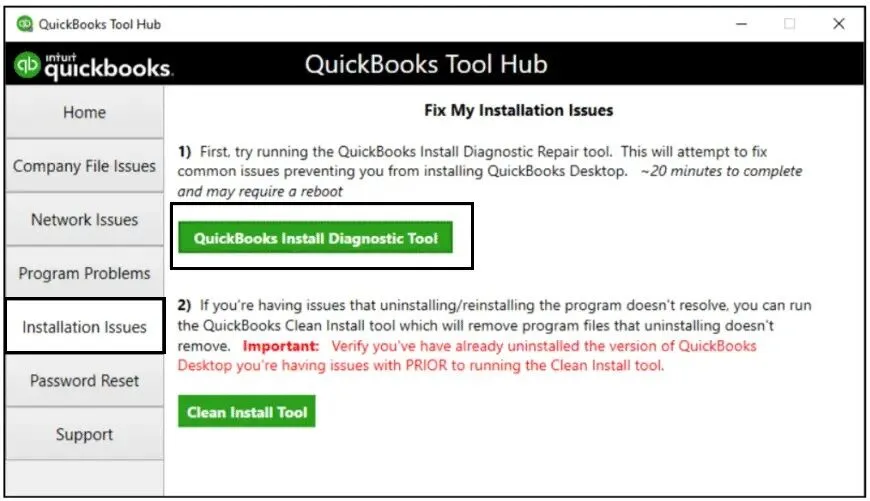
The Install Diagnostic Tool can help repair certain QuickBooks installation problems. Use QuickBooks Tool Hub to access this utility.
Step 1: Download and install QuickBooks Tool Hub

- Close QuickBooks Desktop on your computer
- Visit the official QuickBooks Tool Hub support page
- Download the latest available installer
- Save the file in your Downloads folder or another easy-to-find location
- Open QuickBooksToolHub.exe
- Follow the installation instructions
- Accept the license terms when prompted
- Complete the installation
- Double-click the QuickBooks Tool Hub desktop icon
- Search for QuickBooks Tool Hub in the Start menu if the icon is missing
Read More: Download Intuit QuickBooks Tool Hub
Step 2: Run the Install Diagnostic Tool
- Open QuickBooks Tool Hub
- Select Installation Issues
- Choose QuickBooks Install Diagnostic Tool if available
- Start the scan and allow it to finish
- Wait while the tool checks supported installation components
- Restart your computer after the scan finishes
- Open QuickBooks Desktop
- Open the affected company file
- Check whether the application closes unexpectedly again
Solution 4: Rename the QBWUSER.INI File
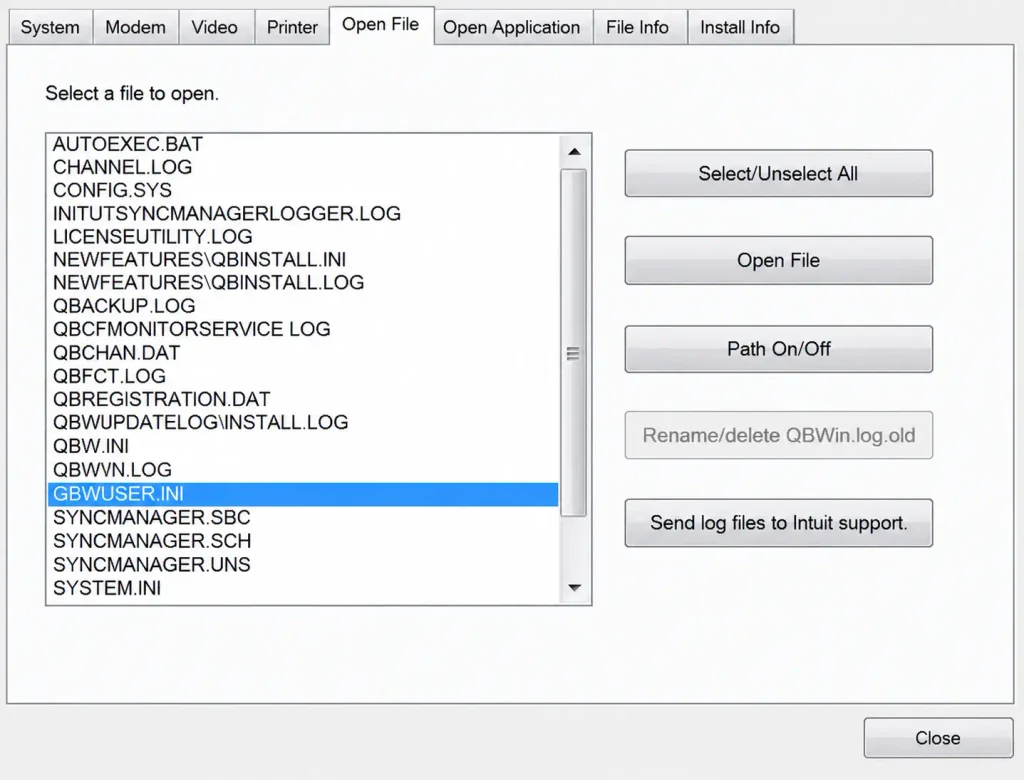
QuickBooks uses QBWUSER.INI to store certain user settings. Renaming a damaged file can help QuickBooks create a fresh copy.
Steps to rename the file
- Close QuickBooks Desktop
- Open File Explorer
- Enter %LOCALAPPDATA%\Intuit\QuickBooks in the address bar
- Press Enter and check the available folders
- Open the folder matching your QuickBooks installation
- Search for QBWUSER.INI
- If the file is missing, select View > Show > Hidden items
- Check the folder again
- Right-click QBWUSER.INI
- Select Rename
- Change the filename to QBWUSER.INI.old
- Press Enter to save the change
- Do not delete the renamed file
- Open QuickBooks Desktop
- Open the affected company file
- Check whether the error continues
Solution 5: Verify and Rebuild QuickBooks Company File Data
Damaged company data can prevent QuickBooks from opening or saving information correctly. Verify the file first, then rebuild it only when needed.
Step 1: Create a company file backup
- Open QuickBooks Desktop
- Select File > Back Up Company > Create Local Backup
- Choose Local Backup
- Select Options to choose a backup location if needed
- Save the backup in a safe folder
- Wait for QuickBooks to confirm completion
- Check that the backup file exists before continuing
Read More:-QuickBook Backup & Restore Errors
Step 2: Verify company file data
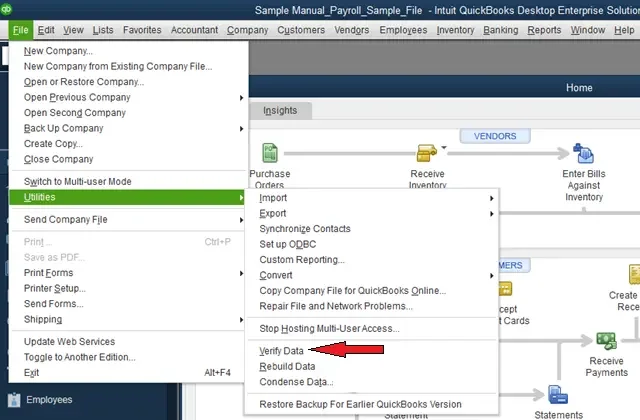
- Open the affected company file
- Select Window > Close All to close open QuickBooks windows
- Select File > Utilities > Verify Data
- Allow QuickBooks to scan the file
- Read the result displayed on the screen
- If QuickBooks reports no problems, test the company file again
- If QuickBooks reports that the data has lost integrity, continue to rebuilding
Step 3: Rebuild company file data
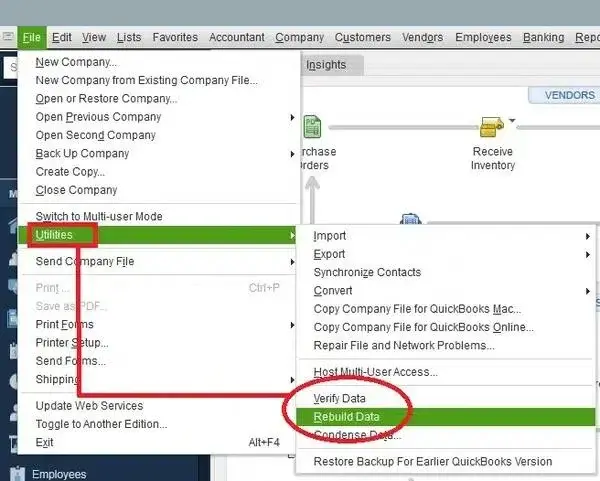
- Select File > Utilities > Rebuild Data
- Follow the backup prompts
- Choose a safe backup location
- Save the backup without overwriting your only copy
- Allow QuickBooks to repair the company file
- Wait for the completion message
- Select OK when the rebuild finishes
- Select File > Utilities > Verify Data again
- Check whether the file still contains errors
- Open the company file and test its main functions
Step 4: Restore a backup if necessary
- Restore a backup only when the original file remains unusable
- Select File > Open or Restore Company
- Choose Restore a backup copy
- Select Local backup or the relevant backup location
- Browse to the required backup file
- Choose a safe destination for the restored company file
- Follow the prompts to complete restoration
- Open the restored file and check its data
Solution 6: Run QuickBooks File Doctor
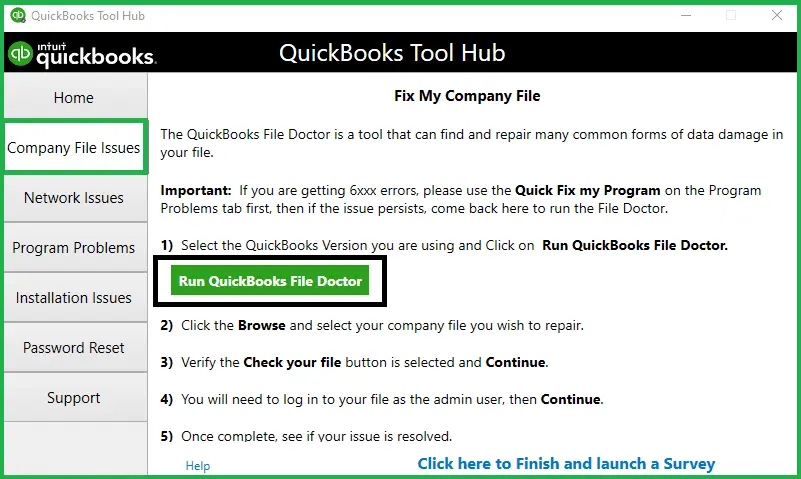
QuickBooks File Doctor checks certain company file and network problems. It is available through QuickBooks Tool Hub on supported installations.
Steps to run File Doctor
- Close QuickBooks Desktop
- Download QuickBooks Tool Hub from the official Intuit support page
- Install Tool Hub if necessary
- Open QuickBooks Tool Hub
- Select Company File Issues
- Choose Run QuickBooks File Doctor
- Wait for the tool to open
- Select the affected company file from the list
- Choose Browse if the file does not appear
- Select Check your file and network when diagnosing both issues
- Click Continue
- Enter the QuickBooks administrator password if requested
- Select Next and wait for the scan to finish
- Open QuickBooks and test the company file
Solution 7: Configure Windows Firewall Rules for QuickBooks
Windows Firewall can block the network traffic QuickBooks needs. Confirm the correct ports for your installed version before creating new rules.
Read More:-Fix Windows Firewall Blocking QuickBooks
Step 1: Find the required ports
- Confirm the QuickBooks Desktop year and release
- Open QuickBooks Database Server Manager on the hosting computer when appropriate
- Review the port settings for the installed version
- Check Intuit’s official firewall instructions
- Record the confirmed TCP ports
- Do not use incomplete port examples or guessed numbers
Step 2: Create an inbound firewall rule
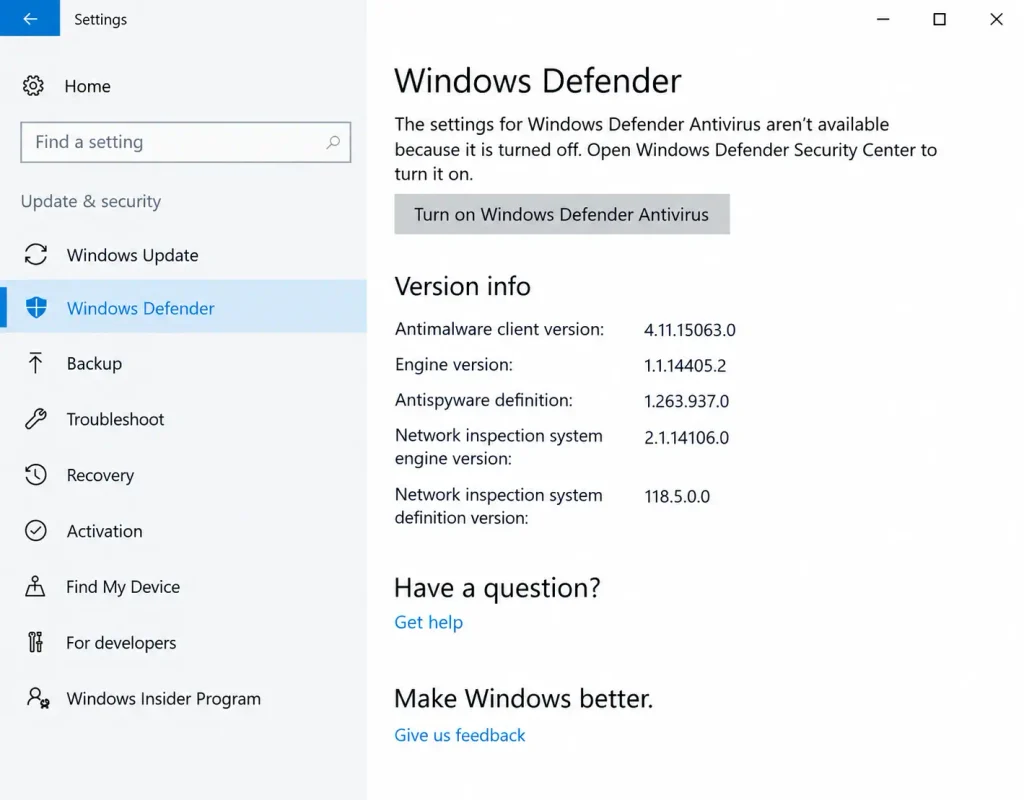
- Open the Windows Start menu
- Search for Windows Defender Firewall with Advanced Security
- Open the application
- Select Inbound Rules
- Click New Rule
- Choose Port and click Next
- Select TCP
- Enter the confirmed ports under Specific local ports
- Click Next
- Select Allow the connection
- Click Next
- Select only the network profiles that match your environment
- Click Next
- Enter a clear rule name, such as QuickBooks TCP Ports
- Click Finish
Step 3: Create an outbound rule if required
- Select Outbound Rules
- Click New Rule
- Choose Port and click Next
- Select TCP
- Enter the required ports
- Choose Allow the connection
- Select the appropriate network profiles
- Name the rule
- Click Finish
Step 4: Test the connection
- Confirm the rules apply to the correct computer and network profile
- Restart the server or related service if required
- Open QuickBooks on a workstation
- Open the company file in multi-user mode
- Ask another authorized user to test access
- If the error remains, review the firewall rules and shared folder permissions
Solution 8: End Stuck QuickBooks Tasks and Repair the Program
Stuck processes or damaged program files can stop QuickBooks from working correctly. Close the program safely before ending tasks or running repairs.
Step 1: End stuck QuickBooks processes
- Save work in other open applications
- Close QuickBooks Desktop
- Confirm other users have finished working in the affected session
- Press Ctrl + Shift + Esc to open Task Manager
- Select Processes or Details
- Find QuickBooks processes that remain after closing the program
- Select a confirmed, stuck QuickBooks process
- Click End task
- Repeat only for related processes that are safe to close
- Avoid ending unrelated applications or Windows services
- Restart the computer if needed
- Open QuickBooks and test the company file
Step 2: Repair QuickBooks Desktop
- Close QuickBooks Desktop
- Open Windows Settings
- Select Apps > Installed apps or Apps & features
- Locate your QuickBooks Desktop installation
- Check whether a repair option is available
- If needed, open Control Panel > Programs and Features
- Select QuickBooks Desktop
- Choose Uninstall/Change
- Select Repair if the installer offers it
- Follow the on-screen instructions
- Restart the computer after the repair
- Open QuickBooks Desktop
- Test the company file again
How to Fix QuickBooks Abort Error When Opening Company File?
If QuickBooks closes while opening a file, test the program and file separately. These checks help narrow down the cause.
- Confirm that the company file exists in its expected folder
- Check the network connection if the file is stored on another computer
- Try opening a sample company file
- Check the file’s folder permissions
- Rename QBWUSER.INI using the steps above
- Run Verify Data to check for damaged records
- Use QuickBooks File Doctor when available
- Confirm that the designated server hosts the company file correctly
- Restore a verified backup if the original file remains unusable
Tips to Prevent QuickBooks Keeps Aborting
Good maintenance reduces avoidable interruptions and protects your accounting records.
- Keep QuickBooks Desktop updated to a supported release
- Use compatible software versions across workstations
- Back up company files regularly
- Store company files in a supported location
- Avoid disconnecting network drives during active work
- Keep Windows and security software updated
- Create approved firewall exceptions when required
- Allow only the designated server to host the company file
- Prevent sleep mode during active file operations
- Run Verify Data when you suspect data problems
- Use QuickBooks Tool Hub for supported troubleshooting tasks
- Avoid shutting down the computer while QuickBooks saves data
Conclusion
QuickBooks Abort Error can interrupt accounting work, but the right troubleshooting steps can help restore access. Start with hosting settings, security rules, and the QBWUSER.INI file. Then check company data, use QuickBooks Tool Hub, and repair the installation if needed. Always protect your records with a verified backup before changing company files. Contact Accounting Assist Pro for help with your specific QuickBooks version and network setup if the error continues after these steps.
Frequently Asked Questions About QuickBooks Abort Error
1. What is QuickBooks Abort Error?
QuickBooks Abort Error occurs when QuickBooks Desktop unexpectedly closes after losing access to company files. Network interruptions, damaged files, security restrictions, or installation problems may cause this issue.
2. Why does QuickBooks keep aborting?
QuickBooks may keep aborting because of damaged settings files, company file problems, antivirus restrictions, incorrect hosting settings, insufficient permissions, or unstable network connections between computers accessing shared company data.
3. How do I fix Abort Error in QuickBooks?
Start by backing up your company file. Then check hosting settings, rename QBWUSER.INI, run Verify Data, use File Doctor, and repair installation problems if necessary.
4. Can antivirus software cause Abort Error QuickBooks?
Yes, antivirus software can block QuickBooks connections or related processes. Check its settings, create approved exceptions, and restore protection immediately after testing whether security restrictions caused the problem.
5. How do I fix QuickBooks Keeps Aborting in Multi-User Mode Error?
Check hosting settings on every computer. Keep hosting enabled on the designated server, verify firewall rules, confirm compatible versions, and test whether authorized workstations can access company files.
6. Why does QuickBooks close when saving transactions?
QuickBooks may close during saving because of network interruptions, damaged company data, storage problems, or security restrictions. Back up your file and investigate these causes before rebuilding data.
7. How do I fix QuickBooks Abort Error When Opening Company File?
Check the file location, network connection, and folder permissions. Then try a sample company file, rename QBWUSER.INI, and run supported diagnostic tools to identify the cause.
8. Can renaming QBWUSER.INI fix QuickBooks aborting?
Renaming QBWUSER.INI can resolve problems caused by damaged settings. Close QuickBooks first, rename the file instead of deleting it, and reopen the company file to test.
9. Does QuickBooks File Doctor repair company file problems?
QuickBooks File Doctor can diagnose certain company file and network issues. Its available options depend on the installed Tool Hub version, and some damaged data may require additional repair.
10. Should I rebuild company file data after an abort error?
Run Verify Data first. If QuickBooks reports data integrity problems, create a backup and use Rebuild Data. Verify the file again after the repair finishes.
11. Can Windows Firewall cause QuickBooks to close unexpectedly?
Yes, incorrect firewall rules may block required QuickBooks network traffic. Confirm the correct ports for your installed version and create suitable rules without weakening unrelated security protections.
12. What should I do if QuickBooks keeps aborting after troubleshooting?
Protect your company file with a backup. Record the error message, check your network and installation, and contact Intuit QuickBooks support if the problem continues after repairs.
