
QuickBooks error 6150 -1006 can stop you from creating, opening, or using a company file. Damaged company files, incorrect file extensions, installation problems, and malware can trigger this error. You can troubleshoot it by checking file access, testing a sample company file, scanning for malware, and repairing QuickBooks Desktop. Always protect your financial records before attempting repairs or restoring a backup.
What Does QuickBooks Error 6150 -1006 Mean?
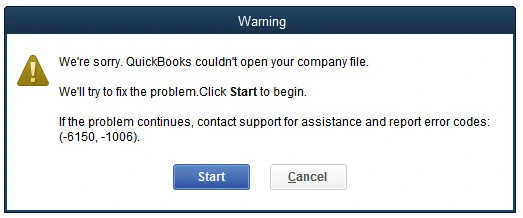
QuickBooks error 6150 -1006 is a company file error that prevents QuickBooks Desktop from handling company data correctly.
What Causes QuickBooks Error 6150 -1006?
Several file, software, and security problems can prevent QuickBooks Desktop from accessing company data.
- Damaged company file: Errors inside the .QBW file can prevent QuickBooks from opening it
- Malware infection: CryptoWall and other harmful software may damage or encrypt company data
- Incorrect file extension: Changing a file extension incorrectly can make the file unreadable
- Incomplete installation: Missing or damaged program files can interrupt normal operations
- Incorrect file location: QuickBooks may not find the company file after its location changes
- Restricted permissions: Windows may block access to the company file or its folder
- Damaged network files: Problems with .ND or .TLG files can affect shared company files
- Outdated software: Older program releases may contain problems that affect file access
- Version incompatibility: A company file saved in a newer release may not open in an older release
- Windows system problems: Damaged system components may interfere with QuickBooks operations
The QB Error 6150 problem requires careful checking because different causes need different solutions.
What Are the Signs and Symptoms of QuickBooks Error 6150 -1006?
Recognizing the warning signs helps you choose the correct troubleshooting method.
- QuickBooks displays an error when opening a company file
- The company file fails to open or load
- QuickBooks crashes while creating or accessing company data
- The computer freezes during file operations
- Windows responds slowly to keyboard or mouse commands
- The company file becomes inaccessible after a location or extension change
- QuickBooks cannot open a backup or portable company file
How to Identify QuickBooks Error 6150 -1006
Check the error message, test another company file, and review the original file’s location before making changes. These checks help narrow down the possible cause.
Check the Error Message
- Open QuickBooks Desktop
- Try opening the affected company file
- Record the complete error message and code
- Note when the error appears
- Check whether the problem started after a recent file or software change
Test a Sample Company File
- Close the affected company file
- Open QuickBooks Desktop without opening a company file
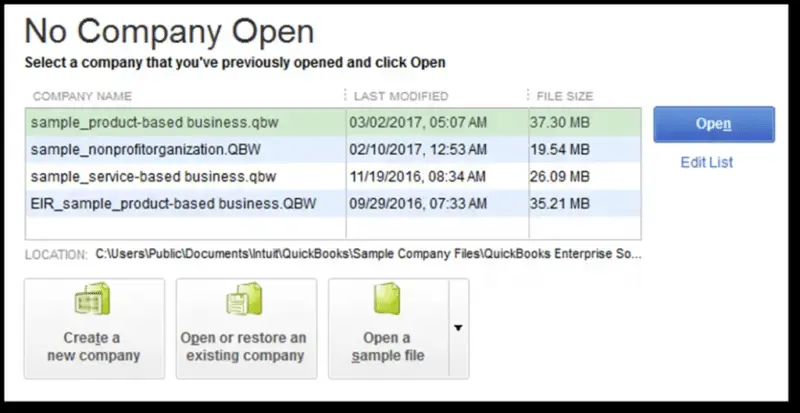
- Select the option to open a sample company file
- Choose an available sample file
- Check whether the sample file opens successfully
- If it opens, investigate the original company file
- If it fails, check the QuickBooks installation or computer settings
Check the File Extension and Location
- Press Windows + E to open File Explorer
- Navigate to the company file folder
- Find the company file ending in .QBW
- Confirm that you selected the correct file
- Check whether its name or location changed recently
- Do not change the extension to force the file to open
Check for Possible Malware
- Open the folder containing the company file
- Look for suspicious files containing decrypt or instructions
- Check for .txt or .html extensions
- Do not open suspicious files
- Stop file repairs if you suspect an infection
- Arrange a malware scan before accessing the affected company file
The QuickBooks Desktop Error 6150, -1006 (Company File Error) may involve file damage or other access problems. Follow the checks above before selecting a repair method.
What Should You Prepare Before Fixing QuickBooks Error 6150 -1006?
Prepare your files and check your system before troubleshooting. These steps reduce the risk of losing financial records during repairs.
Back Up the Company File
- Locate the existing company file and available backups
- Create a fresh backup if QuickBooks allows it
- Confirm that the backup finishes successfully
- Keep at least one existing backup unchanged
- Store a safe copy away from the affected computer
Check Administrator Access
- Sign in to Windows using an authorized administrator account
- Confirm that you can access QuickBooks and the company file folder
- Keep administrator credentials available if required
- Avoid changing permissions for unrelated users
Close QuickBooks
- Ask all users to save their work
- Close QuickBooks Desktop on connected computers
- Confirm that nobody is using the company file
- Close other programs that may access the same file
Record Software Information
- Open QuickBooks Desktop
- Press F2 or Ctrl + 1
- Record the product version and release
- Keep your valid license information available before reinstalling
- Check which QuickBooks version is installed on the host computer
Check File Safety
- Confirm that the computer does not show signs of malware
- Check that the drive has enough free space
- Verify the original company file location
- Keep the original file unchanged during recovery
- Make sure your backup belongs to the correct company
Method 1: Run QuickBooks Desktop as an Administrator
Administrator access may resolve restrictions that prevent QuickBooks from opening a company file.
Step 1: Close QuickBooks
- Save any open work
- Close QuickBooks Desktop completely
Step 2: Find the QuickBooks Shortcut
- Open the Windows desktop or Start menu
- Locate the QuickBooks Desktop shortcut
Step 3: Run as Administrator
- Right-click the QuickBooks icon
- Select Run as administrator
- Approve the Windows permission prompt if it appears
Step 4: Test the Company File
- Open the affected company file
- Check whether the error appears again
- Continue to another method if the problem remains
Method 2: Check for CryptoWall or Other Malware
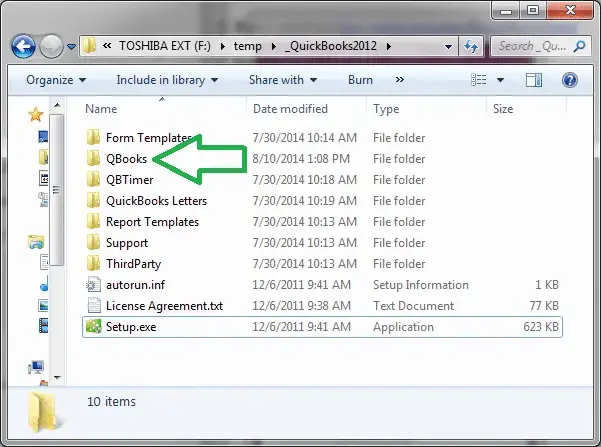
Malware can damage or encrypt company files. Check for signs of infection before attempting repairs or restoring data.
Step 1: Open File Explorer
- Press Windows + E
- Open File Explorer
Step 2: Find the Company File Folder
- Navigate to the folder containing the QuickBooks company file
- Check the usual company file location on the computer’s drive
Step 3: Search for Suspicious Files
- Look for files containing decrypt or instructions
- Check for .txt or .html extensions
Step 4: Stop if You Find Suspicious Files
- Do not open the suspicious files
- Avoid opening or repairing potentially infected company files
- Disconnect the affected computer from the network if infection is suspected
- Arrange a malware scan with a qualified professional
- Preserve safe backups without connecting them to the infected system
- Resume file recovery only after the computer is considered safe
Step 5: Test QuickBooks After Cleanup
- Confirm that the malware has been removed
- Open QuickBooks Desktop
- Try opening the company file again
- Continue with another method if the error remains
Method 3: Open a Sample Company File
A sample file helps determine whether the problem affects QuickBooks itself or your original company data.
Step 1: Open QuickBooks Desktop
- Close the affected company file if necessary
- Launch QuickBooks Desktop
Step 2: Select a Sample File
- Open the option to select a sample company file
- Choose an available sample file
Step 3: Check the Results
- Wait for the sample file to open
- Check whether QuickBooks displays another error
Step 4: Choose the Next Step
- If the sample file opens, investigate the original company file
- If it fails, check the software installation or system settings
- Keep the original company file unchanged
Method 4: Copy the Company File to a Local Folder
A local copy helps identify problems caused by network locations, external drives, or folder permissions.
Step 1: Close QuickBooks
- Ask all users to save their work
- Close QuickBooks on connected computers
- Confirm that nobody is using the company file
Step 2: Create a Temporary Folder
- Press Windows + E to open File Explorer
- Open a suitable local drive
- Create a new folder for testing
Step 3: Copy the Company File
- Navigate to the original company file location
- Right-click the .QBW file
- Select Copy
- Open the new temporary folder
- Right-click inside the folder and select Paste
Step 4: Open the Copied File
- Launch QuickBooks Desktop
- Select File
- Choose Open or Restore Company
- Select Open a company file
- Browse to the copied .QBW file
- Select the file and click Open
Step 5: Check the Results
- If the copy opens, investigate the original folder’s permissions or network access
- If it fails, investigate possible company file damage
- Keep the original company file unchanged
Method 5: Rename the Network Data and Transaction Log Files
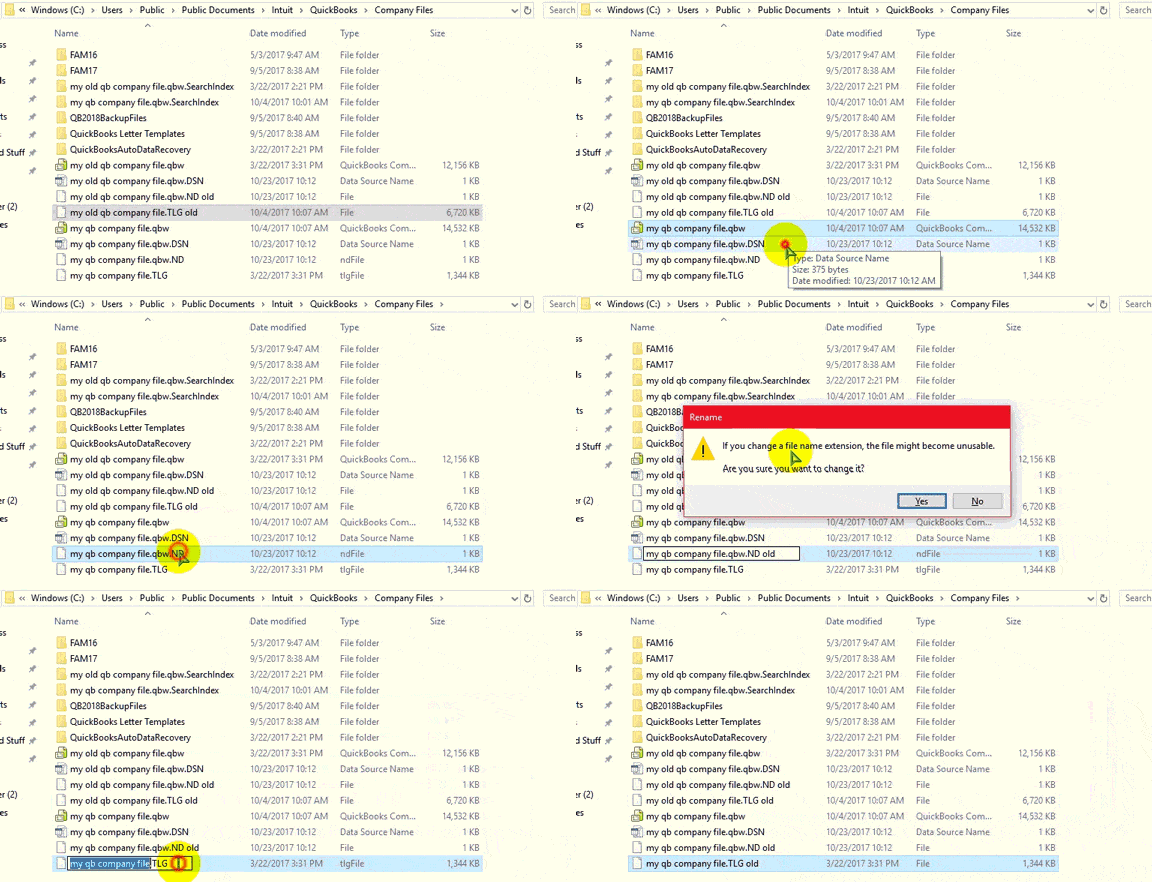
Renaming the matching .ND and .TLG files may help when their supporting information is damaged. QuickBooks can recreate these files when needed.
Step 1: Close QuickBooks
- Save any open work
- Close QuickBooks Desktop on the server and workstations
- Confirm that nobody is using the company file
Step 2: Open the Company File Folder
- Press Windows + E
- Navigate to the folder containing the .QBW company file
Step 3: Locate the Matching Files
- Find the .ND file with the matching company file name
- Find the matching .TLG file
- Enable file name extensions in File Explorer if they are hidden
Step 4: Rename the Files
- Right-click the matching .ND file
- Select Rename
- Add .old after the existing file extension
- Repeat these steps for the matching .TLG file
- Do not rename or delete the original .QBW company file
Step 5: Reopen QuickBooks
- Launch QuickBooks Desktop
- Open the company file
- Allow QuickBooks to recreate the supporting files when needed
Step 6: Verify Access
- Check whether the company file opens
- If network access remains unavailable, scan the company folder with Database Server Manager
Method 6: Run QuickBooks File Doctor
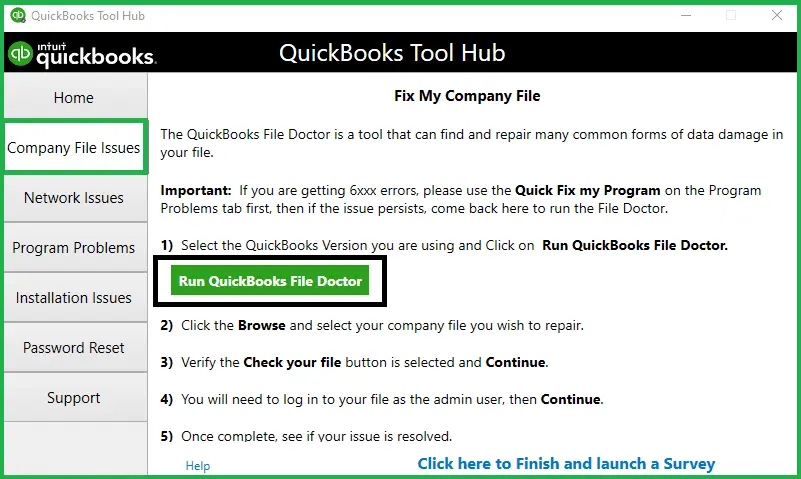
QuickBooks File Doctor can diagnose certain company file and network problems. Use this method after checking for malware and protecting your data.
Step 1: Install QuickBooks Tool Hub

- Close QuickBooks Desktop
- Open your existing QuickBooks Tool Hub installation or install it if needed
- Follow the installation instructions
- Open QuickBooks Tool Hub
Step 2: Open Company File Issues
- Select Company File Issues
- Choose Run QuickBooks File Doctor
- Wait for the tool to launch
- If it does not open, search Windows for QuickBooks File Doctor
Step 3: Select the Company File
- Choose the affected company file from the list
- Select Browse if the file does not appear
- Locate and select the correct .QBW file
- Confirm that you selected the intended company file
Step 4: Run the Diagnostic
- Select the available company file repair option
- Choose the file check option if prompted
- Enter the QuickBooks administrator password if required
- Start the scan
- Wait for the diagnostic process to finish
Step 5: Review the Results
- Follow any repair instructions displayed
- Restart QuickBooks if required
- Open the company file again
- Check whether the error remains
Method 7: Restore a Verified Company File Backup
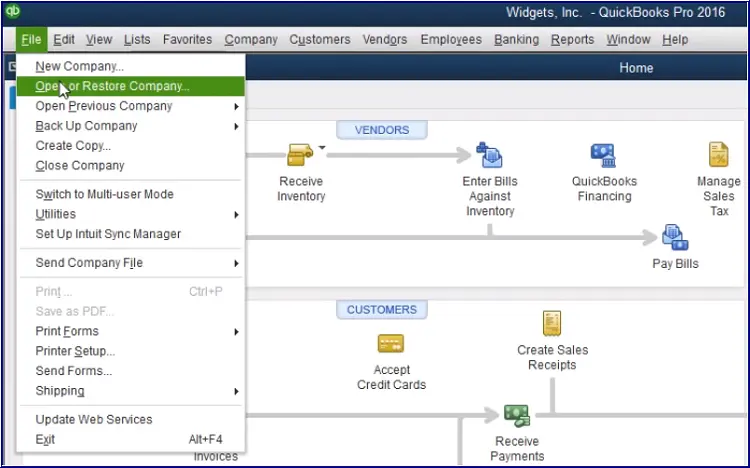
Restoring a healthy backup can recover access when the original company file remains damaged. However, transactions entered after the backup date may be missing.
Step 1: Find a Recent Backup
- Close QuickBooks Desktop
- Locate a valid backup file ending in .QBB
- Confirm that the backup belongs to the correct company
- Check its date and keep the original company file unchanged
Step 2: Open the Restore Wizard
- Launch QuickBooks Desktop
- Select File
- Choose Open or Restore Company
- Select Restore a backup copy
- Click Next
Step 3: Select the Backup
- Choose Local Backup
- Browse to the backup location
- Select the correct .QBB file
- Click Open
- Click Next if prompted
Step 4: Choose a Safe Destination
- Select a suitable folder for the restored company file
- Enter a new file name
- Confirm that the restored file will use the .QBW extension
- Avoid overwriting the original file
- Click Save
Step 5: Complete the Restoration
- Review the destination and file name
- Follow the on-screen prompts
- Confirm the restoration if asked
- Wait for the process to finish
Step 6: Verify the Restored File
- Open the restored company file
- Check the company name and financial records
- Verify important customer, vendor, and transaction details
- Confirm that the file opens correctly before resuming work
- Identify transactions that may be missing since the backup date
Method 8: Update QuickBooks Desktop
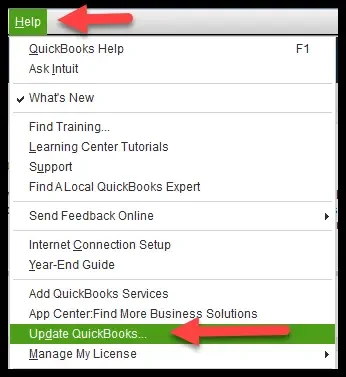
Compatible updates may fix software problems that interfere with company file access.
Step 1: Open QuickBooks Desktop
- Launch QuickBooks Desktop
- Save your work and close the company file if necessary
Step 2: Check for Updates
- Select Help
- Choose Update QuickBooks Desktop
- Open the Update Now tab
- Select Get Updates
Step 3: Install the Updates
- Wait for the download to finish
- Close QuickBooks Desktop when prompted
- Reopen the program
- Accept the installation prompt if it appears
Step 4: Restart and Test
- Restart the computer if required
- Open QuickBooks Desktop
- Try opening the affected company file
- Check whether the error remains
Read More:- Fix QuickBooks Update Error
Method 9: Repair the QuickBooks Desktop Installation
Repairing the installation may fix missing or damaged program components. Back up your company data before changing the installation.
Step 1: Prepare the Computer
- Confirm that a safe company file backup exists
- Close QuickBooks Desktop
- Close other open applications
Step 2: Open Windows Control Panel
- Open the Windows Start menu
- Search for Control Panel
- Select Programs and Features or Uninstall a program
Step 3: Select QuickBooks Desktop
- Find QuickBooks Desktop in the installed programs list
- Select the program
- Choose the available Change or repair option
Step 4: Run the Repair
- Follow the installation prompts
- Select Repair if available
- Wait for the repair process to finish
Step 5: Restart and Test
- Restart Windows if prompted
- Open QuickBooks Desktop
- Try opening the company file
- Check whether the error appears again
Method 10: Reinstall QuickBooks Desktop
Reinstall QuickBooks Desktop only when simpler methods fail. A fresh installation may resolve deeper program problems, but it does not automatically repair damaged company data.
Step 1: Back Up Important Information
- Confirm that a safe company file backup exists
- Record your QuickBooks version and license details
- Keep the installation information available
- Verify that the backup belongs to the correct company
Step 2: Close QuickBooks
- Save any open work
- Close QuickBooks Desktop completely
Step 3: Uninstall QuickBooks
- Open Windows Control Panel
- Select Programs and Features or Uninstall a program
- Find QuickBooks Desktop
- Select Uninstall
- Follow the on-screen instructions
Step 4: Reinstall QuickBooks
- Use a trusted installer that matches your license and version
- Follow the installation instructions
- Complete the setup process
Step 5: Activate and Test
- Activate the software using your valid license details
- Open QuickBooks Desktop
- Open the affected company file
- Confirm that your financial records remain accessible
- Restore a verified backup if the original file remains damaged
How to Prevent QuickBooks Error 6150 -1006 in the Future
Regular maintenance helps protect financial records and reduces the risk of company file problems.
- Create regular company file backups
- Verify that backups can be restored successfully
- Keep QuickBooks Desktop updated
- Maintain current antivirus protection
- Avoid opening suspicious files or email attachments
- Use the correct company file extension
- Check the file location before moving company data
- Maintain suitable Windows folder permissions
- Use stable network connections for shared company files
- Close QuickBooks properly before shutting down the computer
- Avoid overwriting the original file during recovery
- Review company file access after changing computers or network settings
Conclusion
QuickBooks error code 6150 -1006 can interrupt accounting work by preventing access to company files. Start by checking the file location, testing a sample company file, and scanning for malware. Then try File Doctor, restore a verified backup, or repair the installation if needed. Always protect your financial records before attempting major changes. Accounting Assist Pro helps businesses maintain accurate financial records through bookkeeping, accounting, and financial reporting services.
Frequently Asked Questions
1. What does QuickBooks error code 6150 & 1006 mean?
QuickBooks error code 6150 & 1006 means QuickBooks Desktop cannot create, open, or use a company file correctly. File damage, malware, and software problems can cause it.
2. What causes QuickBooks Error -6150, -1006?
QuickBooks Error 6150, -1006 may result from a damaged company file, incorrect file extensions, malware, or installation problems. Incorrect permissions can also prevent access.
3. How to fix Error 6150, -1006 quickly?
To fix Error 6150, -1006, check for malware first, test a sample file, and run File Doctor. Restore a verified backup if the original remains damaged.
4. Can a damaged company file cause QB Error 6150?
Yes, a damaged company file can trigger QB Error 6150. Test a sample file and use suitable repair methods before restoring a verified backup.
5. Can CryptoWall cause QuickBooks Desktop Error 6150, -1006 (Company File Error)?
Yes, CryptoWall can encrypt or damage company data. If you find suspicious files containing decrypt or instructions, stop troubleshooting and arrange malware removal before recovery.
6. Can I fix QuickBooks error 6150 1006 without losing data?
You may fix QuickBooks error code 6150 1006 without losing data if the issue involves permissions or software settings. Always create a backup before repairs.
7. How do I restore a backup after this error?
Open QuickBooks, select File > Open or Restore Company, and choose Restore a backup copy. Select the correct .QBB file and restore it to a safe location.
8. What does QuickBooks Desktop Error 6150, -1006 (Company File Error) indicate if a sample file opens?
QuickBooks Desktop Error 6150, -1006 (Company File Error) may indicate a problem with the original company file. Check its location, permissions, and condition before restoring a backup.
9. What should I do if the error returns after repair?
If QuickBooks error code 6150 1006 returns, check the file’s condition and confirm your backup is safe. Avoid repeated repairs if malware or serious data damage is suspected.
10. How can Accounting Assist Pro help businesses?
Accounting Assist Pro provides bookkeeping, accounting, payroll, tax preparation, and financial reporting services. These services help businesses organize records and manage routine accounting tasks.
