
QuickBooks Enterprise Errors can interrupt accounting work, company file access, payroll updates, and multi-user operations. These problems often involve damaged files, outdated software, network failures, licensing data, or security settings. The exact error code usually points toward the affected QuickBooks component. This blog gives fixing steps for common Enterprise errors with their signs and causes.
What Are QuickBooks Enterprise Errors?
QuickBooks Enterprise Errors are technical problems that stop some QuickBooks Desktop functions from working correctly. An error may affect company files, licensing, payroll, installation, networking, or multi-user access. Each code usually gives a different underlying problem, that is why users should detect the displayed code before selecting a solution.
Signs of QuickBooks Enterprise Errors
In this section, we will explain some signs of QuickBooks Enterprise Errors that you must know to solve the issue.
- QuickBooks displays an unexpected error number or warning
- The application freezes or stops responding
- A company file fails to open
- QuickBooks closes during normal accounting work
- Multi-user mode cannot connect with the server
- The program cannot locate a company file
- Payroll updates fail during installation
- Licensing or activation messages appear
- DLL or COM messages interrupt normal operations
- Windows becomes slow while QuickBooks runs
- Reports or accounting features stop responding
- Network access to company files fails
What Causes QuickBooks Enterprise Errors?
Company-file, network, security, or Windows-related problems can be the main cause of QuickBooks Enterprise Errors.
- Corrupted or damaged company files
- Missing QuickBooks support files
- Outdated QuickBooks Enterprise software
- Damaged license or entitlement information
- Incorrect company file paths
- Multi-user hosting problems
- Unstable network connections
- Firewall restrictions
- Antivirus interference
- Incorrect Windows permissions
- Damaged QuickBooks installation components
- Malware affecting Windows or QuickBooks files
- Incorrect server or workstation configuration
Read More:- Fix QuickBooks Installation Errors
Multi user access depends on Windows permissions, database-server access, and valid QuickBooks user credentials.
How to Identify the Error QuickBooks Enterprise
Let’s explore how you can detect these errors with zero disruptions.
- Record the complete error number and message
- Note when the problem first appears
- Check whether one workstation or several computers are affected
- Test the company file directly on the host computer
- Determine whether single-user or multi-user mode is affected
- Review recent Windows, QuickBooks, or security-software changes
- Confirm the company file location
- Check network connectivity between workstations and the server
- Identify whether payroll, licensing, installation, or company data is involved
Common QuickBooks Enterprise Errors
Here are some QuickBooks Enterprise Errors that you must know.
QuickBooks Enterprise Error 3371
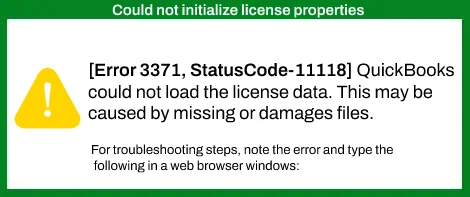
- Error 3371 can appear when QuickBooks cannot load required license data
- Damaged or missing entitlement information can trigger the problem
- Moving or cloning QuickBooks data may also contribute to the issue
- Users may see a message stating that license properties could not initialize
- QuickBooks Tool Hub includes an installation-related option for Error 3371
QuickBooks Enterprise H202 and H505 Errors
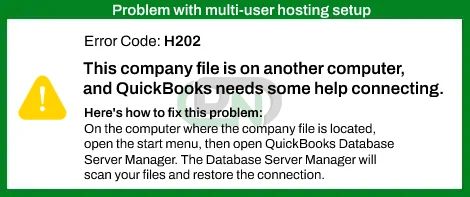
- H202 commonly affects workstations accessing a hosted company file
- H505 can indicate hosting or network communication problems
- Server services must remain available for multi-user access
- Firewall permissions can interfere with required connections
- Incorrect hosting settings can prevent successful communication
- QuickBooks Database Server Manager can help scan company-file folders
Read More:- QuickBooks Errors H202
QuickBooks Enterprise Error 6177
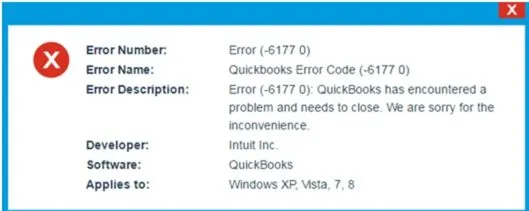
- Error 6177 can appear when QuickBooks cannot locate the company file path
- Missing support files can contribute to the problem
- A damaged file path may prevent successful access
- Moving the company file between systems can trigger path issues
- Multi-user environments can make file-location problems more noticeable
QuickBooks Enterprise Error 6129
- Error 6129 involves database connection verification
- Network problems can interrupt communication with the company file
- Server accessibility can affect the connection
- Incorrect network configuration may contribute to the issue
- Domain differences can also interfere with client-server communication
QuickBooks Enterprise Error 15215
- Error 15215 commonly appears during payroll updates
- QuickBooks may fail to verify a digital signature
- Incorrect system or Internet settings can contribute
- Firewall restrictions may prevent required server communication
- Background applications can interfere with update processes
QuickBooks Enterprise Error 80029c4a
- Error 80029c4a relates to a failure loading a dynamic link library
- Damaged QuickBooks installation files can trigger the error
- Antivirus software may quarantine required program components
- Windows system-file problems can affect QuickBooks startup
- Incorrect installation can leave required components unavailable
QuickBooks Enterprise Error 99001 and -6073
- These errors can occur during company file access
- Another user may already have the file open incorrectly
- Read-only folders can restrict required access
- Remote-access sessions can leave processes running
- Network Data files can become damaged or hidden
COM Error QuickBooks Enterprise
A COM error QuickBooks Enterprise problem can affect integrations between QuickBooks and other Windows applications.
- Outlook integration can fail during email-related activities
- Windows components may prevent proper application communication
- Damaged QuickBooks components can cause unexpected integration failures
- Incorrect permissions can restrict required actions
- Outdated applications can create compatibility problems
Prerequisites Before Fixing
Before applying fixes for QuickBooks Enterprise Errors, you must protect the company data for smooth fixing.
- Create a current company-file backup
- Update QuickBooks Enterprise to the latest supported release
- Sign in with Windows administrator rights
- Close QuickBooks on other workstations
- Confirm the company-file location
- Check the network connection
- Keep QuickBooks Tool Hub available
- Review whether security software blocks QuickBooks processes
How to Fix QuickBooks Enterprise Error
When users ask how to fix QuickBooks Enterprise error problems, they should begin with simple checks.
Method 1: Update QuickBooks Enterprise
- Open QuickBooks Desktop Enterprise
- Check for available product updates
- Install the available update
- Restart Windows after installation
- Open the company file again
- Confirm whether the problem remains
Method 2: Run QuickBooks Tool Hub

- Close QuickBooks Desktop
- Open the latest QuickBooks Tool Hub
- Select the relevant fixing category
- Run Quick Fix My Program when program issues occur
- Restart the computer
- Open QuickBooks again
Method 3: Run QuickBooks File Doctor
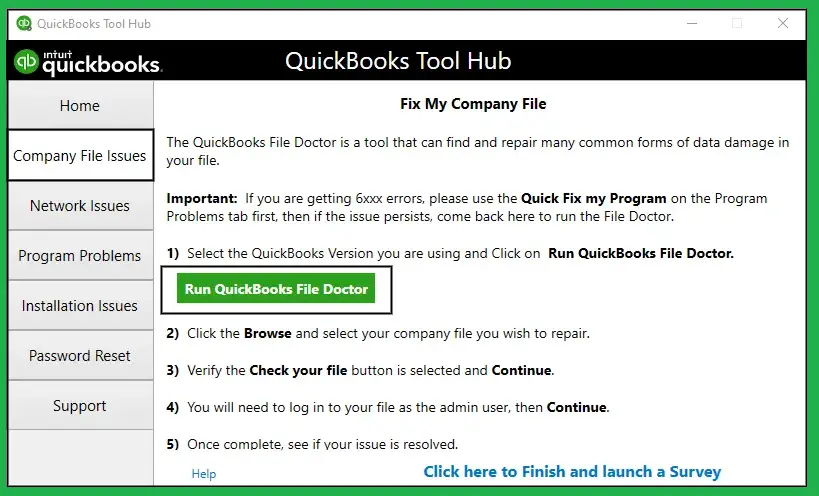
- Open QuickBooks Tool Hub
- Select Company File Issues
- Choose QuickBooks File Doctor
- Select the affected company file
- Choose the network option when appropriate
- Enter the QuickBooks administrator password
- Complete the diagnostic process
- Reopen QuickBooks
Method 4: Check Multi-User Hosting
- Open QuickBooks on the server computer
- Select File and then Utilities
- Check the hosting option
- Confirm that multi-user hosting is enabled correctly
- Restart the required database service
- Test the company file from a workstation
Method 5: Verify QuickBooks Services
- Open the Windows Start menu
- Search for Run
- Enter services.msc
- Find the QuickBooks Database service
- Confirm its startup type
- Check whether the service is running
- Start or restart it when required
- Test multi-user access again
Method 6: Check Firewall and Antivirus Settings
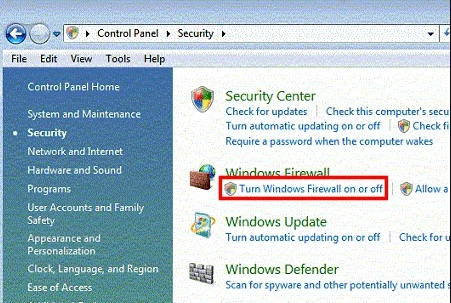
- Confirm whether security software blocks QuickBooks
- Allow required QuickBooks applications through Windows Firewall
- Review inbound and outbound permissions
- Check antivirus quarantine records
- Restore legitimate QuickBooks components when appropriate
- Test the application after making approved changes
Method 7: Recreate the Network Data File
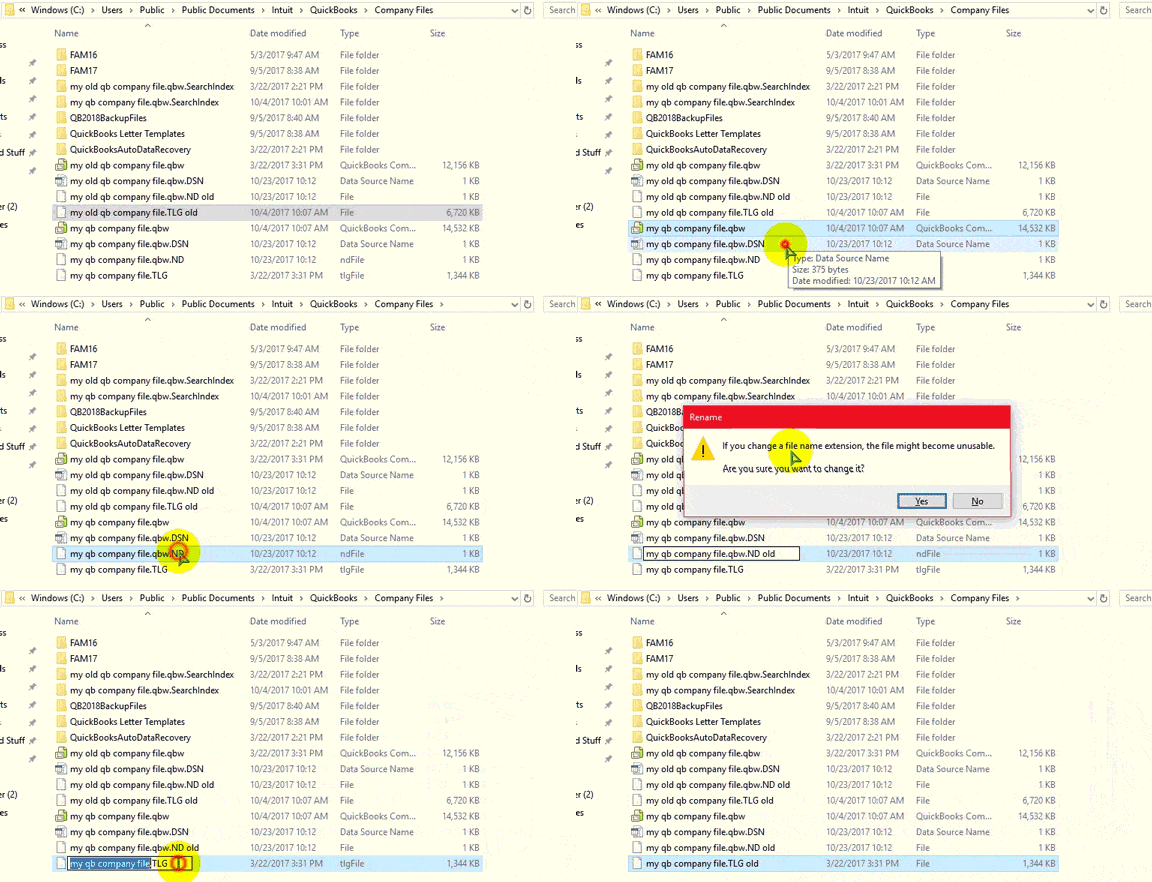
- Close QuickBooks on all connected computers
- Locate the .ND file beside the company file
- Rename the existing Network Data file
- Open the company file again
- Allow QuickBooks to create a new .ND file
- Test multi-user access
Method 8: Repair QuickBooks Installation
- Open Windows Apps and Features
- Select QuickBooks Enterprise
- Choose the repair option when available
- Complete the repair process
- Restart Windows
- Open QuickBooks
- Test the affected function
How to Fix QuickBooks Enterprise Error H202
When learning how to fix QuickBooks Enterprise error H202, you must focus on the server and network connection first. H202 usually means a workstation cannot communicate properly with the hosted company file.
- Confirm the company file is stored on the correct server
- Check the server connection from the affected workstation
- Verify multi-user hosting
- Open QuickBooks Database Server Manager
- Scan the company file folder
- Run QuickBooks File Doctor
- Verify firewall permissions
- Restart required QuickBooks services
- Switch the workstation back to multi-user mode
- Test the company file again
Database Server Manager can repair firewall permissions during its network scan.
How to Fix COM Error QuickBooks Enterprise
When fixing a COM error QuickBooks Enterprise issue, you should first detect the action that causes the message.
- Record the exact COM message
- Identify the application involved
- Update QuickBooks Enterprise
- Check Microsoft Office integration
- Run QuickBooks with administrator permissions
- Repair the QuickBooks installation
- Update related Windows components
- Restart Windows
- Test the same function again
The fix path should match the application or feature that causes the COM message.
How to Fix QuickBooks Enterprise Error 3371
The following steps can help when licensing information stops QuickBooks from starting correctly.
- Close QuickBooks Desktop
- Open the Windows Run command
- Navigate to the QuickBooks entitlement folder
- Remove the damaged entitlement file when appropriate
- Reopen QuickBooks
- Enter the license details again
- Check whether product activation completes
How to Fix QuickBooks Enterprise Error 6177
Users can address Error 6177 by checking the company file location and access path.
- Open the company file from the local drive
- Confirm the actual file location
- Check the file path for changes
- Create a portable company file when necessary
- Move the required file to the correct location
- Reopen the company file
- Test server access after confirming the path
How to Fix QuickBooks Enterprise Error 6129
Error 6129 requires attention to database connectivity and network configuration.
- Check the network connection
- Confirm the server is accessible
- Verify the company file location
- Check network configuration
- Confirm client and server connectivity
- Review domain settings
- Check antivirus restrictions
- Reopen the company file
How to Fix QuickBooks Enterprise Error 99001 or -6073
These errors often involve company file access conflicts in multi-user environments.
- Close QuickBooks on every connected system
- Confirm that no user has the file open incorrectly
- Switch the host to multi-user mode
- Check folder permissions
- Remove read-only restrictions when appropriate
- End stale remote-access processes
- Check the Network Data file
- Recreate the Network Data file when necessary
- Test the company file again
Tips to Prevent QuickBooks Enterprise Errors
Regular maintenance can reduce recurring QuickBooks Enterprise Errors and improve company file reliability.
- Keep QuickBooks Enterprise updated
- Maintain regular company-file backups
- Store company files in supported locations
- Avoid unnecessary file transfers
- Maintain correct network permissions
- Keep firewall rules properly configured
- Update supported Windows systems
- Monitor multi-user hosting
- Avoid unsupported network storage arrangements
- Use QuickBooks fixing tools when problems appear
Conclusion
Most QuickBooks Enterprise Errors have detectable reasons like company files, software components, or security settings. Avoid any changes that could affect company data when learning how to fix QuickBooks Enterprise error issues. An error QuickBooks Enterprise users cannot solve after fixes may require professional assistance. Contact Accounting Assist Pro for issues like data damage, network configuration, and more.
FAQs– QuickBooks Enterprise Errors
What are the most common QuickBooks Enterprise Errors?
Common QuickBooks Enterprise Errors include 3371, H202, H505, 6177, 6129, 15215, 80029c4a, and 99001. Each code points toward a different troubleshooting path.
How do I use how to fix QuickBooks Enterprise error steps safely?
Start with a backup, identify the exact code, and use the matching QuickBooks troubleshooting tool. Avoid changing several settings simultaneously.
What causes the H202 error QuickBooks Enterprise users see?
The H202 error QuickBooks Enterprise problem usually occurs when a workstation cannot communicate with the server hosting the company file. Network, hosting, service, and firewall settings can contribute.
What does COM error QuickBooks Enterprise mean?
A COM error QuickBooks Enterprise message usually indicates a problem involving QuickBooks and another Windows application or component. Outlook integration, permissions, damaged components, and compatibility issues can contribute.
How can I resolve error quickbooks enterprise problems?
The right solution depends on the displayed code and symptoms. Check the message first, then use Tool Hub, File Doctor, network checks, or installation repair.
How do I fix QuickBooks Enterprise Error 3371?
Close QuickBooks, repair the affected entitlement information, reopen the application, and re-enter license details when requested. Tool Hub also provides an installation troubleshooting option.
Can QuickBooks File Doctor fix QuickBooks Enterprise Errors?
Yes. File Doctor can help with certain company-file and network problems. Intuit recommends it for damaged files and specific network troubleshooting situations.
Why does QuickBooks Enterprise fail in multi-user mode?
Multi-user access can fail because of hosting settings, server services, firewall permissions, network connectivity, or Windows folder permissions.
How do I fix error quickbooks enterprise H202 problems?
For H202, check server hosting, run Database Server Manager, use File Doctor, verify firewall settings, and test multi-user mode. Intuit recommends these steps for H202 troubleshooting.
How can I prevent QuickBooks Enterprise Errors?
Keep QuickBooks and Windows supported, maintain backups, use correct file permissions, monitor hosting, and avoid unnecessary company-file transfers. These practices reduce common operational problems.
