
QuickBooks Error 6129 typically happen when QuickBooks Desktop is unable to open or create a company file correctly, and it is most often linked to a network setup problem, incorrect folder permissions, or a malfunction with the QuickBooks Database Server Manager. Intuit has specifically stated that Error -6129 and -101 are connected with wrong folder permissions or a Database Server Manager that is not working properly.
What causes QuickBooks Error 6129 ?
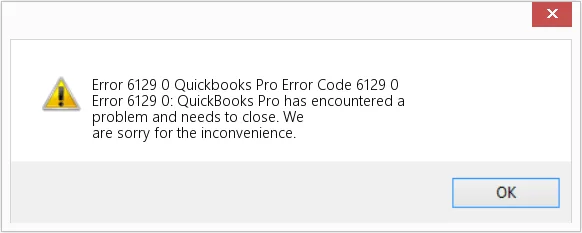
A frequent reason for this is that the folder permissions are wrong. QuickBooks requires proper access to the folder in which your company file is stored. If Windows does not permit QuickBooks to read, write, or modify the files in that folder, then the company file will not be able to open.
A further possibility is that there is a problem with the QuickBooks Database Server Manager, especially in the case where your company file is stored on a server or another computer and several users need to access it.
QuickBooks Error 6129 can also be caused by network configuration. A workstation might fail to communicate properly with the computer that is hosting the company file. This connection can be disrupted by firewall settings, a wrong hosting configuration, or a problem with the database service. Intuit has listed several of the –6000 errors as being network-related, including -6129 and -101, which are specifically linked to the folder permissions or problems with the Database Server Manager.
How to Fix QuickBooks Error 6129
Try the various methods in sequence, start with the simple method first before making any changes to your network or Windows settings.
Method 1: Restart QuickBooks and Your Computer
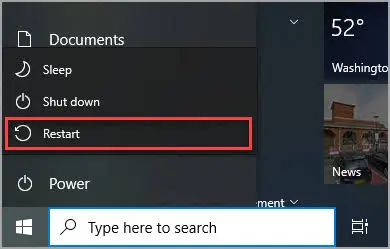
Star with a simple restart. In a multi-user environment, quit QuickBooks completely and ensure that all other users have also closed the company file.
Restart the computer and then reopen QuickBooks. If the error shows up once more, then proceed with the following method.
Method 2: Open a Sample Company File
See if you can open one of the sample company files that is included with QuickBooks Desktop.
It can be used to find out if the issue lies with QuickBooks or with your specific company file.
The problem could be due to the location of the company file, the folder permissions, or the file itself if the sample company works properly but your company file does not.
Method 3: Move the Company File to a Local Folder
If the company file is stored on a network, then transfer a copy of it to a local folder on the computer.
For instance, make a simple folder like C:\QBTest and put a copy of the company file into it. After that, attempt to open the file from that folder.
When testing, do not delete the original company file; try to use a copy instead.
Method 4: Check Folder Permissions
If the company file functions when used locally but not when taken from the original folder, then check the permissions for the folder that contains the file.
So that QuickBooks can read and update the company file, it needs appropriate access to the folder.
If you are not at ease with altering Windows permissions, then ask your IT administrator to check the permissions.
Method 5: Check the Database Server Manager
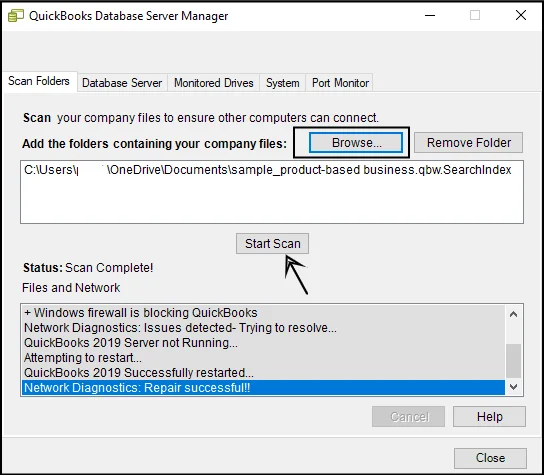
When you are using QuickBooks in multi-user mode, you should check the computer on which the company file is stored.
It is necessary for the QuickBooks Database Server Manager to be installed and functioning on the computer that is hosting the company file; if the service is not working properly, then other computers will not be able to connect to the file.
Intuit points out that a faulty Database Server Manager could be one of the causes of errors -6129 and -101.
Method 6: Check Hosting Settings
The correct hosting setup is necessary for use of QuickBooks in a multi-user environment.
The computer that is to store the company files should be set up as the host, and the workstations should access the files through the network.
Method 7: Check Your Firewall
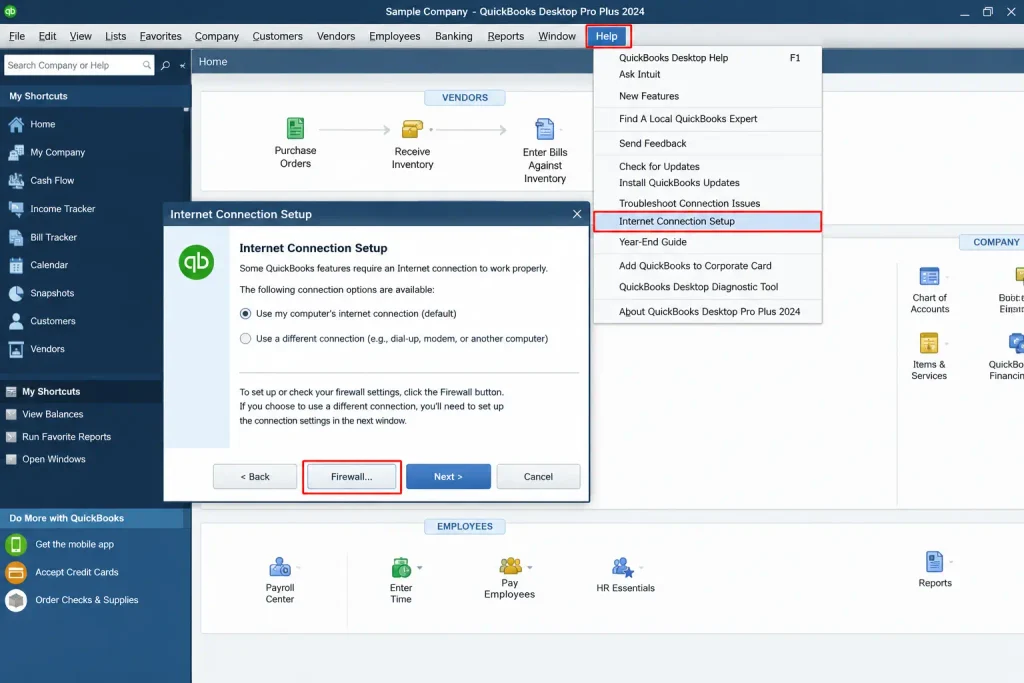
A firewall is able to stop QuickBooks from communicating between the workstation and the computer on which the company file is hosted.
If Error 6129 occurs after you have installed new security software or altered the firewall settings, you should ask your IT administrator to verify that QuickBooks and the necessary network services are being blocked.
Method 8: Run QuickBooks Tool Hub

The QuickBooks Tool Hub contains a range of tools that are intended to assist with common problems relating to company files and networking.
Turn off QuickBooks, then open the most recent version of the QuickBooks Tool Hub and use the relevant tools for Company File Issues or for network troubleshooting.
What if the QuickBooks Error 6129 still shows up?
If, after having worked on all methods mentioned above, including the network, the permissions, and Database Server Manager, the error still persists, then the problem might have to be looked at more closely.
The problem might be due to that particular file or its position if all the other QuickBooks company files open properly, but this one does not. In that case, the QuickBooks installation or the Windows environment may require checking. Intuit suggests that the QuickBooks Tool Hub and its repair tools should be used when there are more general problems with the program.
Read More:- Fix QuickBooks Installation Errors
Conclusion
QuickBooks Error 6129 101 is generally related to the way in which QuickBooks accesses the company file.
Start by restarting QuickBooks, try a sample file, and open a copy of your company file from a local folder. When using a network, make sure to verify the folder permissions, the Database Server Manager, the hosting settings, and the firewall configuration.
If the problem still exists, back up your company’s data using a current backup and have both QuickBooks and the network arrangement properly checked before making any major changes. Accounting Assist Pro can help review the QuickBooks setup, identify potential issues, and recommend the appropriat
Frequently Asked Questions
What is error 6129 in QuickBooks?
Error 6129 in QuickBooks is a type of problem relating to access of the company file and is generally linked to folder permissions or issues with the Database Server Manager.
Why does QuickBooks Error 6129 happen?
It may occur due to wrong folder permissions, network problems, or a problem with the Database Server Manager.
Has Error 6129 the potential to damage my company file?
It doesn’t have to be so. The problem is usually due to accessing the file and not because the file is actually damaged.
Can I fix QuickBooks Error Code 6129 myself?
Certainly. Begin by carrying out simple steps like restarting QuickBooks, verifying the location of the file, and testing a local copy.
Does Error Code 6129 cause problems in multi-user mode?
It is possible, since network configuration and the Database Server Manager play an important role when several users access the same company file.
Can QuickBooks Desktop Error 6129 be caused by firewall settings?
Yes, a firewall may be the communication between QuickBooks and the computer on which the company file is housed.
Should I transfer my company file to another folder?
You can test the copy by using a simple local folder; if the folder opens in that way, the issue must be due to the original folder or its permissions.
Is the QuickBooks Tool Hub capable of fixing Error 6129?
It can be of assistance with ordinary company-file and networking problems.
Why does the company file open when using the local system but not when using the network?
This is generally a sign of a problem with the network, the hosting services, the folder permissions, the firewall, or the Database Server Manager.
What are the steps I should take if Error 6129 continues to appear?
Get a current backup and have a qualified professional check your QuickBooks file location, the permissions, the Database Server Manager, and the network setup.
