
QuickBooks Error 15106 appears when QuickBooks Desktop cannot open or complete its update program. The issue commonly occurs because antivirus software blocks QuickBooks or Windows permissions restrict the update. Damaged update files, firewall settings, UAC restrictions, and installation problems can also contribute. This blog will help you solve this issue with simple steps.
What Is QuickBooks Error 15106?
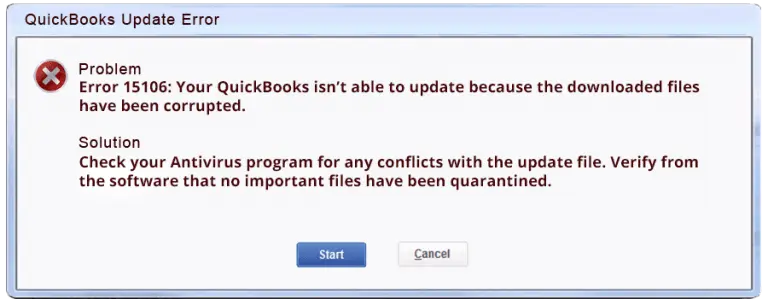
QuickBooks Error Code 15106 is an update error that appears while updating QuickBooks Desktop. It can also interrupt payroll tax-table updates when the update program cannot access required files. Intuit identifies antivirus blocking and missing administrator access as key reasons for this error. The error can stop QuickBooks from downloading or installing the latest program files.
What Causes QuickBooks Error 15106?
Many system and QuickBooks conditions can trigger the problem. Understanding each cause helps you choose the right solution instead of changing unrelated settings.
1. Insufficient Administrator Permissions
Windows may restrict QuickBooks from changing protected files when you use a standard account. The update needs permission to modify program components during installation.
2. Antivirus or Security Software Interference
Antivirus applications can identify QuickBooks update activity as suspicious. The security program may block or stop the required executable files.
3. Damaged Update Files
QuickBooks may have damaged update components from an earlier unsuccessful download. The downloadqbXX folder can contain files required for the update process.
4. User Account Control Restrictions
Windows User Account Control helps prevent unauthorized system changes. However, its restrictions can interfere with software updates that require administrator approval. Microsoft explains that UAC controls actions requiring administrator-level permissions.
5. Windows Installer Problems
A damaged Windows Installer component can interfere with software installation and update processes. This problem can become more noticeable when QuickBooks needs to replace program files.
6. Invalid Digital Security Certificate
QuickBooks uses digital signatures to verify software files. A missing or invalid Intuit certificate can prevent an update from being verified correctly.
7. Firewall or Internet Restrictions
QuickBooks needs internet access to download update files and payroll information. Firewall rules or security settings can block that communication.
8. Conflicting Background Applications
Third-party applications can interfere with QuickBooks processes. Selective Startup helps identify whether another Windows service causes the conflict.
These causes explain why Error code 15106 can require different solutions on different computers.
How to Identify QuickBooks Error 15106?
You can identify the problem by checking the update behavior and displayed message. The error normally appears during a QuickBooks Desktop update or payroll tax-table update.
Common Signs
- QuickBooks displays the 15106 error during an update
- The update program refuses to open
- QuickBooks reports that the update program is damaged
- The payroll tax-table update does not complete
- The update process stops before installation finishes
- QuickBooks may appear frozen during the update
- The same update failure returns after another attempt
- Antivirus software may show a blocked QuickBooks process
How to Confirm the Error
- Open QuickBooks Desktop
- Start the update process
- Check the message shown on screen
- Confirm whether the problem occurs during a payroll update
- Check whether antivirus software is active
- Verify whether QuickBooks has administrator access
If the displayed message matches the official 15106 messages, you can proceed with the fixing steps below. Intuit specifically lists the damaged and inaccessible update-program messages for this error.
Prerequisites Before Fixing QuickBooks Error 15106
Prepare your system before changing security or installation settings. These checks reduce the risk of losing work and make later fixing easier.
Complete These Checks First
- Create a backup of your QuickBooks company file
- Close QuickBooks Desktop before changing program files
- Confirm that your Windows account has administrator access
- Check that your internet connection works properly
- Note your QuickBooks Desktop version and release year
- Keep your QuickBooks product and license information available
- Check whether antivirus or security software is installed
- Close unnecessary programs before starting the update
- If Payroll is active, prepare to download the latest tax table afterward
Intuit recommends downloading the latest payroll tax table after fixing steps when a QuickBooks Desktop Payroll subscription is active.
Solution 1: Run QuickBooks as an Administrator
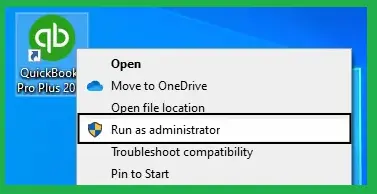
Administrator access gives QuickBooks permission to make required changes during an update. Intuit places this method first in its current guidance.
Steps
- Close every open QuickBooks window
- Find the QuickBooks Desktop icon
- Right-click the icon
- Select Run as Administrator
- Select Yes when Windows asks for permission
- Open your company file if required
- Open the QuickBooks update window
- Start the QuickBooks Desktop update
- Wait for the update process to finish
- If Payroll is active, download the latest payroll tax table
Windows administrators can change settings, install software, and access protected files. Microsoft recommends limiting administrator accounts because they have extensive system access.
If the update still fails, check whether antivirus software is installed before moving forward.
Solution 2: Stop Antivirus Software and Rename the Update Folder

Security software can prevent QuickBooks from accessing update files. Intuit specifically recommends stopping the antivirus process and renaming the QuickBooks update folder when the first method fails.
Part A: Stop the Antivirus Process
- Press Ctrl + Shift + Esc
- Open Task Manager
- Select the Processes tab
- Find your antivirus process
- Look for the related .exe process
- Select the antivirus process
- Select End Process
- If the process cannot be stopped, follow the security software’s removal procedure
Do not leave your computer without protection longer than necessary. Microsoft warns that removing security software can leave a device unprotected.
Part B: Rename the QuickBooks Update Folder
- Press Windows + E
- Open File Explorer
- Navigate to:
C:\Program Files\Intuit\QuickBooks(year)\Components
- For a 64-bit installation, check:
C:\Program Files(x86)\Intuit\QuickBooks(year)\Components
- Find the downloadqbXX folder
- Right-click the folder
- Select Rename
- Add .old to the folder name
- Use this format:
downloadqbXX.old
- Open QuickBooks Desktop again
- Start the update
- Check whether QuickBooks Error 15106 has disappeared
Intuit gives the same downloadqbXX folder procedure and identifies downloadqb18 as an example for QuickBooks Desktop 2018.
Solution 3: Use QuickBooks Tool Hub
QuickBooks Tool Hub can help address program problems that interfere with updates. This method is useful when background processes or program components prevent normal operation.
Steps
- Close QuickBooks Desktop
- Install the latest QuickBooks Tool Hub
- Open the Tool Hub after installation
- Select Program Problems
- Select Quick Fix My Program
- Let the tool complete its process
- Reopen QuickBooks Desktop
- Open your company file
- Start the QuickBooks update again
- Check whether the update completes successfully
If the problem remains, reset the QuickBooks update components.
Reset the Update Components
- Close QuickBooks Desktop
- Open File Explorer
- Navigate to the QuickBooks Components folder
- Delete the Components folder when the applicable Intuit procedure directs you to do so
- Reopen QuickBooks Desktop
- Select Help
- Select Update QuickBooks Desktop
- Select Update Now
- Select the Reset Update checkbox
- Select Get Updates
- Close QuickBooks after downloading finishes
- Reopen QuickBooks Desktop
- Select Help
- Select Update QuickBooks Desktop
- Select Update Now
- Check the update result
Intuit’s current 15XXX guidance covers update components, missing files, firewall settings, damaged Windows files, and digital-signature verification.
Solution 4: Check Your Internet and Firewall Settings
QuickBooks requires a working internet connection for online updates. Security settings can prevent the program from reaching the required servers.
Check the Internet Connection
- Open your web browser
- Visit several reliable websites
- Confirm that pages load normally
- Check for frequent connection drops
- Restart your router if the connection remains unstable
- Reopen QuickBooks after the connection becomes stable
Configure QuickBooks Internet Connection
- Open QuickBooks Desktop
- Select Help
- Select Internet Connection Setup
- Choose Use my computer’s Internet connection settings
- Select Next
- Review the available connection settings
- Select the option to restore advanced settings when appropriate
- Select OK
- Select Done
- Restart QuickBooks Desktop
- Run the update again
Check Firewall Access
- Confirm that QuickBooks is allowed through Windows Firewall
- Review the firewall used by your security software
- Check whether update traffic is being blocked
- Add legitimate QuickBooks programs to approved exceptions
- Retry the update after saving the security changes
Intuit’s 15XXX guidance identifies firewall settings as one possible cause of payroll update failures.
These checks can resolve QuickBooks Update Error 15106 when the software cannot communicate with the update service.
Solution 5: Add Intuit and QuickBooks Sites to Trusted Sites
Internet security settings can sometimes restrict access required by QuickBooks. Adding approved Intuit sites to Trusted Sites can help when web security settings interfere.
Steps
- Open the Windows Start menu
- Search for Internet Options
- Open Internet Options
- Select the Security tab
- Select Trusted Sites
- Select Sites
- Add the required Intuit domains used by your QuickBooks installation
- Select Add after entering each approved domain
- Select Close
- Select OK
- Restart QuickBooks Desktop
- Run the update again
Only add trusted domains from official QuickBooks or Intuit instructions. Avoid adding unknown websites to the Trusted Sites list.
If the update still produces QB Error 15106, continue with the Windows permission settings.
Solution 6: Turn Off UAC Temporarily
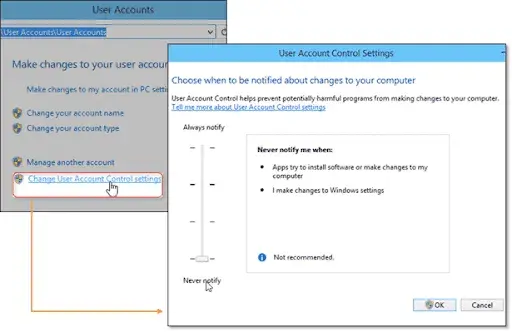
User Account Control protects Windows from unauthorized changes. However, UAC restrictions can sometimes prevent required update actions. Microsoft confirms that UAC controls administrator-level changes through approval prompts.
Steps
- Press Windows + R
- Type Control Panel
- Press Enter
- Select User Accounts
- Select User Accounts again when shown
- Select Change User Account Control settings
- Approve the security prompt
- Move the slider to Never Notify
- Select OK
- Restart the computer
- Open QuickBooks Desktop
- Run the update
- Wait for the update to finish
- Open the UAC settings again
- Restore your preferred security level
- Select OK
- Restart Windows if required
Do not leave UAC disabled after fixing. Microsoft provides the UAC slider through Control Panel for changing notification levels.
Solution 7: Verify the QuickBooks Digital Security Certificate
QuickBooks may fail an update when Windows cannot verify the program’s digital signature. Intuit lists digital-signature verification among possible causes of 15XXX update errors.
Steps
- Open File Explorer
- Navigate to:
C:\Program Files\Intuit\QuickBooks
- Find QBW32.exe
- Right-click QBW32.exe
- Select Properties
- Open the Digital Signatures tab
- Select the Intuit signature
- Select Details
- Select View Certificate
- Select Install Certificate
- Select Next
- Continue through the certificate installation
- Select Finish
- Restart the computer
- Open QuickBooks Desktop
- Run the update again
This process helps verify that Windows can recognize the Intuit digital certificate attached to the QuickBooks executable.
Solution 8: Install the Payroll Update in Selective Startup
Selective Startup limits background services that can interfere with QuickBooks. This method is useful when third-party software causes the update conflict.
Switch Windows to Selective Startup
- Press Windows + R
- Type msconfig
- Press Enter
- Open the General tab
- Select Selective Startup
- Keep Load system services selected
- Open the Services tab
- Select Hide all Microsoft services
- Select Disable All
- Make sure Windows Installer remains enabled
- Select OK
- Select Restart
Update QuickBooks Payroll
- Open QuickBooks Desktop
- Open the payroll update option
- Start the latest payroll tax-table update
- Wait for the process to finish
- Check whether the error appears again
- Confirm that the tax table updates successfully
Return to Normal Startup
- Press Windows + R
- Type msconfig
- Press Enter
- Open the General tab
- Select Normal Startup
- Select OK
- Restart the computer
Returning to Normal Startup is important after fixing because Selective Startup changes how Windows loads services.
If you still see error 15106 in QuickBooks Desktop, continue with the repair options.
Solution 9: Repair the QuickBooks Installation
Damaged QuickBooks installation files can prevent update components from working correctly. Repairing the installation can replace or correct affected program files.
Steps
- Close QuickBooks Desktop
- Open the Windows Control Panel
- Select Programs and Features
- Find QuickBooks Desktop
- Select QuickBooks Desktop
- Choose Uninstall/Change
- Select Repair
- Follow the instructions shown on screen
- Wait until the repair finishes
- Restart the computer
- Open QuickBooks Desktop
- Run the latest update
This repair method is appropriate when the installation itself appears damaged.
For persistent 15XXX problems, Intuit also provides broader update fixing that covers damaged Windows files, missing components, and digital-signature problems.
Solution 10: Clean Install QuickBooks Desktop
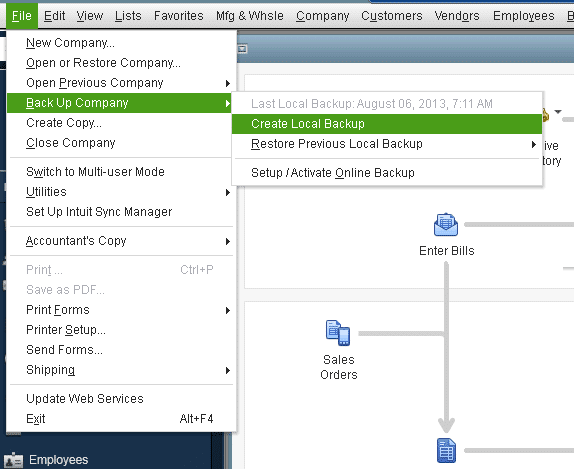
A clean installation is the final major method when damaged program files continue causing the update failure. Use this option after completing the less disruptive fixing methods.
Prepare Before Reinstalling
- Back up your QuickBooks company file
- Record your QuickBooks product information
- Keep your license information available
- Close QuickBooks Desktop
- Confirm administrator access
- Note your QuickBooks Desktop year and version
Perform the Clean Installation
- Open the QuickBooks uninstall process
- Remove the existing QuickBooks Desktop installation
- Follow the clean-install procedure for your version
- Reinstall QuickBooks Desktop
- Enter the correct product and license information
- Activate the software
- Open your company file
- Run QuickBooks Desktop Update
- Download the latest payroll tax table if Payroll is active
- Confirm that the update completes without the error
Read More:- Fix QuickBooks Installation Errors
Intuit directs users without antivirus software toward reinstalling QuickBooks Desktop in Selective Startup when the administrator method does not resolve the problem.
How to Prevent QuickBooks Error 15106?
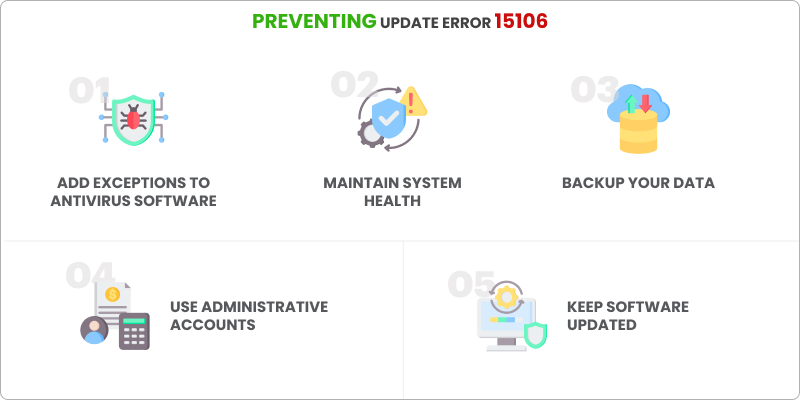
Prevention starts with keeping QuickBooks, Windows, and security settings in good condition.
Follow These Prevention Practices
- Keep QuickBooks Desktop updated regularly
- Install current Windows updates
- Maintain updated antivirus protection
- Avoid blocking legitimate QuickBooks program files
- Add appropriate QuickBooks security exceptions
- Use administrator access for major software updates
- Keep firewall rules configured correctly
- Maintain a stable internet connection
- Check digital signatures when installation files appear suspicious
- Limit unnecessary background applications during updates
- Back up company files before major software changes
- Restore UAC after temporary fixing
- Return Windows to Normal Startup after Selective Startup
- Keep your QuickBooks product information available for recovery
Conclusion
QuickBooks Error 15106 can prevent QuickBooks Desktop from completing program or payroll updates. The most effective approach starts with administrator access and antivirus checks before moving toward deeper repairs. Renaming the downloadqbXX folder can refresh damaged update components. If you need additional assistance, AccountingAssistPro can also help troubleshoot QuickBooks update issues. For support, you can contact +1-888-892-5727.
Frequently Asked Questions
What is QuickBooks Error 15106?
QuickBooks Error 15106 is an update problem that occurs when the update program cannot open or becomes damaged. Antivirus restrictions and insufficient administrator access are common causes.
What causes QuickBooks Error Code 15106?
QuickBooks Error Code 15106 can result from antivirus blocking, restricted permissions, damaged update files, UAC settings, firewall restrictions, or certificate problems. The exact cause can differ between computers.
How do I fix QuickBooks payroll update Error 15106?
To fix QuickBooks payroll update Error 15106, run QuickBooks as administrator first. Then check antivirus interference, update folders, firewall settings, UAC, certificates, and Selective Startup.
Why does QuickBooks Update Error 15106 appear?
QuickBooks Update Error 15106 appears when QuickBooks cannot properly access, verify, or execute files needed for an update. Security software and Windows permissions commonly contribute.
How do I fix Error code 15106 without reinstalling QuickBooks?
Start by running QuickBooks as administrator. Then check antivirus software, rename downloadqbXX, use Tool Hub, review firewall settings, and verify the digital certificate.
Can antivirus software cause Error code 15106?
Yes. Antivirus software can block QuickBooks update processes or prevent required files from opening. Intuit specifically identifies antivirus interference as a cause of this error.
How do I fix error 15106 in QuickBooks Desktop?
To fix error 15106 in QuickBooks Desktop, start with administrator access and then stop antivirus interference. Rename the update folder if necessary, then use deeper repair methods.
Does QuickBooks Tool Hub fix QuickBooks Error 15106?
QuickBooks Tool Hub can help with program problems that interfere with updates. Quick Fix My Program can stop background QuickBooks processes before another update attempt.
When should I use Selective Startup for QuickBooks Error 15106?
Use Selective Startup when background applications may interfere with QuickBooks. It loads essential services while reducing interference from third-party programs.
Should I back up my company file before fixing QuickBooks Error 15106?
Yes. A company-file backup provides an extra safety measure before repair, folder changes, or reinstall procedures.
