
QuickBooks Payroll Error PS036 appears when QuickBooks Desktop cannot verify payroll or download payroll updates. The issue often involves subscription status, service keys, damaged update files, or connection settings. QuickBooks identifies PS036 among the PSXXX errors that can interrupt payroll updates. This blog explains seven practical ways to fix the problem and payroll updates.
What Is QuickBooks Payroll Error PS036?
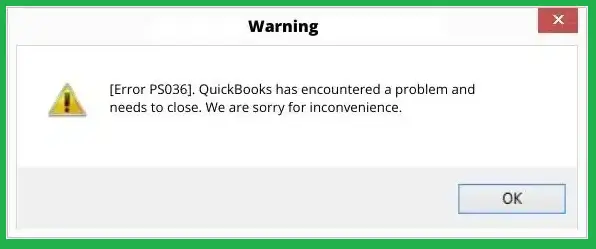
QuickBooks Payroll Error PS036 is a payroll update problem in QuickBooks Desktop. It commonly appears when the program cannot verify payroll service information. An inactive subscription, incorrect service key, damaged CPS files, or connection issue can trigger it. The error can prevent you from downloading the latest payroll tax updates. Here are the main reasons:
- Inactive or expired payroll subscription
- Incorrect payroll service key information
- Outdated QuickBooks Desktop version
- Damaged payroll update files
- Incorrect payroll account details
- Firewall blocking payroll connections
- Unstable internet connection
- Damaged company file information
How to Identify QuickBooks Payroll Error PS036
- A PS036 message appears during payroll updates
- QuickBooks cannot verify your payroll subscription
- Payroll tax table downloads fail repeatedly
- Payroll service information appears inactive
- QuickBooks asks you to verify payroll details
- Payroll updates stop before completion
- The problem appears after selecting Get Payroll Updates
- Other QuickBooks features continue working normally
How to Fix QuickBooks Payroll Error Code PS036
The best approach starts with your payroll subscription and service information. Continue through each method until payroll updates work normally.
1. Check Your Payroll Subscription
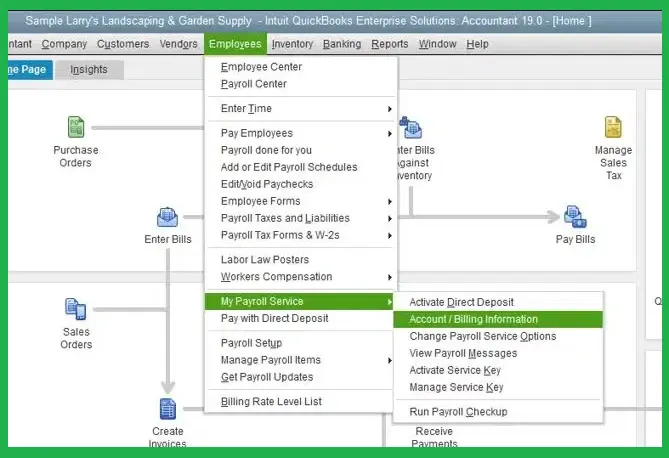
- Close all open QuickBooks company files
- Restart your computer before checking payroll
- Open QuickBooks Desktop after restarting
- Select Employees from the main menu
- Choose My Payroll Service
- Select Manage Service Key
- Confirm your payroll service shows Active
- Check that the service key matches your account
- Correct any outdated service information
2. Update QuickBooks Desktop
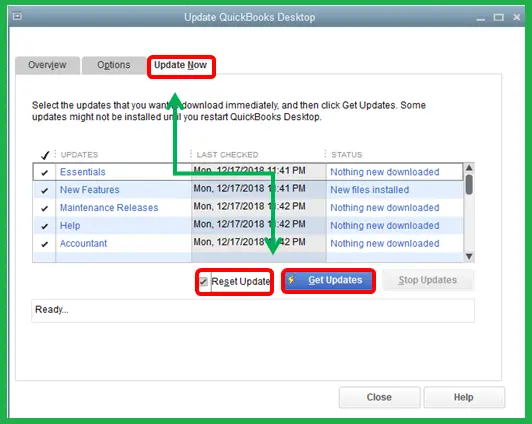
- Open QuickBooks Desktop with administrator access
- Select Help from the main menu
- Choose Update QuickBooks Desktop
- Select Update Now
- Check the Reset Update box
- Select Get Updates
- Restart QuickBooks after downloading updates
- Install any available product updates
Read More:- Fix QuickBooks Update Errors
3. Download the Latest Payroll Tax Table
- Open your QuickBooks Desktop company file
- Select Employees from the menu
- Choose Get Payroll Updates
- Select Download Entire Update
- Click Download
- Wait until the update finishes
- Restart QuickBooks after installation
- Check whether the payroll error disappears
4. Verify Your Payroll Service Key
- Open QuickBooks Desktop
- Select Employees
- Choose My Payroll Service
- Select Manage Service Key
- Review the listed payroll service
- Select Edit when the key appears incorrect
- Enter the correct service key
- Select Next
- Confirm the payroll service shows Active
5. Use QuickBooks Tool Hub

- Close QuickBooks Desktop
- Download the latest QuickBooks Tool Hub
- Install the program on your computer
- Open QuickBooks Tool Hub
- Select Company File Issues
- Choose Quick Fix my File
- Let the tool complete its process
- Select OK when the scan finishes
- Reopen QuickBooks Desktop
6. Rename the CPS Folder
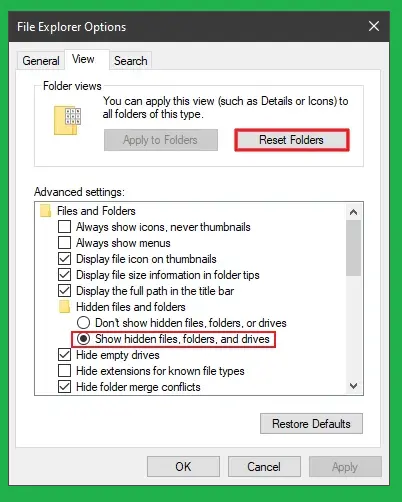
- Close QuickBooks Desktop completely
- Open Windows File Explorer
- Locate the CPS folder used by QuickBooks
- Create a backup before changing files
- Rename the CPS folder
- Add OLD to the folder name
- Reopen QuickBooks Desktop
- Download the payroll update again
7. Run QuickBooks as an Administrator
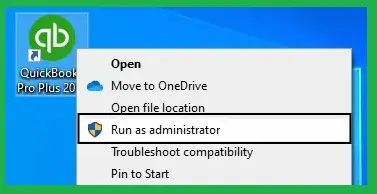
- Close QuickBooks Desktop
- Find the QuickBooks icon
- Right-click the program icon
- Select Run as administrator
- Open your company file
- Select Employees
- Choose Get Payroll Updates
- Download the latest payroll update
- Check whether the error has cleared
How to Prevent QuickBooks Desktop Payroll Error PS036
Regular maintenance can reduce payroll update problems and keep payroll calculations current. Follow these practices before processing important employee payments.
- Keep QuickBooks Desktop updated regularly
- Maintain an active payroll subscription
- Verify billing information periodically
- Check payroll service details after account changes
- Download payroll tax updates promptly
- Maintain regular company file backups
- Use a stable internet connection
- Avoid interrupting payroll downloads
- Keep security software properly configured
- Review payroll settings before major processing periods
Conclusion
QuickBooks Payroll Error PS036 usually connects to payroll subscription verification, service keys, damaged files, or update problems. Start by checking your subscription and service key. Then update QuickBooks and download the newest payroll tax table. Use Tool Hub or rename the CPS folder when basic fixes fail. Accounting Assist Pro also provides guidance for troubleshooting QuickBooks payroll issues and related errors. Fixing this error helps maintain correct payroll calculations and smoother tax processing.
Frequently Asked Questions
1. What is QuickBooks Payroll Error PS036?
It is a QuickBooks Desktop payroll update error. It commonly occurs when payroll subscription verification or update files have problems.
2. Why does QuickBooks show PS036?
QuickBooks can show PS036 because of an inactive subscription, incorrect service key, damaged CPS files, firewall settings, or connection problems.
3. How do I fix QuickBooks Desktop Error PS036 quickly?
Check your payroll subscription first. Then verify the service key and download the latest payroll update.
4. Can an expired payroll subscription cause PS036 ?
Yes. An inactive or expired payroll subscription can prevent QuickBooks from verifying payroll services and downloading updates.
5. How do I check my QuickBooks payroll subscription?
Open Employees, select My Payroll Service, and choose Manage Service Key. Confirm that the service status shows Active.
6. Can outdated QuickBooks cause PS036?
Yes. An outdated QuickBooks Desktop version can interfere with payroll updates. Install available product updates before retrying payroll.
7. Does the CPS folder affect payroll updates?
Yes. QuickBooks identifies damaged CPS files as a possible cause of PSXXX payroll update errors.
8. Can QuickBooks Tool Hub fix PS036?
Tool Hub can help with related company file problems. Quick Fix my File is available under Company File Issues.
9. What is QuickBooks Payroll Update Error PS036?
QuickBooks Payroll Update Error PS036 occurs when QuickBooks cannot complete payroll update verification. Subscription, service key, file, or connection problems can cause it.
