
QuickBooks multi user mode not working usually means workstations cannot open a company file stored on a shared server. Common causes include incorrect hosting settings, blocked firewall connections, stopped database services, and folder permission problems. Errors such as H101, H202, H303, and H505 can also appear. Start by checking the hosting computer and network connection. Then follow the troubleshooting methods below, and test access after each repair.
Key Takeaways
- QuickBooks multi-user mode errors, including H202, H505, and 6000-series errors, can result from missing components, incorrect hosting configurations, firewall restrictions, or insufficient folder permissions.
- Renaming the .ND and .TLG files, verifying hosting settings, and configuring firewall rules or network ports can help resolve many multi-user connectivity issues.
- Accounting Assist Pro helps users fix QuickBooks network errors and provides remote support when needed.
- If the issue persists after troubleshooting, users can contact Accounting Assist Pro through live chat for additional support.
What Does QuickBooks Multi-User Mode Not Working Mean?
QuickBooks multi user mode not working means multiple users cannot access the same company file as expected. QuickBooks Desktop uses a hosting computer to share company data with authorized workstations. When network settings, services, or permissions fail, other computers may lose access. This problem does not always mean the company file is damaged.
What Error Codes and Messages Appear?
A QuickBooks multi-user mode not working error may show a code or connection message. The code can help identify where the connection is failing.
QuickBooks Error H101
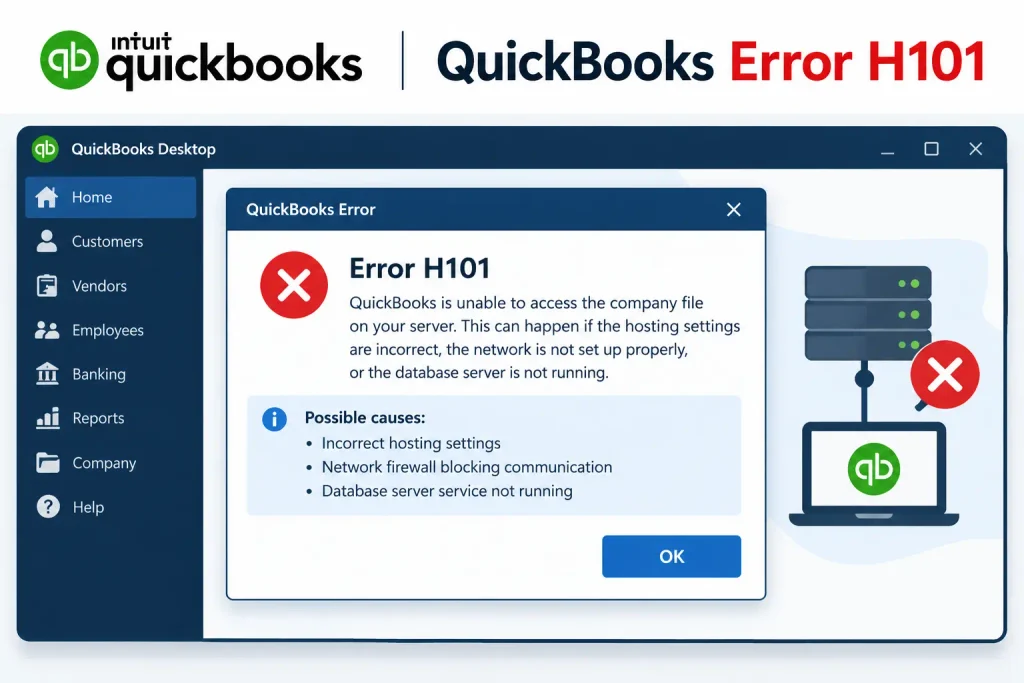
- Appears when a workstation cannot connect to the computer hosting the company file
- May indicate incorrect hosting settings or network configuration
QuickBooks Error H202
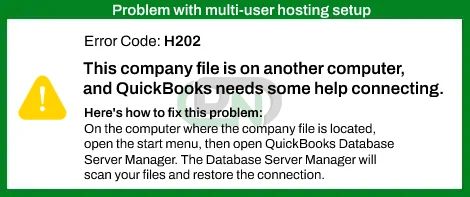
- Appears when QuickBooks cannot connect to the server hosting the company file
- May involve firewall restrictions, stopped database services, or incorrect server settings
Read More:- Fix QuickBooks Error H202
QuickBooks Error H303
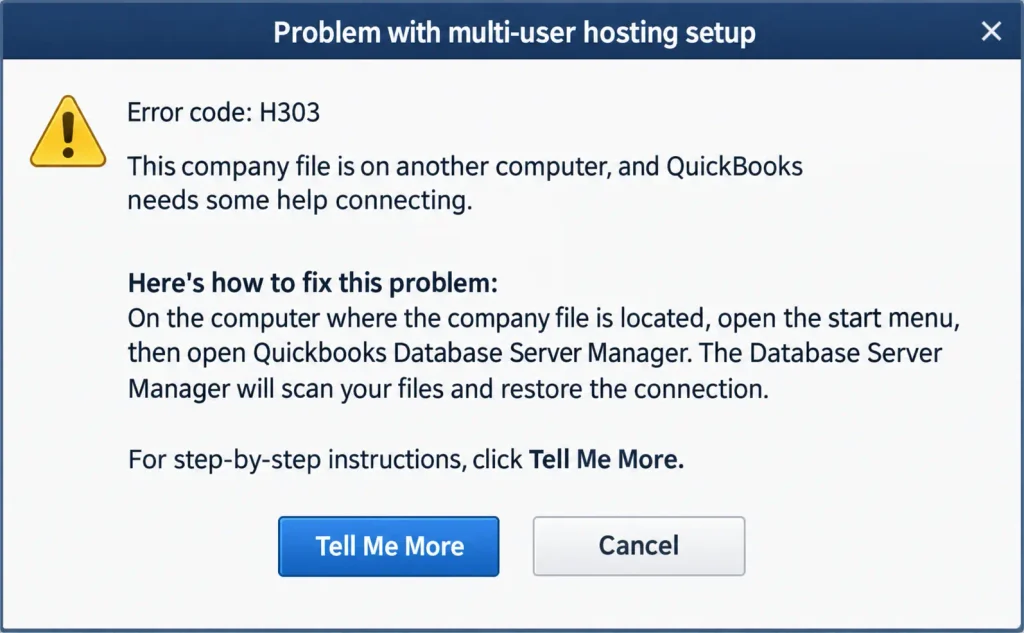
- Can occur when QuickBooks cannot access a company file stored on another computer
- May point to network or hosting configuration problems
Read More:- Fix QuickBooks Error H303
QuickBooks Error H505
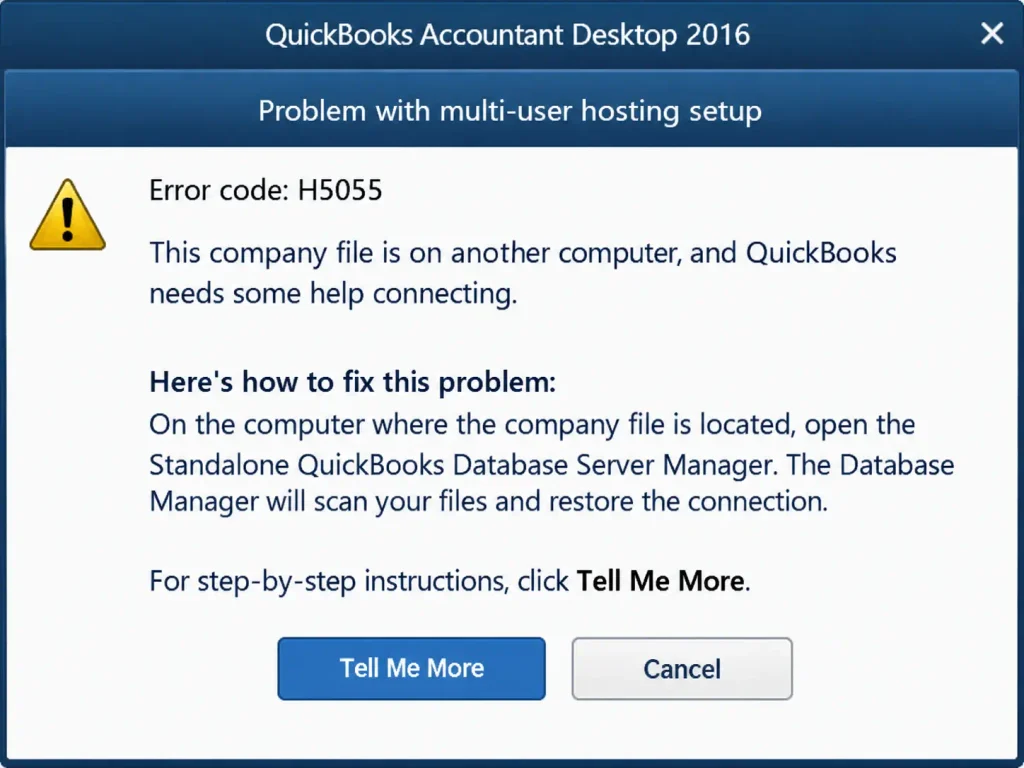
- Appears when a workstation cannot communicate with the hosting computer
- May involve server settings, database services, or network communication
QuickBooks 6000-Series Errors
- Some 6000-series errors affect access to company files
- Possible causes include damaged files, incorrect folder permissions, or network restrictions
Common Error Messages
- QuickBooks cannot connect to the company file
- QuickBooks cannot communicate with the server
- The company file is open in single-user mode
- The connection to the company file has been lost
What Are the Signs of QuickBooks Multi-User Mode Not Working?
Recognizing the symptoms helps you choose the correct repair method. QuickBooks multi user mode not working can affect one workstation or every connected computer.
- QuickBooks opens the company file only in single-user mode
- Workstations cannot access the company file stored on the server
- H101, H202, H303, or H505 messages appear
- QuickBooks freezes or disconnects while users access shared data
- The company file opens on the server but fails on other computers
- Multiple users cannot work in the same company file
- Network or connection warnings appear
- QuickBooksDBXX or QBCFMonitorService is stopped
What Causes QuickBooks Multi-User Mode Not Working?
A QuickBooks multi-user mode not working error often results from a connection or setup problem. The following issues are common reasons shared access stops working.
- Incorrect hosting settings: More than one computer attempts to host the company file
- Missing Database Server Manager: The hosting computer lacks the required component
- Stopped services: QuickBooksDBXX or QBCFMonitorService is not running
- Firewall restrictions: Windows Firewall blocks required QuickBooks connections
- Antivirus interference: Security software prevents computers from communicating
- Incorrect folder permissions: Windows blocks authorized users from opening shared files
- Network problems: The server and workstations cannot communicate reliably
- Disabled Network Discovery: Computers cannot find each other on the network
- Damaged network data files: An incorrect or damaged .ND file affects connections
- Outdated software: QuickBooks or its server component needs an update
- Server sleep mode: The hosting computer disconnects when it sleeps
- Incorrect server or DNS settings: Workstations cannot locate the hosting computer
How to Identify QuickBooks Multi-User Mode Not Working
Before changing settings, determine whether the problem affects the company file, server, or one workstation. These checks can narrow down the cause.
Check the Error Message
- Record the complete error code and message
- Note whether the issue appears when opening the file or switching modes
- Check whether one workstation or all workstations are affected
Test the Company File
- Open QuickBooks Desktop on the server
- Open the company file directly from its local folder
- Check whether the file opens without an error
- Try accessing the same file from an authorized workstation
Check the Hosting Computer
- Identify the computer storing the company file
- Confirm that the server is powered on and connected to the network
- Check that hosting is enabled on the designated server
- Confirm that workstations are not hosting the file
Check QuickBooks Services
- Press Windows + R
- Type services.msc and press Enter
- Find QuickBooksDBXX and QBCFMonitorService
- Check whether both services are running
Test Network Connectivity
- Confirm that Network Discovery is enabled
- Check whether the server appears under Network in File Explorer
- Record the server name and IP address
- Ping the server from an affected workstation
What Should You Prepare Before Fixing the Problem?
Prepare the company file and check your network before making changes. These precautions reduce the risk of losing work or changing the wrong settings.
Back Up the Company File
- Ask all users to save their work
- Create a company file backup
- Confirm that the backup is saved in a safe location
Read More:- Fix Company file Error
Close QuickBooks on All Computers
- Close QuickBooks Desktop on the server
- Close QuickBooks Desktop on every workstation
- Confirm that no one is editing the company file
Check QuickBooks Versions
- Open QuickBooks Desktop
- Press F2 to view product information
- Record the installed version and release
- Confirm that the correct Database Server Manager is installed
Check Administrative Access
- Sign in using an authorized Windows administrator account
- Confirm access to folder permissions and firewall settings
- Keep administrator credentials available when needed
Record Network Information
- Identify the server computer name
- Record the company file folder location
- Review the existing firewall rules and assigned QuickBooks ports
- Confirm that all computers use the intended network
Method 1: Correct Company File Folder Permissions
Incorrect permissions can prevent other computers from opening the shared company file. Check access on the computer that stores the file.
Step 1: Locate the Company File Folder
- Open File Explorer on the server
- Find the folder containing the .QBW company file
- Right-click the folder and select Properties
Step 2: Open Security Settings
- Select the Security tab
- Click Edit
- Find the appropriate QBDataServiceUserXX account, if listed
Step 3: Review Folder Permissions
- Check the account’s current permissions
- Allow the access required for QuickBooks to read and update company data
- Grant only the permissions needed for the intended users and services
- Click Apply, then OK
Step 4: Check Sharing Permissions
- Open the folder’s Sharing settings
- Confirm that authorized network users can access the shared folder
- Apply any required changes
Step 5: Test Access
- Open QuickBooks Desktop on a workstation
- Browse to the shared company file
- Check whether the file opens in multi-user mode
Method 2: Install or Update QuickBooks Database Server Manager
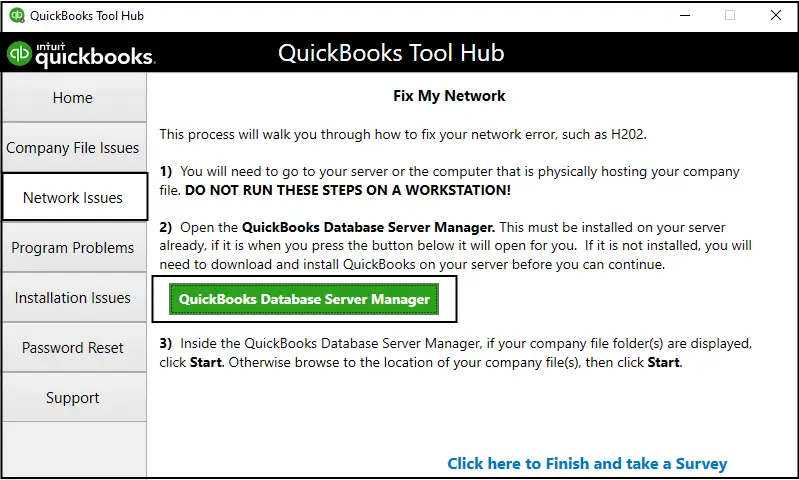
Database Server Manager helps share company files with other computers on the network. It should be installed and running on the computer hosting those files.
Step 1: Check the Current Installation
- Open the Windows Start menu on the server
- Search for QuickBooks Database Server Manager
- Check whether the program is installed
Step 2: Get the Correct Installer
- Use the official QuickBooks Desktop installer from Intuit
- Match the installer to the QuickBooks version you use
- Close QuickBooks before starting the installation
Step 3: Install the Required Components
- Run the installer
- Follow the on-screen instructions
- Choose Custom and Network Options when prompted
- Select the option that fits your server setup
- Complete the installation
Step 4: Verify the Installation
- Open Database Server Manager
- Confirm that the required components are available
- Check whether the related service starts
Read More:- Fix QuickBooks Installation Errors
Step 5: Test the Company File
- Open QuickBooks on the server
- Open the company file from a workstation
- If the issue continues, scan the company file folder next
Method 3: Scan the Company File Folder
A scan helps Database Server Manager find company files and refresh their network information. It can also help restore required firewall permissions.
Step 1: Open Database Server Manager
- Sign in to the hosting computer
- Open the Windows Start menu
- Search for QuickBooks Database Server Manager
Step 2: Select the Company File Folder
- Open the Scan Folders tab
- Click Browse
- Select the folder containing the .QBW file
- Confirm the folder selection
Step 3: Start the Scan
- Click Start Scan
- Wait for the scan to finish
- Review the results
Step 4: Test Network Access
- Open QuickBooks Desktop
- Try opening the company file from a workstation
- Confirm that authorized users can access the shared file
Method 4: Configure Hosting Settings Correctly
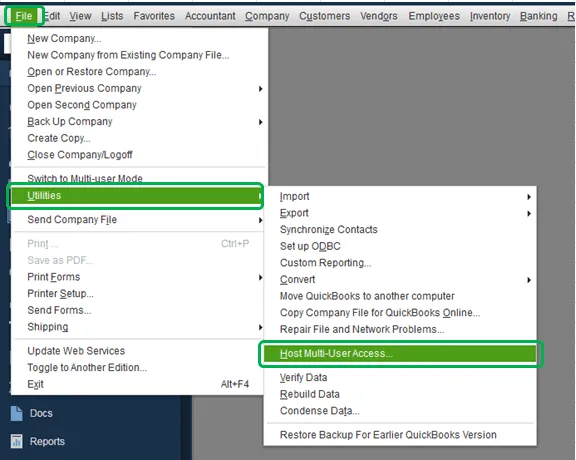
Only the designated hosting computer should host the company file. Incorrect hosting settings can cause QuickBooks multi-user mode not working error messages, including H101, H303, and H505.
Step 1: Check Hosting on Each Workstation
- Open QuickBooks on a workstation without opening the company file
- Select File, then point to Utilities
- If Stop Hosting Multi-User Access appears, select it
- Repeat this check on each workstation
Step 2: Enable Hosting on the Server
- Open QuickBooks on the hosting computer
- Select File, then Utilities
- Choose Host Multi-User Access if it appears
- Do not select Stop Hosting Multi-User Access on the server
Step 3: Verify the Settings
- Confirm that the server is the only hosting computer
- Check that Database Server Manager is running
- Open the company file from each authorized workstation
Method 5: Restart QuickBooks Database Services
Stopped services can prevent workstations from reaching the company file. This method is useful when Multi user mode QuickBooks not working continues after checking hosting.
Step 1: Open Windows Services
- Press Windows + R
- Type services.msc
- Press Enter
Step 2: Find the Correct Database Service
- Find QuickBooksDBXX
- Match XX to your installed QuickBooks version
- Double-click the service to view its settings
Step 3: Start or Restart the Service
- Set Startup type to Automatic
- Click Start if the service is stopped
- Click Restart if a restart is needed
- Select Apply, then OK
Step 4: Set Recovery Options
- Open the service’s Recovery tab
- Choose Restart the Service for the first failure
- Apply the same recovery action for later failures, if appropriate
- Save the settings
Step 5: Repeat for QBCFMonitorService
- Find QBCFMonitorService
- Check its status and startup type
- Start or restart it when needed
- Apply the appropriate recovery settings
Step 6: Test Multi-User Access
- Open QuickBooks on the server
- Open QuickBooks on a workstation
- Select File, then Switch to Multi-user Mode
- Check whether the company file opens correctly
Method 6: Rename the Network Data and Transaction Log Files
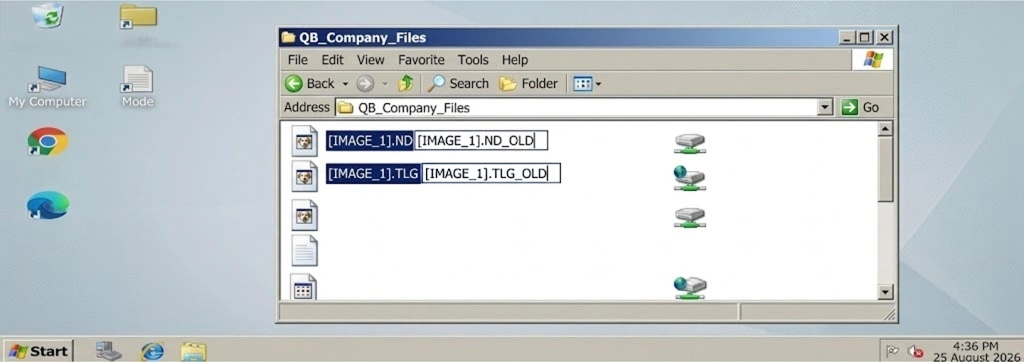
QuickBooks uses an .ND file to locate the company file across the network. The .TLG file stores transaction log information. Renaming a supporting file may help QuickBooks recreate it, but do not rename the main .QBW file.
Step 1: Close QuickBooks Everywhere
- Ask all users to save their work
- Close QuickBooks on the server and workstations
- Confirm that no one is using the company file
Step 2: Locate the Company File
- Open QuickBooks Desktop
- Press F2 to view product information
- Record the company file location
- Open the folder containing the .QBW file
Step 3: Find the Supporting Files
- Find the .ND file with the matching company name
- Find the matching .TLG file
- Confirm that both files belong to the correct company file
Step 4: Rename the Files
- Right-click the matching .ND file
- Add .old to its filename
- Rename the .TLG file only if needed
- Do not delete or rename the .QBW company file
Step 5: Scan and Test
- Open Database Server Manager
- Scan the company file folder
- Reopen QuickBooks Desktop
- Test access from an authorized workstation
Method 7: Configure Windows Firewall and Antivirus Settings
Security software may block the connection between the server and workstations. For QB multi user mode not working, confirm the required ports before creating firewall rules. QuickBooks 2019 and later use dynamic ports, so check the assigned port instead of relying on old port lists.
Step 1: Find the Assigned Port
- Open Database Server Manager on the server
- Select the Port Monitor tab, if available
- Find your QuickBooks version
- Record its assigned port number
Step 2: Open Windows Firewall
- Search for Windows Defender Firewall with Advanced Security
- Open it with administrator access
- Select Inbound Rules
Step 3: Create an Inbound Port Rule
- Select New Rule
- Choose Port
- Select TCP
- Enter the confirmed port number
- Choose Allow the connection
- Select the network profiles that match your setup
- Name and save the rule
Step 4: Add an Outbound Rule if Required
- Open Outbound Rules
- Select New Rule
- Choose Port and then TCP
- Enter the confirmed port
- Allow the connection and save the rule
Step 5: Review Program Exceptions
- Check whether QuickBooks programs are allowed through the firewall
- Review third-party antivirus settings
- Add approved exceptions when necessary
- Do not leave your firewall or antivirus disabled
Step 6: Test the Connection
- Restart computers if the firewall changes require it
- Open QuickBooks Desktop
- Open the company file from a workstation
- Check whether the connection works
Method 8: Enable Network Discovery and Ping the Server
Network Discovery helps computers find other devices on the same network. When QuickBooks multi user mode not working H202 appears, testing the server connection can help identify network problems.
Step 1: Enable Network Discovery
- Open Control Panel
- Select Network and Sharing Center
- Choose Change advanced sharing settings
- Turn on Network Discovery
- Enable File and Printer Sharing if required
Step 2: Find the Server Name
- Open the Start menu on the server
- Search for Command Prompt
- Type ipconfig /all
- Press Enter
- Record the server’s host name
Step 3: Ping the Server
- Open Command Prompt on the affected workstation
- Type ping servername, replacing servername with the actual host name
- Press Enter
Step 4: Review the Results
- Check whether the server replies
- Note any timeouts or failed responses
- Confirm that both computers use the intended network
- Contact an IT professional if you cannot resolve network failures
Step 5: Test the Shared Folder
- Open File Explorer on the workstation
- Enter the server’s shared folder path
- Confirm that the folder opens
- Check whether you can access the company file
Method 9: Check the Windows Hosts File
The Windows hosts file connects computer names with IP addresses. An incorrect entry can prevent a workstation from finding the hosting computer. Only change this file when your network administrator confirms that an entry needs correction.
Step 1: Open the Hosts File
- Open the Start menu
- Search for Notepad
- Run Notepad as an administrator
- Select File, then Open
- Browse to C:\Windows\System32\drivers\etc\
- Change the file filter to All Files
- Open the file named hosts
Step 2: Check the Server Entry
- Review entries that mention the hosting computer
- Confirm the server’s current IP address and host name
- Compare these details with your network settings
Step 3: Correct an Entry Only When Needed
- Ask your network administrator to confirm the correct entry
- Enter the IP address followed by the host name
- Avoid changing unrelated lines
Step 4: Save and Test
- Save the file if you made a valid change
- Close and reopen affected applications if needed
- Test server connectivity
- Check whether multi-user access works
Method 10: Use QuickBooks Tool Hub and File Doctor
QuickBooks Tool Hub includes tools for certain company file and network problems. File Doctor can help diagnose some issues, but it cannot fix every network cause. When How to fix QuickBooks multi user mode not working is your main concern, use this tool after basic checks.
Step 1: Install QuickBooks Tool Hub

- Close QuickBooks Desktop
- Download the latest compatible Tool Hub from Intuit
- Open the downloaded installer
- Follow the installation instructions
- Launch Tool Hub
Step 2: Open File Doctor
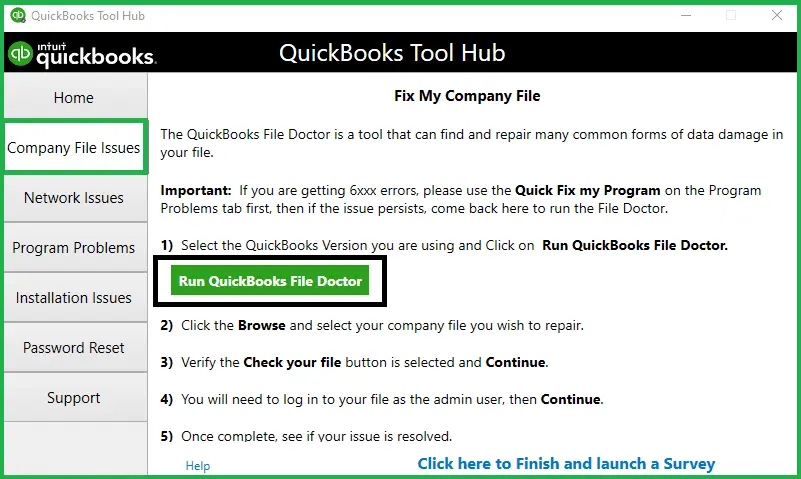
- Select Company File Issues
- Choose Run QuickBooks File Doctor
- Wait for the tool to open
Step 3: Select the Company File
- Choose the affected company file
- Click Browse if the file does not appear
- Confirm that you selected the correct file
Step 4: Run the Diagnostic Check
- Select the available file and network diagnostic option
- Enter the administrator password if requested
- Start the scan
- Wait for the process to finish
Step 5: Review the Results
- Follow the tool’s recommended repair instructions
- Reopen QuickBooks Desktop
- Test the company file on the server
- Check access from authorized workstations
Method 11: Update QuickBooks Desktop and Repair the Installation
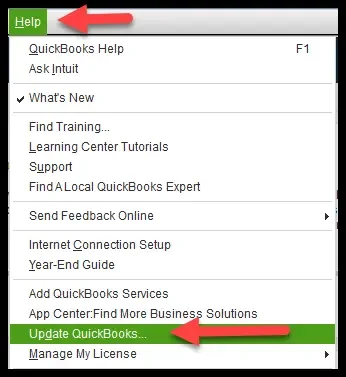
Outdated software or damaged installation files can cause problems that remain after network checks. Updating QuickBooks and repairing its installation may help resolve these issues.
Step 1: Update QuickBooks Desktop
- Open QuickBooks Desktop
- Select Help, then Update QuickBooks Desktop
- Open the Update Now tab
- Select Get Updates
- Install available updates
- Restart QuickBooks if prompted
Read More:- Fix QuickBooks Update Errors
Step 2: Check Database Server Manager
- Confirm that the server has the appropriate Database Server Manager version
- Install any required updates
- Restart the related service if necessary
Step 3: Repair QuickBooks Desktop
- Close QuickBooks Desktop
- Open Windows Control Panel
- Select Programs and Features or Uninstall a Program
- Choose QuickBooks Desktop
- Select Change or Repair, if available
- Follow the repair instructions
Step 4: Test Multi-User Access
- Restart the computer if prompted
- Open QuickBooks Desktop
- Open the company file
- Test access from each affected workstation
How to Prevent QuickBooks Multi-User Mode Not Working in the Future
Regular maintenance reduces the chance of connection problems returning. Follow these practices to keep shared company file access stable.
- Keep QuickBooks Desktop and Database Server Manager updated
- Enable hosting only on the designated server
- Maintain correct folder and sharing permissions
- Keep QuickBooksDBXX and QBCFMonitorService running
- Use firewall rules that match your installed QuickBooks version
- Maintain a stable network connection
- Prevent the server from sleeping during working hours
- Back up the company file regularly
- Avoid moving shared files without updating access settings
- Review server and DNS settings after network changes
- Test multi-user access after major software updates
- Store company files on a supported local server drive rather than unsupported network storage
Conclusion
QuickBooks multi user mode not working can interrupt shared accounting work, but systematic checks often help identify the cause. Start with hosting settings, folder permissions, database services, and network connectivity. Then scan the company folder, review firewall rules, and use File Doctor when appropriate. Always back up your company file before making changes. Finally, test access from every authorized workstation to confirm that the problem is resolved. Accounting Assist Pro can help users troubleshoot QuickBooks multi-user issues and restore smooth accounting workflows.
Frequently Asked Questions
1. Why is QuickBooks multi-user mode not working?
QuickBooks multi user mode not working usually results from incorrect hosting settings, blocked firewall connections, stopped database services, folder permissions, or network problems. Check the server first.
2. How do I fix QuickBooks multi-user mode not working quickly?
To fix QuickBooks multi-user mode not working, verify hosting settings, restart QuickBooks database services, scan the company folder, and test firewall rules. Check access after each step.
3. What causes the QuickBooks multi-user mode not working error H202?
The QuickBooks multi-user mode not working error H202 usually means a workstation cannot communicate with the hosting computer. Check database services, firewall settings, and network connectivity.
4. Why is Multi user mode QuickBooks not working on one workstation?
If Multi user mode QuickBooks not working affects one workstation, check its network connection, Windows permissions, firewall settings, and QuickBooks version. Compare its settings with a working computer.
5. How do I fix QuickBooks multi user mode not working H202?
To fix QuickBooks multi user mode not working H202, verify the hosting computer, check QuickBooksDBXX, scan the company folder, and confirm that the required firewall ports are allowed.
6. Can firewall settings cause QB multi user mode not working?
Yes. QB multi user mode not working can result from firewall rules that block QuickBooks programs or network ports. Check the assigned ports and approved program exceptions.
7. Why does QuickBooks Desktop multi user mode stop working?
QuickBooks Desktop multi user mode may stop working because of hosting conflicts, stopped services, outdated software, incorrect permissions, or network interruptions. Check these settings before repairing the installation.
8. Should I rename the ND and TLG files?
Renaming the .ND file can help QuickBooks recreate network information. Rename the .TLG file only when appropriate, and never rename or delete the main .QBW company file.
9. Can QuickBooks File Doctor fix multi-user access problems?
File Doctor can diagnose certain company file and network problems. However, it may not resolve every cause, especially incorrect hosting settings or wider network failures.
10. How can I prevent QuickBooks multi-user mode problems?
Keep QuickBooks updated, maintain verified backups, use correct hosting settings, check folder permissions, and maintain a stable network. Test access after important system changes.
