
QuickBooks Error PS038 can interrupt payroll processing when paychecks remain stuck with an “Online to Send” status. This issue prevents QuickBooks Desktop from sending payroll information to Intuit. It can also stop payroll tax table downloads and delay employee payments. Outdated software, damaged company files, and connection problems can trigger this issue. Fortunately, you can identify stuck transactions and restore payroll operations using many fixing methods.
What Is QuickBooks Error PS038?
This payroll error occurs when QuickBooks cannot send pending paycheck information to Intuit’s servers.
Meaning of QuickBooks Error PS038
- It is a payroll-related error in QuickBooks Desktop
- It appears when one or more paychecks remain stuck with an Online to Send status
- QuickBooks cannot complete pending payroll data transmission
- Payroll updates and tax table downloads may stop working
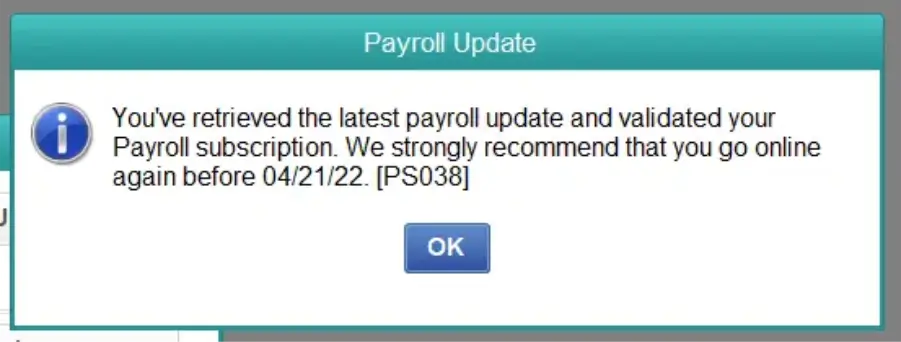
- The error can appear even after downloading updates and validating the payroll subscription
QuickBooks Error PS038 Message
Users may encounter the following message while updating payroll:
“You’ve retrieved the latest payroll update and validated your Payroll subscription. We strongly recommend that you go online again before mm/dd/yyyy. [PS038].”
Another message may appear when sending payroll usage data:
“QuickBooks has encountered a problem sending your usage data. Please try again later. [Error PS038].”
QuickBooks Error Code PS038
- PS038 identifies a problem involving payroll data transmission
- The error commonly relates to paychecks waiting to reach Intuit
- Pending transactions can prevent successful payroll updates
- QuickBooks may continue displaying the error until the affected transactions are resolved
What Are the Causes of QuickBooks Payroll Error PS038?
Several payroll, software, and connectivity problems can trigger this error.
- Stuck paychecks: Transactions remain marked Online to Send and never complete transmission
- Outdated QuickBooks: An older software release can interfere with payroll updates
- Old tax tables: Missing payroll updates can prevent accurate payroll processing
- Damaged company files: Corrupted QBW data can interrupt paycheck transmission
- Inactive payroll subscription: QuickBooks cannot validate an expired subscription
- Incorrect service key: Missing or incorrect service information can affect payroll validation
- Billing information mismatch: Incorrect account details or EIN information can prevent subscription verification
- Internet problems: An unstable connection can interrupt communication with Intuit
- Firewall restrictions: Security software may block QuickBooks internet access
- Damaged CPS folder: Corrupted payroll update files can interrupt downloads
- Incomplete updates: Interrupted downloads can leave payroll components outdated
- Incorrect permissions: Limited Windows access can prevent QuickBooks from completing certain operations
What Are the Signs of QuickBooks Error PS038?
Recognizing the symptoms helps you identify the problem before payroll delays increase.
- QuickBooks displays the PS038 error message during payroll updates
- Paychecks remain stuck with an Online to Send status
- Payroll usage data fails to reach Intuit
- Payroll tax table downloads stop unexpectedly
- QuickBooks becomes slow during payroll operations
- The application freezes while processing employee payments
- Pending payroll transactions remain unsent
- Windows performance may decline during payroll operations
What Are the Prerequisites to Fix QuickBooks Error PS038?
Prepare your company file and system before starting the troubleshooting process.
- Create a recent backup of your company file
- Save important payroll records and paycheck details
- Install the latest compatible QuickBooks Desktop release
- Check the latest available payroll tax table
- Sign in using a Windows administrator account
- Keep your payroll service key and PIN available
- Verify that your payroll subscription is active
- Confirm that your internet connection works properly
- Close unnecessary applications before troubleshooting
- Identify whether QuickBooks is running in Single-user or Multi-user mode
- Ensure sufficient storage space for updates and backups
How to Identify QuickBooks Error PS038 and Find Stuck Paychecks?
Find the affected transactions before changing historical payroll records.
Method 1: Find Stuck Paychecks Using the Find Window
- Open QuickBooks Desktop
- Press Ctrl + F
- Select the Advanced tab
- Locate the Choose Filter section
- Select Detail Level from the Filter list
- Choose Summary Only
- Return to the Filter list
- Select Online Status
- Choose Online to Send
- Click Find
- Review the matching paycheck transactions
- Note the total number of matches
- Record the oldest and newest paycheck dates
Method 2: Identify Stuck Transactions Through the Payroll Center
- Open QuickBooks Desktop
- Navigate to Employees
- Select Payroll Center
- Open the Transactions section
- Select Paychecks
- Filter transactions by Online to Send
- Review the pending paycheck records
- Compare the results with the Find window
Method 3: Check QBWin.log for Transaction IDs
- Open QuickBooks Desktop
- Press F2, followed by F3
- Open the Open File tab
- Select QBWin.log
- Press Ctrl + F
- Search for PS038 or Online to Send
- Review the matching entries
- Record the transaction IDs for further investigation
Solution 1: Update QuickBooks Desktop and Payroll Tax Tables
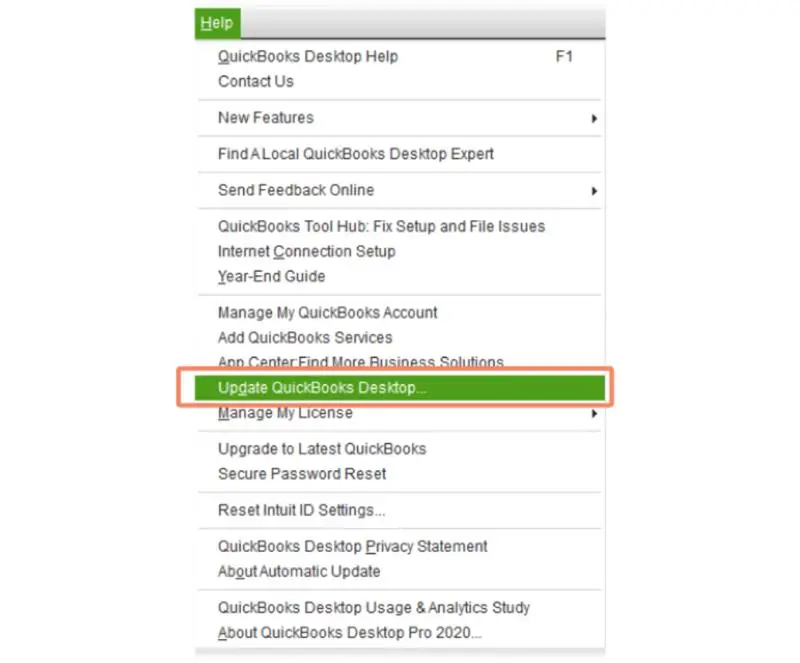
Outdated software and payroll tax tables can interrupt payroll operations.
- Open QuickBooks Desktop
- Navigate to the Help menu
- Select Update QuickBooks Desktop
- Open the Update Now tab
- Select Get Updates
- Wait for the download to finish
- Close QuickBooks Desktop
- Reopen the application
- Install the updates if prompted
- Navigate to Employees
- Select Get Payroll Updates
- Choose Download Entire Update
- Click Update if displayed
- Wait for the download to finish
- Check whether the payroll update works successfully
Read More:- Fix QuickBooks Update Errors
Solution 2: Send Pending Payroll Data to Intuit
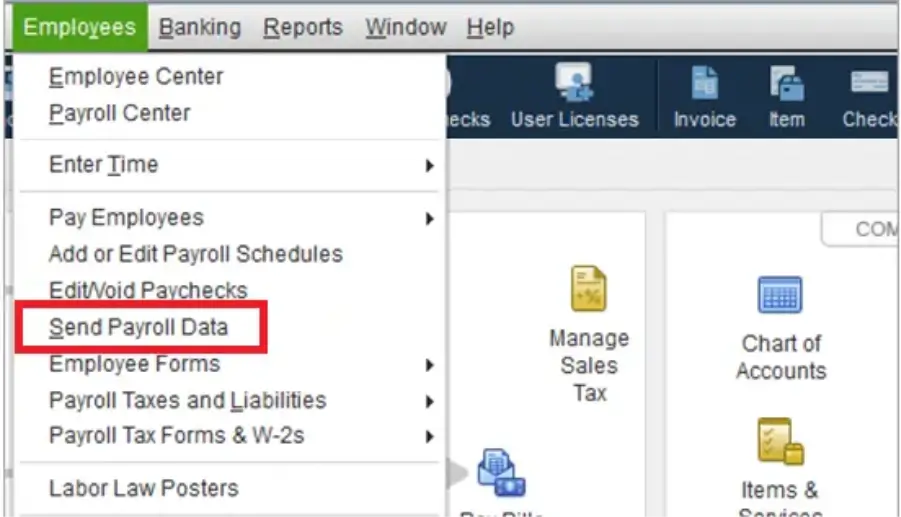
Transmitting pending payroll information can clear the backlog behind the error.
- Open QuickBooks Desktop
- Navigate to Employees
- Select My Payroll Service
- Choose Send Usage Data
- If unavailable, select Send Payroll Data
- Open the Send/Receive Payroll Data window
- Click Send All
- Enter your payroll service PIN when prompted
- Wait for the transmission to finish
- Confirm whether QuickBooks sends the information successfully
- Navigate to Employees
- Select Get Payroll Updates
- Choose Download Entire Update
- Check whether the error disappears
If transmission fails, investigate the connection and pending transactions before continuing.
Solution 3: Find and Toggle Paychecks Stuck as Online to Send
The toggle method refreshes stuck paycheck records without intentionally changing their payroll amounts.
- Press Ctrl + F to open the Find window
- Select the Advanced tab
- Set Detail Level to Summary Only
- Select Online Status
- Choose Online to Send
- Click Find
- Identify the oldest stuck paycheck
- Open that paycheck
- Select Paycheck Detail
- Navigate to the Earnings section
- Identify the last earnings item
- Add the same earnings item as a duplicate line
- When the Net Pay Locked message appears, select No
- Confirm that net pay and tax amounts remain unchanged
- Click OK
- Select Yes if the Past Transactions warning appears
- Click Save & Close
- Select Yes if the Recording Transactions warning appears
- Reopen the same paycheck
- Select Paycheck Detail
- Delete the duplicate earnings item
- Confirm that net pay and taxes remain unchanged
- Click OK
- Select Save & Close
- Repeat these steps for every stuck paycheck
- Send payroll data again
- Download payroll updates to test the result
Important: Never change historical paycheck amounts or tax calculations during this process.
Solution 4: Run Verify and Rebuild Data Utilities
Company file damage can prevent QuickBooks from processing payroll transactions correctly.
Step 1: Create a Company File Backup
- Open QuickBooks Desktop
- Navigate to File
- Select Back Up Company
- Choose Create Local Backup
- Select Local Backup
- Click Options
- Choose a secure local storage location
- Confirm the backup settings
- Save the backup
Step 2: Run Verify Data
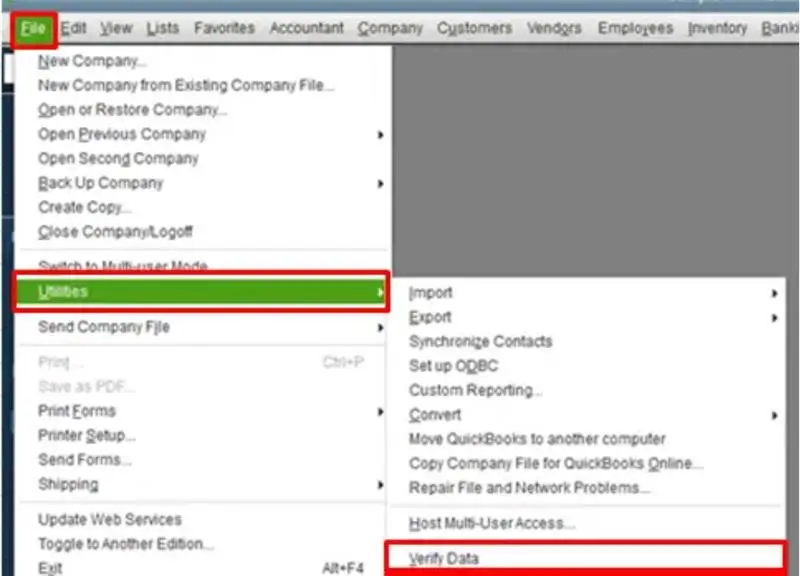
- Navigate to File
- Select Utilities
- Choose Verify Data
- Allow QuickBooks to scan the company file
- Review the scan results
- Select OK if QuickBooks detects no problems
- Continue to Rebuild Data if QuickBooks reports damaged data
Step 3: Run Rebuild Data
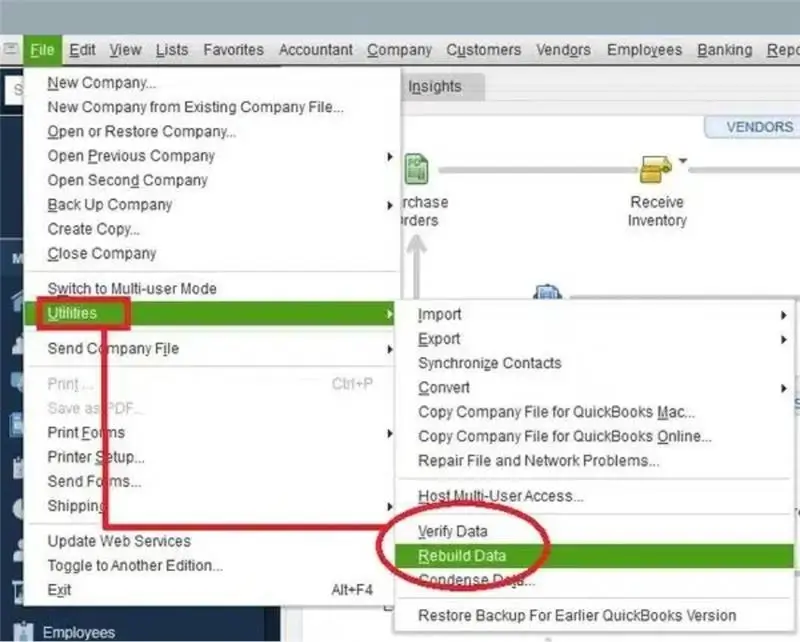
- Navigate to File
- Select Utilities
- Choose Rebuild Data
- Allow QuickBooks to create a backup when prompted
- Select the backup location
- Enter a new backup filename
- Click Save
- Wait for the rebuilding process to finish
- Select OK when the completion message appears
- Review the results
Step 4: Verify the Company File Again
- Navigate to File
- Select Utilities
- Choose Verify Data
- Allow QuickBooks to scan the repaired file
- Confirm whether additional problems remain
- Retry payroll updates
Note: Assisted Payroll users should contact their payroll service team before rebuilding company data.
Solution 5: Verify Payroll Subscription and Service Key
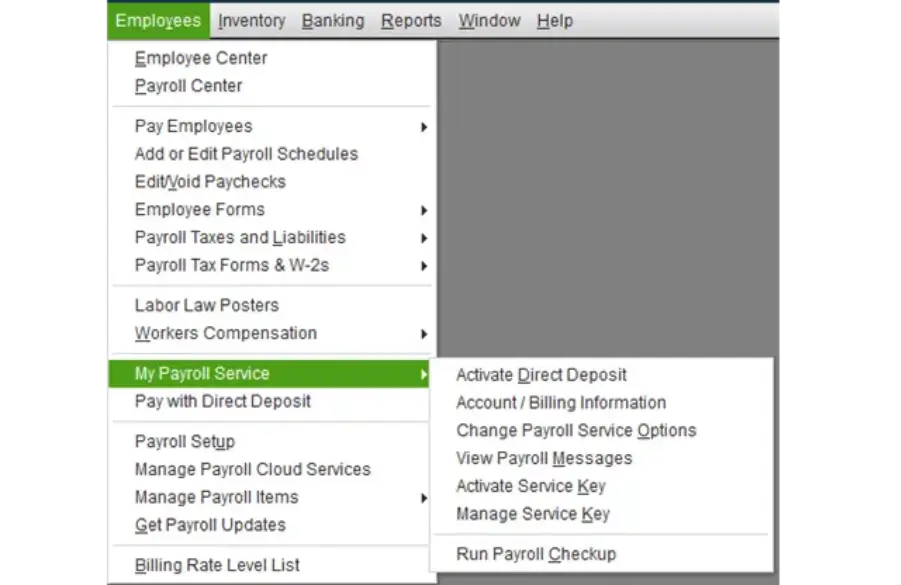
An inactive subscription or incorrect service key can prevent payroll validation.
- Open QuickBooks Desktop
- Navigate to Employees
- Select My Payroll Service
- Choose Manage Service Key
- Review the Status column
- Confirm that the subscription displays Active
- Renew the subscription if it has expired
- Select Edit to review the service key
- Compare the displayed key with your account information
- Confirm that the 16-digit service key is correct
- Enter the correct key if necessary
- Click Next
- Uncheck Open Payroll Setup if selected
- Click Finish
- Restart QuickBooks if necessary
- Navigate to Employees
- Select Get Payroll Updates
- Choose Download Entire Update
- Check whether payroll updates complete successfully
Solution 6: Rename the Corrupted CPS Payroll Update Folder
Damaged CPS files can interfere with payroll update downloads. Renaming the folder allows QuickBooks to create fresh update files.
- Close QuickBooks Desktop completely
- Open File Explorer
- Navigate to the QuickBooks installation directory
- Check the applicable CPS folder location, such as:
C:\Program Files (x86)\Intuit\QuickBooks <Year>\Components\Payroll\CPS
C:\Program Files (x86)\Common Files\Intuit\QuickBooks\CPS - Check the corresponding Program Files directory for applicable 64-bit installations
- Confirm the correct folder before making changes
- Right-click the CPS folder
- Select Rename
- Change its name to CPS.OLD
- Reopen QuickBooks Desktop
- Navigate to Employees
- Select Get Payroll Updates
- Choose Download Entire Update
- Allow QuickBooks to create a fresh CPS folder
- Test payroll updates again
Keep the renamed folder until the new payroll updates work correctly.
Solution 7: Repair QuickBooks Desktop Using Tool Hub and File Doctor
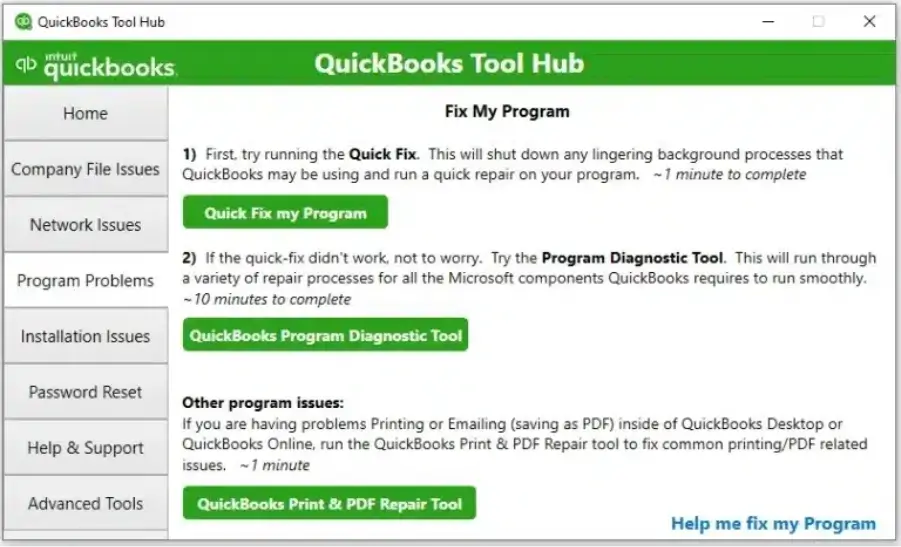
Program or company file damage may require additional repair tools.
Step 1: Download and Install QuickBooks Tool Hub
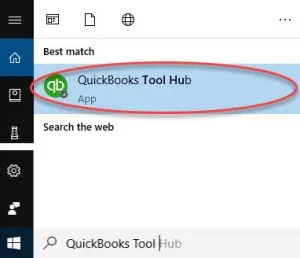
- Close QuickBooks Desktop
- Download the latest compatible QuickBooks Tool Hub installer
- Open the downloaded installer
- Run QuickBooksToolHub.exe
- Follow the installation instructions
- Open QuickBooks Tool Hub
Step 2: Run Quick Fix My Program
- Select Program Problems
- Choose Quick Fix My Program
- Allow the utility to close active QuickBooks processes
- Wait for the repair to finish
- Reopen QuickBooks Desktop
- Open your company file
- Test payroll updates
Step 3: Run QuickBooks Install Diagnostic Tool
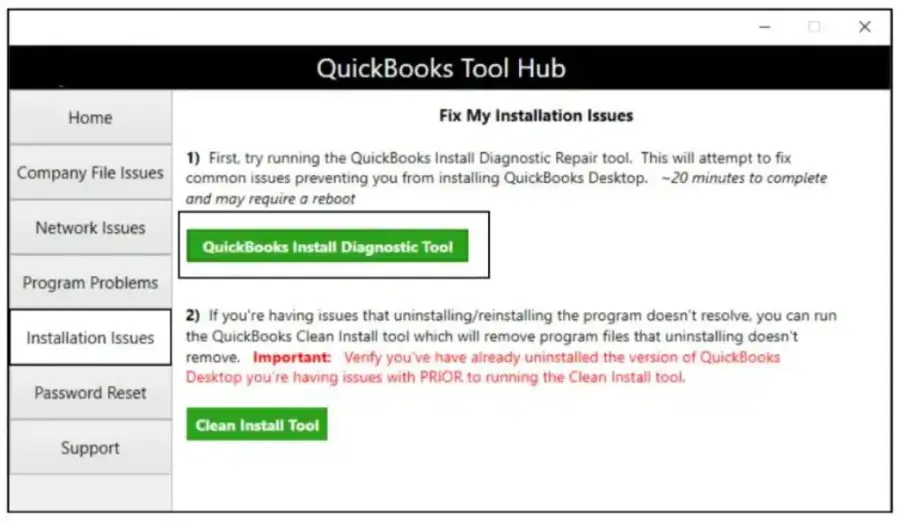
- Open QuickBooks Tool Hub
- Select Installation Issues
- Choose QuickBooks Install Diagnostic Tool
- Allow the utility to scan installation components
- Wait for the repair to finish
- Restart your computer
- Open QuickBooks Desktop
- Retry the payroll update
Step 4: Run QuickBooks File Doctor
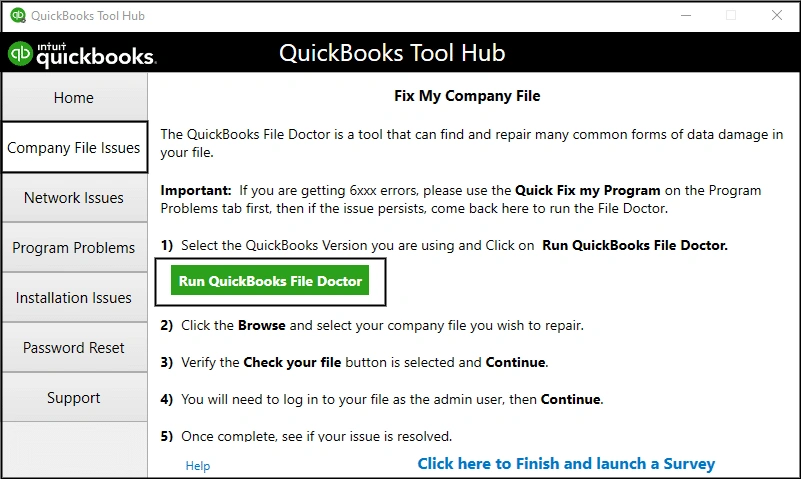
- Open QuickBooks Tool Hub
- Select Company File Issues
- Choose QuickBooks File Doctor
- Select the affected company file
- Choose Check your file
- Click Continue
- Enter the company file administrator password
- Start the scan
- Wait for the repair process to finish
- Reopen the company file
- Check whether payroll operations work correctly
Solution 8: Check Firewall, Internet, and Administrator Permissions
Security settings and limited permissions can interrupt payroll communication.
Step 1: Check Windows Firewall
- Open Windows Firewall settings
- Select Allow an app through Windows Firewall
- Review the allowed applications
- Ensure QuickBooks programs, including QBW32.exe, have appropriate access
- Review the required network ports
- Confirm that ports 80 and 443 are not blocked
- Add the necessary firewall exceptions
Read More:- Fix Windows Firewall Blocking Quickbooks
Step 2: Check Antivirus Settings
- Open your antivirus application
- Review its blocked applications list
- Add QuickBooks programs to the allowed list
- Temporarily disable protection only for a controlled test if necessary
- Restore antivirus protection immediately afterward
Step 3: Check Internet Settings
- Confirm that your internet connection is stable
- Open Windows Internet Options
- Select the Advanced tab
- Review the security settings
- Ensure TLS 1.2 is enabled
- Save the settings if changes are required
- Restart QuickBooks Desktop
Step 4: Run QuickBooks as Administrator
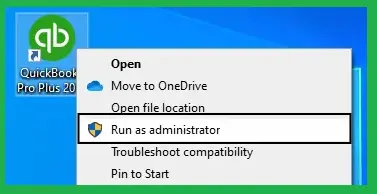
- Close QuickBooks Desktop
- Right-click the QuickBooks Desktop icon
- Select Run as Administrator
- Open your company file
- Retry sending payroll data
Step 5: Switch to Single-User Mode
- Open the QuickBooks company file
- Navigate to File
- Select Switch to Single-user Mode
- Confirm that other users have closed the company file
- Retry sending payroll data
- Check whether the error is resolved
How to Prevent QuickBooks Error PS038 in the Future?
Regular maintenance helps prevent stuck transactions and payroll interruptions.
- Send payroll usage data after every payroll run
- Review paychecks marked Online to Send
- Install compatible QuickBooks Desktop updates regularly
- Download current payroll tax table updates
- Maintain an active payroll subscription
- Verify payroll service keys and billing information
- Create regular company file backups
- Run Verify Data periodically
- Rebuild company data when integrity problems appear
- Maintain a stable internet connection
- Configure firewall and antivirus permissions correctly
- Use administrator access when installing updates
- Avoid interrupting payroll data transmission
- Review pending payroll transactions regularly
How Can Accounting Assist Pro Help With QuickBooks Payroll Issues?
Accounting Assist Pro helps businesses manage payroll records and resolve accounting challenges.
- Get assistance identifying paychecks stuck in Online to Send status
- Receive help reviewing payroll data and company file issues
- Get support with payroll update and tax table problems
- Maintain organized employee payment records
- Get assistance with payroll processing and reconciliation
- Access professional QuickBooks Payroll services for ongoing payroll management
- Improve payroll accuracy through regular record reviews and reporting
Conclusion
QuickBooks Error PS038 usually occurs when paychecks remain stuck in Online to Send status. Outdated software, damaged company files, and interrupted transmissions can also contribute. Start by sending pending payroll data and identifying affected paychecks. Then use the Verify and Rebuild utilities or toggle stuck transactions carefully.
Contact Accounting Assist Pro for professional QuickBooks Payroll services and assistance with payroll management.
Frequently Asked Questions About QuickBooks Error PS038
1. What does QuickBooks Error PS038 mean?
QuickBooks Error PS038 means QuickBooks Desktop cannot complete payroll data transmission because certain paychecks remain stuck online. These transactions prevent payroll updates and tax table downloads.
2. Why do paychecks get stuck in Online to Send status?
Paychecks can remain pending after interrupted transmissions, incomplete payroll processing, or company file problems. QuickBooks cannot complete the upload until the affected transactions receive attention.
3. How do I find stuck paychecks in QuickBooks Desktop?
Press Ctrl + F, select Advanced, and choose Summary Only under Detail Level. Then filter Online Status by Online to Send and click Find.
4. Can outdated payroll tax tables cause QuickBooks Error PS038?
Outdated tax tables can interfere with payroll updates and calculations. However, stuck Online to Send paychecks remain the main issue associated with PS038.
5. Does Verify and Rebuild Data fix PS038 errors?
Yes, these utilities can identify and repair company file damage. Run Verify Data first, then Rebuild Data if QuickBooks reports integrity problems.
6. How do I reset the CPS folder in QuickBooks Desktop?
Close QuickBooks, locate the applicable CPS folder, and rename it CPS.OLD. Reopen QuickBooks and download the entire payroll update to create fresh files.
7. Can an inactive payroll subscription cause QuickBooks Error PS038?
An inactive subscription can prevent payroll updates and subscription validation. Check Manage Service Key and confirm your subscription and service information are correct.
8. What should I do if QuickBooks Error PS038 continues after troubleshooting?
Check pending paycheck records, company file integrity, payroll subscription details, and system permissions. Create a backup before attempting advanced repairs or restoring an earlier company file.
9. Can I fix QuickBooks Error PS038 without reinstalling QuickBooks?
Yes. You can often resolve the error by sending pending payroll data, updating QuickBooks, or repairing company file issues. Reinstalling QuickBooks is not the first step.
10. Does QuickBooks Desktop Error PS038 affect employee paychecks?
Yes. The error can delay paycheck transmission and payroll processing. Review pending transactions and confirm their status before processing payroll again.