
QuickBooks Error H202 appears when a workstation cannot communicate with the server hosting the company file. The issue commonly appears while switching QuickBooks Desktop to multi-user mode. Intuit explains that H202 occurs when something blocks the multi-user connection to the server. This problem can involve hosting settings, Database Server Manager, QuickBooks services, firewall rules, or network connectivity. The steps below explain how to fix QuickBooks Error H202 using a clear troubleshooting sequence. You can start with basic hosting checks before moving toward advanced network settings.
What Is QuickBooks Error H202?
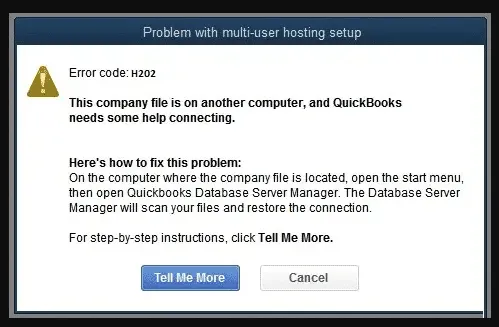
QuickBooks Error code H202 is a multi-user connection problem in QuickBooks Desktop. It prevents a workstation from communicating with the server holding the company file. QuickBooks uses a host computer to store the company file during multi-user access. Other computers connect to that host through the network. Database Server Manager helps maintain this connection between QuickBooks and the company file.
The H202 error code in QuickBooks can therefore indicate a communication problem rather than a damaged accounting record. Intuit groups H202 with H101, H303, and H505 as multi-user connection errors.
When Does QuickBooks Error H202 Occur?
The QuickBooks H202 error usually appears during multi-user access or when a workstation cannot reach the host computer.
- When switching QuickBooks Desktop to multi-user mode
- When opening a company file stored on another computer
- When the workstation cannot communicate with the server
- After firewall or antivirus settings change
- After network configuration changes
- When Database Server Manager is missing or improperly configured
- When QuickBooksDBXX or QBCFMonitorService stops running
- When company-file permissions prevent proper access
These situations can prevent QuickBooks Error H202 from establishing a working connection. Checking each area systematically helps identify the actual cause.
What Are the Signs of QuickBooks Error H202?
The Error H202 problem can produce several noticeable symptoms.
- QuickBooks displays an H202 message
- Multi-user mode fails to open
- A workstation cannot access the company file
- The file opens on the server but fails elsewhere
- QuickBooks cannot communicate with the host
- Multi-user access stops working
- QuickBooks becomes slow during network access
- The issue starts after network or firewall changes
These signs can help confirm that the h202 QuickBooks error involves network communication.
What Are the Prerequisites Before Fixing QuickBooks Error H202?
Before troubleshooting, prepare the computers and information needed for each step.
Confirm Administrator Access
- Sign in with administrator rights
- Keep the server computer available during troubleshooting
Identify the Server Computer
- Find the computer hosting the company file
- Confirm the exact company-file folder
Confirm QuickBooks Installation
- Ensure QuickBooks Desktop is installed
- Check the QuickBooks version on the server
- Install required Database Server Manager versions
Check the Network
- Connect the workstations to the same network
- Confirm the server remains accessible
Prepare QuickBooks Tool Hub
- Install the current QuickBooks Tool Hub
- Use it for Database Server Manager and File Doctor
Intuit currently lists QuickBooks Tool Hub version 1.6.0.8 in its support instructions. It recommends Windows 11 64-bit for the best experience.
Check Required Services
Verify these Windows services:
- QuickBooksDBXX
- QBCFMonitorService
Back Up Important Company Data
- Create a recent company-file backup
- Avoid unnecessary file changes during troubleshooting
What Causes QuickBooks Error H202?
Several configuration problems can create the Error code H202 message.
Incorrect Hosting Settings
- The server is not hosting the company file
- A workstation is incorrectly configured for hosting
- Multiple computers attempt to host the file
QuickBooks Database Server Manager Issues
- Database Server Manager is missing
- The manager does not support the required setup
- The company folder has not been scanned
- Server configuration remains incomplete
Intuit also states that Database Server Manager does not support Network Attached Storage devices.
QuickBooks Services Are Not Running
- QuickBooksDBXX has stopped
- QBCFMonitorService has stopped
- Service recovery settings are incorrect
Firewall or Antivirus Restrictions
- Windows Firewall blocks QuickBooks
- Security software blocks QuickBooks components
- Required communication ports are restricted
Network Connection Problems
- The workstation cannot reach the server
- Network Discovery is disabled
- File and Printer Sharing is disabled
- Hostname resolution fails
- Network packets experience loss
Folder Permission Problems
- QuickBooks service accounts lack access
- Shared-folder permissions are incorrect
- Company-file permissions restrict access
Damaged Network Data Files
- The .ND file contains outdated network information
- The related .TLG file requires troubleshooting
Windows Server 2012 Essentials R2 Configuration
A specialized configuration can affect H202 on Windows Server 2012 Essentials R2. Intuit provides a separate procedure involving the Base Filtering Engine service.
How to Fix QuickBooks Error H202?
To fix QuickBooks Error H202, start with hosting settings. Then check Database Server Manager, services, firewall access, and network connectivity. Use File Doctor when the earlier steps do not resolve the problem.
Fix 1: Check QuickBooks Hosting Settings
On the Server
- Open QuickBooks Desktop
- Open the company file
- Select File
- Select Utilities
- Select Host Multi-User Access if shown
- Leave Stop Hosting Multi-User Access unchanged if shown
- Confirm the server remains the host
On Each Workstation
- Open QuickBooks Desktop
- Select File
- Select Utilities
- Confirm the workstation is not hosting the company file
- Repeat the check on other workstations
Only the designated server should host the company file. This setup helps prevent h202 QuickBooks error connection conflicts.
Fix 2: Run QuickBooks Database Server Manager
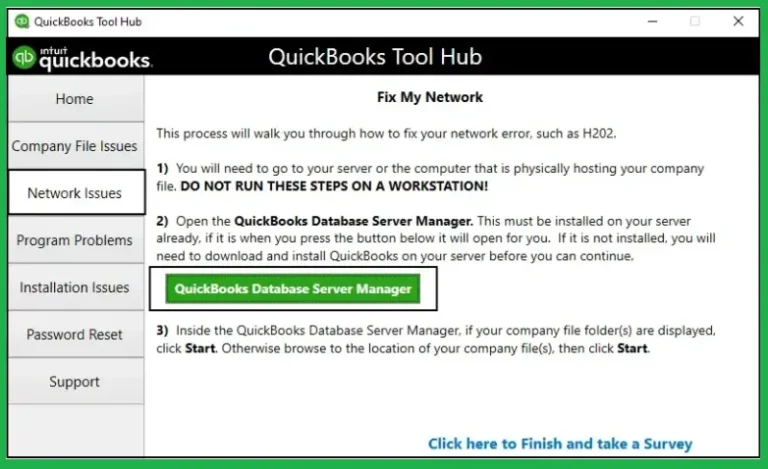
Step 1: Close QuickBooks
- Close QuickBooks on the affected computer
Step 2: Open Tool Hub

- Open QuickBooks Tool Hub
- Select Network Issues
- Select QuickBooks Database Server Manager
Step 3: Locate the Company Folder
- Check whether the company folder appears
- Select Browse when necessary
- Find the company-file folder
- Select the correct folder
Step 4: Start the Scan
- Select Start Scan
- Allow the scan to complete
- Let Database Server Manager repair applicable firewall permissions
- Select Close
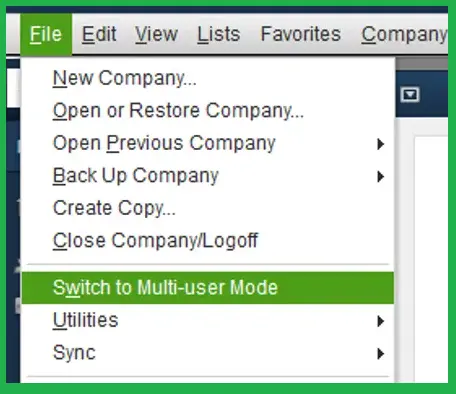
Step 5: Test Multi-User Mode
- Open QuickBooks on the workstation
- Select File
- Select Switch to Multi-user Mode
- Check whether the connection works
Intuit specifically recommends Database Server Manager for H202 troubleshooting.
Fix 3: Check QuickBooksDBXX and QBCFMonitorService
Check QuickBooksDBXX
- Press Windows + R
- Enter services.msc
- Press Enter
- Find QuickBooksDBXX
- Open its properties
- Set Startup type to Automatic
- Select Start if stopped
Configure Recovery
- Open the Recovery tab
- Set First failure to Restart the Service
- Set Second failure to Restart the Service
- Set Subsequent failures to Restart the Service
- Select Apply
- Select OK
Check QBCFMonitorService
- Find QBCFMonitorService
- Set it to Automatic
- Start it if stopped
- Configure the same recovery actions
- Save the settings
Test QuickBooks
- Reopen QuickBooks
- Open the company file
- Switch to multi-user mode
Intuit provides these service settings as part of its H202 troubleshooting process.
Fix 4: Check QuickBooks Service Permissions
- Open Windows computer management settings
- Locate the QuickBooks services
- Review their assigned permissions
- Add required QuickBooks service accounts when necessary
- Restart the QuickBooks services
- Test multi-user access again
Proper service permissions help the server manage company-file access correctly.
Try These Additional Ways to Fix QuickBooks Error H202
Firewall and network settings can also block communication. These checks become important when basic service troubleshooting fails.
Fix 5: Allow QuickBooks Through Windows Firewall
Configure Inbound Rules
- Open Windows Defender Firewall
- Select Advanced Settings
- Select Inbound Rules
- Select New Rule
- Choose Port
- Select TCP
- Enter the ports required for your QuickBooks version
- Select Allow the Connection
- Apply the required network profiles
- Name and save the rule
Configure Outbound Rules
- Open Outbound Rules
- Select New Rule
- Create the required TCP rule
- Allow the connection
- Save the rule
Allow QuickBooks Programs
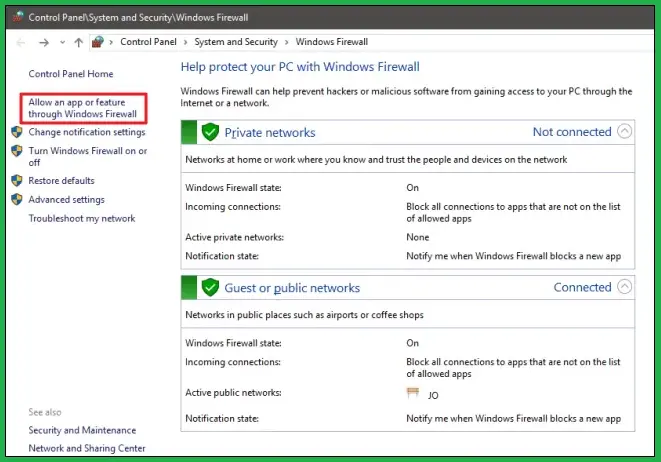
Check firewall permissions for relevant components, including:
- QBW32.exe
- QBDBMgrN.exe
- QBCFMonitorService.exe
- QBServerUtilityMgr.exe
Intuit confirms that firewall settings can block QuickBooks programs and recommends configuring appropriate exceptions.
Fix 6: Test the Network Connection Between Server and Workstation
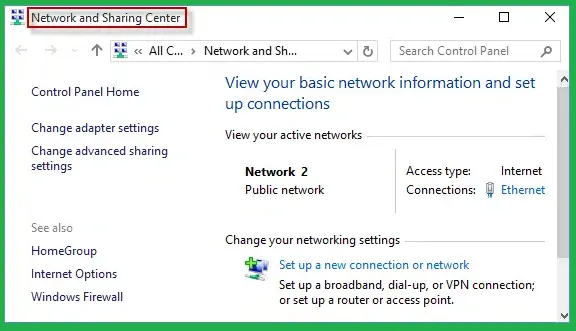
Enable Network Discovery
- Open network settings
- Turn on Network Discovery
- Turn on File and Printer Sharing
- Repeat these settings on affected computers
Find the Server Name
- Open Command Prompt on the server
- Enter ipconfig /all
- Press Enter
- Find the Host Name
Ping the Server
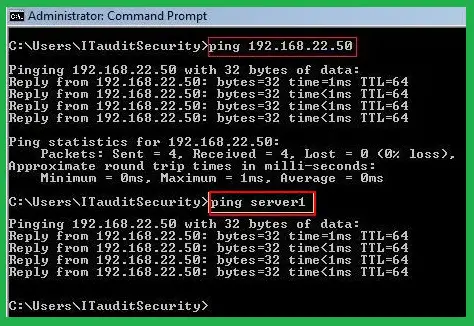
- Open Command Prompt on the workstation
- Enter ping [server name]
- Press Enter
- Review the response

No packet loss indicates successful communication. Packet loss or slow replies indicate a possible network problem. Intuit recommends contacting an IT professional when network connectivity remains unstable.
Fix 7: Run QuickBooks File Doctor
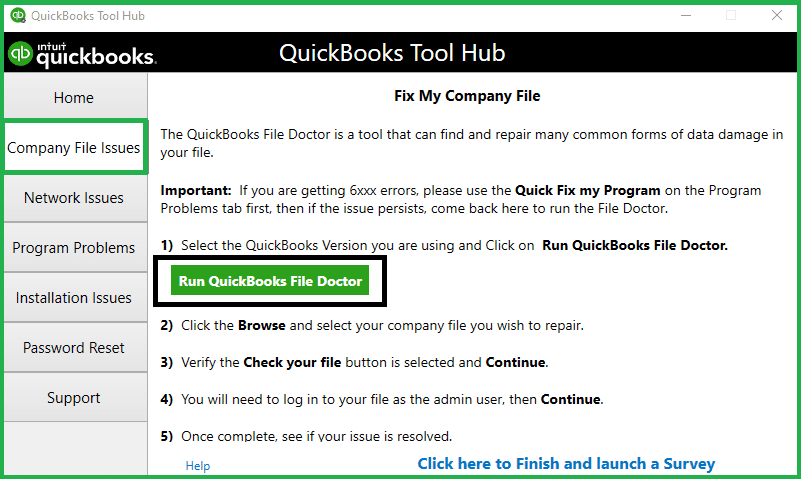
Open Intuit QuickBooks Tool Hub
- Close QuickBooks
- Open QuickBooks Tool Hub
- Select Company File Issues
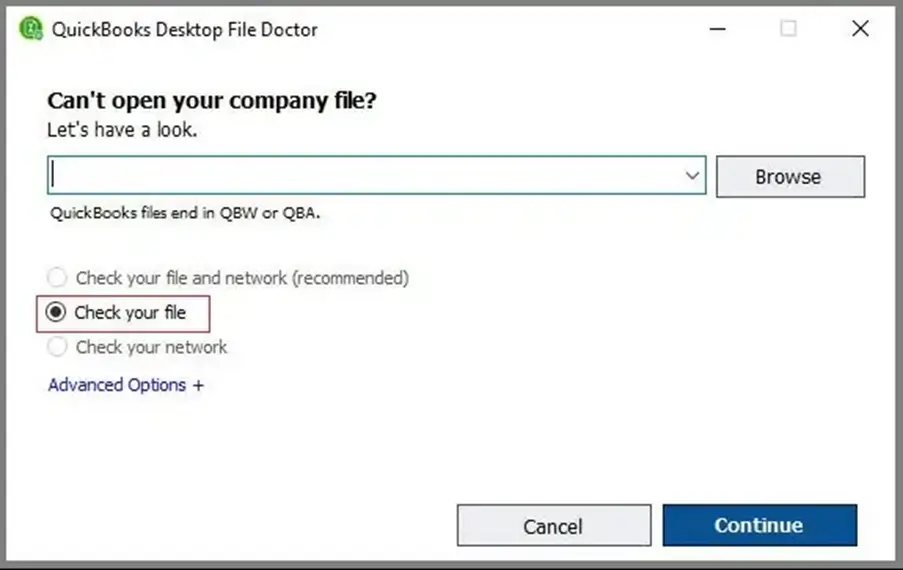
Run File Doctor
- Select Run QuickBooks File Doctor
- Select the affected company file
- Choose Check your Network
- Select Continue
- Enter the QuickBooks administrator password
- Start the scan
- Wait for the scan to finish
Test the Company File
- Open QuickBooks
- Open the company file
- Select File
- Select Switch to Multi-user Mode
- Check the connection
Intuit recommends File Doctor when the initial Database Server Manager fix does not resolve H202.
Fix 8: Recreate the Network Data File
- Close QuickBooks
- Open the company-file folder
- Locate the .ND file
- Rename the file by adding .old
- Reopen QuickBooks
- Allow QuickBooks to recreate the file
- Test multi-user access
Keep a backup before changing network-related files. This step should follow the standard troubleshooting methods.
Still Seeing QuickBooks Error H202? Try These Fixes
Advanced configuration checks can help when basic network troubleshooting fails. Apply these methods carefully and test the connection after each change.
Fix 9: Check Company-File Folder Permissions
Open Folder Properties
- Locate the company-file folder
- Right-click the folder
- Select Properties
- Open the Security tab
Check QuickBooks Data Service User
- Locate the appropriate QBDataServiceUserXX account
- Review its permissions
- Confirm required folder access
Check Sharing Permissions
- Open the Sharing tab
- Review shared-folder permissions
- Add the QuickBooks service account when required
- Provide the necessary access
- Restart QuickBooks services
- Test the company file
Fix 10: Check Windows Server 2012 Essentials R2
Use this method only with Windows Server 2012 Essentials R2. Intuit warns that these steps can become complicated.
Confirm the Server Version
- Open Settings
- Select System
- Select About
- Confirm the Windows Server version
Stop Base Filtering Engine
- Press Windows + R
- Enter services.msc
- Press Enter
- Find Base Filtering Engine
- Select Stop
Run Database Server Manager
- Open QuickBooks Database Server Manager
- Select the company-file folder
- Select Start Scan
- Wait for the scan
- Select Close
Restart Base Filtering Engine
- Return to Windows Services
- Find Base Filtering Engine
- Select Start
- Confirm Windows Firewall shows Running
Intuit states that this process must be repeated after each server restart.
Fix 11: Check the Windows Hosts File
Use this method when the workstation cannot resolve the server name correctly.
Find the Server Details
- Open Command Prompt on the server
- Run ipconfig /all
- Note the server IP address
- Note the server hostname
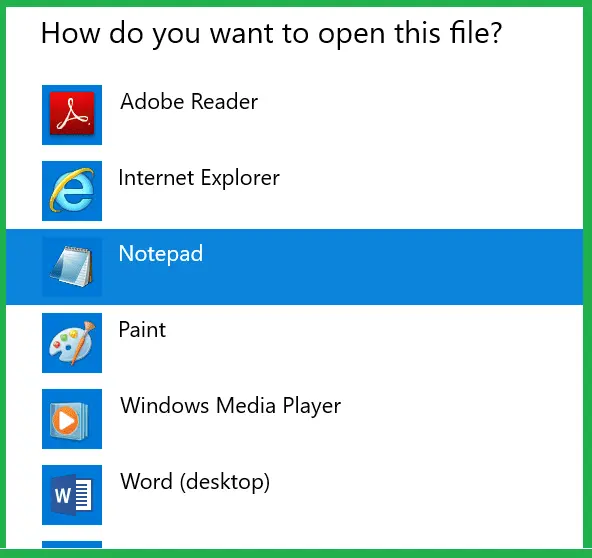
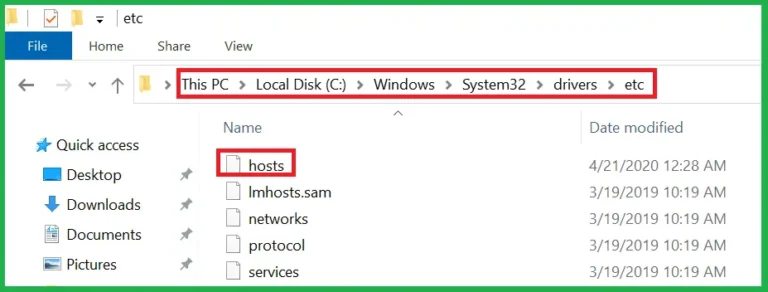
Edit the Hosts File
- Open Notepad with administrator permissions
- Open the Windows hosts file
- Add the server IP address
- Press Tab
- Add the server hostname
- Save the file
- Repeat on affected workstations
Test the Connection
- Test the server connection
- Open QuickBooks
- Switch to multi-user mode
Intuit also documents hosts-file changes for specific non-Windows hosting configurations.
Fix 12: Move the Company File to a New Shared Folder
Create a New Folder
- Create a new folder on the server
- Apply suitable sharing permissions
- Confirm QuickBooks can access the folder
Move the Company File
- Copy the company file to the new location
- Open the file from that location
- Open Database Server Manager
- Browse to the new folder
- Select Start Scan
Test Multi-User Mode
- Open the company file from a workstation
- Switch to multi-user mode
- Check whether the connection works
Read More:- Fix QuickBooks Company File Errors
More Troubleshooting Options for QuickBooks Error H202
Use these final methods when the earlier fixes do not resolve the connection. They focus on installation, version, and hosting conflicts.
Fix 13: Repair the QuickBooks Installation
- Open Control Panel
- Select Programs and Features
- Find QuickBooks
- Select Change
- Choose Repair
- Follow the on-screen instructions
- Update QuickBooks
- Restart the computer
- Test multi-user access
Fix 14: Check the QuickBooks Version and Database Server Manager
- Confirm the QuickBooks Desktop version
- Confirm the Database Server Manager version
- Install Database Server Manager for each required QuickBooks version
- Update QuickBooks when needed
- Scan the company-file folder
- Test the connection again
Fix 15: Check for Conflicting Hosting
- Open QuickBooks on the server
- Check the hosting setting
- Confirm the server is the designated host
- Check every workstation
- Ensure workstations are not hosting
- Restart QuickBooks
- Test multi-user access
Fix 16: Contact Your IT Administrator or QuickBooks Support
Get technical assistance when you face:
- Persistent network failures
- Advanced firewall restrictions
- DNS configuration problems
- Complex folder permissions
- Windows Server configuration issues
- Persistent connection failures after troubleshooting
How to Prevent QuickBooks Error H202
- Keep only the designated server configured for hosting
- Keep Database Server Manager updated for all QuickBooks versions in use
- Check QuickBooksDBXX and QBCFMonitorService regularly
- Maintain proper firewall permissions for QuickBooks
- Ensure company-file folders have the required access permissions
- Keep Network Discovery enabled on the network
- Keep File and Printer Sharing configured correctly
- Avoid unnecessary DNS and network configuration changes
- Maintain regular backups of important company files
- Review the multi-user setup after major QuickBooks or Windows updates
- Test server connectivity when users report slow or failed access
- Maintain a stable local network to reduce recurring QuickBooks Error H202 connection problems
Conclusion
QuickBooks Error H202 prevents QuickBooks Desktop from connecting a workstation with the hosted company file. Start by confirming the correct hosting setup and scanning the company folder through Database Server Manager. Then check QuickBooks services, firewall permissions, network communication, and folder access. File Doctor can provide another diagnostic step when basic fixes fail. Following these steps in order helps isolate the connection problem without changing unrelated QuickBooks settings.
Need help resolving QuickBooks Error H202? Accounting Assist Pro QuickBooks experts can troubleshoot your multi-user setup and restore smooth access to your company file.
Frequently Asked Questions
What is QuickBooks Error H202?
QuickBooks Error H202 occurs when QuickBooks Desktop cannot communicate with the server hosting the company file. It commonly affects multi-user mode.
Why does QuickBooks Error H202 appear when switching to multi-user mode?
The h202 error quickbooks desktop issue appears when the workstation cannot establish communication with the host server. Hosting, services, firewall, and network settings can contribute.
How to fix QuickBooks Error H202?
To resolve the how to fix quickbooks error h202 issue, check hosting first. Then run Database Server Manager, verify services, review firewall settings, test the network, and use File Doctor.
What causes the H202 error code in QuickBooks?
The H202 error code in QuickBooks can result from incorrect hosting, stopped services, firewall restrictions, network problems, or folder permissions.
Which QuickBooks services should I check for H202?
Check QuickBooksDBXX and QBCFMonitorService on the server. Both services support QuickBooks multi-user communication.
Can Windows Firewall cause QuickBooks H202 error?
Yes. Firewall rules can block QuickBooks programs or required communication. Intuit provides dedicated firewall configuration steps for QuickBooks Desktop.
How do I check my connection to the QuickBooks server
Use ipconfig /all on the server to find its hostname. Then use ping [server name] from the affected workstation.
Can QuickBooks Tool Hub fix Error H202?
Yes. Tool Hub provides Database Server Manager and File Doctor options for troubleshooting multi-user connection problems.

2 Comments