
Updating QuickBooks Desktop will help keep your financial data safe and ensure your accounting runs as smoothly as possible. It includes security improvements, bug fixes, performance improvements and ensures compatibility with other areas such as payroll and banking.
Sometimes you may encounter issues when trying to update your software. This can be due to corrupt files, poor internet connection and Windows restrictions. This article will show you how to update QuickBooks Desktop. Including system requirements, common errors, payroll updates and multi-user.
Important: QuickBooks Desktop 2024 uses continuous maintenance releases. As of the 17th November 2026 the latest release is R22_25.1 which was released on the 5th November 2026. Always make sure you check what the latest release is for the product you currently have installed.
What Does Updating QuickBooks Desktop Mean?
Updating QuickBooks Desktop allows you to improve upon your current software.
This will include maintenance releases to improve security, fix any errors and improve your current features. Regular updates will improve:
- Security – To help keep your company files and financial information secure.
- Bug fixes – Fix any known issues with your software.
- Performance – Make QuickBooks run smoother.
- Payroll – Improvements in payroll calculations and forms.
- Banking – Improvements with the connections to your supported banking options.
- Compatibility – Ensure compatibility with your supported Windows systems and connections.
QuickBooks Desktop Update vs. Upgrade
It is important to know the difference between an update and an upgrade.
| Comparison | QuickBooks Update | QuickBooks Upgrade |
| Purpose | Installs maintenance releases and fixes | Moves to a newer product version |
| Product year | Remains the same | May change |
| Features | Improves existing features | May introduce major features |
| Cost | Included with eligible subscriptions | Depends on the license or subscription |
| Company file | Usually remains in the same version | May require company file conversion |
| Example | QuickBooks 2024 R21 to R22 | QuickBooks 2023 to 2024 |
For example, installing R22 on QuickBooks Desktop 2024 is an update. Moving from QuickBooks Desktop 2023 to 2024 is an upgrade.
What Is the QuickBooks Desktop Update Message?
QuickBooks will notify you about updates when a new maintenance release is available. You will see messages such as:
- Update Available – There is a newer maintenance release available.
- Update Complete – QuickBooks has completed downloading the available files.
- Install Updates – The updates have been downloaded and are ready to install.
- Update Required – You need to update your software to keep it compatible.
- Update Available – An update has been downloaded and is ready to install.
When you receive a message about an update, it is best to save your work and follow the instructions.
Which QuickBooks Desktop Versions Still Receive Updates?
Depending on your subscription and product version, you may be able to install certain maintenance releases.
| QuickBooks Desktop version | Support status in 2026 |
| QuickBooks Desktop 2021 | Discontinued |
| QuickBooks Desktop 2022 | Discontinued |
| QuickBooks Desktop 2023 | Discontinued after May 31, 2026 |
| QuickBooks Desktop 2024 | Supported for eligible subscribers |
| QuickBooks Enterprise 24.0 | Supported for eligible subscribers |
QuickBooks Desktop 2024 and QuickBooks Enterprise 24.0 use continuous releases, meaning they will receive product improvements and security updates without having to release a new version every year.
If your version is discontinued you will not be able to install an older maintenance release to get your discontinued services back. Make sure you check if your subscription is eligible.
Release Notes for QB Desktop 2024 for Windows
QuickBooks is regularly updated to allow users to improve their experience and avoid issues. When updates are made release notes are produced to inform users of what changes have taken place. Below are the release notes for updating QuickBooks Desktop 2024.
Release 4 (R4_13) – 30th Nov 2023
1. Single User Management
- Ability to manage users and roles across connected realms within one place.
- Single users and roles assigned to QuickBooks Desktop and Payroll.
- Single roles assigned to MSC within UUM. Note: These roles are separate from roles in QBD.
- Non-Admins cannot access this feature.
- Standardised templates for managing Users. (Invite, Access, Request etc.)
Release 3 (R3) – 2nd Nov 2023
1. Prepayments on Estimates
- Improved print template in Receive Prepayment.
- Credits will not be shown if Prepayment credits are only from a different sale order which does not link to the invoice.
- Non Admins can apply prepayments to invoices. This can be done for the first time without a user permission to create chart of accounts.
2. Stock Status Reports [by lot Number]
- Site, Bin, UOM and Item Category have been added.
- Support for assemblies added.
- Items with quantity on hand of 0 will be hidden.
- Filter by Item Type (Inventory parts and Assemblies).
3. Extra Password Requirements
If your business contains sensitive PII information, then you must assign a complex password to protect it. The password must be:
- At least 8 characters
- At least 1 capital letter
- At least 1 small letter
- At least 1 number
- At least 1 special character
4. Payroll Legacy to Symphony Migration
- Nudges will be shown in the company file rather than payroll centre.
- Post expiry experience will be shown if a legacy payroll license expires without consent.
- If a service key sync fails for some reason, and customers have given consent after BDOM/BDOY, then service key sync will be attempted again.
- Optimisations have been made so fewer calls across networks.
- A soft block will be shown in payroll to obtain consent.
5. Accountant Batch Migration
- Accountants can now mass migrate desktops for multiple clients to QuickBooks Online using an online migration tool.
6. Closing of QuickBooks when applying date filters in reports
- QuickBooks no longer closes unexpectedly if you apply date filters to reports and custom columns.
What Are the Common Causes of QuickBooks Desktop Update Problems?
There are many reasons why you may be unable to download or install an update.
- Corrupt files – Issues with incomplete downloads.
- Poor internet – Issues with your internet connection.
- Low permissions – Not having administrator permissions on Windows.
- Antivirus – Security software blocking the update.
- Firewall – Incorrect settings.
- Outdated Windows – Missing updates.
- No space – Not enough space on your device.
- Background processes – Processes freezing.
- Installation issues – Missing files.
- Old version – Discontinued products may not have any maintenance releases.
- Incorrect settings – Corrupt settings.
- Server issues – Old server settings may cause multi-user issues.
What Are the Signs That QuickBooks Desktop Needs an Update?
There may be a number of warnings shown within your software. Common signs include:
- Update Available message.
- Older version installed.
- Issues with certain features.
- Freezing whilst doing regular accounting.
- Outdated tax information on payroll.
- Compatibility issues with banking.
- Error codes when trying to install/update.
- Slow performance due to constant interruptions.
- Different maintenance versions on multi-user.
These are not always caused by an old version. Some could be caused by corrupt files or incorrect settings.
What Are the Prerequisites Before Updating QuickBooks Desktop?
Before installing updates to QuickBooks Desktop, ensure:
- The correct product version and release is in use.
- The product is able to receive updates.
- A backup of the company file is made.
- Payroll documentation is backed up separately.
- All instances of QuickBooks are closed.
- Internet connection is active.
- Log into Windows with Administrator privileges.
- Sufficient free storage is available.
- Any operating system updates are applied.
- The company file can open correctly.
- License information is accessible, if needed.
- Other users have saved their work.
How to Identify Your Current QuickBooks Desktop Version?
Before downloading updates, ensure the correct maintenance update is being downloaded by checking what version of QuickBooks Desktop is installed.
Steps to Check Your QuickBooks Desktop Release
- Open QuickBooks Desktop
- Press F2 (or Ctrl + 1).
- Click on Product Information.
- Under ‘Product’ select: Release.
From here, note down the year and version of QuickBooks Desktop being used. Compare with the latest version available. Therefore, determine if an update is required.
How to Update QuickBooks Desktop to the Latest Release?
Updates can be applied in a variety of ways, depending on your computer and update needs.
Method 1: From Within QuickBooks Desktop
When a new version of QuickBooks Desktop is available, a message will appear.
Click on QuickBooks Desktop. If an update is available, an ‘Update Available’ message will appear.
- Click on ‘Update Available’.
- Read the information on the available update.
- Follow the prompts.
- Allow QuickBooks Desktop to download the update.
- Wait for the update to be installed.
- Then close and re-open QuickBooks Desktop.
- Click on Product Information.
- Check the version number has been updated.
If an update message does not appear, follow the steps below from the Help menu:
Method 2: From the Help Menu
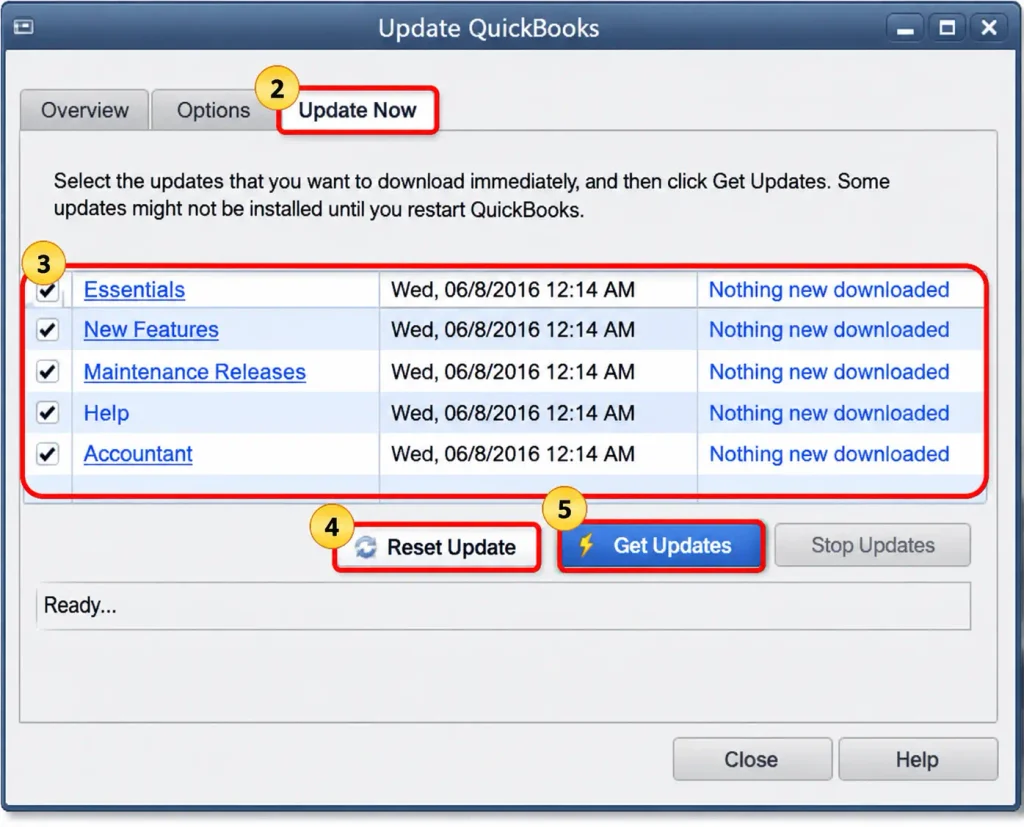
To manually install updates:
- Close all unnecessary programmes.
- Right click on the QuickBooks Desktop icon.
- Select Run as Administrator when required.
- Open QuickBooks Desktop.
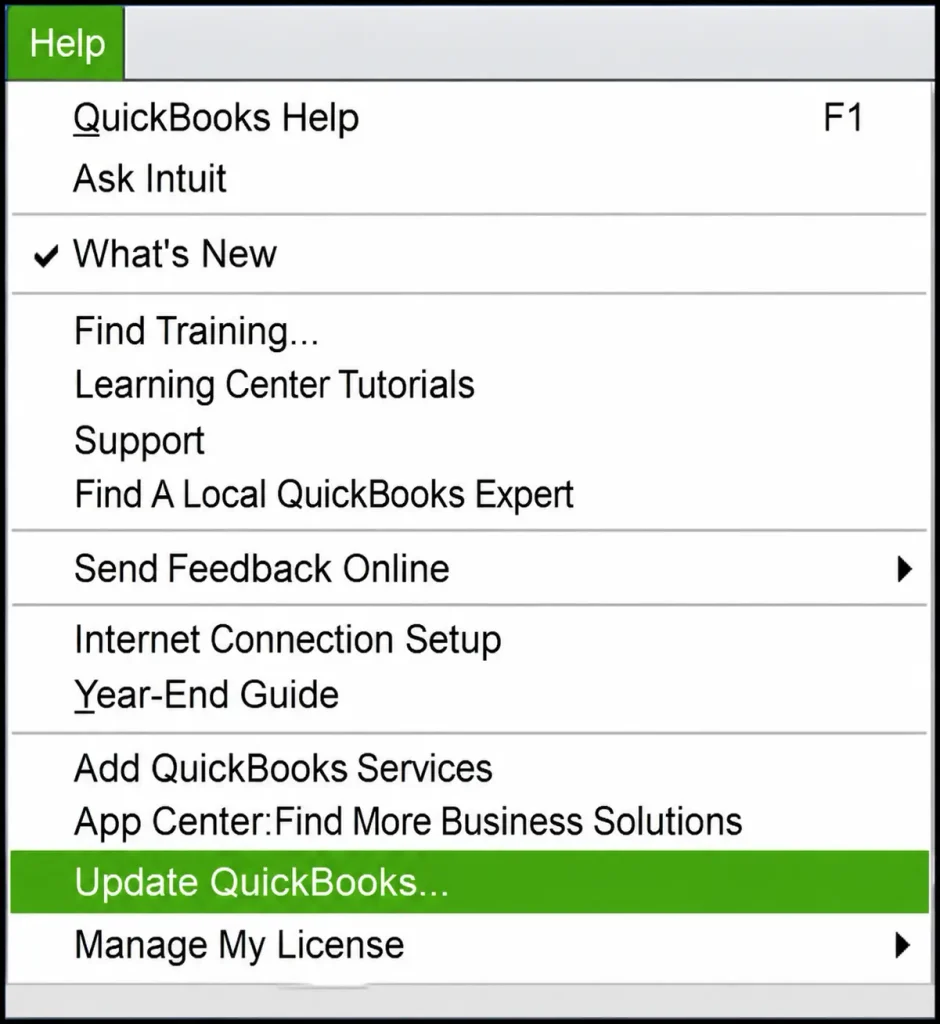
- Go to Help.
- Click ‘Update QuickBooks Desktop’.
- Click on the Update Now menu.
- Click ‘Reset Update’ to delete all previously downloaded updates.
- Click ‘Get Updates’.
- QuickBooks Desktop will begin to download any available updates. Once downloaded:
- Check the status of the download.
- Close QuickBooks Desktop.
- Re-open QuickBooks Desktop.
- Click ‘Install Updates’, when prompted.
- Allow the updates to be installed. If required, then restart your computer.
- Re-open QuickBooks Desktop.
- Press F2 to check the version.
This process can also be useful if previous updates have failed to download correctly.
Method 3: Automatically Updating QuickBooks Desktop
By setting QuickBooks Desktop to automatically update, you reduce the need to download manually.
- To set automatic updates:
- Open QuickBooks Desktop.
- Go to Help > Update QuickBooks Desktop.
- Click on Options.
- Under Automatic Updates, change the option to ‘Yes’.
- Click Save. Then click Close.
- Allow QuickBooks Desktop to download the available updates.
- When prompted, restart QuickBooks Desktop.
- Install the maintenance updates.
- Press F2 to confirm which version is in use.
Even though updates are automatic, it is still good practice to confirm updates were installed successfully.
Method 4: Manually Updating QuickBooks Desktop
This method can be used if the automatic update within the application is not working.
This can also be useful if you need to update many computers to the same version.
Open your browser.
- Go to the QuickBooks Desktop Downloads & Updates page.
- Select the country in which you are located.
- Select your QuickBooks product.
- Select the correct year for your product.
- Find the latest maintenance update.
- Download the file to update QuickBooks Desktop.
- Close QuickBooks Desktop.
- Open the Downloads folder.
- Locate the installation file.
- Right click on the file.
- Select Run as Administrator.
- Follow the instructions to install.
- Once installation is complete, if required, restart your computer.
- Re-open QuickBooks Desktop.
- Press F2 (or Ctrl+1). Confirm that the updated version matches the available version.
If updating manually, always make sure to back up your company file.
What Happens If You Do Not Update QuickBooks Desktop?
If you do not update QuickBooks Desktop regularly, it could cause issues. Without regular updates, you may be missing vital fixes and security improvements. Having up-to-date software will ensure you have stable software and secure information.
- Security Issues
Out of date software could leave sensitive financial data vulnerable.
- Incorrect Fixes
If your software is out of date, you may experience existing issues within the software. In addition, you may miss improvements in performance of your program.
- Payroll Issues
Out of date tax rates in payroll can lead to miscalculations. As a result, employees may be paid incorrectly and tax reports may be incorrect.
- Banking Issues
If the software is out of date, issues could occur when trying to connect to banking services. This can mean that you can no longer easily download transactions from a bank.
- Compatibility Issues with Windows
Older versions of QuickBooks may no longer be compatible with newer updates on windows. This can cause errors, crashes and install issues.
- Issues Opening Company Files
If components of the software are out of date, issues may occur when accessing shared company files. It may be difficult to allow multiple users to access the file.
How to Update QuickBooks Desktop in Multi-User Mode?
In multiple user mode, it is important all computers are running the same version of QuickBooks Desktop. It is always best to update the host computer first.
Step 1: Preparing the Host
- Ask all users to save their work.
- Close QuickBooks Desktop on all computers.
- On the host computer, open the company file.
- Go to File > Switch to Single-user Mode.
- Make a back up of the company file.
- Check which version and release of QuickBooks Desktop is in use.
- Ensure there is enough storage space on the server.
- Prepare to update the host computer.
Step 2: Updating QuickBooks Desktop on the Host
- Run QuickBooks Desktop as an administrator.
- Go to Help.
- Click ‘Update QuickBooks Desktop’.
- Click on Update Now.
- Click ‘Reset Update’.
- Click ‘Get Updates’.
- Once the updates have downloaded, close QuickBooks Desktop.
- Re-open the programme.
- Click to install updates. Once the updates are installed, if required, restart the host computer.
- Re-open QuickBooks Desktop.
- Press F2 to confirm the version is correct.
Step 3: Updating All Workstations
- Close QuickBooks Desktop on all workstations.
- On the first workstation, open QuickBooks Desktop.
- Go to Help.
- Click ‘Update QuickBooks Desktop’.
- Click on Update Now.
- If required click ‘Reset Update’.
- Click ‘Get Updates’.
- Once downloaded, close QuickBooks Desktop.
- Click to install updates. If required, restart the workstation.
- Re-open QuickBooks Desktop.
- Press F2 (or Ctrl + 1).
- Confirm that the version matches the version on the host computer.
Repeat this for all workstations. Ensure all computers are using a compatible version and maintenance update.
Step 4: Updating QuickBooks Database Server Manager
The Database Server Manager allows workstations to access company files. If components on the server are out of date, issues may occur in multiple user mode. Complete the following steps:
- On the host computer.
- Close all company files in QuickBooks.
- Check which version of QuickBooks is in use.
- Ensure that the correct version of Database Server Manager is in use.
- If required, install the correct server components.
- Open QuickBooks Database Server Manager.
- Click on Scan Folders.
- Click Browse.
- Find the folders where company files are stored.
- Select the correct folders.
- Click Start Scan.
- Once scanning is complete:
- Check the list of folders. Ensure that the folders containing company files are present.
- If required, restart relevant services.
- On a workstation, open QuickBooks.
- Ensure that the shared company files can be accessed.
Ensure that the same maintenance update is installed on the host and workstations.
How to update QuickBooks Desktop Enterprise
Complete the following steps to successfully update QuickBooks Desktop Enterprise.
Update QuickBooks Enterprise Company File
- Login with an administrator.
- Ensure that there is a password.
- From the Company drop down menu select:
- Users
- Select ‘Edit’ next to ‘Administrator’.
- Check QuickBooks Enterprise Company Name
- Ensure that it does not contain invalid special characters.
- Ensure it has a .QBW file type.
- From the Window drop down select:
- Select Close All.
- From the File drop down select:
- Utilities
- Select ‘Verify Data’ to run the verification.
- Fix any errors.
- Select ‘Verify Data’ again.
- Back up QuickBooks Enterprise company file.
Read More:- Fix QuickBooks Company File Errors
Install QuickBooks Desktop Enterprise on Server
- Close QuickBooks Desktop Enterprise.
- Close all other applications.
- Find the installation file.
- Right click on the file.
- Select Run as Administrator.
- Follow prompts to install.
- Select the correct options to install on the server.
- Install database components.
- If applicable, install QuickBooks Desktop.
- Follow remaining prompts.
- Once installation is complete, if prompted restart the server.
- Open QuickBooks Enterprise.
- Open the company file.
- Log in as administrator.
- When prompted allow QuickBooks to back up and update.
Check QuickBooks Enterprise is installed
- Open QuickBooks Desktop Enterprise.
- Press F2.
- Check:
- Product
- Release
- Ensure that you have the correct maintenance release installed.
- Open Database Server Manager.
- Check folders for company file.
- Open company file.
- Check that multi-user can be used.
- Check that basic accounting functions are working.
How to fix QuickBooks Desktop Update not working issues?
QuickBooks Desktop updates can fail for a number of reasons (damaged files, poor internet, permissions being blocked etc). Try these fixes to get your updates downloaded and installed.
Fix 1: Reset the QuickBooks Desktop Update
Old or damaged update files can prevent QuickBooks from installing the new updates. Reset the update and download the update files again.
- Close QuickBooks Desktop.
- Right-click the QuickBooks icon.
- Select Run as Administrator.
- Open the Help menu.
- Select Update QuickBooks Desktop.
- Click the ‘Update Now’ tab.
- Check the ‘Reset Update’ box.
- Click Get Updates.
- Just wait until the download’s finished.
- Close QuickBooks Desktop.
- Open QuickBooks again.
- Click ‘Install Updates’ when asked.
- Restart your computer if necessary.
- Check the update works.
Read More:-Fix QuickBooks Update Errors
Fix 2: End Background QuickBooks Processes
Some QuickBooks tasks may be running in the background and this can prevent updates from installing. You’ll need to close out those stuck tasks using Task Manager.
- Press Ctrl, Shift, and Esc.
- Open Task Manager.
- Select the Processes tab.
- Find QBW32.exe or QBW.exe.
- Look for QBCFMonitorService.exe.
- Find qbupdate.exe.
- Look for QBDBMgr.exe or QBDBMgrN.exe.
- Find QBMapi32.exe.
- Check for tasks that are not responding.
- Select the affected task.
- Click End Task.
- Repeat that for the other stuck tasks.
- Close Task Manager.
- Restart QuickBooks Desktop.
- Open the update window.
- Download and install the available update.
- Check the update has completed.
Fix 3: Run Quick Fix My Program
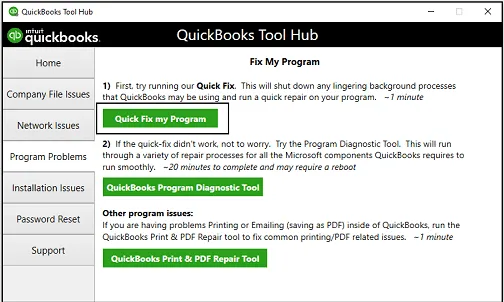
Quick Fix My Program can fix a lot of the common QuickBooks program problems. You should use that before you try any other update.
- Close QuickBooks Desktop.
- Open QuickBooks Tool Hub.
- Select Program Problems.
- Click Quick Fix My Program.
- Just wait for the repair to be completed.
- Close QuickBooks Tool Hub.
- Restart QuickBooks Desktop.
- Open the Help menu.
- Select Update QuickBooks Desktop.
- Open the ‘Update Now’ tab.
- Check Reset Update (if needed).
- Click Get Updates.
- Install the downloaded files.
- Check the update works.
Fix 4: Check Internet and Windows Settings
QuickBooks needs an active internet connection in order to download the updates. Old Windows files can also be an issue. Check both of those before you try again.
- Close QuickBooks Desktop.
- Check your internet connection.
- Open a website to test your connection.
- If the internet isn’t working then restart your router.
- Open Windows Settings.
- Select Windows Update.
- Check for new Windows updates.
- Install any pending updates.
- Open Date and Time settings.
- Turn on automatic date and time.
- Restart your computer if necessary.
- Open QuickBooks Desktop.
- Try and download the update again.
- Check that the download and install have completed.
Fix 5: Check Antivirus and Firewall Settings
Your AV or firewall may be blocking the QuickBooks update files. Check their settings and allow the trusted QuickBooks programs.
- Close QuickBooks Desktop.
- Open Windows Security settings.
- Check your antivirus settings.
- See if your antivirus has blocked the QuickBooks files.
- Open Windows Firewall settings.
- Check the permissions for the QuickBooks programs.
- Allow the required QuickBooks programs.
- Change the security settings only if they’re blocking the update.
- Open QuickBooks Desktop as an admin.
- Open the Help menu.
- Select Update QuickBooks Desktop.
- Download and install the available update.
- Just turn your normal security settings back on.
- Restart QuickBooks Desktop.
- Check the update works.
Fix 6: Rename the DownloadQBXX Folder
Damaged files in the Download folder can prevent QuickBooks updates. Rename the folder to allow QuickBooks to create the new update files.
- Close QuickBooks Desktop.
- Open File Explorer.
- Go to the QuickBooks installation folder.
- Find the DownloadQBXX folder.
- Replace XX with your QuickBooks product year.
- Right-click the folder.
- Select Rename.
- Add .OLD to the end of the folder name.
- Press Enter.
- Open QuickBooks Desktop as an admin.
- Open the Help menu.
- Select Update QuickBooks Desktop.
- Click the ‘Update Now’ tab.
- Check Reset Update.
- Click Get Updates.
- Just wait for the download to complete.
- Close and reopen QuickBooks.
- Install the downloaded update.
- Check whether the problem has been resolved.
Fix 7: Repair the QuickBooks Desktop Installation
Missing or damaged program files can cause problems with an update. Use the Windows repair option to fix any damaged QuickBooks files.
- Close QuickBooks Desktop.
- Open Windows Control Panel.
- Select Programs and Features.
- Find QuickBooks Desktop in the list.
- Select QuickBooks Desktop.
- Click Uninstall/Change.
- Select Repair if available.
- Follow the instructions on screen.
- Just wait for the repair to be completed.
- Restart your computer.
- Open QuickBooks Desktop.
- Check the program opens OK.
- Open the Help menu.
- Select Update QuickBooks Desktop.
- Download the most recent update available.
- Install the downloaded files.
- Press F2 to check the installed release.
Read More:-Fix QuickBooks Installaion Errors
Fix 8: Resolve QuickBooks Error 1328
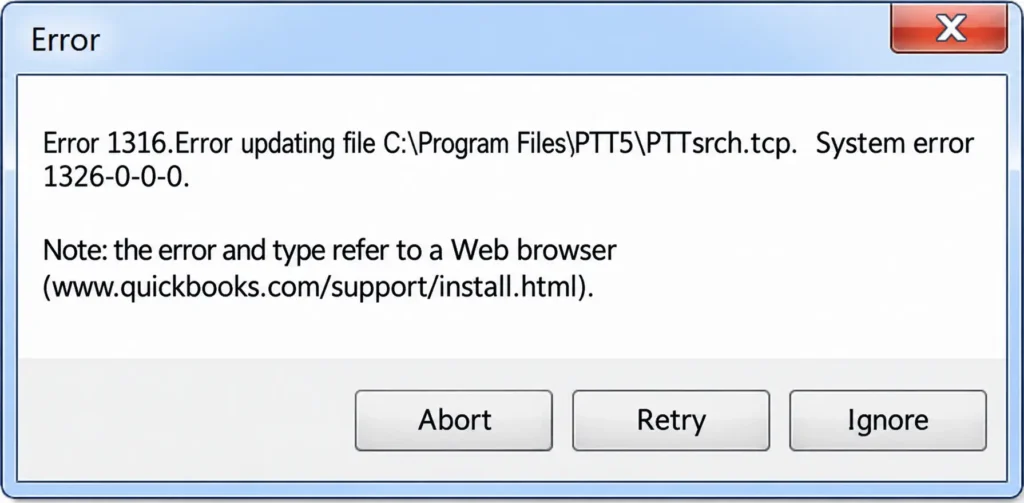
QuickBooks Error 1328 can occur if the update or installation files are damaged. A QuickBooks repair can resolve this issue.
- Close QuickBooks Desktop.
- Save all your open work.
- Restart your computer.
- Open Windows Control Panel.
- Select Programs and Features.
- Find QuickBooks Desktop.
- Select Uninstall/Change.
- Click Repair if available.
- Follow the repair instructions.
- Just wait until the repair is complete.
- Restart your computer.
- Open QuickBooks Desktop.
- Try downloading the update again.
- Check whether Error 1328 occurs.
- Verify the installed release.
Fix 9: Resolve QuickBooks Error 15106
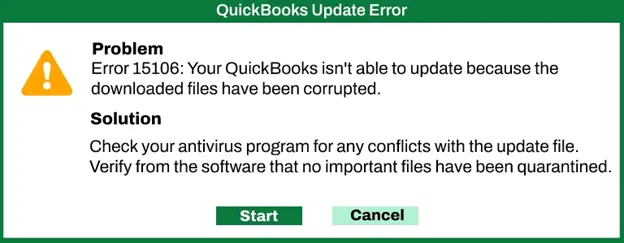
QuickBooks Error 15106 can occur if your antivirus is blocking the update files. It can also occur if your download folder is damaged. See the instructions below to resolve it.
- Close QuickBooks Desktop.
- Press Ctrl, Shift, and Esc at the same time.
- Open Windows Task Manager.
- Check for stuck Security or QuickBooks tasks.
- Review your antivirus settings.
- Open File Explorer.
- Go to the QuickBooks installation folder.
- Find the DownloadQBXX folder.
- Right-click the folder.
- Select Rename.
- Add .OLD to the folder name.
- Press Enter.
- Open QuickBooks Desktop as an admin.
- Open the Help menu.
- Select Update QuickBooks Desktop.
- Click the ‘Update Now’ tab.
- Check Reset Update.
- Click Get Updates.
- Just wait for the download to complete.
- Close and reopen QuickBooks.
- Install the downloaded update.
- Just turn your normal security settings back on.
- Check that Error 15106 is gone.
Fix 10: Resolve QuickBooks Update Stuck or Frozen
QuickBooks updates can freeze if the program stops responding. Check the install before you close anything. Don’t interrupt an update that’s still running.
- Wait a few minutes to see if the update is progressing.
- Don’t turn off your computer during an active installation.
- Press Ctrl + Shift + Esc.
- Open Task Manager.
- Select the Processes tab.
- Find QuickBooks tasks that are not responding.
- Check QBW32.exe and qbupdate.exe.
- Select only the stuck tasks.
- Click End Task.
- Close Task Manager.
- If the installer has stopped, restart Windows.
- Open QuickBooks Desktop as an admin.
- Open the Help menu.
- Select Update QuickBooks Desktop.
- Click the ‘Update Now’ tab.
- Check Reset Update.
- Click Get Updates.
- Just wait for the download to complete.
- Close QuickBooks Desktop.
- Open QuickBooks again.
- Install the available updates.
- Press F2 to view the installed release.
How do you know that QuickBooks Desktop has updated successfully?
Check the installed release to confirm that QuickBooks has updated correctly. See these instructions to verify the update.
Steps to Verify the Latest QuickBooks Desktop Release
- Open QuickBooks Desktop.
- Press F2 or Ctrl + 1.
- Wait for the Product Information window to appear.
- Find the Product field.
- Look in the Release field.
- Check your QuickBooks product year.
- Compare the release number with the most recent release.
- Ensure the release number matches your product.
- Open your company file.
- Check your core accounting features.
- Test your banking and payroll features.
- Confirm that QuickBooks works without update errors.
What Are the Best Tips to Prevent QuickBooks Desktop Update Errors?
Taking the following steps will prevent issues during an update, and keep data safe:
Back up data regularly in your company file(s).
- Keep Windows updated.
- Ensure there is sufficient storage space.
- Have a stable internet connection.
- Enable auto-updates within QuickBooks.
- Close any unnecessary programmes.
- Make sure you have admin privileges.
- Check compatibility between Anti-virus/Firewall programmes.
- Update the host machine first.
- Make sure that the same version of software is updated on all connected machines.
- Check if Database Server Managers are up to date.
- Ensure Payroll Tax Tables are updated regularly.
- Check data integrity has been maintained after significant maintenance.
- Make sure financial reports are accurate after significant updates.
Conclusion
Regular maintenance helps businesses keep their accounting software secure, stable, and reliable. Learning how to update quickbooks desktop correctly also reduces installation problems and unnecessary interruptions. Always create company file backups, check system requirements, and verify the installed release. Multi-user businesses should update their host computers and workstations consistently. For additional assistance with QuickBooks Desktop updates and troubleshooting, contact Accounting Assist Pro at +1-888-892-5727 for professional support.
Frequently Asked Questions About QuickBooks Desktop Updates
1. How do I Update QuickBooks Desktop to the latest release?
Open QuickBooks Desktop and select Help > Update QuickBooks Desktop. Click the Update Now tab and select Reset Update. Next, click Get Updates and wait for the download to finish. Restart QuickBooks and install the available updates when prompted.
2. Is Updating QuickBooks Desktop free?
Yes, regular maintenance updates are generally free for eligible QuickBooks Desktop users. These updates fix software problems, improve performance, and add important changes. However, upgrading to a newer QuickBooks Desktop product version may require an additional purchase.
3. How do I know if my QuickBooks Desktop is up to date?
Open QuickBooks Desktop and press F2 or Ctrl + 1 on your keyboard. A Product Information window will appear. Check the Product and Release fields to find your current version. Compare these details with the latest release available for your product.
4. Why is my QuickBooks Desktop update not working?
QuickBooks Desktop Updates may fail because of damaged download files, weak internet connections, or blocked permissions. Antivirus software can also interrupt the update process. Check your internet connection, run QuickBooks as an administrator, and reset the update files to resolve these problems.
5. How often should I Update QuickBooks Desktop?
Check for new QuickBooks Desktop updates regularly and install maintenance releases when they become available. These updates help fix errors and improve software performance. Also, download payroll updates regularly to keep employee tax calculations and payroll information accurate.
6. Can I Update QuickBooks Desktop without losing company file data?
Yes, installing regular QuickBooks Desktop maintenance updates does not normally remove your company file data. However, unexpected problems can sometimes affect your files. Always create a company file backup before starting the update process to protect your financial records.
7. How do I Update QuickBooks Desktop in Multi-User Mode?
First, update QuickBooks Desktop on the server computer hosting your company file. Next, install the same update release on every workstation. Make sure all computers use compatible QuickBooks versions. Restart each system and check whether users can access the company file.
8. How do I Update QuickBooks Database Server Manager?
Download and install the latest QuickBooks Desktop release on your server computer. Open QuickBooks Database Server Manager and select the Scan Folders tab. Add your shared company file folders and click Scan. This process updates the database components and checks your shared files.
9. What should I do if QuickBooks freezes during an update?
Press Ctrl + Shift + Esc to open Windows Task Manager. Find the unresponsive QuickBooks process and select End Task. Restart your computer and open QuickBooks again. Reset the update files and download the latest release before trying the installation again.
10. Do I need to Update QuickBooks Desktop Payroll separately?
Yes, QuickBooks Desktop Payroll tax table updates require a separate download. Open QuickBooks Desktop and select Employees > Get Payroll Updates. Check the Download Entire Update option and click Update. Wait for the download to finish before processing payroll.