
QuickBooks Desktop eventually leads users to the problem: an error code, a frozen screen, or a company file that simply refuses to open. Intuit’s solution to this set of issues is QuickBooks Tool Hub, an application that compiles the most-used repair utilities as a single downloadable program.
Prior to QB Tool Hub, users had to individually download the diagnostic and repair programs that best addressed each error. This practice was effective, but required tracking down the appropriate tool for each issue and updating them all regularly. Lets understand what exactly Intuit QuickBooks Tool Hub is.
Key Takeaways: QuickBooks Tool Hub
- Free Download: Helps fix common QuickBooks Desktop installation, network (H-Series), and company file issues (6000-Series).
- Choose the Right Tool: Select the appropriate option for program, installation, network, or company file errors.
- Check Compatibility: Verify Intuit’s current Windows and QB Desktop requirements before installing.
- Use trusted Downloads: Download Tool Hub directly from Intuit’s official Page/website (use on a Windows 11 (64-bit) system for the best performance).
- Back Up Your Data: Secure your company file or data before running repairs or a clean installation.
- Know Its Limits: Complex data crookedness and reconciliation discrepancies may needs additional professional assistance.
What Is QuickBooks Tool Hub?
QuickBooks Tool Hub is a free desktop application produced by Intuit for use by QuickBooks Desktop users on Windows. It compiles Intuit’s individual diagnostic and repair programs, which previously had to be individually downloaded and run, into one interface that organizes each utility by category.
QuickBooks Tool Hub Version History
| Version | Release Period | Major Update |
| 1.6.0.8 | March 2025 | Latest stable release |
| 1.6.0.3 | Around 2024 | Performance and reliability improvements |
| 1.5.0.x | Around 2023 | Introduced additional file troubleshooting capabilities |
The latest version of Tool Hub is 1.6.0.8, available directly from Intuit’s official pages. It is unavailable for macOS and Linux, as it was developed exclusively for Windows to support the locally-installed QuickBooks Desktop.
Tool Hub was introduced as a response to the incompatibility issues surrounding QuickBooks Desktop’s individual utilities. Prior to its introduction, tools such as the QuickBooks File Doctor, Install Diagnostic Tool, and Connection Diagnostic Tool had to be individually downloaded and run, even if a user encountered multiple issues. A user troubleshooting both a network error and a printing error previously had to search Intuit’s support pages for two separate installers, potentially from two separate tabs. Placing each tool into tabs by category made it far simpler to troubleshoot common issues, both for end-users and for Intuit’s support staff.
What Does QuickBooks Tool Hub Do | Benefits
QuickBooks Tool Hub encompasses six categories of repair tools for QuickBooks Desktop:
- Company file errors, including the 6000-series errors that prevent a file from opening
- Network and multi-user errors, including H202, H303, and similar connection issues
- Program crashes and freezes, including QuickBooks’ failure to launch or respond appropriately
- Installation and update failures, including error codes 1904, 1935, and 15XXX payroll update failures
- PDF and printing errors, including failures to print, email, or save forms as PDFs
- Password and login issues, for users locked out of a company file
A user does not need to determine the root technical cause behind the issue: each symptom falls under one category, and therefore has one appropriate tool.
Where Tool Hub Fits: Desktop vs. Online
QuickBooks Tool Hub is exclusively for Desktop: Online users will find no equivalent downloadable program. QuickBooks Online is a browser-based program and the majority of errors Tool Hub targets, including corrupted company files and Windows installation failures, only occur with a locally-installed application. If one’s instance of QuickBooks runs in the browser, Tool Hub is not the appropriate utility, as the repairs for QuickBooks Online issues are found within the Online product or Intuit’s support channels for that product.
System Requirements
Before downloading Tool Hub, ensure that the Windows computer on which it will be installed meets the following requirements:
- Windows 10 or Windows 11 (64-bit recommended for optimal performance)
- An active internet connection for the download and for tools that require checking against Intuit’s servers
- Microsoft .NET Framework installed and up to date
- Microsoft Visual C++ Redistributable Package installed
- Administrator rights on the computer, as several repair tools require modifying system files
QuickBooks Diagnostic Tool will generally notify the user of any dependencies that are unmet, but verifying the above requirements beforehand prevents a failed installation.
QuickBooks Tool Hub Features
Tool Hub has become a go-to repair utility for the following reasons:
- Single download, multiple tools: Every diagnostic utility Intuit offers for common errors is compiled into one downloadable application, rather than individual downloads found across Intuit’s support pages
- Category-based interface: Tabs are organized by problem category, rather than by individual tool, so users do not need to identify which utility they require beforehand
- Free: Tool Hub has no additional cost to download and use, with no license or subscription
- Regularly updated: Intuit frequently updates Tool Hub to offer support for additional error codes and versions of QuickBooks Desktop
As Tool Hub makes modifications to Windows Registry entries and system files during its repairs, some antivirus or endpoint security suites may identify it as a threat during installation. This behavior is standard for programs that make modifications to these areas and should not be considered malicious, so long as the installer itself came from Intuit’s support pages.
Note: For a smoother experience, QuickBooks Tool Hub is recommended for 64-bit Windows 11 systems.
How to download QuickBooks Tool Hub [2026]
This is where people go wrong most often, they end up on a mirror site or an old blog post linking to a version from two years ago. Go straight to the source instead.
- Open your browser and search “QuickBooks Tool Hub download” or go directly to Intuit’s official download page
- Close application completely before you start download the latest version of the QuickBooks Tool Hub.
- Save the file, it’s usually named something like QuickBooksToolHub.exe, to a folder you can find again, your desktop works fine
- Confirm the file size looks right, roughly 200 to 300 MB depending on the version, a much smaller file usually means the download didn’t finish properly
QuickBooks Tool Hub download for Windows, version by version
Tool Hub only works on Windows, and which version you need depends on your operating system.
- Windows 10 and 11 run the current release without issues
- Windows 8.1 and Windows 7 can still run older Tool Hub versions, but Intuit has stopped testing new releases against them
- Check whether you’re on 32-bit or 64-bit Windows before downloading if you’re on an older machine, most Tool Hub installers assume 64-bit now
If you’re not sure which version of Windows you’re running, right click the Start button, choose System, and the version and bit type are both listed right there. It takes ten seconds and saves you from downloading a file that won’t even open.
How to check you have the latest QuickBooks Tool Hub version
An outdated Tool Hub is one of the most common reasons its own repair tools fail to fix anything.
- Open Tool Hub and look at the version number on the home screen
- Compare it against the version listed on Intuit’s download page
- If yours is older, uninstall the current one through Control Panel first rather than installing over it
- Download the current version fresh and install it the way you would a new program
What To Do Before Running Any Tool Hub Repair
The following precautions make Tool Hub’s repairs safer and easier to undo, should the repair process prove too intrusive:
- Back up the company file before running File Doctor or any repair that touches company file data
- Close QuickBooks Desktop completely on every workstation before running a repair, including processes in Task Manager if the program appears to be frozen
- Run Tool Hub as an administrator, as most of its tools will not complete a repair process without elevated permissions
- Note the current version of Tool Hub on the Home tab before contacting support, to ensure that the version in use has the latest features
How to install QuickBooks Tool Hub
Once the file’s downloaded, installing it is short, but skipping a step here is what causes most of the “won’t install” complaints later.
- Right click the downloaded .exe file and choose Run as Administrator
- Click yes on any User Account Control prompt that pops up
- Follow the on screen instructions and accept the license agreement
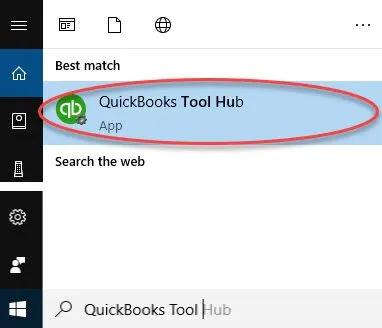
- Once installation finishes, a QuickBooks Tool Hub icon appears on your desktop, double click it to open
Key points
- Always run the installer as administrator, not just double click it
- Approve the User Account Control prompt, don’t dismiss it
- Restart your computer once after the first install if QuickBooks was open recently
- The desktop icon confirms installation worked, if it’s missing, the install likely didn’t finish
QuickBooks Tool Hub won’t download, here’s why
If the download itself keeps failing or stalling partway through, it’s usually one of these.
- Your antivirus or a browser extension is flagging the .exe and quietly blocking it, check your downloads and security notifications
- Your internet connection is dropping mid download, try switching from WiFi to a wired connection if you can
- You’re downloading from a third party site instead of Intuit’s own page, and that copy has been taken down or altered
- Your browser has a download size limit set, which some corporate networks configure without you knowing
Try downloading again through Intuit’s page directly, and if it still won’t go through, try a different browser entirely.
QuickBooks Tool Hub won’t install, here’s why
Getting the file downloaded is only half the job. If it downloads fine but refuses to install, check these.
- You didn’t run the installer as administrator, this alone accounts for a huge share of failed installs
- An older version of Tool Hub is still on the machine and conflicting with the new one, uninstall it first
- QuickBooks was still open in the background during installation, close it fully and try again
- Windows itself needs updates, Tool Hub sometimes depends on components that ship through Windows Update
- The installer file is corrupted or incomplete, delete it and download a fresh copy rather than trying to repair it
If none of that clears it, restarting the computer before your next attempt fixes more of these than it should reasonably be able to.
How to Use QuickBooks Tool Hub
Tool Hub is organized into eight tabs based on repair categories: many online guides only describe three or four, so the following breakdown reflects the current full structure.
1. Home
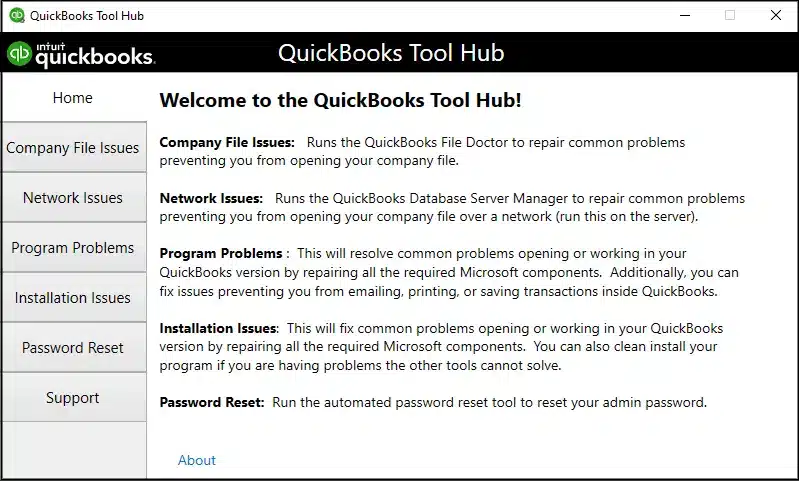
The landing page displays the version number and a brief description of each section, useful for confirming the release version when contacting support.
2. Company File Issues
This tab stores QuickBooks File Doctor, the primary tool for repairing damaged or inaccessible company files.
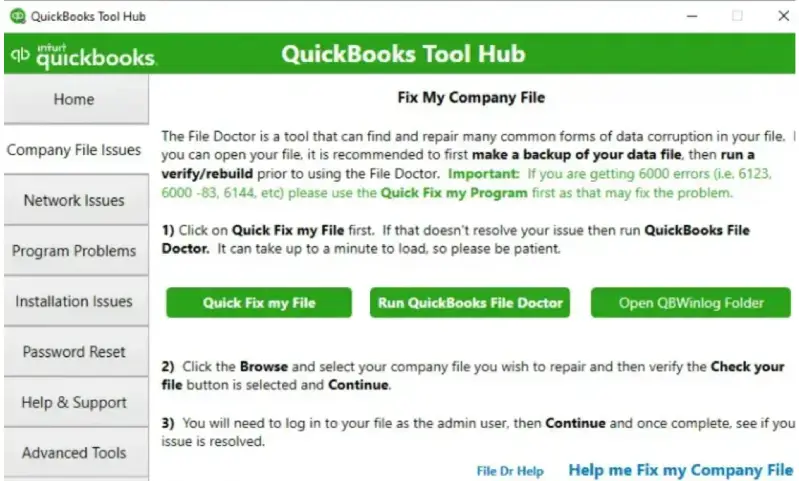
- Repairs common causes of 6000-series errors, including 6000 77, 6000 80, and 6000 83
- Scans the company file for data damage
- Restores network access to a shared company file
3. Network Issues
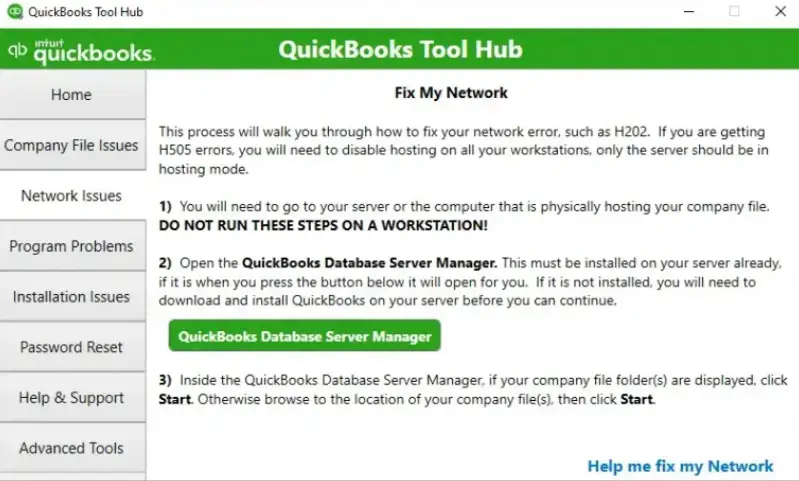
Designed for multi-user environments where workstations are unable to access the company file on a server.
- QuickBooks Database Server Manager, run on the server machine to scan for and repair server-side issues
- QuickBooks Connection Diagnostic Tool, which solves H-series errors like H202 and H303, along with connection-related 6000-series errors
4. Program Problems
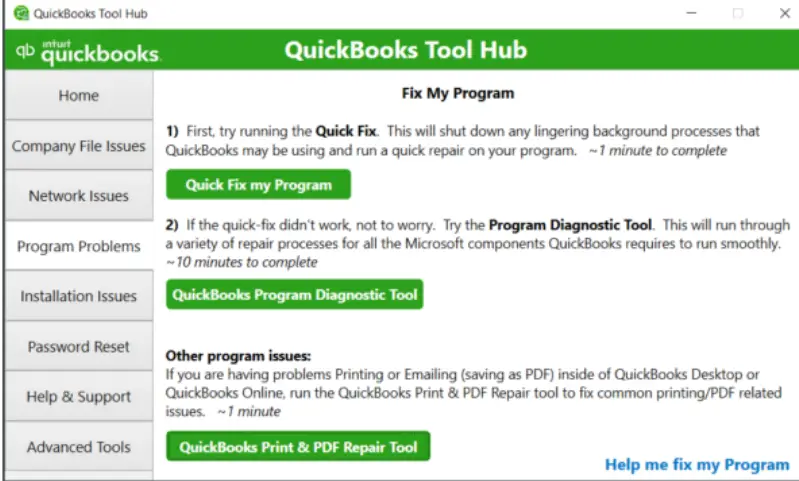
When QuickBooks Desktop itself begins to crash, freeze, or respond sluggishly, this is the tab to open.
- Quick Fix My Program, which closes background QuickBooks processes and re-launches the program
- QuickBooks Program Diagnostic Tool, for more involved performance repairs
- QuickBooks Print & PDF Repair Tool, for printing and PDF generation failures
5. Installation Issues
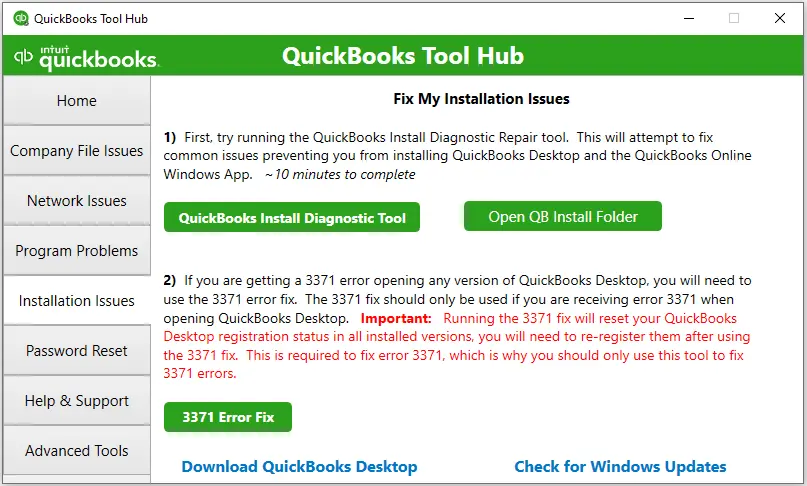
For installation errors that occur during installation, updating, or de-installing QuickBooks Desktop.
- QuickBooks Install Diagnostic Tool, which repairs damaged installation files and related Microsoft components behind errors such as 1904, 1935, and the 15XXX payroll update series
- Clean Install Tool, which de-installs and re-installs QuickBooks Desktop cleanly
- 3371 Error Fix, a dedicated tool for licensing error 3371
Read More: Common QuickBooks Payroll Errors Fixes.
6. Password Reset
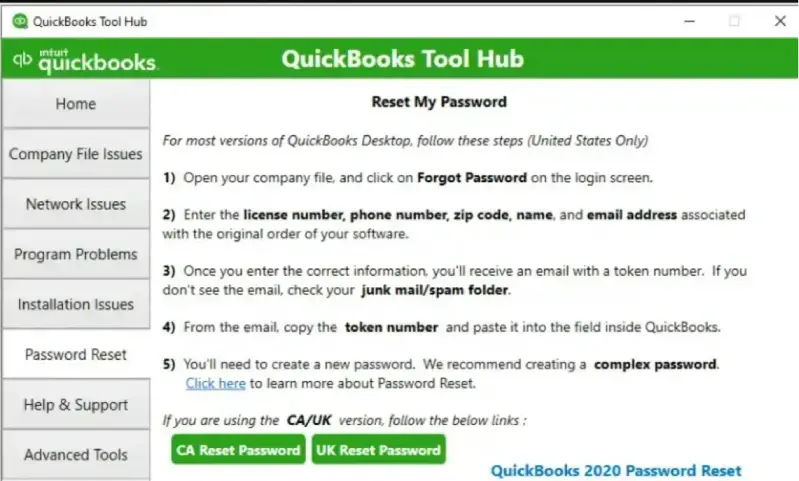
Users locked out of a company file, usually due to a forgotten admin password, use this tab to reset it.
- Reset Password tool for US company files
- Separate reset options for UK and Canadian versions of QuickBooks Desktop
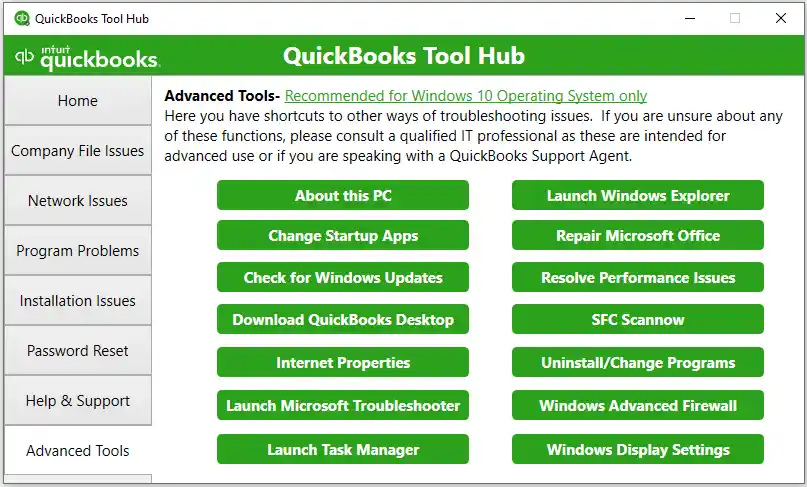
7. Advanced Tools
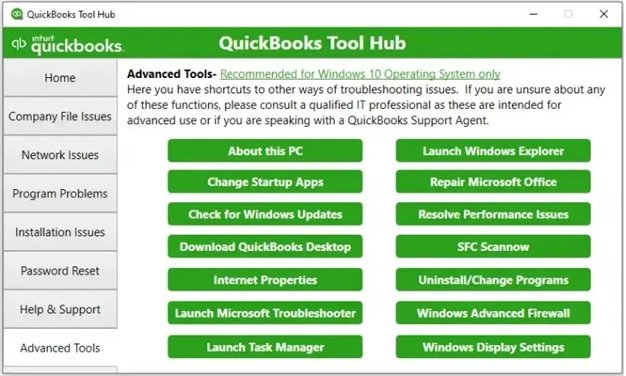
A set of Windows-level utilities for troubleshooting that falls outside the previous categories, including shortcuts to system components QuickBooks relies on.
8. Help & Support
Connects directly to Intuit’s support resources for issues that Tool Hub’s repair tools cannot resolve independently.
How Does Intuit QuickBooks Tool Hub Work?
Tool Hub does not scan the system or guess at the error: it works on a match-the-symptom model, where the category the error falls under directs the user to the appropriate tab, which contains the appropriate tool.
A company file that will not open points to the Company File Issues tab and the QuickBooks File Doctor, whereas a “QuickBooks has stopped working” message directs to Program Problems and Quick Fix My Program.
Tool Hub is a standalone application, separate from QuickBooks Desktop itself. As such, it has to be downloaded and installed to the same Windows computer where QuickBooks Desktop is kept, and must be updated to the latest version, as older releases may not have the necessary tools to address recent error codes. For step-by-step instructions for downloading and installing QuickBooks Tool Hub, see our complete guide on downloading and installing QuickBooks Tool Hub.
Common mistakes to avoid
- Installing Tool Hub while QuickBooks is still running in the background
- Downloading from search results instead of Intuit’s own site
- Assuming an old Tool Hub install still works instead of checking the version
- Skipping the “Run as Administrator” step because it seems unnecessary
- Ignoring antivirus pop ups instead of actually reading what they’re blocking
Quick recap
- Download Tool Hub only from Intuit’s official page
- Confirm you’re getting the latest version, not an old cached download
- Close QuickBooks before installing
- Right click and run the installer as administrator
- If it won’t download, check your antivirus and connection first
- If it won’t install, check for a leftover older version and confirm QuickBooks is fully closed
Getting Help Beyond Tool Hub
Tool Hub resolves most common technical errors, but it cannot solve everything. Persistent data damage or a complex multi-user network setup usually calls for a professional. Similarly, an error that traces back to the accounting entries itself, rather than the software, needs someone who understands both the technical side and the books behind it.
Accounting Assist Pro works with QuickBooks Desktop and QuickBooks Online daily, and assists clients in overcoming the errors Tool Hub’s automated repairs cannot address, along with the bookkeeping issues that often underlie them.
Tool Hub Is the First Step, Not the Only One
QuickBooks Tool Hub compiles eight categories of repair tools into one free download, and for most company file, network, installation, and printing errors, it is the right first step. Knowing what tab addresses what issue saves the time that would have been spent searching for individual repairs.
When an error persists after making use of the appropriate tab’s tool, or the underlying issue turns out to be a bookkeeping problem rather than a software one, that is the point to seek help that goes beyond any automated diagnostic tools. Contact Accounting Assist Pro’s expert Team at +1-888-892-5727 for instant help.
Frequently Asked Questions
Is QuickBooks Tool Hub free to download and use?
Yes. Intuit provides it at no cost as a standard support resource for QuickBooks Desktop users. There’s no subscription or license needed beyond your existing QuickBooks installation.
Does QuickBooks Tool Hub work on Mac?
No. It’s built for Windows only. QuickBooks Desktop for Mac has its own separate set of diagnostic and repair options through Intuit.
Why does my antivirus block the QuickBooks Tool Hub download?
This is a known false positive, not an actual security threat. Add an exception for the file in your antivirus settings, or try downloading through a different browser if the warning keeps appearing.
How do I know which version of QuickBooks Tool Hub I have installed?
Open Tool Hub and select the Home tab. The version number sits at the bottom of that screen, and you can compare it against the latest release on Intuit’s site.
Can QuickBooks Tool Hub fix a company file that won’t open?
Often, yes. Start with Quick Fix My File under Company File Issues, and run QuickBooks File Doctor if that doesn’t resolve it. Persistent file corruption sometimes needs more than what Tool Hub alone can offer.
Do I need to reinstall QuickBooks Tool Hub after every QuickBooks update?
Not usually, but it’s worth checking the Tool Hub version every few months since Intuit updates it separately from QuickBooks itself.
Why does Tool Hub ask for administrator access?
Several of its repair tools make changes to system files and Windows services, which Windows only allows with admin permissions.
What do I do if none of the download or install fixes work?
At that point it’s usually faster to have someone check the machine directly rather than keep guessing, which is exactly the kind of thing our team at Accounting Assist Pro handles for clients regularly.
