
QBCFMonitorService is short for QuickBooks Company File Monitor Service. It’s a small Windows service that gets installed along with QuickBooks Desktop, and its only job is to watch the folders where your company files sit. Database Server Manager depends on it to know which .qbw files exist on the host computer, so the other PCs in your office can open them. If it stops, QuickBooks tells you it’s “not running on this computer,” and multi-user mode gets shaky.
You’ve probably hit this because a coworker suddenly can’t open the file, or because you opened Database Server Manager and saw the warning sitting there. It’s annoying, especially mid-day. The good news is that it rarely means anything is wrong with your data. Nine times out of ten the service was simply switched off, blocked, or left half-installed after an update.
What QBCFMonitorService Not Running Does
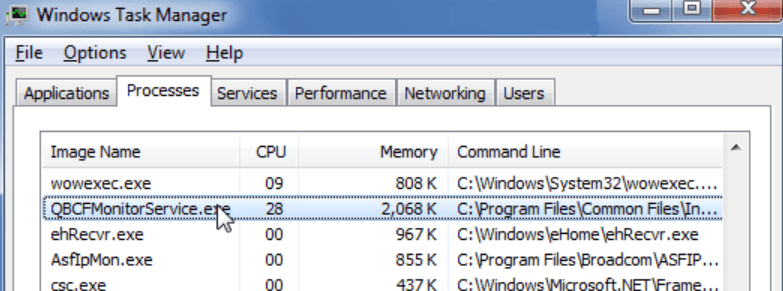
QuickBooks runs a handful of background services, and people mix them up. QuickBooksDBXX (the XX is your version, so QuickBooksDB33 for the 2023 release) runs the database. QBCFMonitorService does something narrower. It keeps track of folders and file locations so Database Server Manager stays current.
Working alone on one PC, you might never notice it died. In an office with several people opening one file over the network, you notice within minutes.
How you’ll spot it
The symptoms vary a bit:
- Database Server Manager says QBCFMonitorService not running on this computer.
- services.msc lists the service as Stopped, or it won’t stay started.
- Workstations can’t see the company file, though the host PC is on and the file is right where it should be.
- You try starting it by hand and get error 1068 or error 1053.
- A folder scan finishes and finds nothing.
If your workstations are also throwing hosting errors, our post on QuickBooks Error H202 is worth a look alongside this one.
What usually causes it
Nobody can point to one cause, and half the time you won’t know which it was until something works. The common ones:
- The startup type got changed to Manual or Disabled, often by a Windows update or one of those PC cleaner apps.
- Antivirus or the firewall blocked QBCFMonitorService.exe.
- QuickBooks didn’t finish updating, or the install is damaged.
- The service is logging on with an account that has no rights to the folder.
- A service it depends on failed to start.
- .NET Framework, MSXML, or Visual C++ files on the host are corrupted.
- Someone moved or renamed the company file folder, or it lives on a drive that isn’t always connected.
What to Try When QBCFMonitorService Not Running Issues
Start at the top. Stop when it works.
Restart it and set it to Automatic
This takes two minutes and fixes more cases than you’d expect.
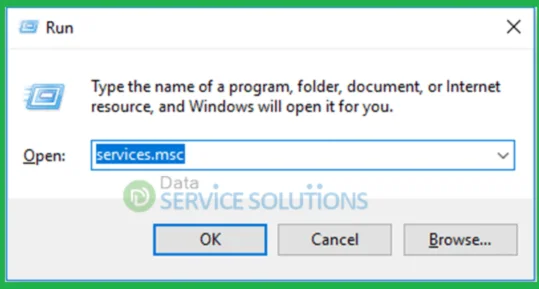
- Press Windows + R, type services.msc, hit Enter.
- Find QBCFMonitorService and double-click it.
- Change Startup type to Automatic, then click Start if it’s stopped.
- Open the Recovery tab and set every failure option to Restart the Service.
- Do the same for QuickBooksDBXX.
Open Database Server Manager after that and rescan. If the service dies again within seconds, keep going.
Use QuickBooks Tool Hub

Intuit bundles its repair tools into Tool Hub. Install it on the computer that hosts the file, not on a workstation. That mistake wastes a lot of time.
- Close QuickBooks on every machine.
- Open Tool Hub, go to Network Issues, and pick QuickBooks Database Server Manager.
- Add the folder holding your company file and hit Start Scan.
- Try opening the file from a workstation once the scan wraps up.
We wrote a longer walkthrough here: how to use QuickBooks Tool Hub.
Run Quick Fix my Program
Also in Tool Hub, under Program Problems. It looks frozen for a while. Don’t click around or close it, just wait. Restart the PC afterward and check the service again.
Check the log on account and folder rights
Sometimes the service starts fine but can’t actually read the folder.
- In services.msc, right-click QBCFMonitorService, choose Properties, then the Log On tab.
- Pick Local System account and let it interact with the desktop.
- Apply, then restart the service.
- Right-click the company file folder, go to Properties, then Security, and give your Windows user and the SYSTEM account Full Control.
If the file sits on a NAS or a mapped drive, this is where things tend to go sideways.
Deal with the firewall and antivirus
Security software blocks QuickBooks files all the time, and it doesn’t warn you.
- Add QBCFMonitorService.exe and QBDBMgrN.exe to your antivirus exceptions.
- In Windows Defender Firewall, allow the QuickBooks ports for your version. Database Server Manager can often set these up for you.
- To test, switch off third-party antivirus briefly, restart the service, and see if it holds. If it does, turn protection back on and add a proper exception. Don’t leave it off.
Repair the Microsoft pieces
A broken .NET install is a classic reason for error 1068.
- Run QuickBooks Install Diagnostic Tool from Tool Hub. It can take twenty minutes, so let it finish.
- In Control Panel, open Turn Windows features on or off and confirm .NET Framework 3.5 and 4.8 are ticked.
- Install pending Windows updates and restart.
Last resort: clean install
If everything above failed, the install is probably damaged. It’s a bigger job, so leave it for last.
- Back up your company file first. Copy it somewhere safe and check that the copy opens.
- Uninstall QuickBooks from Control Panel.
- Run Clean Install Tool from Tool Hub.
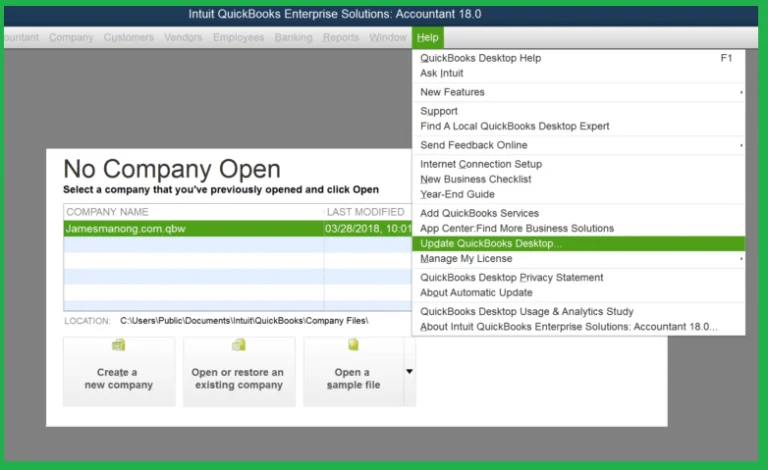
- Reinstall with your license and product number, then update to the latest release.
- Re-add your folders in Database Server Manager and scan.
Dig out your license number before you start. People lose it constantly, and finding it afterward is a pain.
When the fix only lasts an hour
This one is frustrating. You get the service running, everything looks fine, and then it quits again after lunch. That usually means something outside QuickBooks is killing it.
Open Event Viewer, go to Windows Logs, then Application, and look for errors around the time it stopped. A dying hard drive shows up there. So does a scheduled task or a “system optimizer” that shuts down services it thinks you don’t need.
Also look at where the company file is stored. Keeping it inside OneDrive or Dropbox causes a lot of trouble, since the sync app can lock the file at the wrong moment. Put it on a local drive or a proper server share.
Still stuck after all that? Call Intuit support or a QuickBooks ProAdvisor, or AccountingAssistPro for professional help particularly if the file runs your business. It’s worth paying someone for an hour rather than risking the data.
Keeping it from coming back
- Update QuickBooks and Windows, and restart the host PC after big updates.
- Leave the host on during work hours and turn off sleep mode.
- Schedule backups instead of doing them when something breaks.
- Skip the PC cleaner apps that disable services.
- Give the host a fixed local IP so workstations always find it.
FAQs– QBCFMonitorService Not Running
What is QBCFMonitorService in QuickBooks?
It’s a Windows service that watches the folders holding your company files and feeds that info to Database Server Manager. Multi-user access relies on it.
Is restarting QBCFMonitorService safe?
Yes, restarting it from services.msc won’t touch your data. Ask everyone to close QuickBooks first so nobody is mid-entry when the service bounces.
Can I keep using QuickBooks while it’s not running?
On a single PC, often yes. In multi-user mode, workstations may not find the company file until the service is back.
Why do I get error 1068 when starting it?
It means a service or group it depends on failed to start. Check that QuickBooksDBXX is running, repair .NET Framework, and run the Install Diagnostic Tool.
Do I have to reinstall QuickBooks to fix this?
Rarely. Switching the startup type to Automatic, running Tool Hub, or fixing firewall rules solves most cases. Reinstalling comes last.
